
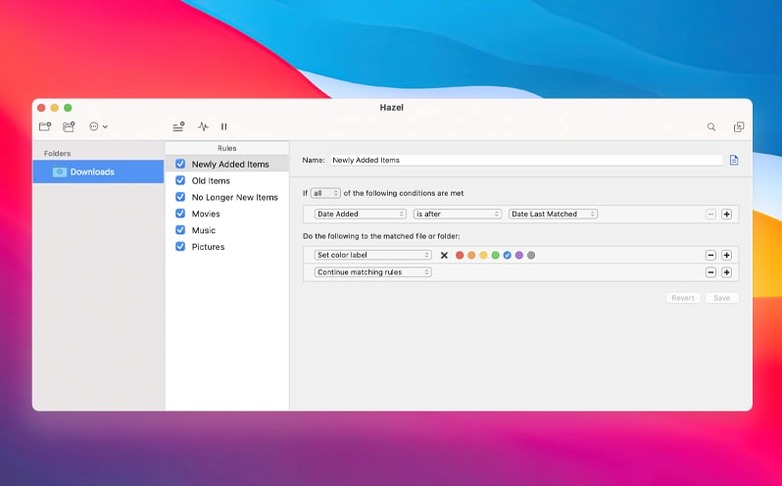
Version 6.1.2 is a quiet maintenance release that sharpens the edges. Tag colours now render correctly on macOS Tahoe, popovers have a refreshed look, and editing custom table attributes no longer trips over itself. The remote server file browser also got a more polished upload view, alongside the standard file dialog features that arrived earlier in the 6.1 cycle. It still requires Ventura or later, so older Macs are left behind. For anyone opening Hazel for the first time, the sheer blank canvas can be the hardest part. The trick is to start with one small mess you see every day.
Dragging downloads into sorted subfolders without opening Finder
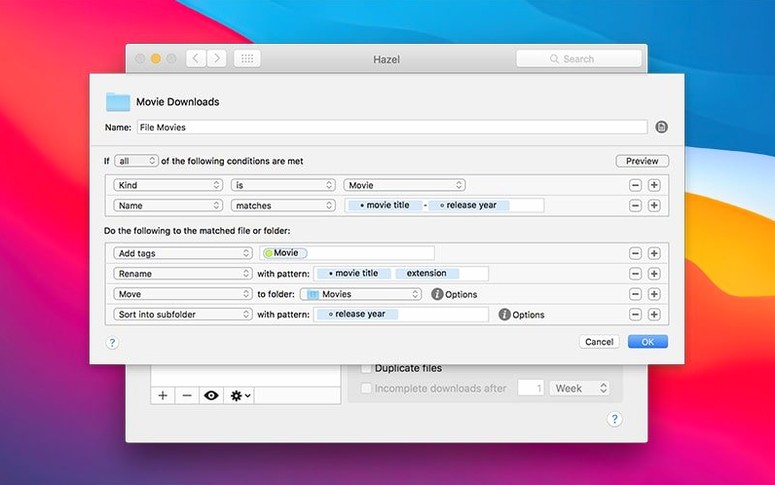
- Dragging downloads into sorted subfolders by file type, without ever opening Finder
- Scheduling a desktop cleanup that files screenshots away before your afternoon render
- Importing songs into Music and photos into Photos as soon as they land in a watch folder
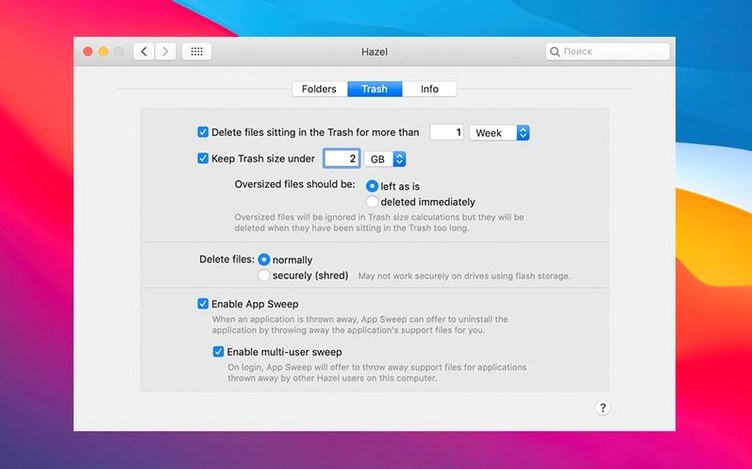
- Building a trash-management rule that deletes files older than a set number of weeks
Rules stay bound to their original folder even after you reorganize
- Rules are tied to a specific folder — if you reorganize your drive, the rule stays behind
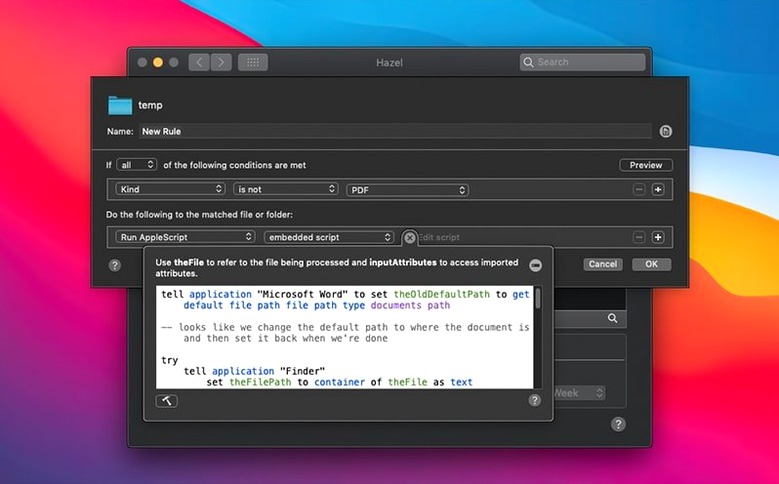
- Hazel acts more like a simplified Automator than a full scripting environment; complex conditional branching isn’t its strength
- Moving files between volumes means a copy-and-delete under the hood, which can be slow with large media
A rule that runs in preview but falls silent on its own
A rule that works perfectly during a manual preview can fall silent when left to run on its own. Almost always, the culprit is the polling schedule. Hazel checks watched folders every few minutes by default, not instantly, so a freshly downloaded file might sit untouched longer than you expect. If you need faster turnaround on a specific folder—say, a client’s FTP drop—open the folder’s settings and dial the polling interval down to a minute. Just don’t do that across a dozen folders on a spinning external drive; the constant disk access adds up.
Another frequent headache involves rules that match too broadly. A condition like Kind is Image catches everything from raw camera files to application icons, and suddenly your carefully named subfolders fill with cruft. Narrow the match with a second condition—file extension, pixel dimensions, or a source application—and run the rule in preview mode before letting it loose. Preview mode shows exactly which files would be moved or renamed, and skipping it is the fastest route to a Finder full of unintended consequences.
When Hazel stops responding altogether, the first thing to check is the system’s Full Disk Access settings. macOS sometimes revokes permissions after an update, and Hazel can’t touch files it isn’t explicitly allowed to see. Re-add it in System Settings, then restart the preference pane. If a single folder refuses to process, try removing and re-adding it; occasionally the folder’s internal tracking state gets stuck, especially after a drive unmounts unexpectedly.
Overlapping rules that rename, then move the same file twice
The most common beginner move is writing rules that overlap in ways that fight each other. A rule that renames PDFs by author might fire, then a second rule that sorts by date moves the renamed file again, and a third rule that tags anything without a keyword adds a tag—all before you’ve finished your coffee. Hazel processes rules in sequence, top to bottom, so order matters. Put the most specific rule first and use the “Continue” setting to decide whether later rules still apply to the same file. Turning off “Continue” on a rule prevents the ones below it from running, which stops a file from being shuffled through the entire list.
Another early error is pointing Hazel at a folder without accounting for its subfolders. By default, a rule only watches the folder you select, not the nested ones. If you want it to reach into every layer of a project folder, check the “Run rules on folder contents” option, but test it on a small sample first—recursing through a deep tree of thousands of files can lock up the pane while it scans. And if a subfolder contains files that match a “move” rule, Hazel will pull them up to the watched folder’s level, which can flatten a directory structure you meant to keep.
Sits as a preference pane with a lightweight background process
Does it run in the background all the time, and how much memory does it use? Hazel sits as a preference pane with a lightweight background process that wakes up to scan folders at their polling intervals. Idle memory usage hovers around 40 to 60 MB on most setups, barely a ripple. It doesn’t keep a constant index running, so there’s no background CPU drain between scans.
Will it move files I’m actively working on? Hazel respects file locks and the “date last opened” metadata. A rule can be set to ignore any file modified or opened within the last few minutes, so your working documents stay put while stale ones get archived. The default behaviour is cautious—it won’t yank something out from under an application that still has it open.
Can I test rules without committing to them? The preview function is the safety net. Select any rule, click the gear menu, and run a preview that shows exactly which files match and what would happen to them. No changes are made until you turn the rule on for real. Some people keep a test folder with copies of typical files and run new rules there first, especially when building multi-step chains.
What happens if I uninstall it later—do my files revert or break? Hazel doesn’t embed anything into your files. Folders return to being ordinary folders the moment the background process stops. Any files already moved, renamed, or tagged stay that way, exactly as if you’d done it by hand. There’s no proprietary database to clean up and no hidden metadata left behind.
Hazel 6.1.2 requires macOS 13 Ventura or later. Tag colours that previously vanished on Tahoe now appear correctly, and editing custom table attributes no longer causes unexpected behaviour. The ssh/scp port field in the server connection window has been resized for easier use, while the remote server file browser’s upload view received a visual update.
- macOS 13 Ventura or later
- Apple Silicon and Intel Macs
Questions from the booth
Yes. Once a rule matches, Hazel can move, copy, or sort files into a destination folder of your choosing.
It’s often described that way. Hazel focuses narrowly on file and folder actions triggered by conditions you set, without Automator’s broader workflow complexity.
Yes. You can create a rule that empties the trash based on file age or size, so nothing lingers indefinitely.