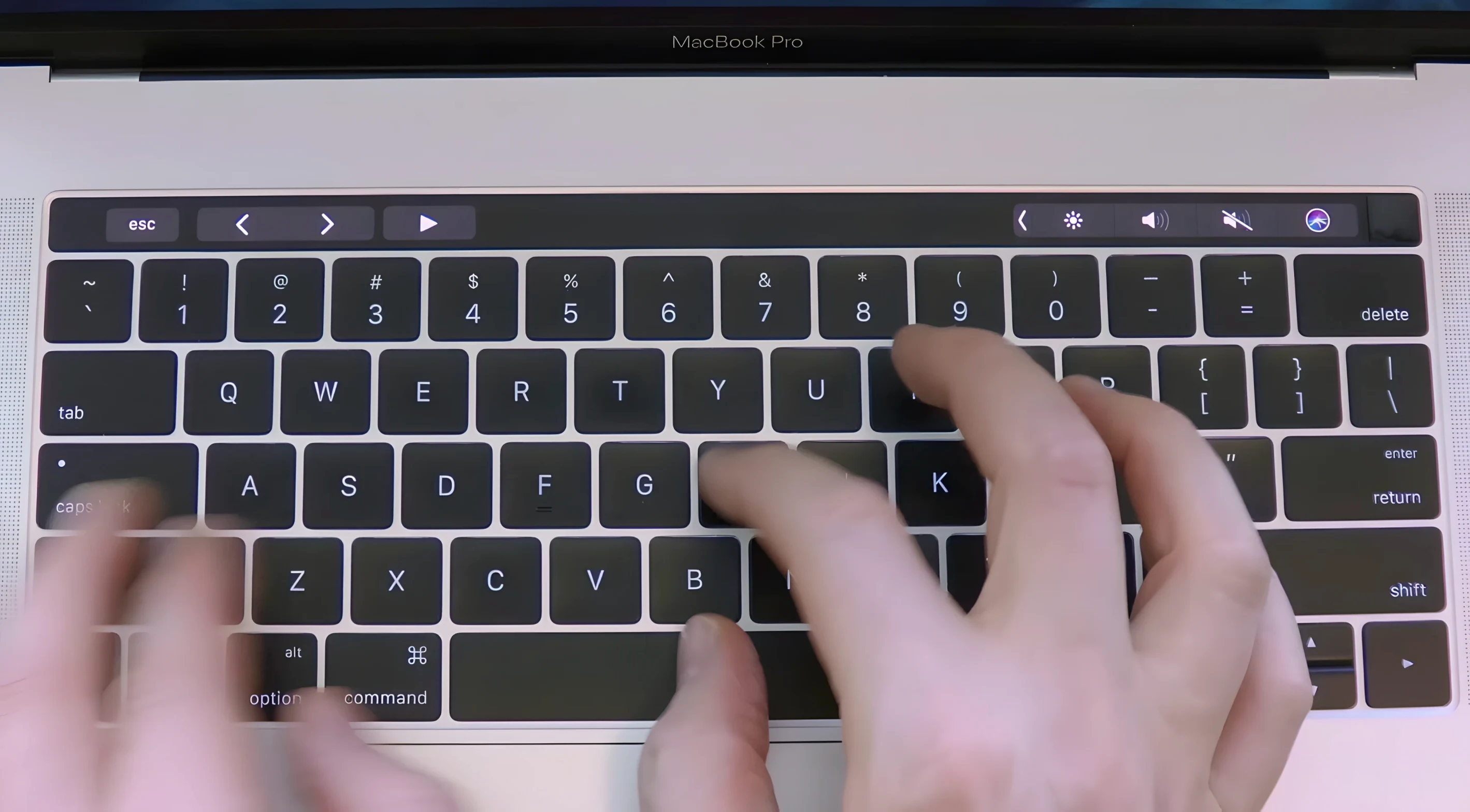
The Adaptive Intensity engine is what makes Haptyk feel less like a soundboard and more like a responsive instrument layered beneath your fingertips. Unlike a simple key-triggered click, the volume and presence of each keystroke swell and recede based on how firmly you press down, turning a flat sentence into something with physical contour. Setting it up is a single-focus task: you download the disk image, drag the app into your Applications folder, and launch it from Launchpad. From there, the utility reads the hidden accelerometer inside compatible Apple Silicon MacBooks to track the minute force variations that normal typing ignores.
- Choose a sound profile that matches your mood or the hour of the day.
- Press a key lightly for a faint, distant click; strike it harder for a pronounced thock or chime.
- Let the sound intensity fall back naturally as your fingers ease off the keys during a re-read.
- Type a long paragraph and notice how the audio texture shifts with your rhythm, not against it.
- Work in a quiet room without the sound feeling pasted on—it tracks the physical act, not just the character output.
After a long drafting session, the playback becomes a quiet gauge of your own momentum—the harder, faster passages sound dense and insistent, while the slower edits barely whisper in the background.
Fast typists and reflective drafters feel the pulse
Writers who spend entire mornings inside a draft get something particular from Haptyk that a casual emailer won't notice. The app works best for people whose typing already has a pulse—fast bursts of dialogue, long reflective paragraphs, the staccato rhythm of editing a sentence down to its bones. Novelists and screenwriters on a MacBook Pro 14-inch or 16-inch often describe the shift as the moment the keyboard stops feeling like a laptop surface and starts behaving like a room they're working in. The force-sensitive response means a tense scene and a quiet character sketch don't sound the same, and that variation keeps the physical act of writing from becoming background noise.
Developers who type in long stretches and want audio feedback without looking at the screen also take to it quickly. The sound profile follows actual key pressure, so a mistyped brace or a hesitation mid-function reads as a different texture from confident, flowing code. It's a subtle cue, but one that makes debugging marathons feel less numb. Musicians and sound designers tend to be the third group—people who already think about haptic and audio feedback as part of a creative loop. For them, the accelerometer-driven engine isn't a gimmick; it's a physical input mapped to an audio output, and they'll spend the first hour pressing the same key at different forces just to hear the gradient.
Silence on first tap means macOS is blocking the sensor
The most common early frustration is silence. Someone opens the app, taps a key, hears nothing, and assumes it's broken. Almost always, the MacBook's built-in accelerometer isn't being read because the app hasn't been granted Input Monitoring access. The fix is quick: open System Settings, navigate to Privacy & Security, find Input Monitoring, and toggle Haptyk on. A relaunch after that usually restores the connection. On M2 Pro machines and later, the sensor data flows immediately once permission is granted.
Another recurring hitch is sound lag on Intel Macs running the app through Rosetta. The architecture supports x86 64-bit, but the sensor polling was designed for Apple Silicon's tighter integration. If a keystroke sounds a fraction too late, closing background apps that poll the same hardware—voice assistants or third-party text expanders—often clears it up. On Apple Silicon MacBooks, this lag virtually never appears unless the machine is under extreme thermal load.
Some users notice the sound intensity feels uneven across the keyboard. The accelerometer sits near the centre of the chassis, so keys at the far edges—top-row function keys, the outermost corners—can read slightly softer. This isn't a calibration fault; it's the physical distance from the sensor. Shifting your typing posture so your wrists rest more centrally evens it out, and over a few days most people unconsciously adjust.
Swap the default click for a thock that cuts through café noise
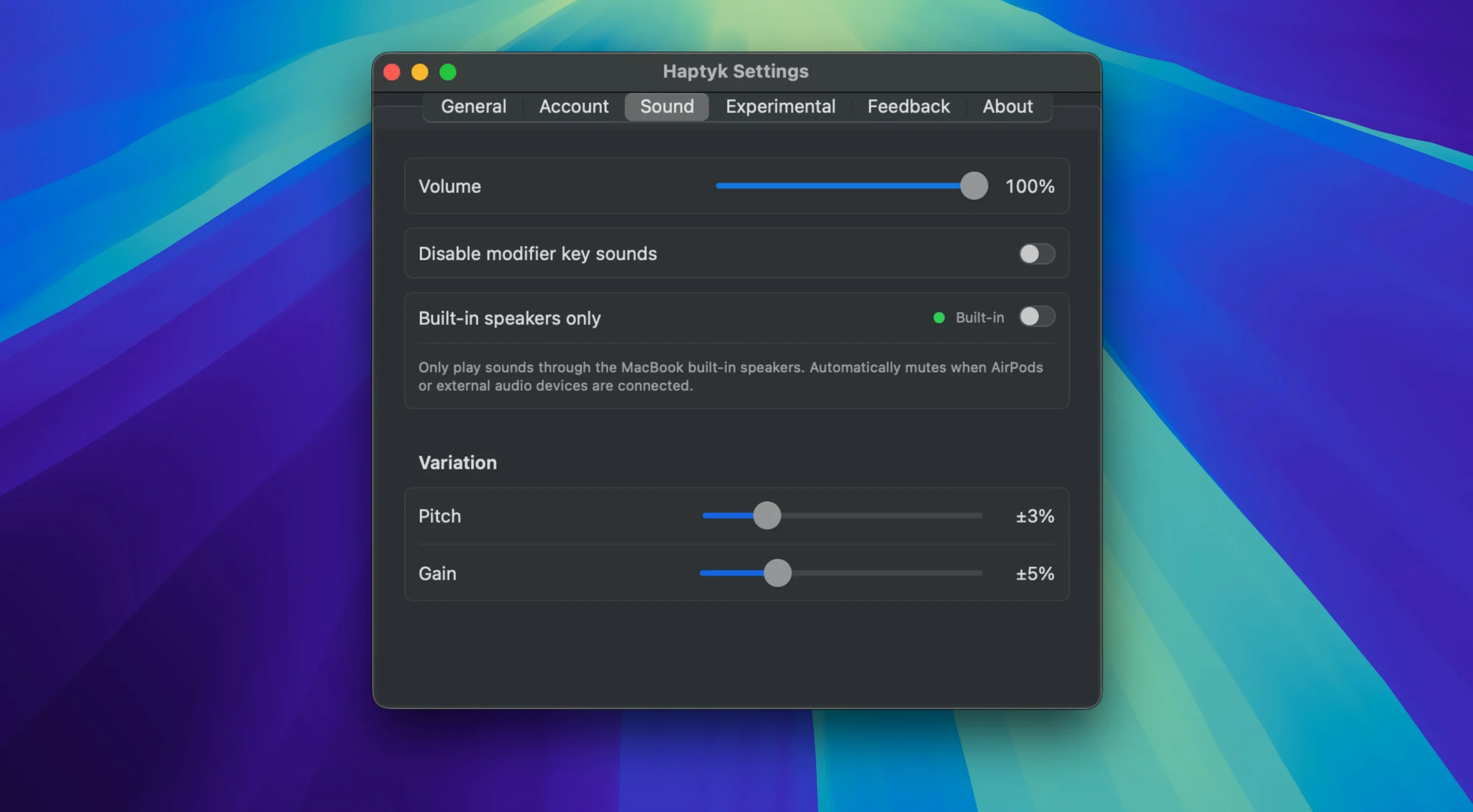
The default sound profile is deliberately middle-of-the-road—a soft mechanical click that works in a quiet apartment but disappears in a café. Swapping it early changes the whole character of the app. The deeper thock profile suits someone who misses a full-size mechanical board, while the lighter chime options work for shared spaces where you still want feedback without announcing every keystroke to the room. The difference between profiles isn't just timbre; each one responds to the force curve differently, so a profile that sounds muddy at light pressure might open up beautifully once you push into it.
The second setting worth immediate attention is the dynamic range ceiling. By default, Haptyk compresses the loudest keystrokes to avoid startling you, but if you're after the full gradient from whisper to impact, pulling that ceiling up makes the force curve more expressive. Writers who draft late at night tend to leave it low and pair it with a muted profile; anyone working alone during the day can open it up and let the keyboard speak.
Your own typing will sound foreign for the first hour
Give it an hour before you judge it. The sensation of your own typing producing responsive audio is strange at first—like hearing your footsteps amplified—and the initial impulse is to type unnaturally, pressing harder just to test the range. Let that impulse burn off. Write something you were already going to write, at your normal pace, and don't adjust the settings mid-sentence. The app's value isn't in the first ten keystrokes; it's in the moment, twenty minutes in, when you forget it's running and then notice the room feels more occupied than before.
A practical tip for the first day: keep the volume low enough that a single keystroke doesn't pull your attention, but high enough that a run of fast typing registers as a texture change. On a MacBook Air M2, the speakers project the sound upward into the keyboard area, so the effect stays surprisingly local—it doesn't fill the room the way external speakers would. If you're using headphones, the experience becomes entirely private, and that's where the force sensitivity really shines, because the audio sits in the same intimate space as your thoughts.
By the second or third day, the sound starts to function as a rhythm monitor. You'll notice when your typing stalls because the audio drops out. You'll notice when you're typing faster than you're thinking because the cadence gets sloppy. The app doesn't report statistics or show a dashboard—it just gives the keyboard a voice, and after a few sessions, that voice becomes a surprisingly honest reflection of how the work is actually going.
This release focuses entirely on under-the-hood stability and compatibility refinements. The developer hasn't detailed any user-facing feature changes for version 2.0.4, so expect the same haptic-feedback design workspace, now tuned for smoother operation on recent macOS builds.
- macOS 13 or later
- Apple Silicon or Intel 64-bit
Questions from the booth
It requires an Apple Silicon MacBook with an M2 Pro or later chip, as earlier models like the M1 MacBook Air lack the necessary sensor.
Yes, it uses the built-in accelerometer to vary sound intensity in real time, so a gentle press sounds quieter than a firm keystroke.
You need macOS 13 Ventura or newer to run the app.