
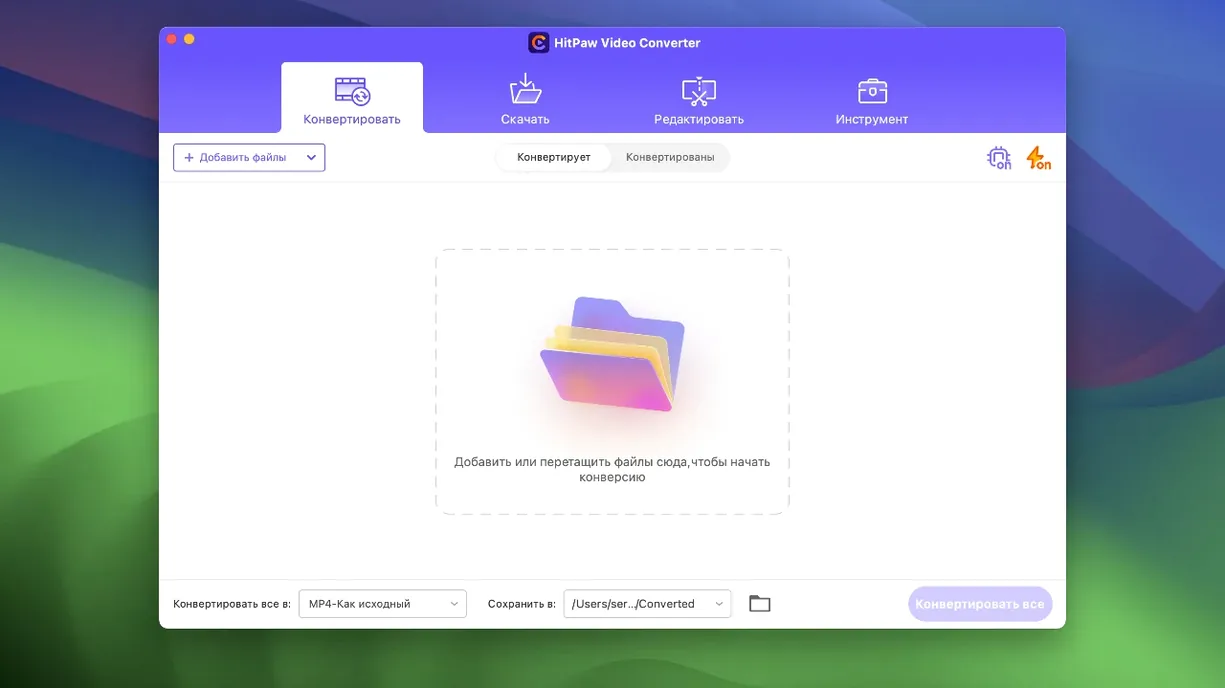
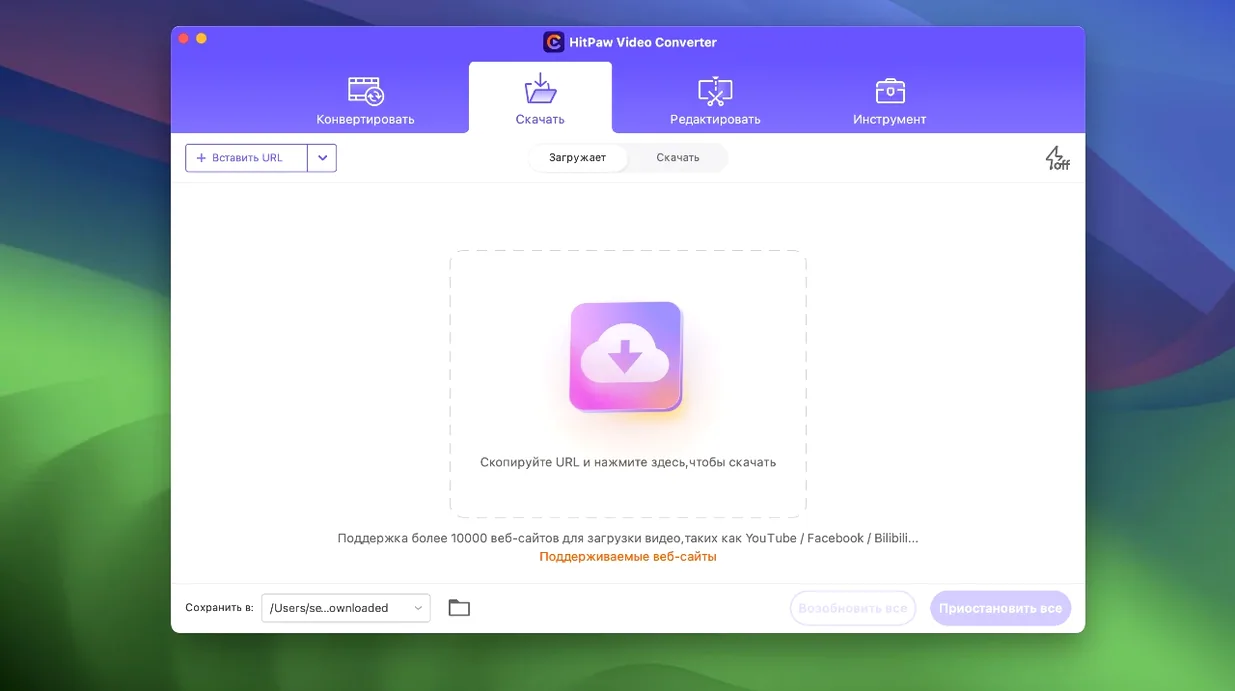
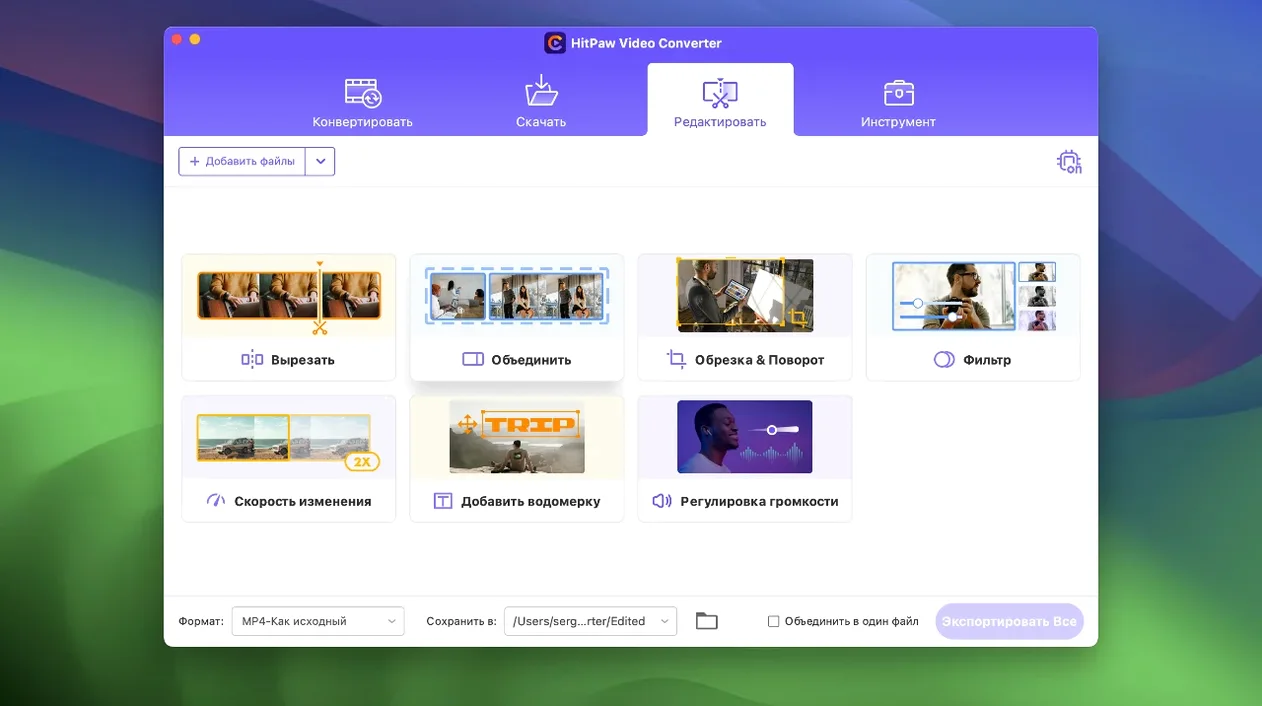
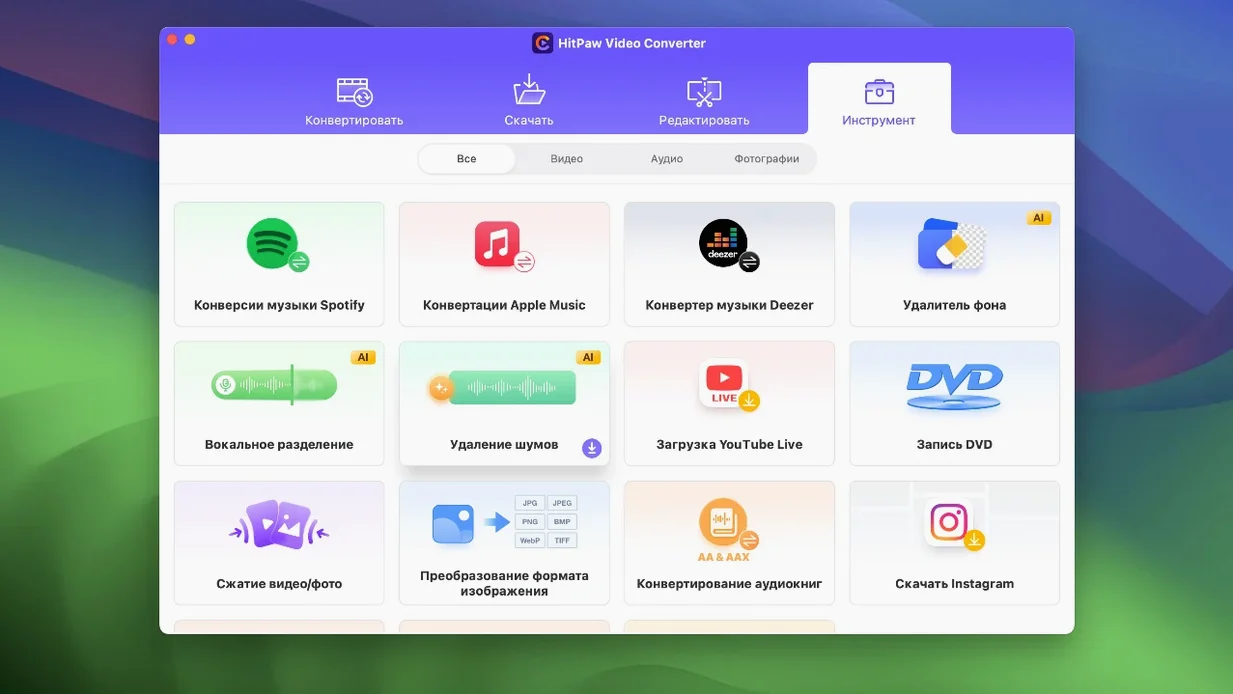
A film cutter assembling a rough timeline, a musician pulling stems from a Deezer stream, someone archiving a drive full of old family clips — HitPaw Video Converter slots into moments where file formats and sources refuse to cooperate. It converts, downloads, compresses, and edits, bundling those jobs under one roof so you aren't hopping between four different utilities.
Version 4.5.0 landed with October refinements rather than a rewrite. The compression module got some attention, which matters when you're shuttling ProRes 422 HQ files and want a watchable proxy without the maths showing. The editor module display was tidied up, and a new auto reframe feature arrived — the kind of thing that saves a vertical cut of a 16:9 interview for social without manual keyframing.
Underneath sits the same AI-assisted engine the developer pushes. It handles a long list of codecs, including VP9, ProRes, and Opus, and speaks to Apple Music, Spotify, and Deezer. The interface ships in sixteen languages, from Arabic to Hindi to Brazilian Portuguese, which hints at where the user base lives.
One app for convert, download, compress, and trim
- Running multiple media chores — convert, download, compress, trim — inside a single app
- Batch workflows that lean on GPU acceleration to keep conversion times short
- Pulling audio from streaming services when you need a reference track in the timeline
Intel-only on Mac, with Rosetta bridging Apple Silicon
- Intel-only on macOS 10.15 and above; Apple Silicon Macs run it through Rosetta
- The AI features are present, but the creative decisions still sit with you
Skipping the output settings panel costs you control
A surprising number of new users treat the app as a simple format picker and hit convert without ever opening the output settings panel. The default codec choices are sensible, but "sensible" means something different when you're archiving a short film versus sending a WhatsApp clip. Checking the bitrate slider and keyframe interval — especially for VP9 exports — saves the quiet disappointment of a blocky render later.
Another early stumble involves the downloader module. Pasting a URL and waiting works for most sites, but some streaming platforms serve segmented playlists rather than a single file. If the downloader grabs only the first three minutes of a two-hour concert, the fix is usually switching from the auto-detect parser to the manual stream selector, which sits in a small dropdown most people scroll past. A related trap: downloading at the source resolution without first checking whether your media player can actually decode that specific DASH stream. A few VLC builds choke on certain YouTube codec combinations, and the resulting file isn't broken — it just needs remuxing.
The editing tools invite overconfidence. Trimming a clip inside HitPaw is quick, but the trimmer writes to a temporary folder on the boot drive. People with small system volumes — a common MacBook Air configuration — sometimes fill their disk mid-session during a long batch trim. Pointing the scratch location to an external drive in preferences avoids the beachball cascade.
Two camps thrive: mixed-source editors and reference collectors
The users who settle into HitPaw Video Converter longest tend to fall into two camps. The first are videographers and editors working with mixed-source projects — a shoot on a Sony that delivers XAVC-S, drone footage in H.265, archival B-roll in ancient AVI containers, and a client who sent a PowerPoint export as a WMV. Having one tool that reads all of them without installing codec packs or firing up HandBrake separately reduces the friction of just starting the edit. These users lean on the ProRes transcoding pipeline because it feeds straight into Final Cut without a re-wrap step.
The second group are people who collect — and sometimes legally need to extract — audio from streaming services. A podcaster pulling interview segments from Spotify for fair-use commentary, a dance teacher grabbing clean Deezer tracks for class playback, a filmmaker building a temp score from Apple Music before the composer delivers. For them, the value is less about format support and more about the direct integration with those three platforms. The app handles the DRM layer quietly in the background, which means they spend their time in the waveform, not in system-level audio routing.
Intel Mac owners get native performance; Apple Silicon users run through Rosetta, and while the translation layer is efficient, the CPU encoder path shows its age on long 4K batches. Users on M1 Max machines report perfectly usable speeds — often within ten percent of native Intel numbers — but the GPU acceleration features don't tap into the Media Engine on Apple chips. That's a thermal and battery-life consideration if you're converting overnight on a MacBook.
Hardware encoding on a recent Intel iMac runs near silicon limits
Conversion speed depends almost entirely on whether the hardware encoder kicks in. With H.264 and HEVC jobs on a recent Intel iMac, the app saturates the Quick Sync path and runs close to what the silicon can deliver — a two-hour 1080p film in under fifteen minutes with sensible quality settings. Software-only encodes for ProRes or VP9 are slower, as expected, and the fans become audible. Memory use stays modest: around 600 MB for a queue of twenty clips, with occasional spikes to 1.2 GB when the AI reframe tool analyses a shot.
Stability in version 4.5.0 is solid in single-task use and mostly well-behaved in batches. The one recurring quirk involves the download queue — if a server drops a connection mid-fetch on the eighth item of twelve, the queue sometimes stalls instead of skipping and flagging the failure. A pause-and-resume cycle nudges it back. Crashes are rare; when they happen, they're tied to malformed source files rather than the app's own memory management. The auto-save on the conversion queue means you rarely lose progress.
Disk I/O during a large batch conversion can spike, particularly when reading from and writing to the same mechanical external drive. Splitting source and destination across two volumes smooths out the throughput and shaves noticeable time off a hundred-clip job.
Point the temp folder away from your system drive first
Before converting anything serious, open preferences and set the temporary folder to a volume with at least 20 GB free that isn't your system drive. While you're there, switch the default audio codec from AAC to Opus if your playback chain supports it — the quality-at-bitrate difference is audible on spoken word and acoustic music.
Run a short test batch of three clips in different source formats before committing to a fifty-file queue. Check the output files in your actual target player or NLE, not just in Finder preview. A QuickTime player that refuses a VP9 file does not mean the file is broken, but it does mean you want to know that before the deadline.
For the downloader, spend fifteen minutes learning which sites the auto parser handles cleanly and which need the manual selector. Make a mental note — or a real one — of the three streaming platforms you use most often. If one of them is on the supported list, the app becomes a daily utility rather than occasional software.
The 4.5.0 update refined the compression module and cleaned up the editor module display. Auto reframe arrived as the standout addition, cropping landscape footage to vertical or square on the fly.
- macOS 10.15 or later
- Intel processor (Apple Silicon supported via Rosetta)