
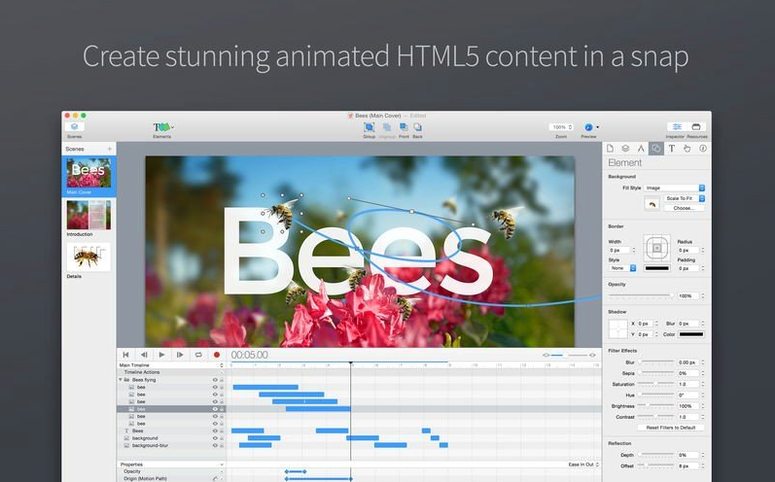

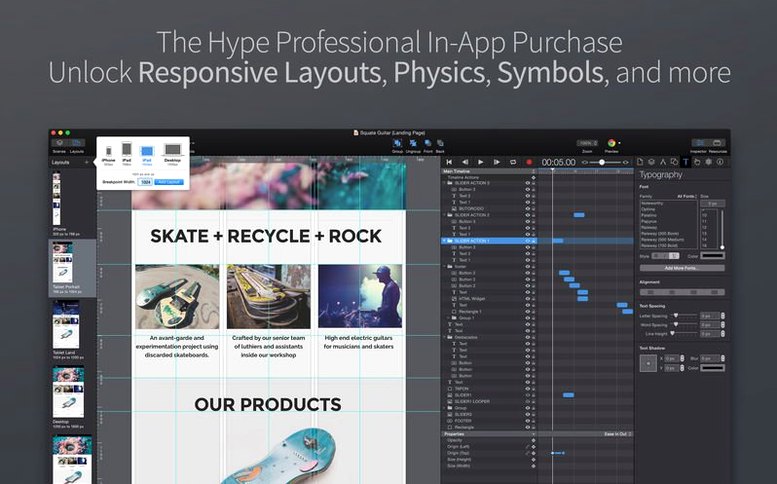
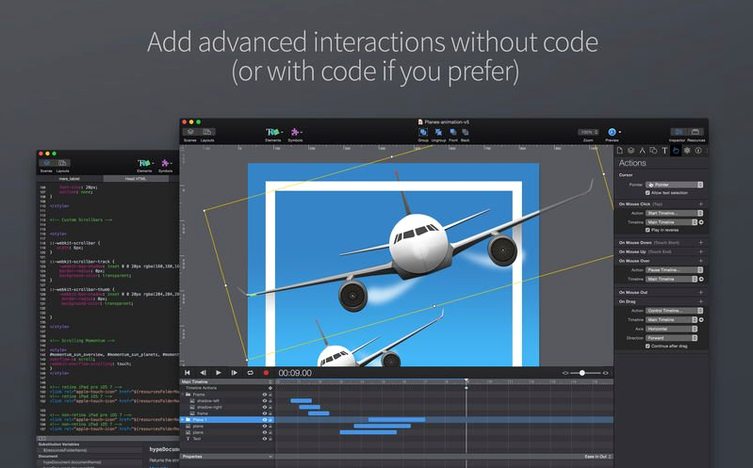
Most animation tools want you to learn a timeline before you can build anything that moves. Hype 4 Pro takes the opposite approach: the canvas is the timeline, and the act of placing elements starts the clock. It solves the gap between a visual idea and its web-ready output by letting you construct scenes directly, then exporting them as self-contained HTML5 bundles without touching a line of code.
Building a simple looping scene
The project starts with a blank rectangle and a piece of type. You drag elements onto the canvas, hit the record button, and reposition them further down the timeline. Hype records the in-between states automatically. For a looping scene, you set the animation to repeat and add a few staggered fades so the motion breathes rather than cycling mechanically. A subtle ease-in on the movement curves stops the action feeling robotic, and the whole thing stays under a dozen keyframes.
- Scene layout drawn directly on the canvas with built-in shape and text tools
- Auto-recorded keyframes capture position, opacity, and scale changes
- Easing curves applied per element to shape the motion feel
- Looping behaviour set from the scene inspector with no extra scripting
Exporting the finished piece
When the scene plays back the way you pictured it, Hype’s export writes out a folder with the HTML, JavaScript, and assets the animation needs. Drop that folder onto a server and the piece runs in any modern browser. On the current version 4.1.21, the built-in GIF encoder leans on Apple’s own engine, so a quick GIF export for social media previews looks cleaner than earlier builds. The whole round-trip—from blank canvas to a live animated scene—fits inside an afternoon.
Settings to revisit after your first export
Out of the box, Hype 4 Pro makes sensible choices, but a handful of defaults are worth adjusting before you settle into a daily rhythm. Head into the Hype preferences and switch the preview browser to one of the newly added options—Zen, Helium, or Dia all appear in the 4.1.21 preview menu, so pick whichever matches your regular testing environment. Under Document Inspector, check the responsive layout settings for each scene. The professional edition unlocks true responsive scaling; without it toggled, elements pin to fixed coordinates and will misbehave on narrower viewports. While you are there, set the background colour of the document explicitly instead of leaving it transparent, which avoids a flicker of white on slower connections when the HTML loads before the first scene draws.
Another quiet default sits in the export panel: the JavaScript runtime loads from Tumult’s CDN unless you override it. For projects where you control the server, embedding the runtime in the export folder adds a few kilobytes but removes an external dependency. Tick that box once and save it as part of your export preset so you never have to think about it again.
Ghost windows banished from thumbnail previews
The jump to 4.1.21 brought three practical changes that alter small daily habits. The thumbnail-generation fix for Tahoe means preview icons appear without a ghost window flashing onto the screen—a cosmetic annoyance that had been tripping up late-night sessions. More noticeable is the switch to Apple’s built-in GIF encoder. The previous engine sometimes produced banding in gradients; the new one handles subtle colour transitions with less dithering, so those quick social-media loops come out closer to what you see on the canvas. The expanded preview browser list, with Puppeteer now ignored, reflects a quiet shift toward lightweight native browsers for testing. If you had relied on Puppeteer for automated checks, you will want to point your workflow at one of the new additions instead.
When timeline actions override your scene loop
A recurring headache for newcomers is the scene not looping despite the inspector showing it should. The culprit is almost always a lingering scene action—specifically a Jump to Scene triggered by a timeline end that overrides the loop setting. Open the scene’s actions panel, look for anything firing at the timeline’s end, and clear it if the loop is what you actually intended. Another frequent snag involves symbols that refuse to animate inside their parent scene. Symbols have their own independent timelines, so dragging one onto the main stage and trying to keyframe it directly will do nothing. Double-click the symbol to enter its own timeline, animate there, and the motion will carry over when the parent scene runs.
On the export side, a blank browser screen after upload usually points to a missing MIME type on the server. The .mjs JavaScript module files Hype generates need the server to serve them with text/javascript—some older Apache configurations do not include this by default. A quick addition to the .htaccess file fixes it without touching the export itself. Lastly, if you grabbed a Hype 4 Pro Mac torrent build and find previews lagging on an Apple Silicon machine, confirm the app is running natively and not under Rosetta; the Get Info panel in Finder will tell you straight away.
- OS X 10.10 or later
- Apple Silicon or Intel 64-bit
Questions from the booth
It is a Mac application for building HTML5 animations and interactive web content, exporting finished work as self-contained web-ready bundles.
It runs on macOS 10.10 and later, including the current macOS 26 Tahoe.