
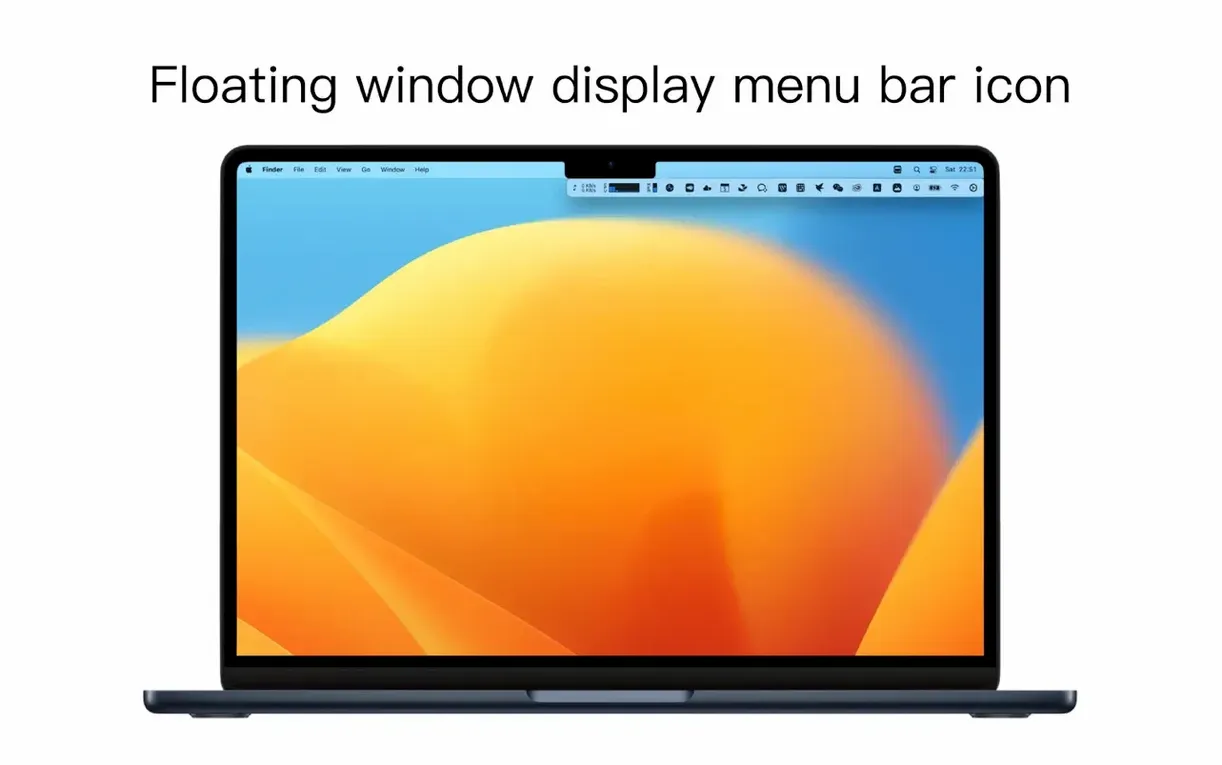
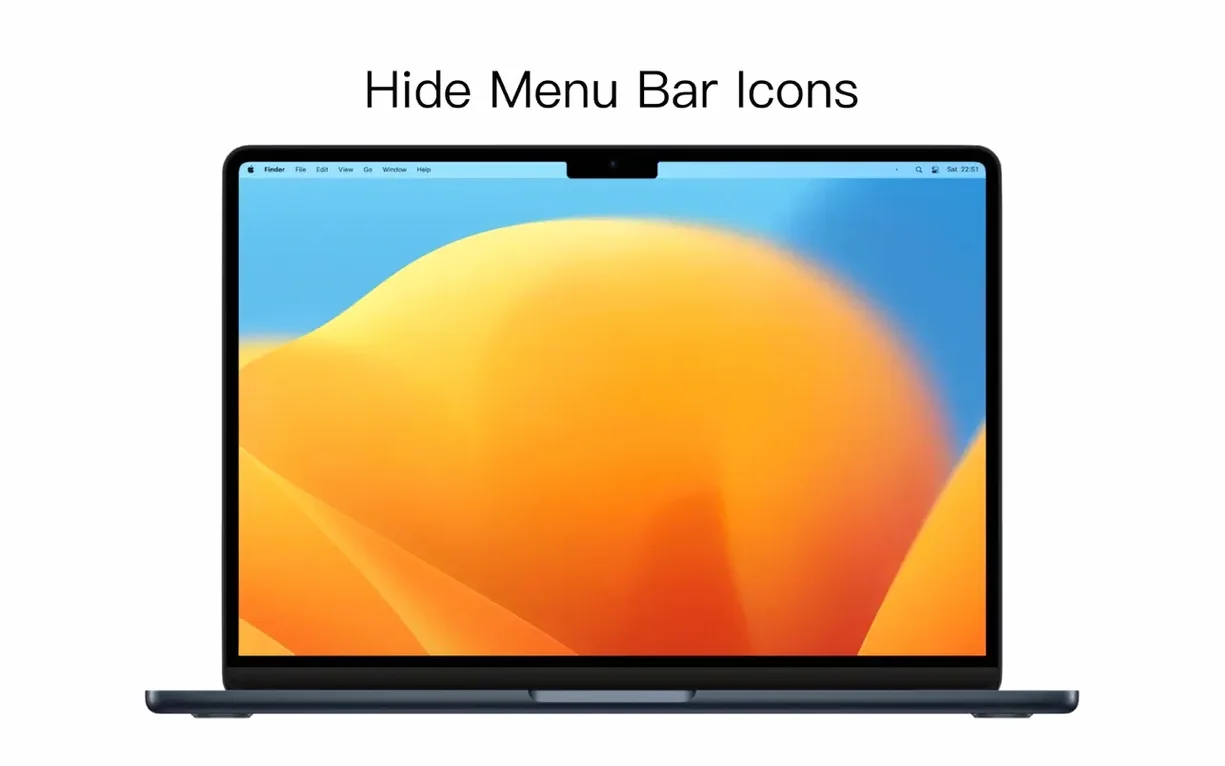
Thirty-seven icons, give or take, is what a busy Mac menu bar can accumulate before you stop counting. iBar takes that sprawl and reduces it to a single caret.
Menu bar real estate — the strip of screen where apps park their status icons, often duplicating functions you can already reach from the Dock.
Always-hidden icons — a per-app toggle that folds an icon into iBar’s collapsible drawer, keeping it accessible but out of sight until you click the caret.
Collapsible drawer — a secondary panel that slides out when you click the iBar caret, revealing every icon you have hidden. Release the mouse and it tucks away again.
M-series and Intel — the same binary runs on both architectures, so the tool follows you from an older Intel workstation to a current Apple Silicon laptop without a second thought. macOS 10.12 is the floor.
Hiding icons without quitting their apps
Does iBar remove icons from the menu bar permanently? No — it hides them from view and keeps them in a collapsible drawer. Every icon you tuck away stays active; the app it belongs to runs as usual, and its menu bar presence simply relocates behind the caret. You can unhide any icon with a single toggle, and nothing is uninstalled or disabled in the process.
What happens on a Mac with a notch? The tool was built with that exact scenario in mind. When the camera housing eats into the centre of the menu bar, apps with sprawling icon sets push past the notch and vanish into inaccessible territory. iBar lets you fold the less essential icons into the drawer so the ones you actually need — wi-fi, battery, clock — stay visible on either side of the cutout.
Does the drawer interfere with full-screen apps or Spaces? The panel appears only when you click the caret, and dismissing it is a matter of clicking anywhere else. It does not pin itself to a specific Space, so switching desktops does not leave an orphaned drawer floating where you left it. If you are in a full-screen video or presentation, the drawer respects the focused Space and behaves like any other overlay.
Will hiding icons slow down switching between apps? No. iBar does not intercept or modify the way macOS handles menu bar rendering; it only controls visibility. The icons in the drawer are the same live indicators you would see in the menu bar — they update in real time and respond to clicks exactly as they would if they were still in the top strip.
Where Bartender’s fine-tuning meets a free alternative
Bartender has long been the name most people reach for when the menu bar overflows. It offers fine-grained control over icon spacing, triggers based on time or battery state, and a search bar that lets you jump to a specific hidden icon. That feature set runs deep, but it also runs heavier — Bartender’s permissions model and background processes are more involved, and recent versions have required screen recording access for certain display behaviours, which gives some users pause.
Vanilla is the lightweight counterpoint. It splits icons into a visible zone and a collapsed zone behind a small arrow, and it does almost nothing else. The simplicity is the point: it uses little memory, sets up in seconds, and asks for minimal permissions. The trade-off is that Vanilla does not offer per-app toggles or a dedicated drawer panel — hidden icons sit in a second row that drops down from the menu bar itself, which can feel cramped if you have hidden a lot of them.
iBar lands between those two poles. It gives you the per-app toggle logic and a dedicated collapsible drawer, so hidden icons do not crowd the menu bar in a second-tier row. It does not attempt Bartender’s conditional triggers or search, and it does not push the minimalism as far as Vanilla does. For someone who just wants to hide ten or fifteen icons behind a single caret and recall them in a clean panel, that middle ground is precisely the right shape.
Notch-screen MacBooks turn a preference into a necessity
Notch-screen MacBook owners are the most obvious candidates — the hardware itself makes menu bar management a necessity rather than a preference. But the tool also clicks for anyone who runs a handful of background utilities that insist on planting an icon up top: clipboard managers, cloud sync clients, VPN indicators, input method switchers, display colour profilers. These are apps you want running, not apps you need to glance at every five minutes. Folding them into the iBar drawer clears the visual noise without quitting anything.
Developers and designers who keep their Mac menu bars dense with build-status indicators, screen rulers, colour pickers and Git-aware tools tend to appreciate the drawer as a secondary dashboard. The icons remain live — build failures still turn red, sync conflicts still badge — but they do not compete for attention in the main strip. A single click reveals the full status panel, and a click anywhere else puts it away.
Users migrating from Windows, where the system tray hides icons behind a chevron by default, often find the Mac menu bar aggressively flat and exposed. iBar introduces a familiar collapse mechanic without trying to replicate the Windows overflow area wholesale. It is a small cultural translation for the menu bar, and for some people that alone removes a daily friction point that macOS never addressed natively.
- macOS 10.12 or later
- Apple Silicon and Intel Macs
- Interface: English, Simplified Chinese