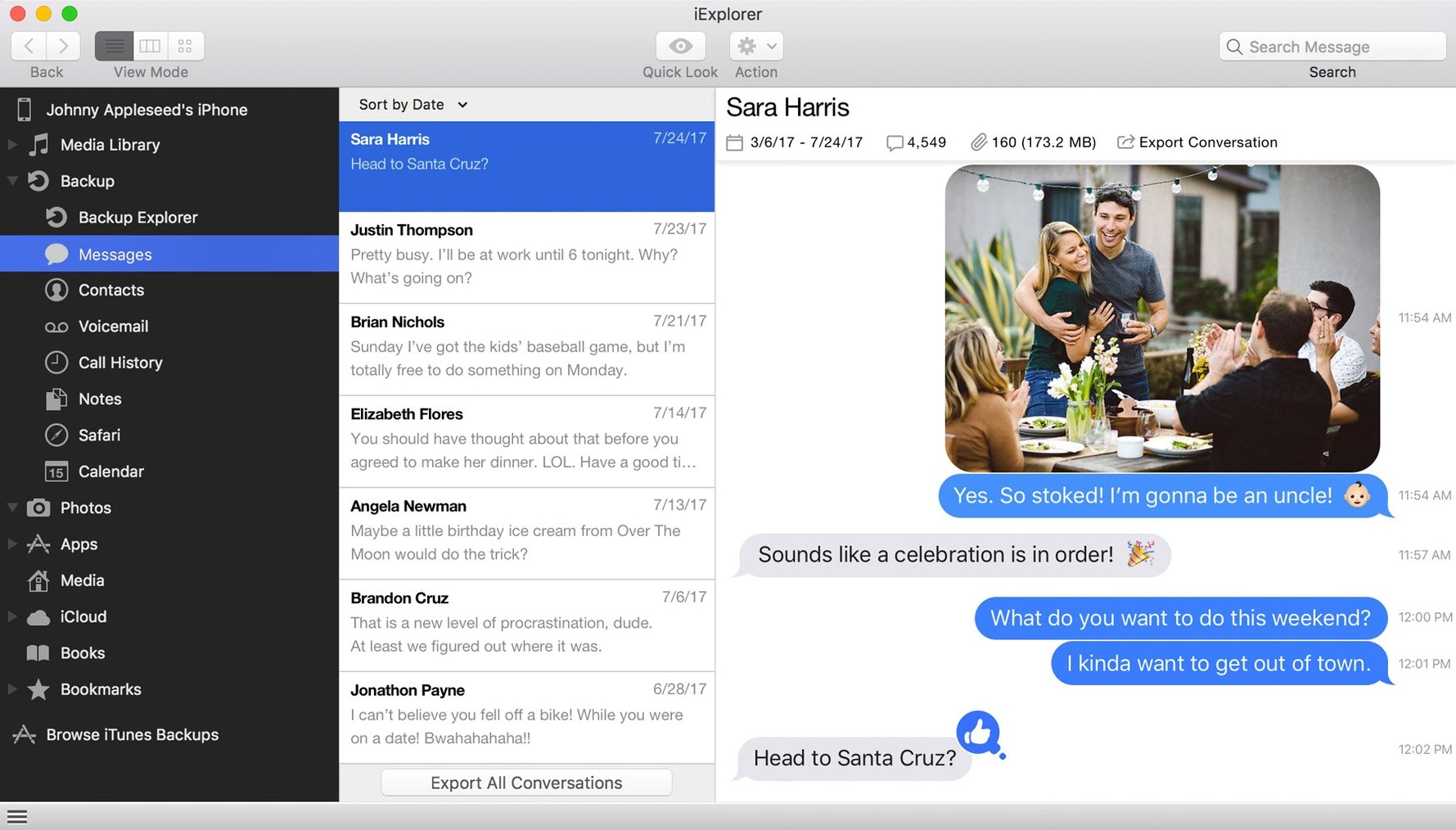
Over 10 years of iOS backups can live on a Mac, invisible inside Finder. iExplorer opens them. It also sees the live file system of any connected iPhone, iPad, or iPod — apps, media, the works — and lets you drag things back and forth like a USB drive from a decade ago when that was still a thing.
Transfer music and playlists back to iTunes
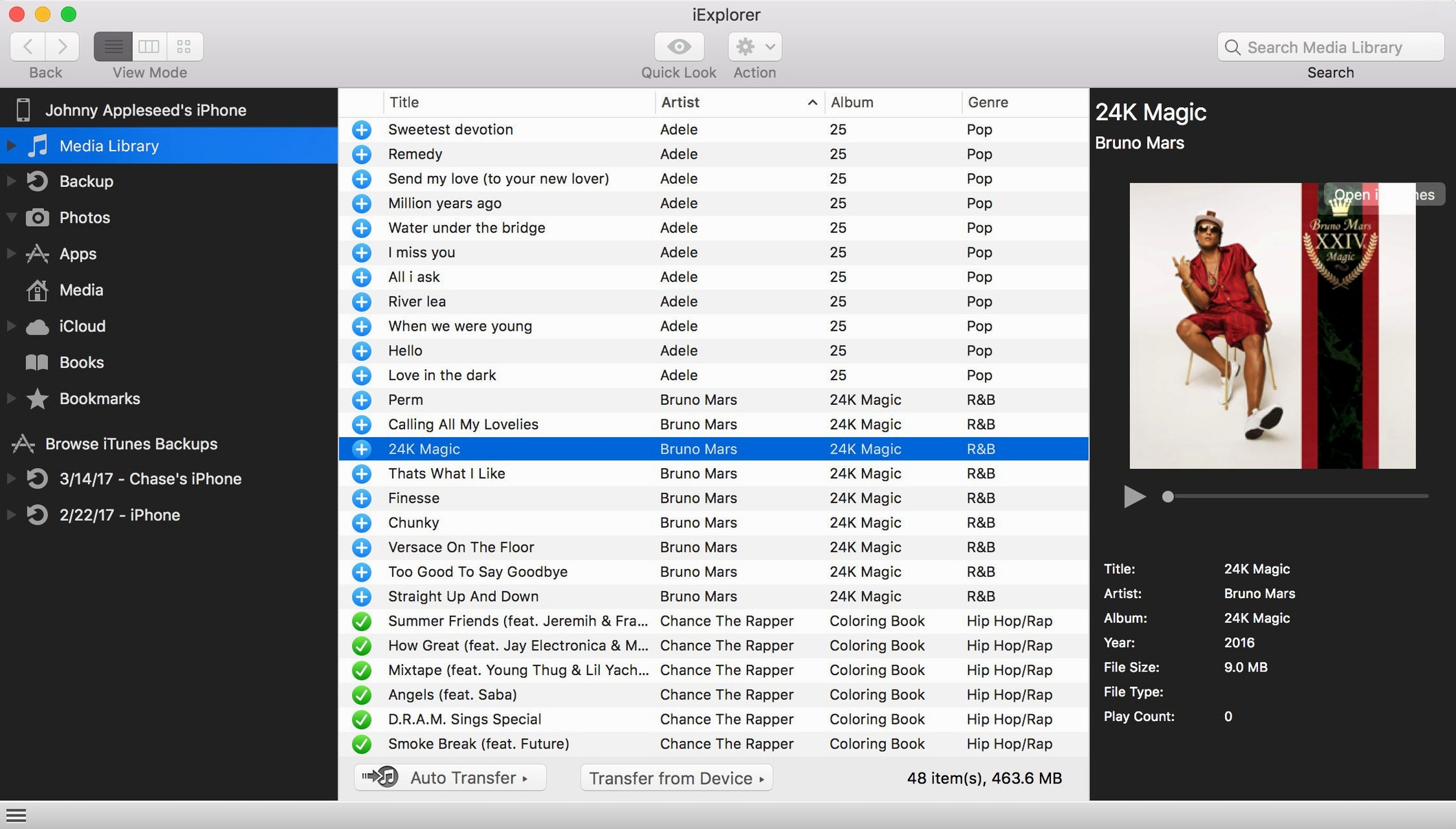
When a library lives only on a phone, iExplorer can pull songs and playlists off the device and rebuild them in iTunes on the desktop. It reads the Media folder directly, so the transfer preserves the structure you arranged.
Browse app files and documents
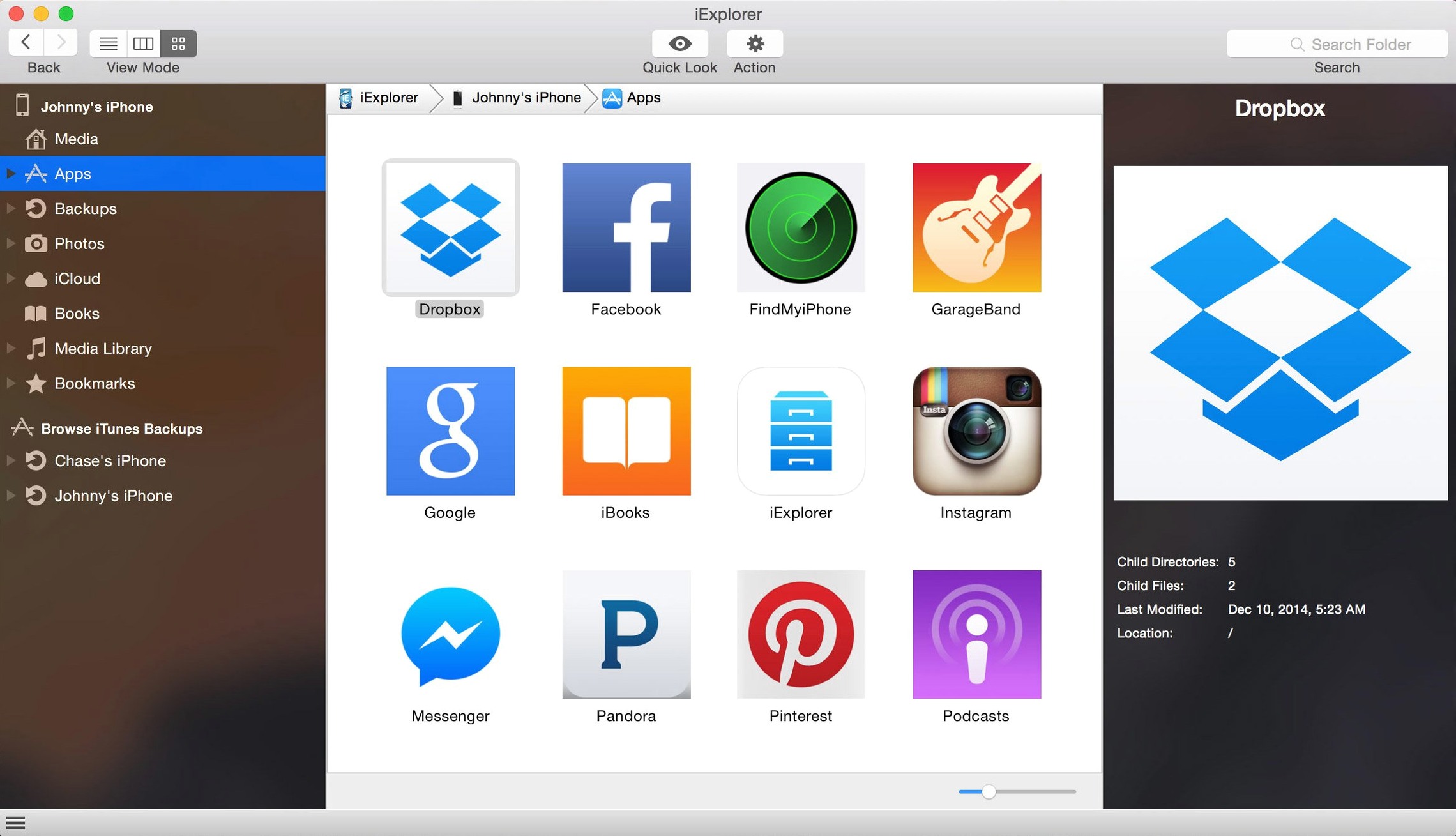
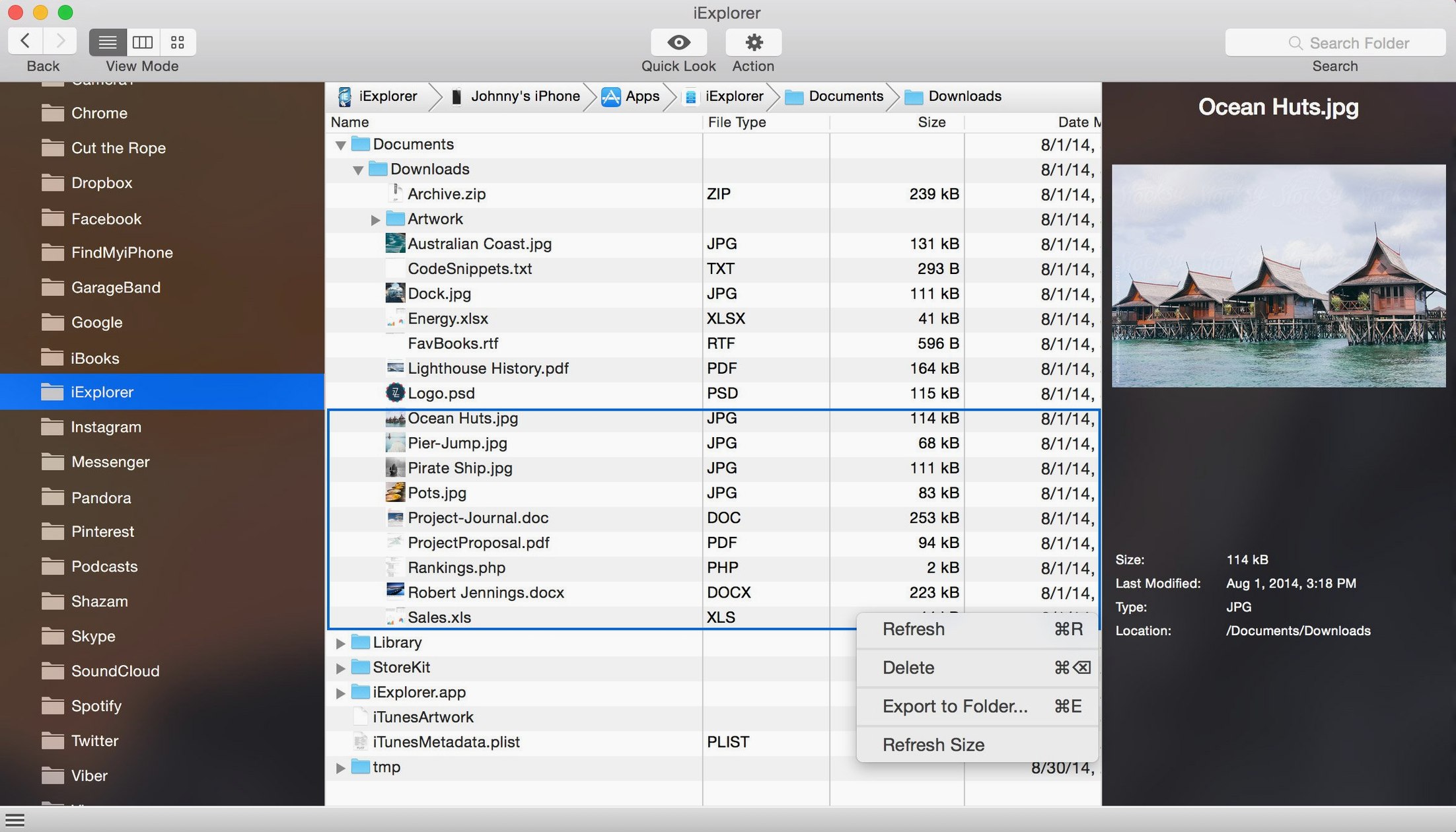
App data isn't hidden here. You can look inside an app's sandbox, pull out documents, copy icons, or add files to a game's folder without syncing the whole device through iTunes.
Mount a device as a disk
The disk-mounting mode treats the iPhone or iPad like an external drive on the desktop, making raw file access about as straightforward as it gets on a Mac.
How iExplorer sits alongside the alternatives
Three names tend to surface when someone searches for a Mac utility to peer inside an iPhone. iMazing is the heavyweight — it does backups, app extraction, message export, and a dozen other things, all inside a polished but occasionally overbuilt interface. Its focus leans toward device management as a complete replacement for Finder syncing, which can feel like more than you need if all you want is to pull a few voice memos or game saves off a handset. iExplorer is narrower, and that is the point. It opens the device, shows the file tree, and gets out of the way.
AnyTrans takes a different angle, pushing media migration and cross-device transfer as its headline act. It handles contacts and messages too, but the design nudges you toward moving content between phones rather than exploring what is already there. Where iExplorer treats the connected device as a folder hierarchy, AnyTrans presents a series of task screens. For someone who thinks in directories, that abstraction can grate.
Then there is the Finder itself, which handles backups and music syncing on recent macOS versions. The trouble is Finder shows you almost nothing. You get a backup, not a browsable archive; you get a sync, not a two-way drag-and-drop conduit. iExplorer fills that gap without asking you to rethink how files work. It does not replace a full device manager, and it was never meant to.
Jailbreak fears put to rest
Does this require a jailbreak? No. iExplorer reads the device through the same USB connection iTunes uses. Jailbreaking is neither required nor expected. The file access is read-only for certain system areas, as it is with any unmodified iOS device, but app sandboxes and media folders are fully browsable.
Will this mess up my existing iTunes or Finder backups? It will not touch them unless you explicitly open a backup and export something. The backup browser is a separate section of the app; it reads archived data without altering the backup set. That means you can extract a contact list or a photo from a two-year-old backup without endangering the current one.
What about iCloud data? iExplorer can reach iCloud storage for apps that store documents there, as long as you are signed in on the device. It will not replace a full iCloud browser, but it does surface files that would otherwise require opening each app individually on the phone just to share one document.
First days with iExplorer: small moves that pay off
Start with something low-risk. Connect the device, let it mount, and immediately browse the Photos folder. Export a handful of shots to a folder on the desktop. This confirms the connection is stable and that file dates stay intact — often a quiet worry with third-party transfer tools.
Next, locate the app data section and find an app whose documents you have wanted to back up manually. A drawing app, a text editor, anything that stores its files locally. Drag the whole folder to an external drive. That simple move teaches you the app's transfer speed over USB and whether your particular Lightning cable can sustain a long copy without dropping. It also gives you a portable manual backup you can restore later by dragging back in.
A third early step worth taking: export a single conversation thread from Messages. Choose one that is mostly text and save it as a PDF. This confirms that the export engine handles long threads gracefully before you trust it with something more consequential. If the thread runs back years, you will also get a sense of how iExplorer handles large database reads.
A real workflow: salvaging voice memos and rebuilding them in Logic
Voice Memos on an iPhone can accumulate for years — field recordings, song ideas, interview clips — long after the Mac-bound copies have vanished. Here is one path from phone to finished project using iExplorer as the bridge.
Connect the iPhone and open iExplorer. Navigate to the Voice Memos app folder and find the Recordings directory. Select the files you need — they appear as .m4a files with timestamps — and drag them to a project folder on the Mac. The file dates come across as they were captured, which helps when you are trying to find the second take of a riff recorded at 2 a.m. in June.
Open Logic or your DAW of choice. Import the .m4a files directly onto audio tracks. Because iExplorer pulled the originals without transcoding, the files land at the sample rate the iPhone used, usually 44.1 kHz. Assign each recording to its own track lane, trim the silence, and start arranging. The whole process, from plugging in the phone to hearing the first clip in context, runs under four minutes — faster than waiting for an iCloud sync to decide whether today is the day it feels like appearing.
Version 4.6.0 tightens compatibility for devices running iOS 16.
- macOS 10.10 or later
- Intel 64-bit processor
- iTunes
Questions from the booth
Yes, iTunes must be installed on the Mac because iExplorer relies on its device drivers to communicate with connected iPhones, iPads, and iPods.