A suite of three plugins, a single publisher, and one consistent way of working across Photoshop, Lightroom Classic, and Affinity. That is the practical shape of the Imagenomic Professional Plugin Suite. It bundles Portraiture, Noiseware, and Realgrain — tools that have lived on portrait and documentary photographers' Macs for years, each addressing a distinct part of the retouching chain.
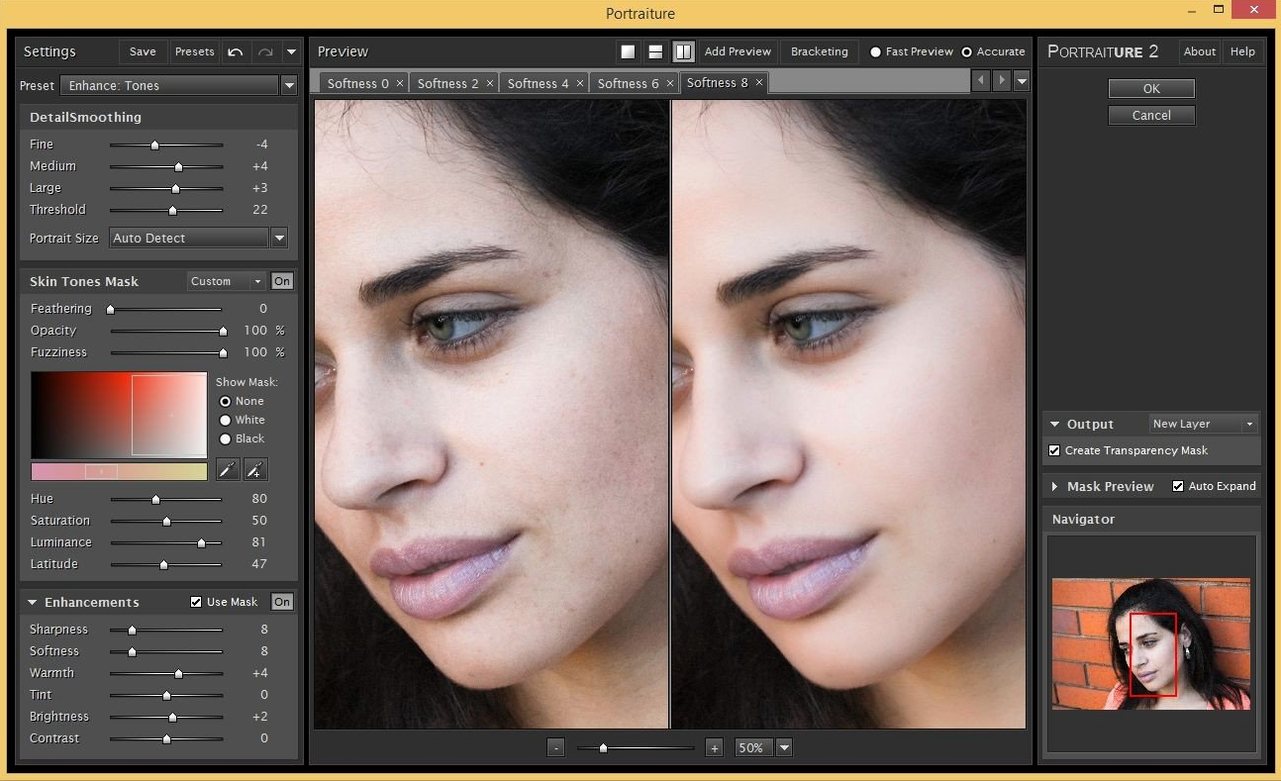
Portraiture is the one most people reach for first. Its skin smoothing and healing work in a single panel, with controls that let you protect eyebrow detail and lip texture while evening out broader areas. Noiseware picks up where high-ISO shooting leaves off, preserving edge sharpness in hair and fabric as it quietens luminance noise. Realgrain ties the frame together by adding a perceptible film-grain structure that moves independently of the image data — useful when a noise-reduced portrait feels too sterile or a digital file needs a tactile finish.
The plugins run natively on both Intel and Apple Silicon Macs under macOS 13 and later. In a typical session, a photographer might start with Noiseware on a dimly lit reception shot, hand the clean result to Portraiture for a gentle skin pass, then route the layered file through Realgrain as a finishing effect before flattening. Because the interface language is English only, the controls stay compact and direct, with no translation layers to navigate.
How the suite holds up under real editing loads
Working through a wedding gallery of four hundred frames tells you more about a plugin than any isolated test. The Imagenomic suite stays remarkably light on system resources even when you bounce between all three modules in a single session. On an Apple Silicon Mac, Portraiture renders its skin mask in under two seconds on a 24-megapixel file; switching to Noiseware on the same image feels nearly instantaneous once the preview is cached. Memory pressure barely climbs, which matters when Photoshop already has thirty layers open and Lightroom is chugging through exports in the background.
Stability is equally uneventful — the best kind. Across long retouching stretches, I have not seen a single plugin-triggered crash or the dreaded beachball that some third-party filters are known for when handed a heavy radial-gradient mask. The suite's preview windows stay responsive when you drag around a 100% view, and the grain simulation in Realgrain doesn't stutter or degrade into a flat pattern at odd zoom levels, a quiet technical achievement that is easy to take for granted.
One thing worth knowing: Realgrain's grain structure is genuinely resolution-independent. You can resize the canvas after applying it and the grain re-renders to match the new dimensions rather than stretching like a baked-in texture. That alone saves a surprising number of round-trips back through the plugin.
Small touches that reward a closer look
Some of the most useful behaviours in the suite are not labelled. In Portraiture, holding Option while dragging the smoothing slider shows a temporary mask overlay — white on the areas being affected, black on the protected edges. It is a fast way to check whether eyebrow hairs are being preserved without opening the full mask panel. Noiseware has a similar preview toggle: pressing Space in the plugin window briefly shows the original unfiltered image, a quick before-and-after that works even when you are zoomed deep into shadow noise on a suit jacket.
Real grain's toning controls are tucked behind a small disclosure arrow that many users scroll past. Inside, the split-toning sliders let you assign separate colours to highlight and shadow grain, which opens up subtle warm-cool contrasts reminiscent of selenium-toned prints. Another hidden convenience: you can lock the grain pattern across multiple images by saving a preset with the random seed fixed, so a batch of portraits from the same shoot share an identical film texture rather than each getting a subtly different noise pattern.
Surgical precision over darkroom experimentation
Compared with Nik Collection's Dfine and Silver Efex, the Imagenomic suite feels more surgical and less like a creative darkroom box. Dfine handles noise well but leans heavily on profile-based corrections; Noiseware gives you finer manual control over luminance and colour noise separately, with a frequency-based approach that lets you protect fine detail in low-contrast areas — fabric weave, eyelashes, distant foliage — that automated profiles sometimes smear. Silver Efex offers a broader palette of film stocks and toning presets, but Realgrain's grain engine is more convincing at high magnification, especially when you push the intensity past subtle levels and need the grain to feel embedded in the emulsion rather than layered on top.
Against Retouch4me, which uses AI-driven skin analysis, Portraiture takes a more transparent route. Retouch4me's neural networks can produce impressive results in one click, but when the mask guesses wrong — confusing a necklace for a blemish, for instance — you have limited manual override. Portraiture's masking is editable at every step, and the smoothing algorithm respects luminance edges so highlights on cheekbones stay crisp while flat areas on the forehead relax. That manual control matters for photographers who need repeatable, client-facing consistency rather than a black-box correction.
The suite also works cleanly inside Affinity Photo, which cannot be said for every plugin that claims compatibility. Masking, smart-filter behaviour, and passthrough blending all behave as they do in Photoshop, which makes the Imagenomic for Mac experience genuinely cross-host rather than a Photoshop-first tool with partial support elsewhere.
A full portrait workflow from raw file to final grain
Here is a sequence I use for editorial headshots shot under mixed indoor light, where noise and skin texture both need attention.
Start in Lightroom Classic with the raw file. Apply basic exposure and white balance, but leave sharpening and noise reduction at zero — Noiseware will handle the heavy lifting later. Open the image as a smart object in Photoshop so every plugin pass remains non-destructive.
Step one: duplicate the smart object layer twice. Name the lower copy "Noiseware" and the upper "Portraiture." Launch Noiseware on the bottom copy. Switch to the Night Scene preset as a starting point, then pull the luminance noise reduction up until the background wall texture smooths out but the subject's hair retains individual strand definition. Use the Space toggle to verify edges are holding. Apply.
Step two: target the Portraiture layer. Open the plugin and let it auto-detect skin tones. Switch to the mask view with Option-drag to confirm the mask covers the face evenly but avoids the eyes, lips, and hairline. Reduce the smoothing strength to around 40 for a natural finish — enough to soften diffuse light patches without erasing pores entirely. Apply, then add a black layer mask and paint the effect in with a soft white brush only where skin needs it.
Step three: with both corrections in place, merge visible to a new top layer. Open Realgrain. Choose the Tri-X 400 profile, reduce grain intensity to around 65, and open the toning panel. Set highlight tint to a faint straw tone and shadow tint to a cool slate — just a few points each. Fix the random seed so subsequent headshots from the same session share the grain structure. Apply and set the Realgrain layer to Soft Light at 70% opacity for a more integrated look.
The result is a portrait where noise reduction, skin retouching, and film texture each live on independent smart layers, editable long after the initial pass. When a client asks for a slightly cleaner version or a warmer grain tone, you change one slider instead of rebuilding the stack. That kind of layered flexibility is where the Imagenomic professional plugin suite earns its place in a working editor's toolkit — not by doing everything, but by letting you undo anything.
- macOS 13 or later
- Apple Silicon or Intel 64-bit Mac
- Adobe Photoshop, Lightroom Classic, or Affinity Photo
Questions from the booth
Imagenomic lists the suite as compatible with Adobe Photoshop, Lightroom Classic, and Affinity Photo on Mac.