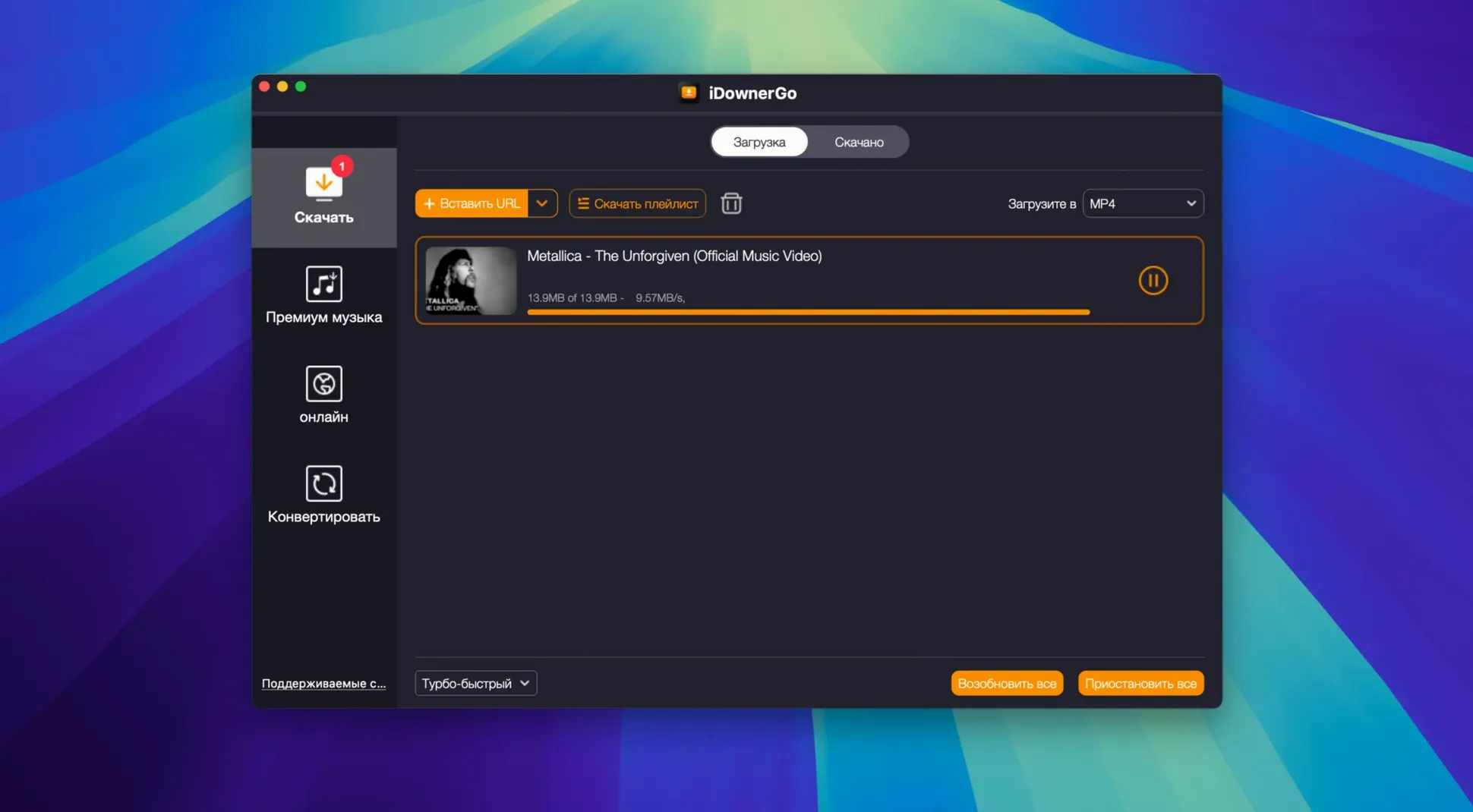
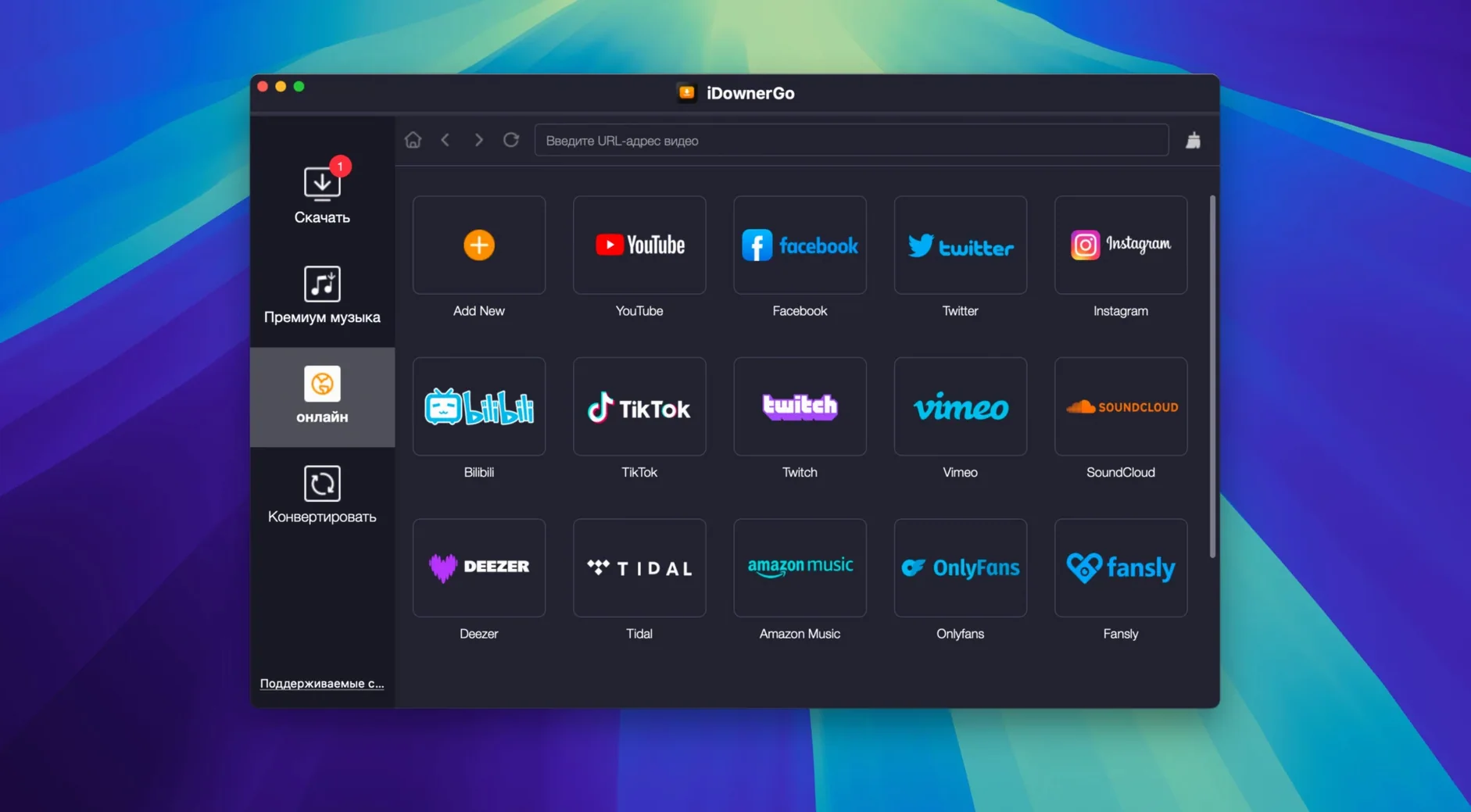
It pulls videos from Facebook, Instagram, TikTok, Dailymotion, and Bandcamp without recompressing them—HD, 4K, even 8K land on your drive exactly as they streamed. But before any of that matters, you need to know whether it will launch on your machine.
macOS requirement — OS X 10.10 or later. That covers Yosemite through Sequoia, Intel Macs across more than a decade. Apple Silicon is not mentioned in the developer's specs; the app runs as Intel code, which Rosetta 2 translates on M-series machines without extra steps.
Architecture — Intel native. The disk image contains an Intel binary, and the install flow includes a Terminal prompt that asks you to press Enter to let it past Gatekeeper. On an Apple Silicon Mac, Rosetta 2 steps in automatically the first time you open it.
What you get — A universal downloader that saves video at its source resolution, from crisp 1080p through 8K, without quality loss. The interface speaks twenty-six languages, and the app belongs to a family that also includes site-specific downloaders. If your workflow already lives on an older Intel Mac or a current M-series machine running Rosetta, the installer is a three-step affair: mount, drag to Applications, and answer the Terminal prompt once.
Neither a clipboard watcher nor a media manager
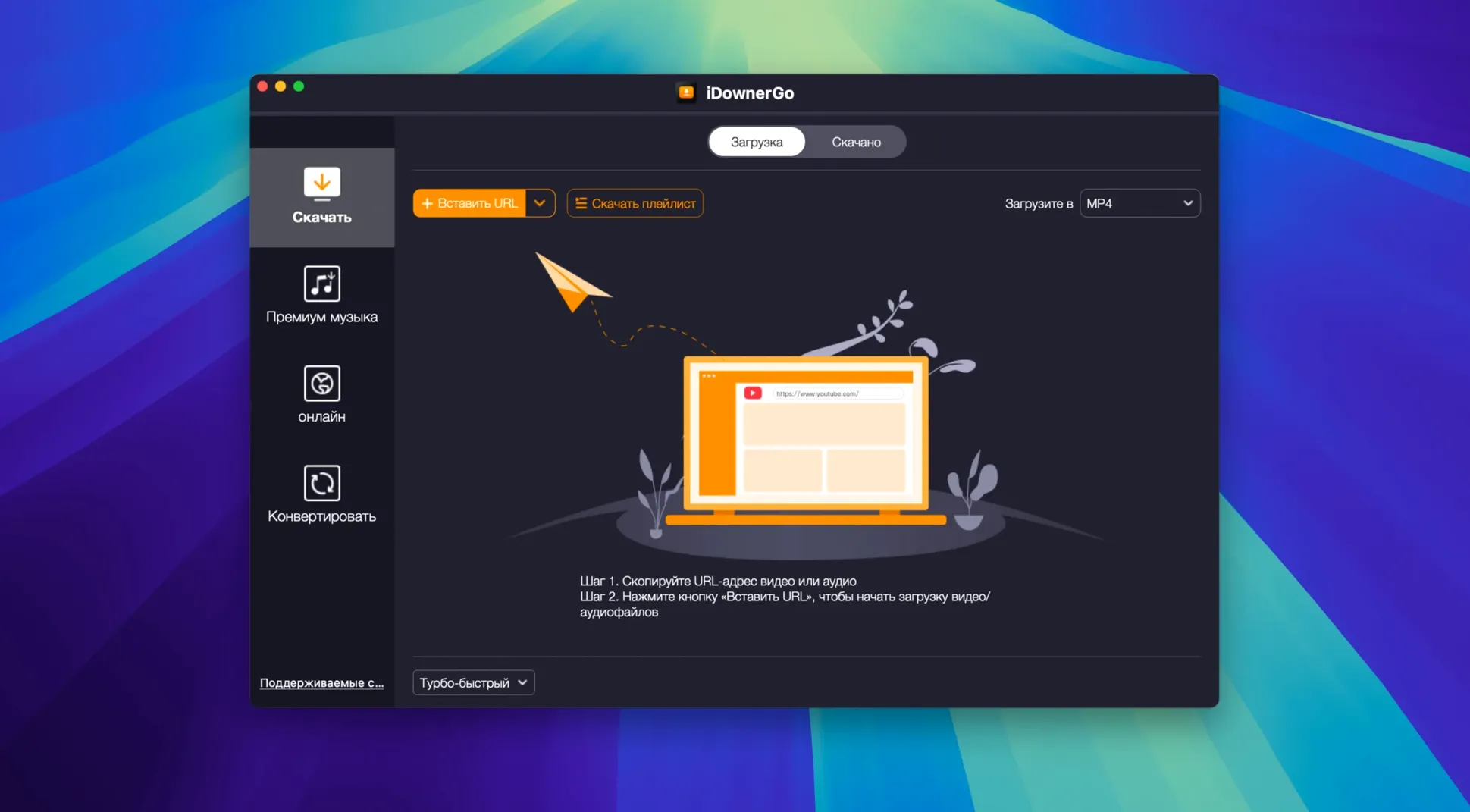
Mac video downloaders tend to cluster around two poles: the minimal clipboard-watchers that grab one link at a time and vanish, and the sprawling media managers that want to organise your entire library. iDownerGo falls squarely between them, and that is where it earns its keep. It does not insist on cataloguing every file you own, yet it handles playlists, batch queues, and format conversions that the lightweight tools skip entirely.
Put it next to Downie, and the philosophical split is immediate. Downie reads your clipboard, notices a URL, and offers to save the video before you have finished deciding whether you want it. It is frictionless, almost invisible, and its extraction engine is excellent. What it does not do is let you queue up forty Bandcamp tracks while simultaneously downloading a TikTok series and converting a lecture to MP3, all in a single pane of glass. iDownerGo treats downloading as a project, not a reflex. If you tend to gather material in bursts — saving a dozen reference clips for an edit, pulling audio from interviews, or archiving a whole playlist before a trip — that project-shaped interface makes more sense than a series of one-off grabs.
4K Video Downloader occupies similar territory, with strong playlist support and a clean queue. The difference sharpens around audio. iDownerGo pulls music from Bandcamp and extracts MP3s from video as a native step, not an afterthought you configure in a preferences panel. The built-in conversion sits at the same level as the download, so a session that mixes video archiving and audio extraction does not bounce between two separate workflows.
A smaller tool like ClipGrab covers the basics reliably — paste a URL, pick a format, save — and asks nothing else of you. It lacks playlist parsing, batch queues, and the real-time streaming capture that iDownerGo includes. If your downloading consists of the occasional YouTube clip, that simplicity is a virtue. The moment you need a downloader that thinks in sessions rather than single files, the comparison stops being useful.
Send downloads straight to the project folder
The defaults are cautious: output lands in a general downloads folder, the interface waits for you to trigger every action manually, and notifications are on. A few changes turn it from a general-purpose tool into something that fits how you actually work.
Set the output directory per project. The preferences let you point downloads to a fixed folder, but the better habit is to change it from the main window before starting a queue. If you are pulling reference footage for a short, send it straight into the project's media folder. If you are extracting MP3s from a playlist, drop them into your music library. Doing it per session keeps your drive organised without a cleanup ritual later.
Turn off post-download notifications if you queue more than half a dozen items. The app notifies you after every finished file, which is helpful for single downloads and maddening during a batch of thirty. The toggle is in preferences, under General.
Check the format selector before queuing a mixed batch. iDownerGo remembers your last choice, and it is easy to start a playlist download only to realise halfway through that everything is saving as MP4 when you wanted extracted audio. Set the format globally first, then add items to the queue. You can override per-item afterwards, but doing it upfront avoids silent mistakes.
Grabbing a Bandcamp playlist as MP3s for a temp score
Late morning, two cups of coffee in, and I have a short film assembly due next week. The temp score lives in a Bandcamp playlist I have been curating for a month, and I need the tracks as MP3s — not streams, not screen recordings, clean 320 kbps files I can drop onto the timeline. Meanwhile, a producer sent over a list of reference ads on Facebook and Instagram, all of which I need to pull at full resolution before the links disappear.
I launch iDownerGo and change the output directory to the project drive, inside a folder called temp-score. Format selector goes to MP3, quality to high. I open Bandcamp in the browser, copy the playlist URL, and paste it into the app. It parses sixteen tracks in about four seconds and lists them in the queue with titles and durations intact. I hit download and watch the progress bar tick through the first three tracks while I switch to Facebook.
The Facebook links come from a shared document, so I copy them one by one. For these, I change the format back to MP4 and set resolution to highest available — the app auto-detects 1080p on most, 4K on two. Each URL resolves in two to three seconds, metadata appearing in the queue below the still-running Bandcamp batch. I add eight reference clips, then switch to Instagram for the final three. Instagram resolution tops out lower, which the app notes without complaint.
By the time I finish pasting links, the Bandcamp playlist is already half-done. The video queue starts processing as soon as the audio batch completes, and I step away to refill my coffee. When I return, everything sits in the project folder: sixteen MP3s with embedded artwork, eleven MP4s at native resolution, file names clean and readable. The whole session took under fifteen minutes of actual attention.
A four-minute 1080p video lands in under twenty seconds
Download speed depends almost entirely on the source server, not the app. iDownerGo does not throttle or artificially cap transfers, and it handles multiple simultaneous connections without stalling. A four-minute 1080p video from a fast CDN arrives in under twenty seconds on a decent connection; the same clip from a slower host might take a minute. Playlist parsing is quick — a fifty-item YouTube playlist resolves in roughly ten seconds on an M1 MacBook Air running Rosetta 2.
Memory use stays modest. With a queue of twenty mixed items processing, the app hovers around 180–220 MB of RAM and barely registers on CPU unless it is simultaneously converting audio, which spikes a single core for a few seconds per track. On an older Intel Mac — a 2015 MacBook Pro still running Monterey — the same workload pushes memory closer to 300 MB, but the system remains responsive enough for browsing and light editing alongside it.
Stability has been uneventful, which is the best thing you can say about a downloader. I have thrown playlists of over a hundred items at it, interrupted downloads by closing the lid mid-transfer, and pasted malformed URLs by accident. It handles interruptions gracefully: paused downloads resume from where they stopped, and broken links fail with a clear error rather than locking the queue. Over several weeks of near-daily use, I have not seen a beach ball or a crash. The app is Intel code running through Rosetta 2 on Apple Silicon, and the translation layer introduces no perceptible lag — the interface draws as fast as native apps, and file I/O speeds are indistinguishable.
One quirk worth knowing: if you queue a very large batch — say, over two hundred items — the interface can take a second or two to redraw when you scroll. It is not a freeze, just a brief stutter while the list repopulates. Splitting enormous queues into smaller chunks avoids it entirely, and most sessions never reach that scale anyway.
- OS X 10.10 or later
- Intel processor (Apple Silicon via Rosetta 2)