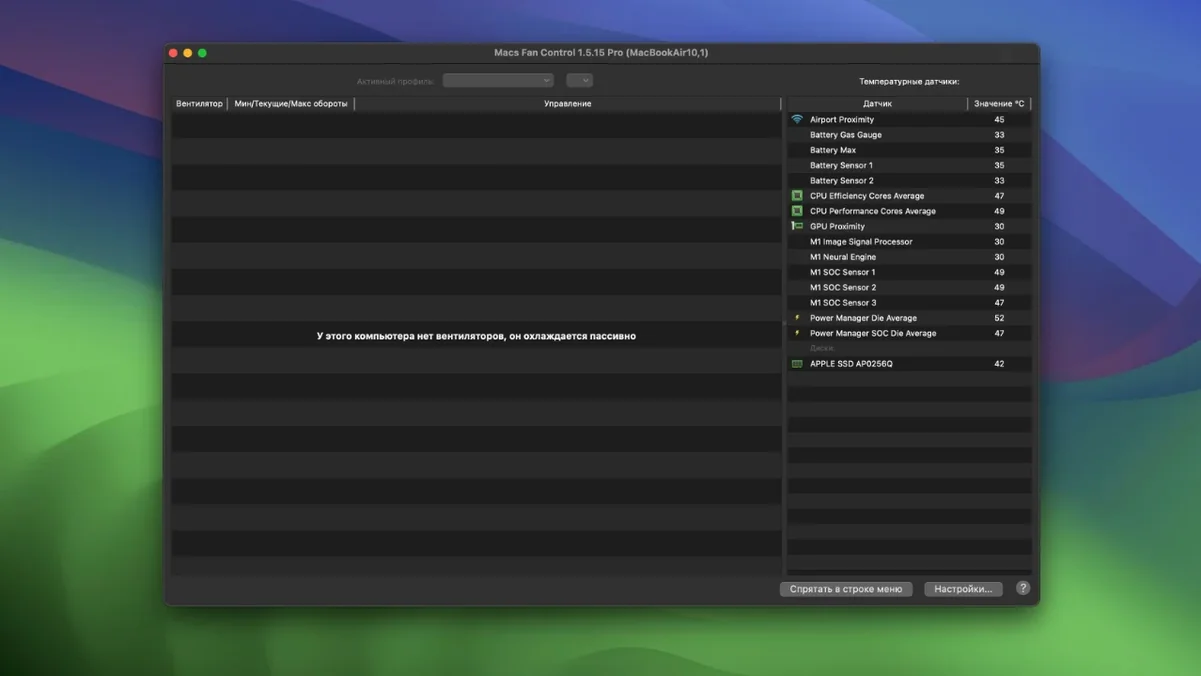
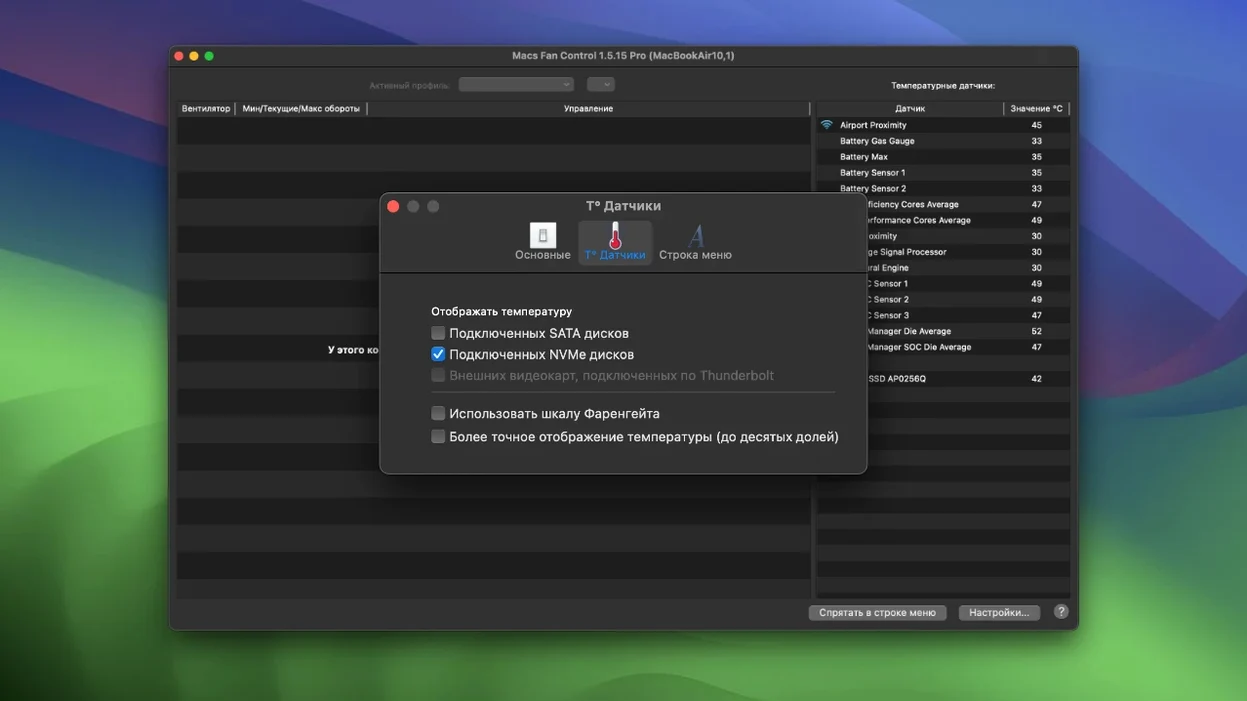
Macs Fan Control Pro runs on practically every Intel and Apple Silicon Mac that can install macOS 10.13 High Sierra or later, and its latest update extends that reach forward to the M5 Pro and M5 Max MacBook Pro, the MacBook Air M5, and the MacBook Neo. It reads every temperature sensor your machine exposes, from the CPU proximity and GPU die to the SMART sensors inside third-party SSDs and hard drives, then hands you direct control over the fans that cool them.
- Sensor-driven fan curves. Choose any temperature sensor in your system and tell a fan to ramp up or down based on its reading, so a hot external drive can dictate the exhaust fans if that is where your bottleneck lives.
- Custom RPM presets. Dial in an exact revolutions-per-minute value for any fan and save the setting as a named preset you can switch back to later, useful for toggling between a silent writing mode and an export-speed cooling profile.
- Constant or auto modes. Override Apple’s default fan behaviour with a fixed speed, or set a sensor-based curve that still respects a minimum and maximum RPM range you define.
- External drive temperatures. The app surfaces SMART temperature data from compatible third-party drives, giving you a cooling trigger for enclosures that run hot during long offloads or renders.
- Lightweight menu bar readout. Sensor and fan values live in the menu bar, so you can spot a climbing temperature before the keyboard gets warm, without keeping a window open.
The interface stays out of the way until you need it, and the Russian and English localisation means it slots into a bilingual post-production room without friction. Whether you are trying to hush a Mac mini in a recording booth or push a MacBook Pro through a summer grade without throttling, the controls you need are a menu bar click away.
Mistakes I see first-timers make
The most common stumble is setting a fixed RPM that is simply too low for the machine’s baseline heat output, then wondering why the case gets uncomfortably warm twenty minutes into a render. A fan parked at 1200 RPM on an idling Mac Studio might seem clever until the GPU kicks in and the temperature climbs with no extra airflow to meet it. Sensor-based curves exist precisely to prevent this, but new users often overlook them in favour of pinning a number and walking away.
Another early misstep is tying a fan to the wrong temperature sensor. Picking the CPU die when the real heat spike during your workflow comes from the Thunderbolt controller or a hot-swapped NVMe enclosure means the fan reacts late or never. Spend ten minutes watching which sensors climb under your actual workload, then bind the loudest fan to the one that matters most. If you are setting up a macs fan control pro crack mac version, take a moment to manually verify the sensor-to-fan mapping so the curve responds exactly to the heat source you care about.
A colourist’s afternoon with an external RAID
A finishing colourist working on a MacBook Pro connected to a four-bay Thunderbolt RAID noticed the drives hitting 55°C during long ProRes renders, at which point the enclosure’s own fan was already spinning at maximum. The MacBook Pro’s internal fans, however, were still following Apple’s default curve and barely stirring. By setting both exhaust fans to follow the SMART temperature reported by the hottest drive in the array, and defining a curve that ramped from 1600 RPM at 40°C to 5500 RPM at 54°C, the whole cooling picture shifted. The drives dropped six degrees, the enclosure fan quieted because it no longer had to fight the ambient heat alone, and the colourist saved the preset as “RAID render” for the next session.
The firmware safety net you can’t override
Will giving the fans a manual curve override the Mac’s built-in thermal protection? No. The firmware’s critical temperature ceiling remains in place regardless of what the app asks for, so a sensor-driven preset that is too conservative simply means the fans will spin faster than your curve dictates at the thermal limit, not that the machine will cook itself.
Does it work the same way on Apple Silicon as on Intel? Nearly. The sensor names and fan identifiers differ between architectures, but the control logic is identical. The app detects your hardware on launch and populates the sensor list accordingly, so an M1 Max owner sees a different set of readings than someone on a 2019 Mac Pro, and neither has to guess which label maps to which physical component. Checking the developer’s release notes for version 1.5.21 confirms that M5-series support is already baked in, alongside updated Japanese and Swedish translations, so newer machines are covered from the first run.
A maintenance update for Macs Fan Control Pro is out. Version 1.5.22 fixed ships with the developer’s latest round of fixes and stability improvements.
- macOS 10.13 or later
- Apple Silicon or Intel 64-bit
Questions from the booth
Yes, it can read temperature data from compatible third-party hard drives and SSDs that report it via SMART, and you can use that reading to control a fan.