Magic Disk Cleaner is a small Mac utility that hunts down the temporary files your system and applications leave behind, then removes them only when you say so. It begins scanning the moment the window opens, no setup or configuration required.
Scanning that starts before you ask
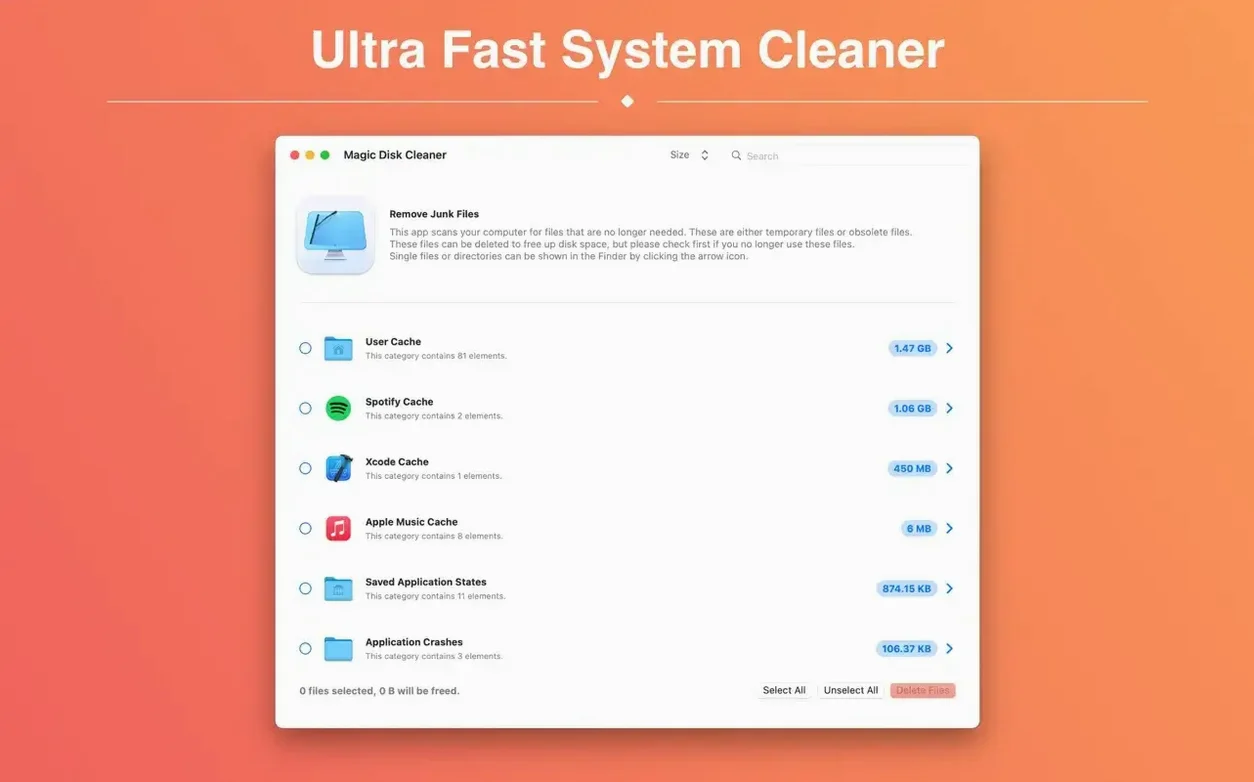
Launch the app and the search is already underway. The results appear as a list of caches, logs, and other transient data, sized so you can see what is actually occupying space. Nothing is removed automatically — every deletion waits for your confirmation, which keeps the cleanup honest.
Deletion that respects the user
When you spot something worth clearing, Magic Disk Cleaner handles the removal directly. It does not reach into personal documents or application data beyond the temporary files it was built to find. The interface stays out of the way, leaving you with a short list of reclaimable space and a single decision to make.
A scan finishes in seconds and barely touches the CPU
On an Apple Silicon machine running macOS Sequoia, the scan finishes in a handful of seconds even with months of accumulated cruft. The app barely registers in Activity Monitor — a brief spike during the scan, then near-zero CPU while you review the list. Memory pressure stays flat, and there is no background daemon lingering after you quit. On Intel Macs the story is similar, though the initial directory crawl takes a few heartbeats longer on older spinning disks.
Stability has been uneventful in the best sense. I have thrown it at deeply nested ~/Library/Caches folders, interrupted scans mid-flight, and launched it alongside large Xcode builds without a single crash or beachball. The app does one thing and stays within its lane, which is exactly what you want from a tool that touches system directories.
Shines a light into corners macOS never touches
Magic Disk Cleaner does not duplicate what macOS already handles on its own — Time Machine snapshots, purgeable space, and the storage management pane all operate at a different level. What it adds is visibility into corners the system never surfaces: leftover caches from uninstalled apps, stale log files, and .tmp directories that survive reboots. It complements the built-in storage overview rather than competing with it.
It also plays well with third-party workflows. Running it before a full-system backup trims pointless megabytes from the destination. Chaining a scan after a heavy video export session catches render caches that DaVinci Resolve and Final Cut Pro sometimes leave behind. The app does not integrate with macOS Shortcuts, but dropping it in the Dock and launching it manually takes less time than writing a script.
Gatekeeper flags it as broken until you right-click
The most common friction point is Gatekeeper. Because the unsigned disk image triggers Apple's security warnings, first-time users see the "cannot be opened" dialog and assume the app is broken. The fix is the usual dance: right-click and choose Open, or run xattr -cr on the app bundle before launching. After that first launch, macOS stops complaining.
Another quirk involves sandboxed applications. Some apps bury caches inside their own containers, and Magic Disk Cleaner does not always enumerate those unless you grant Full Disk Access in System Settings. Without that permission, the scan results look suspiciously small. Granting access is straightforward — the app does not request it automatically, so you need to add it manually under Privacy & Security.
A few users scanning network-mounted home directories have reported slow scans, though that is more a function of SMB latency than anything the app can control. Keeping the scan on local volumes sidesteps the issue entirely.
Small things that reward attention
Press Command-R while the window is focused and the scan restarts immediately — faster than closing and reopening the app. The result list supports standard multi-select with Shift-click and Command-click, so you can delete several entries in one confirmation instead of clicking through individually.
If you hold Option while clicking the delete button, the app skips the confirmation dialog and removes the selected items instantly. It is an intentional power-user shortcut, not documented in the window itself, and worth remembering when you have already reviewed the list and know exactly what you want gone.
The window remembers its size and position between launches, a tiny courtesy that means the app feels the same every time you open it. There is no menu bar icon, no login item to disable, and quitting the app is truly quitting — the kind of simplicity that takes restraint from a developer.
Version 6.0.0 quietly tidies a linguistic loose end — the User Cache category now displays its correct German name. More significantly, this release moves to Apple silicon only. Intel Macs can carry on with the previous version without interruption.
- macOS 15.6 or later
- Apple Silicon or Intel 64-bit
Questions from the booth
No. It only removes temporary files after you confirm the deletion yourself.
Yes. The search for temporary files begins immediately after you launch the app.
Yes. The current version runs on both Intel and Apple Silicon Macs.