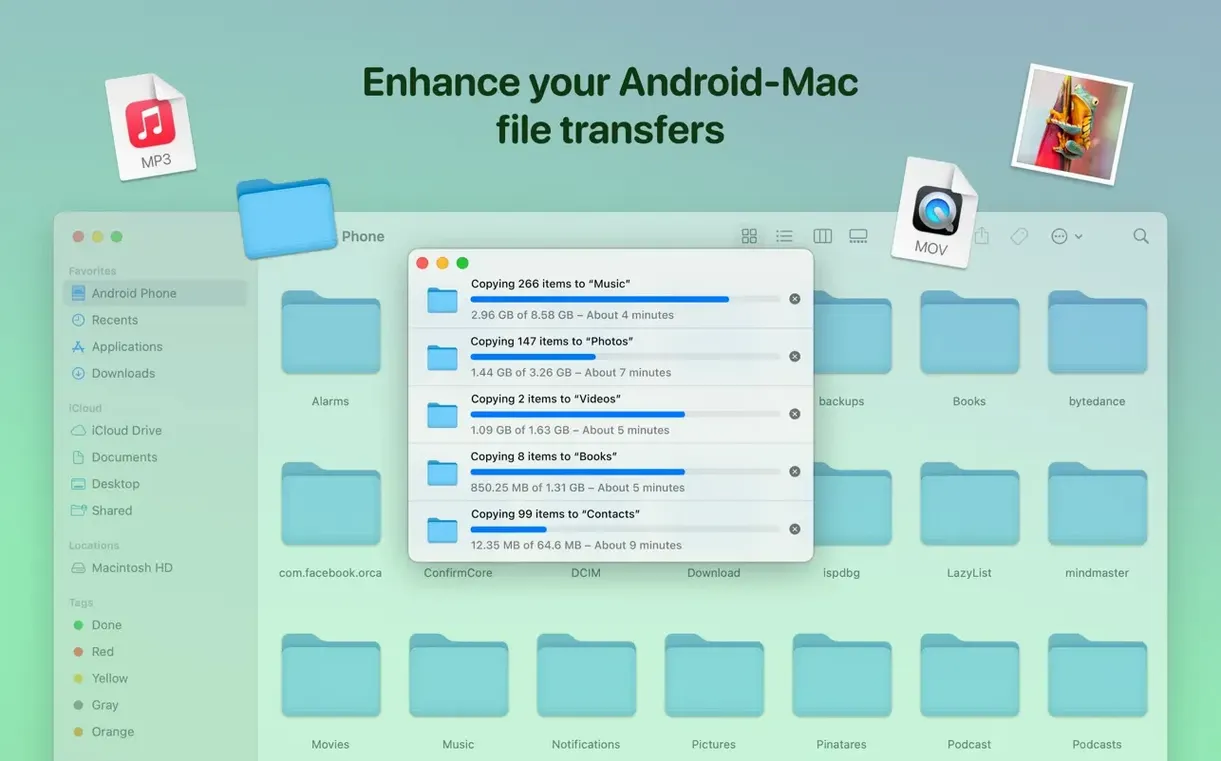
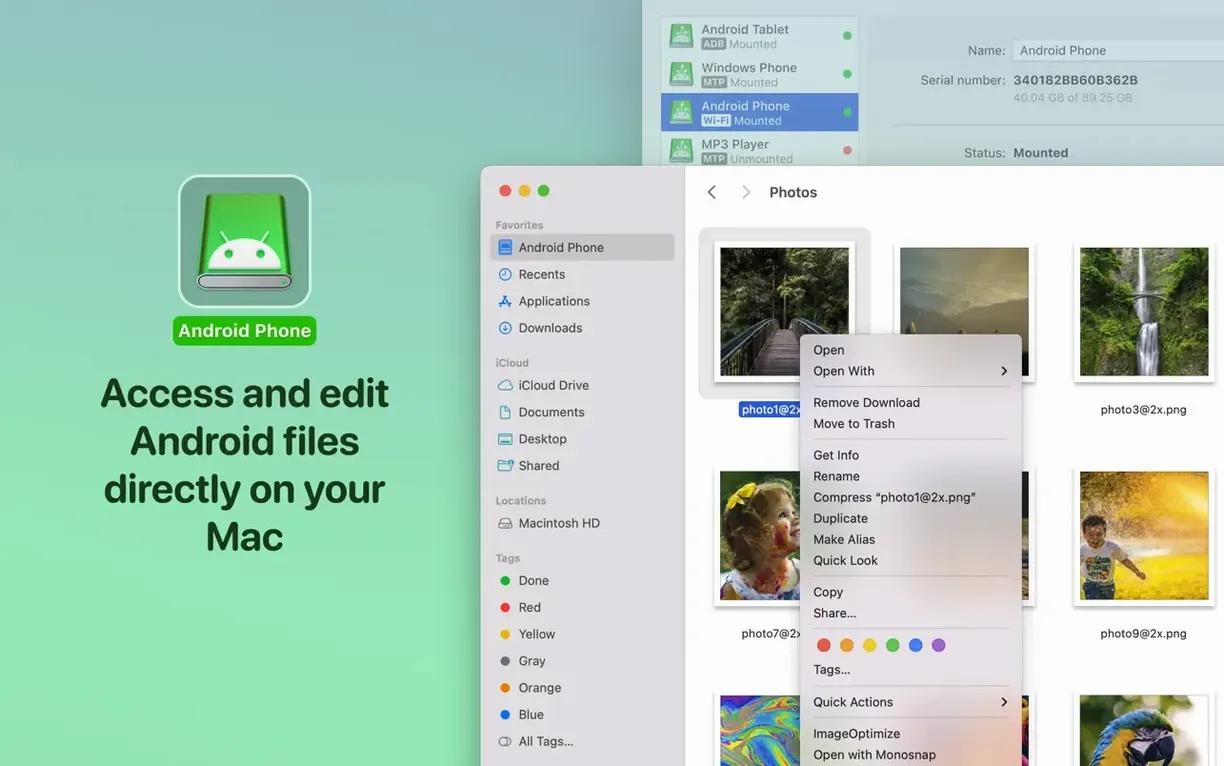
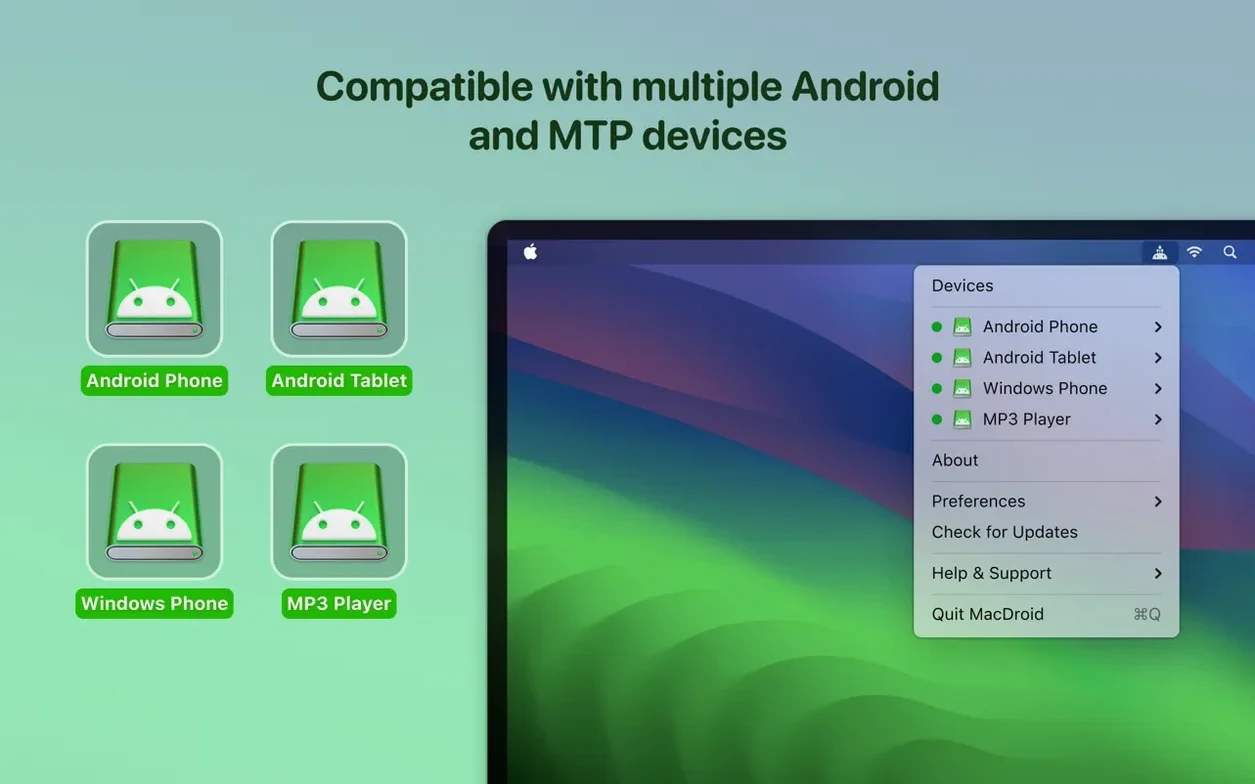
Mounting the device via MTP and browsing straight from the Finder feels less like running a utility and more like the phone simply shows up as a volume. The connection improvements in version 2.10 mean that listings populate without the old hesitations—folders open as you'd expect, and the file tree reflects what's actually on the phone, no phantom directories or stalled reads.
Edit Android files on your Mac without copying them first
- Move files, folders, music, photos, and video between a Mac and an Android device over USB
- Edit Android files directly on the Mac without copying them to the computer first
- Work with Android's MTP protocol so no extra software is needed on the phone
- Browse the Android file system like a regular Mac volume
When this fits into a project
It's for anyone who shoots on an Android phone and edits on a Mac, or who juggles field recordings, photo selects, and document drafts between the two systems. Pulling clips without a cloud service in the middle, or renaming a batch of production stills directly on the device before importing, keeps a workflow linear. The interface languages now include Traditional Chinese alongside the existing set, which makes it viable for crews working across different localizations.
Swap the default USB mode before your first cable connection
Out of the box, MacDroid defaults to MTP mode when a USB cable is connected. That's the right starting point for most people, but a few preferences tucked in the menu bar icon make the experience feel less like a utility and more like a habit. First, enable automatically mount on connection. Without it, you'll be opening the app and clicking Connect every time you plug in—fine for occasional use, tedious when the phone is in and out of a cradle across a shooting day. Second, switch the default mount location if you're working from an external drive. MacDroid mounts the Android device as a volume, and having it appear on the desktop is convenient, but pointing it to a specific folder on a working SSD keeps project media where it belongs without dragging it across volumes later.
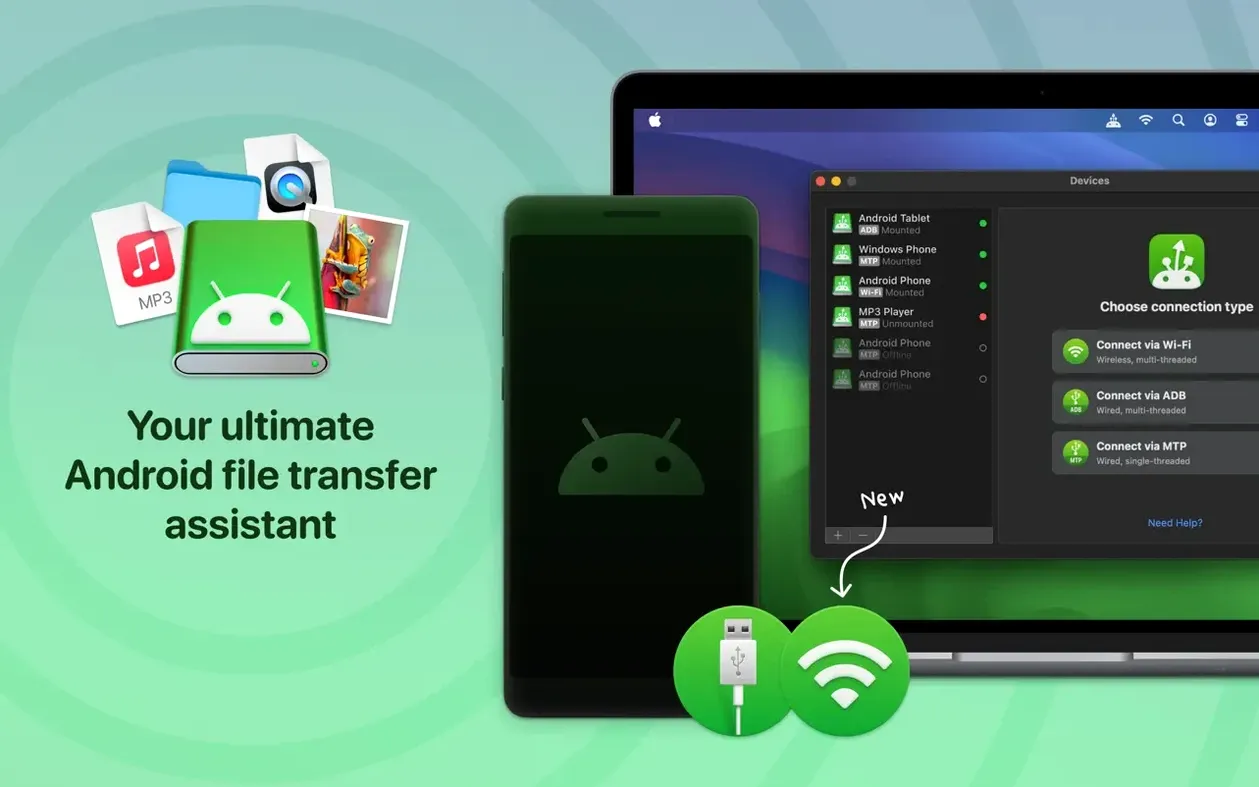
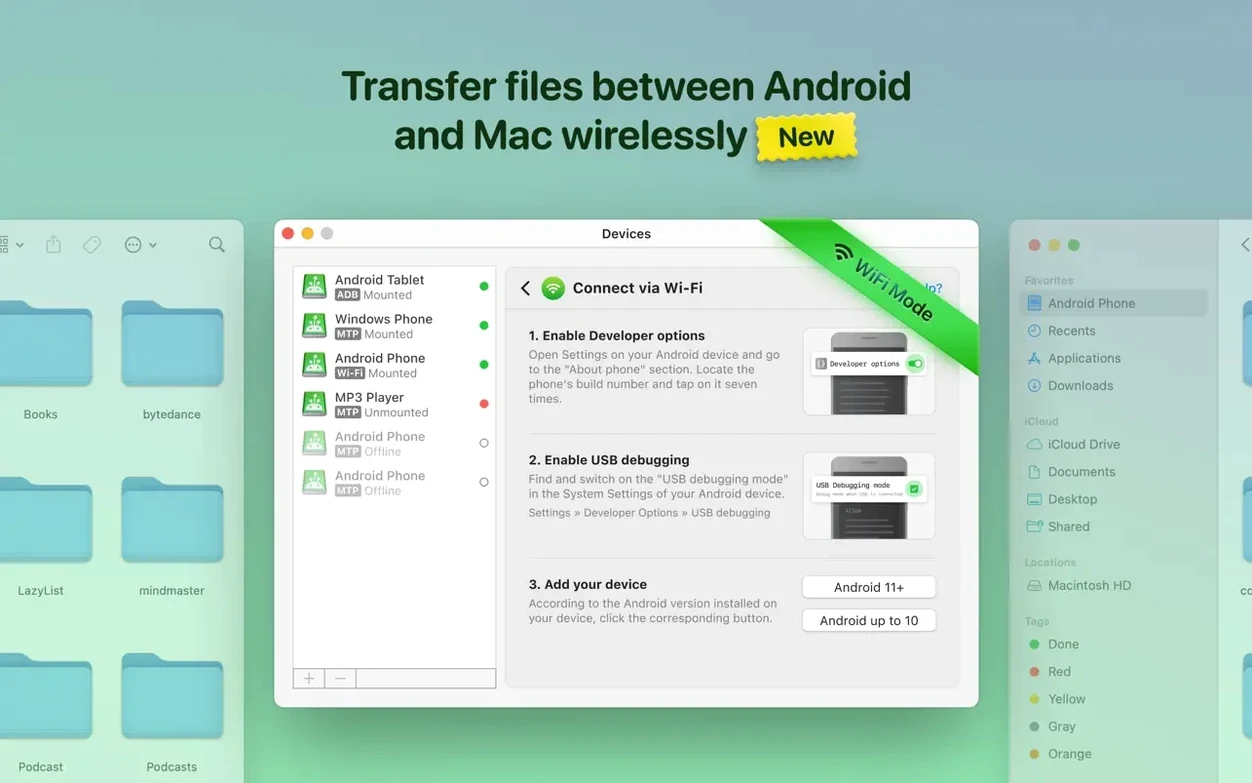
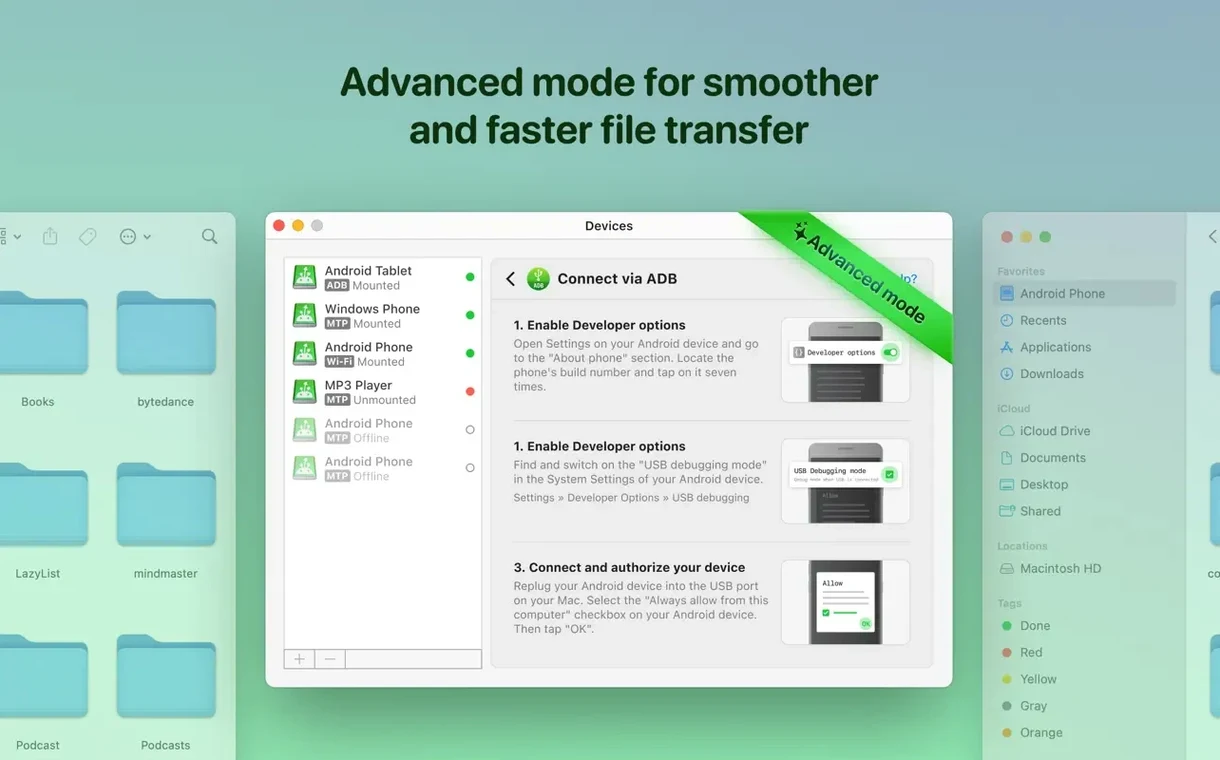
The Wi‑Fi mode, which negotiates the connection over ADB, is off by default. It's worth turning on only after you've done one wired session and confirmed the phone appears reliably. The initial pairing over USB authorises the wireless link, and from that point the phone shows up as a mountable device whenever both are on the same network. It's slower than a cable, naturally, but pulling a handful of reference stills or a rough audio take without fishing for a cord keeps the desk clear when speed isn't the priority.
Your phone is hiding its files behind charge-only mode
The most common confusion isn't about MacDroid itself—it's about Android's USB mode. Plugging the phone in and seeing nothing in the app almost always means the phone defaulted to charging-only mode. Pull down the notification shade, tap the USB options entry, and switch it to File Transfer / MTP. The app can't override that setting, and the error message in the window is easy to misinterpret as a connection failure on the Mac side. A related gotcha: if Android File Transfer (Google's barebones tool) is installed, its background agent sometimes grabs the MTP connection first. Quitting it or, better, removing it entirely stops the tug-of-war.
Another early misstep is treating the mounted volume like a regular external drive and trying to write directly to system folders. Android exposes its file tree, but write access stops at the user-accessible directories—DCIM, Download, Music, and any app-specific folders that have granted permissions. Dragging a folder into the root of internal storage usually fails silently or throws a generic error. Stick to the obvious media directories and create subfolders inside them instead. People hunting for a MacDroid full version or a MacDroid torrent can ensure the smoothest experience by checking that the build matches version 2.10 or later, where these permission boundaries are surfaced clearly and the actual reason for a failed write is shown rather than just spinning.
Getting a day's footage from camera roll to editing timeline
Picture a short shoot: half a dozen video clips and a folder of production stills on a Pixel, destination a MacBook Pro running DaVinci Resolve with the project library on an external SSD. The goal is to pull everything without touching a cloud sync and without importing duplicates.
Connect the phone over USB, confirm MTP mode on the Android notification, and let MacDroid mount it. The volume appears on the desktop almost immediately—on version 2.10 the listing loads fast enough that the DCIM folder is open before Finder finishes animating the window. Navigate to DCIM/Camera, sort by date modified, and select the clips from today. Drag them straight to a dated folder on the working drive. While that transfer runs, open the stills folder on the phone, select all, and use Finder's rename batch tool to prefix them with a scene code—MacDroid treats the Android filesystem as writable, so the rename applies directly on the device. No copies, no cleanup later.
Once the video files land, switch to Resolve and point the media pool at the new folder. The files are already in place and nothing needs relinking. Disconnect the phone, wipe the camera roll if storage is tight, and the edit session begins. The whole step—plug to disconnect—takes under three minutes for a dozen clips. For people who've searched for a MacDroid crack or a MacDroid cracked build to bypass Apple's Android File Transfer, this is the workflow that makes the difference tangible: direct access, no intermediate copies, and a file tree that actually loads what's there.
The app never asks for root access on your phone
Some uncertainty always circles around whether the app needs root access on the phone. It doesn't. MacDroid works with standard Android permissions; the ADB mode uses a debugging bridge that you authorise via a single on-phone prompt, and MTP mode uses the protocol built into every Android device since Android 3.0. No side-loading, no developer options gymnastics. A connected worry is whether the app phones home—it operates locally, and the connection between Mac and phone happens over USB or a local Wi‑Fi network. Nothing routes through a server.
People also ask about file integrity across large transfers. A folder of raw audio or a long 4K clip isn't something you want to verify manually. MacDroid uses a checksum step on the Mac end after a transfer completes, and version 2.10's caching improvements mean the verification doesn't stall the interface. I've copied 30GB of footage in one drag without a corrupted frame, and the transfer speed over USB 3.0 hovers close to what the phone's storage controller can sustain. Wireless transfers cap lower, naturally, and large video files are better left to a cable session.
One more that circulates: whether a macdroid pro licence is tied to a single machine or a single user. The app installs like any standard Mac application, and once it's running, the feature set—all three connection modes, direct editing, and the full language set including the newly added Traditional Chinese—is present regardless of which Mac it's on.
The latest release adds Traditional Chinese localization and refines the MTP connection layer. File and folder listings load faster, and the earlier bugs with incorrect listings and download issues when changing the cache volume have been resolved.
- macOS 11.5 or later
- Apple Silicon and Intel Macs
- An Android device connected via USB
Questions from the booth
Yes, MacDroid Pro lets you open and edit Android files directly on your Mac without creating local copies first.
It supports MTP connections, and the recent update improved device operation and the speed of loading file and folder listings over USB.