
You are about to render a timeline and the drive flashes an unforgiving colour in the finder—space is gone. Before you start dragging months of rushes to an external SSD in a blind rage, the problem is often not the media itself but the almost invisible layers of caches, language packs, and orphaned render files that have accumulated underneath your working folders.
Opening MacBooster 8 for the first time, the interface pushes System Junk cleanup to the front, and the angle I find most useful is not the broad sweep of all seven tools but a single, focused scan. Hitting Scan dredges up about twenty categories of detritus—old iOS backups, broken login items, app localizations you will never use, and development caches from game engines that can quietly swallow twenty gigabytes. The scan is fast, and the results are broken down in a way that lets you deselect anything that feels too precious to touch before committing to the clean.
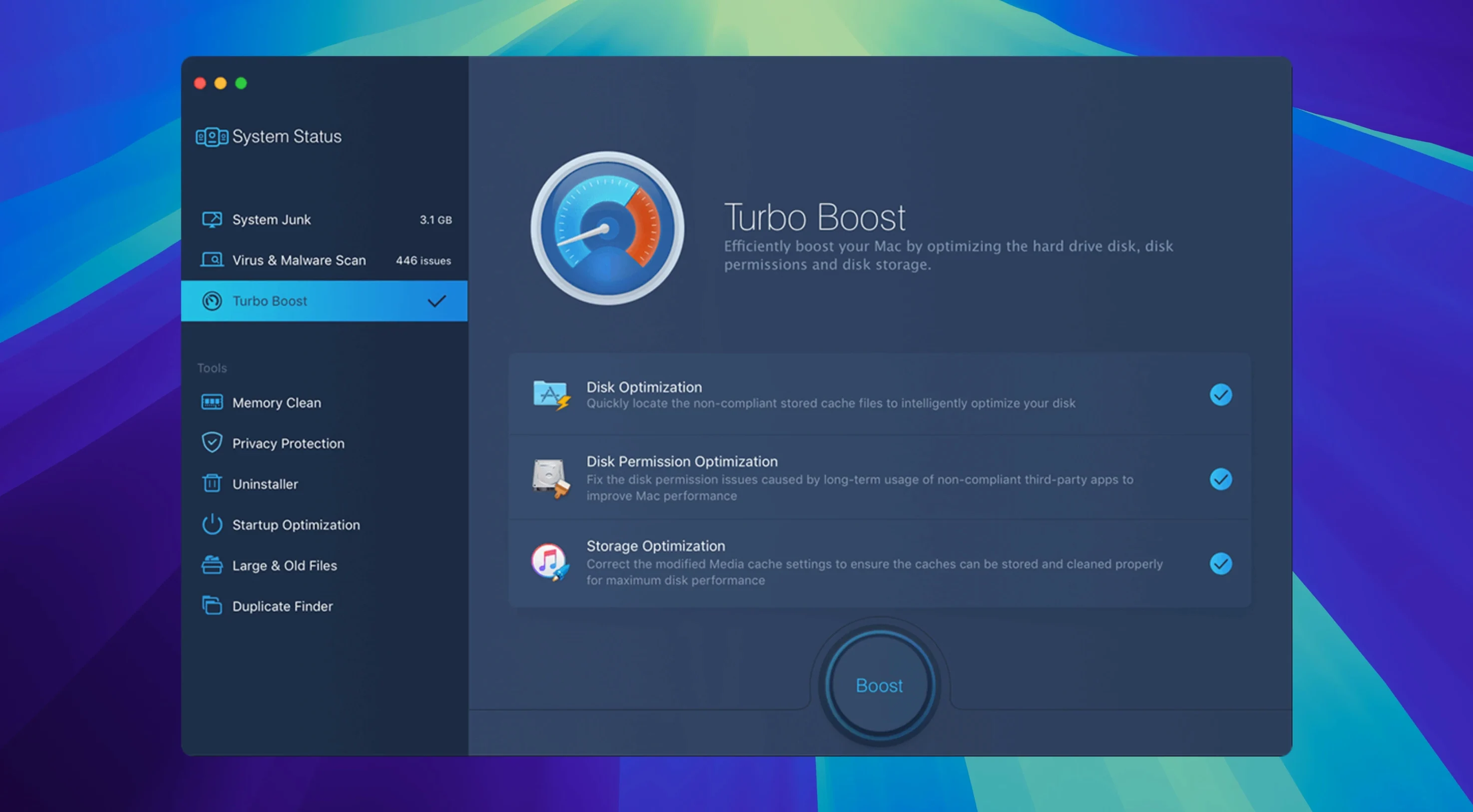
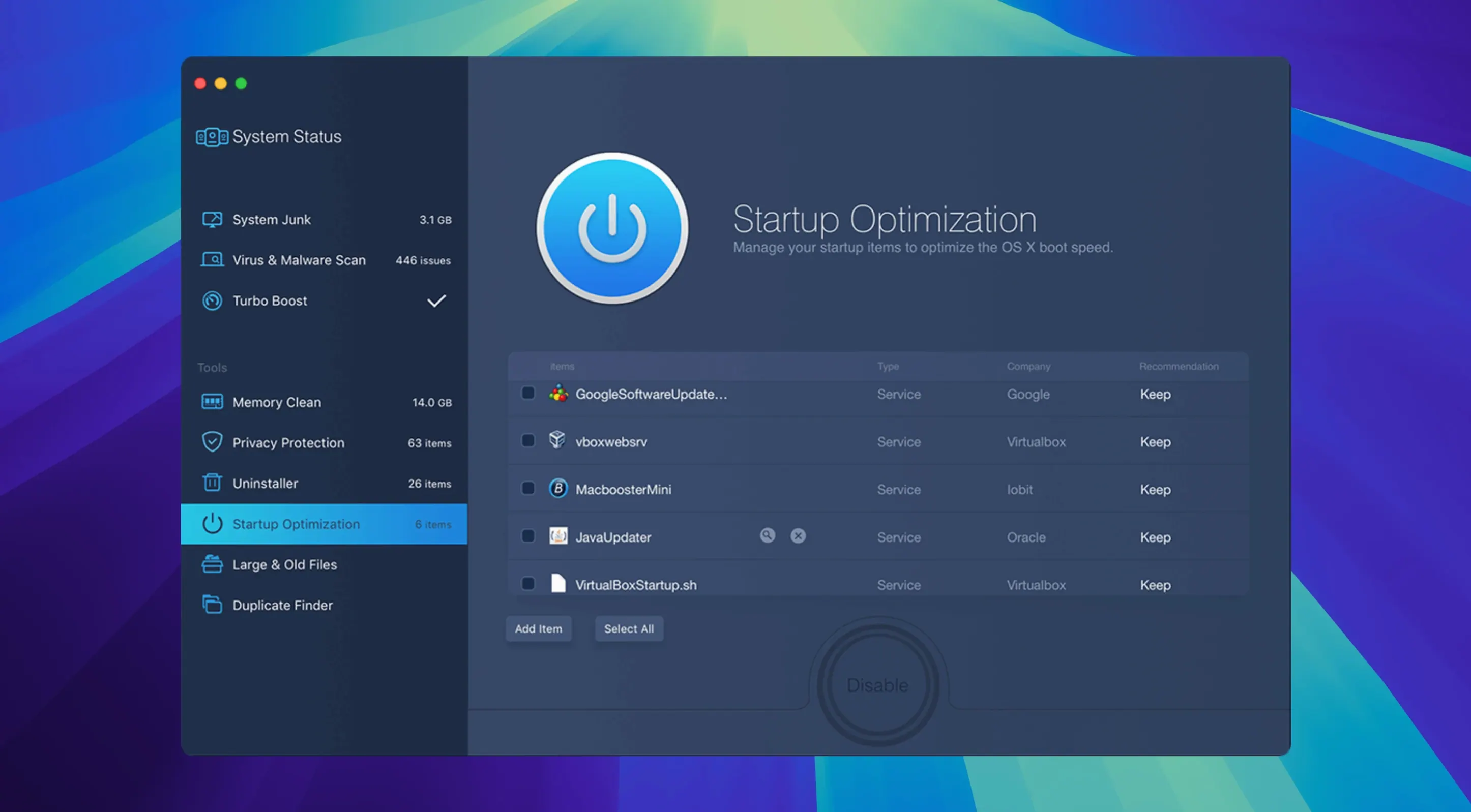
Past the immediate junk, the Large & Old Files module acts as a second pass, surfacing forgotten ProRes scratch files and Duplicate Photos that have been backed up across three different folders. It is a simple grid of files sorted by size and date, stripped of any visual clutter, which keeps the task from becoming the usual tedious Finder treasure hunt. The real psychological relief is not the raw number of gigabytes freed but the fact that the disk permissions and the LaunchAgents left behind by long-uninstalled software get repaired alongside the cleanup, which often silences the random beachballing that creeps into an aging user account.
By the time the scan finishes and the trash is emptied, the drive settles back to a steady idle, and the export dialogue stops stuttering as it calculates the remaining space. It is a purely pragmatic routine that pulls a machine back from the edge of a full-volume warning without asking you to micromanage Library folders.
An editor’s Tuesday morning routine
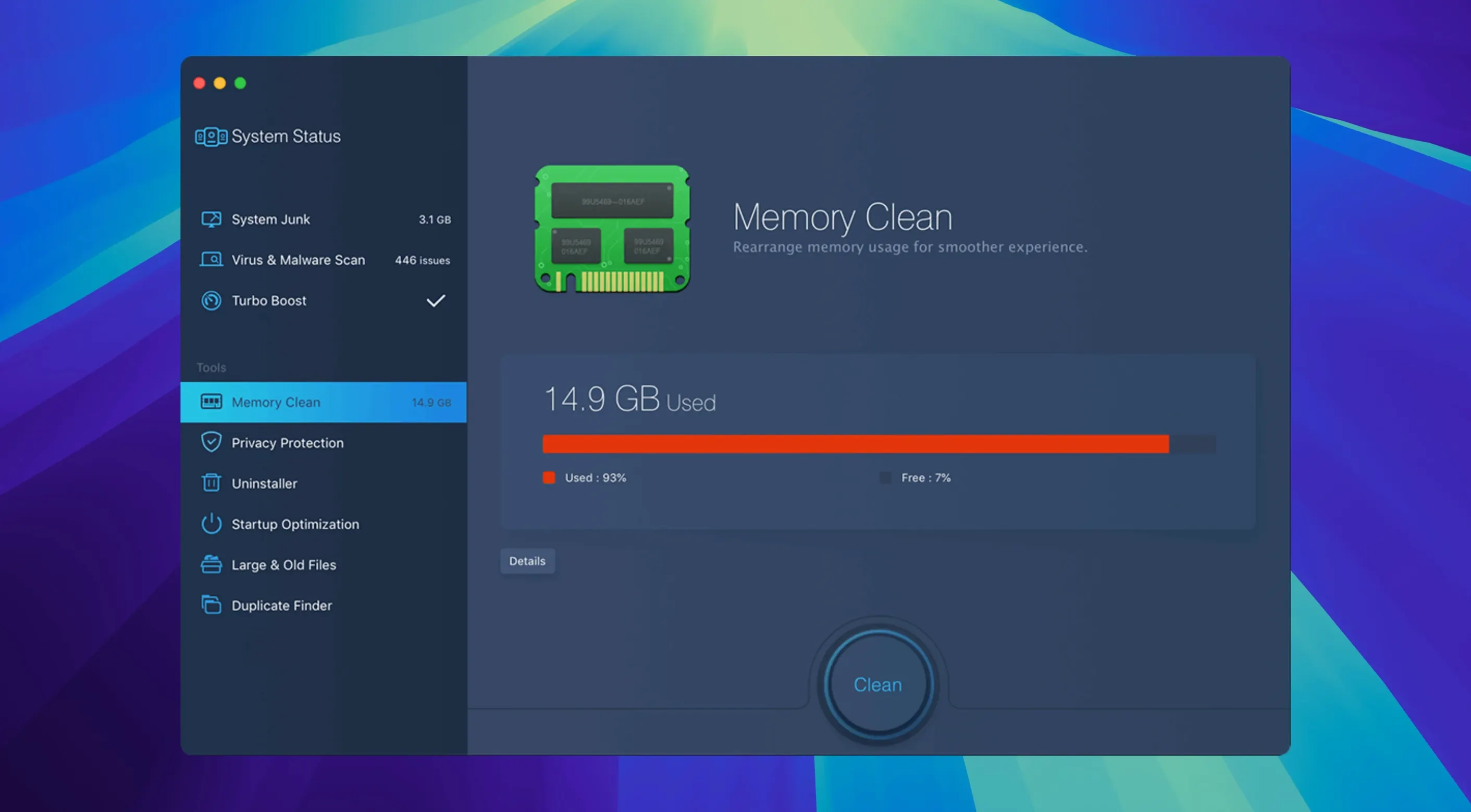
A freelance colourist I know keeps a late-2019 Intel MacBook Pro that still handles 4K timelines without complaint—until the fans kick in during a client-attended session and the beachball turns a thirty-minute grade into an hour of apologetic waiting. Her ritual, every Tuesday before the week’s dailies arrive, is to fire up MacBooster 8, tap the Memory Clean tile, and watch the wired-memory pressure drop from amber to green inside five seconds. She follows it with a System Junk pass that clears the FCPX render files left behind by projects she wrapped six months ago. The machine is not transformed—the fans still spin up under load—but the timeline scrubs smoothly again, and the small dignity of a quiet work session holds long enough to get through the morning’s deliveries.
The point is not that MacBooster turns an aging machine into a new one. It is that a predictable, repeatable five-minute routine often postpones the expensive hardware conversation longer than most people expect.
Small conveniences hidden in plain sight
A handful of touches vanish into muscle memory only after a few weeks. The tool count—seven utilities—suggests separate apps bolted together, but in practice they share a single scan queue, so running System Junk, Malware Removal, and Privacy Clean in sequence does not mean launching three different interfaces. A checkbox in the results pane lets you exclude browser cookies selectively while still sweeping Flash cookies and chat logs, which is the kind of granularity that keeps you from logging out of every service you rely on.
The Duplicate Finder honours Finder tags, meaning you can mark a folder with a red tag and tell the scan to ignore it entirely—useful when your “duplicates” are actually deliberate proxies living inside a media-managed project. Under the hood, the disk optimization step defragments only files above a certain fragmentation threshold, so the process on an SSD-equipped Mac finishes fast and does not hammer the drive with unnecessary rewrites. In the Uninstaller, dragging an app bundle onto the window triggers a dependency scan that catches preference panes, sandbox containers, and leftover daemons—far more thorough than simply deleting a .app from the Applications folder.
Cruft builds slowly on long‑lived creative Macs
Users who keep a Mac for five years or more and install and remove a lot of creative software get the most tangible benefit, because the tool addresses precisely the kind of slow, accretive cruft that a clean macOS install solves but nobody wants to schedule. Photographers who bounce between Lightroom, Capture One, and three generations of raw converters will recognize their own orphan catalogues in the Large & Old Files list. Sound designers running dense Ableton or Logic sessions will appreciate that the Memory Clean module frees wired RAM without quitting the DAW, preserving plugin states that take twenty minutes to rebuild after a restart.
People with 256 GB or 512 GB internal drives—still the most common configurations on base-model Macs—benefit disproportionately, because a few gigabytes of reclaimed space directly determines whether a macOS point update can even download overnight. MacBooster also suits anyone who wants a single place to check for both adware and accumulated junk rather than hunting through System Preferences, login items, and three Library folders manually. It does not replace deeper forensic tools, but for the kind of maintenance that prevents a machine from sliding into unusable sluggishness, it fits the narrow gap between doing nothing and a full wipe.
- macOS 11.5 or later
- Apple Silicon or Intel 64-bit Mac
- 70 MB or more of free disk space