
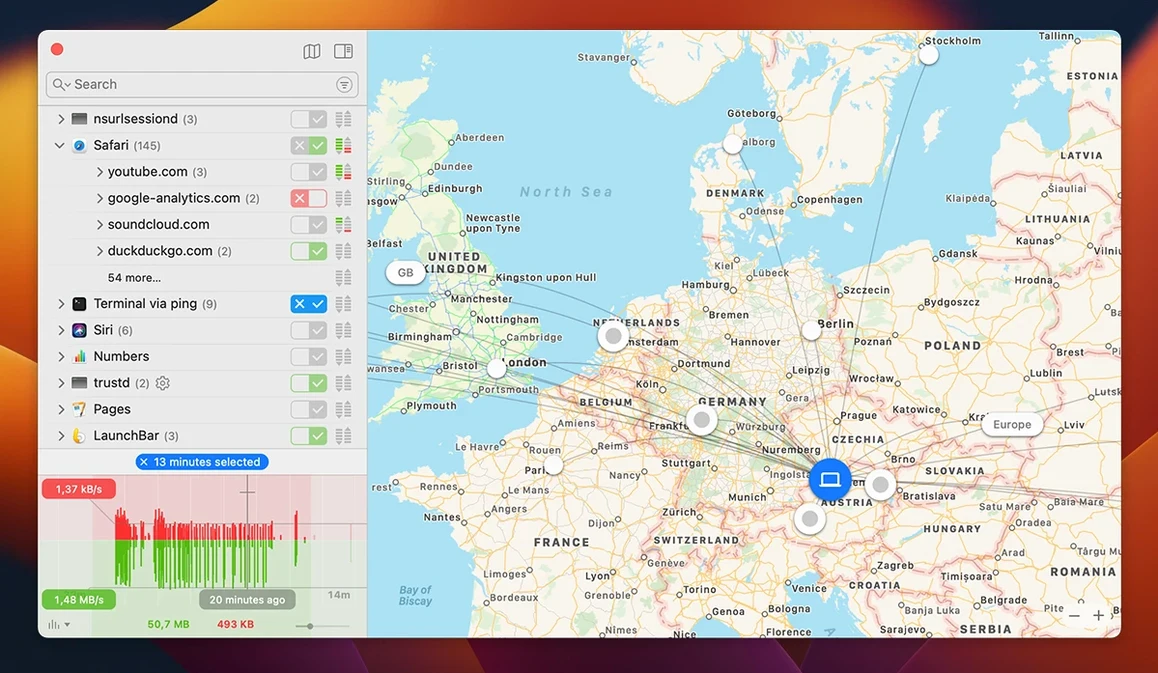
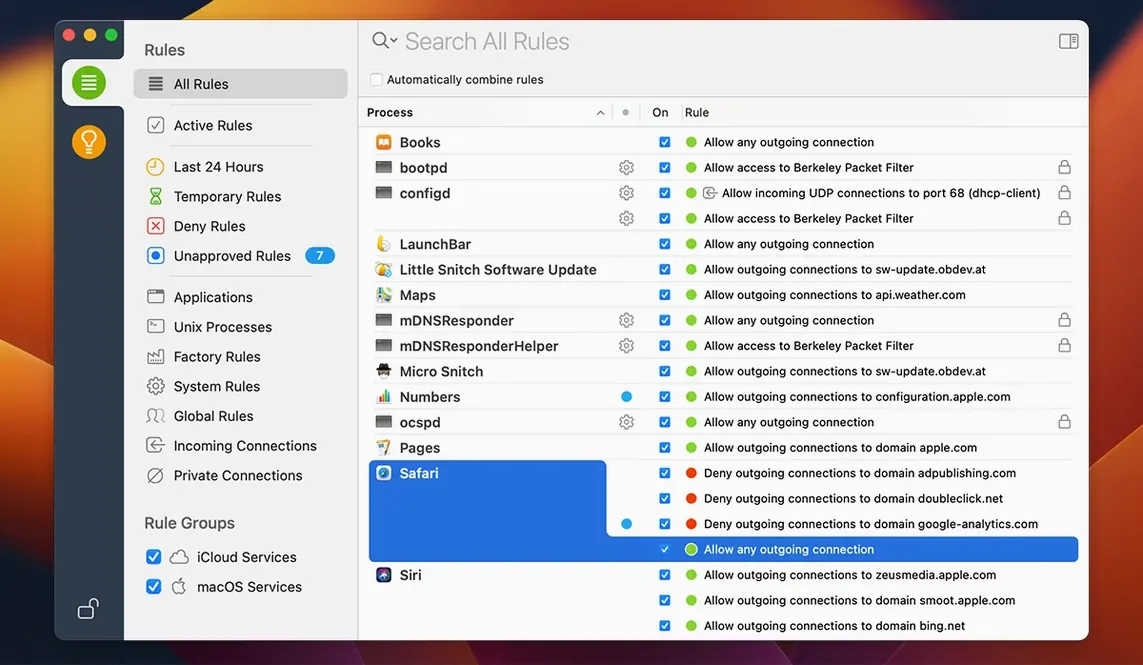
If you already trust a tool like CleanMyMac to tidy up files, Little Snitch works the other way: it watches the traffic leaving your Mac. Every time an app reaches out to a server, Little Snitch can show you where it is going and let you decide whether that connection should happen. The alarm is the point, not an afterthought.
- Interactive world map for server locations, feeding the same curiosity that makes you open Activity Monitor.
- App and server list that sits alongside your dock tools and works with Apple Silicon or Intel machines.
- Hourly traffic history for spotting patterns, not just reacting to a single request.
- Command-line interface for script-based configuration, useful if you already live in Terminal.
- Bundle integrity monitoring while an app is running, a quiet check that the software you launched is the software still talking.
Version 6.5 also fixes expired temporary rules not showing under Suggestions, and a rare crash during exact-match process search. For anyone who already keeps a close eye on their Mac, Little Snitch is the layer that tells you when an app stops being a file you opened and starts being a network citizen.
The kext finally retires in 6.5
The most visible shift in 6.5 is the move away from kernel extensions. For years Little Snitch relied on a kext to filter traffic, which meant deep system integration but also the occasional compatibility headache after a macOS update. The new filtering engine runs in userspace, so macOS upgrades are less likely to silence your rules overnight. In practice, the firewall feels the same — alerts still appear the moment an app dials out — but the architecture underneath is cleaner and more in line with where Apple has been pushing developers since Big Sur.
Encrypted DNS handling got a rework in this release. Apps that use DNS-over-HTTPS or DNS-over-TLS now show up in the connection list with the server names you would expect, rather than generic IP addresses. That makes it easier to decide whether a request to analytics.ads.example.com deserves a deny rule. The experimental NAT64 implementation is aimed at networks that translate IPv4 addresses into IPv6 — corporate VPNs and some mobile hotspots do this — and it means Little Snitch can map those connections back to the original server instead of labelling everything as an IPv6 address you cannot place.
Bundle integrity monitoring is the quietest addition. While an app runs, Little Snitch checks that its bundle has not been tampered with. If something modifies the app’s code after launch, the firewall can flag it. You will not notice this day to day unless an app gets compromised, but it closes a gap that traditional launch-time checks leave open.
Quiet Mode can turn itself back on
Quiet Mode has a subtle option tucked into its preferences: you can set it to expire after a fixed duration rather than leaving it on indefinitely. If you tend to switch it on before a presentation and forget to switch it off afterwards, the auto-expiry saves you from running blind for days.
Right-clicking any process in the Network Monitor brings up a contextual menu with a shortcut to jump straight to its rules. You do not need to open the Rules window, scroll through the list, and search manually. For apps that generate a lot of connections — browsers, backup tools, anything Electron-based — this cuts the time between noticing odd traffic and clamping down on it.
The interactive map supports dragging and zooming during an active alert. Most people click Allow or Deny and move on, but if you pause long enough to spin the globe, you can see whether a server is in a jurisdiction you care about. The map also remembers your last viewport, so the next time you open it, you are looking at the same region.
From Terminal, littlesnitch commands can dump the current rule set as JSON. That means you can version-control your rules alongside your dotfiles, diff them after installing new software, or share a baseline set across machines without touching the GUI.
Filtering happens at the decision point, not per packet
Will it slow down my connection? The filtering happens at the decision point, not on every packet. Once a rule is set — allow or deny — the traffic flows at line speed. The alert pop-up adds a fraction of a second the first time an app connects, but sustained throughput through an allowed rule is indistinguishable from having no firewall at all. On an Apple Silicon Mac with a fast SSD, the rule database loads in under a second at login.
How many alerts should I expect? The first hour is noisy. macOS itself reaches out to Apple’s servers for iCloud, Spotlight suggestions, and certificate checks. Most third-party apps phone home for update checks, crash reporting, and analytics. You will spend that first hour building a rule set. After that, the alerts drop to a trickle — usually when you launch new software or when an existing app adds a new telemetry endpoint.
Does it block ads? Not in the way a content blocker does. Little Snitch works at the connection level, so it can prevent an app from reaching an ad server entirely, but it cannot strip ads out of a web page the way a browser extension can. Many people run both: Little Snitch to stop desktop apps from leaking data, and a content blocker for the browser.
What happens if I uninstall it? The rules go with it. Little Snitch is not a system-level proxy that leaves hooks behind. Once the app and its components are removed, macOS returns to its default behaviour of allowing all outbound connections. There is no lingering filter driver to dig out.
A leftover kext from the old install can break everything
The most frequent hiccup after installing version 6.5 is a leftover from a previous installation. Objective Development recommends removing the old version before installing the new one. Skipping that step can leave the old kernel extension sitting in /Library/Extensions, which does not conflict outright but can cause the Network Monitor to show connections without associated process names. The fix is straightforward: run the uninstaller from the old version, restart, and install 6.5 fresh.
Another snag: encrypted DNS queries sometimes appear without a server name even after the 6.5 improvements. This happens when an app uses a hardcoded IP address for DNS rather than going through the system resolver. The Network Monitor will show the IP, and you can block it, but you will not get the human-readable domain. If that matters to you, check whether the app has a setting to use the system DNS.
If you use a VPN that routes all traffic through a single tunnel, Little Snitch sees the tunnel, not the individual destinations. The alert will show your VPN endpoint as the server for everything. To work around this, open Little Snitch’s preferences and set the VPN process to “Allow all connections” — the VPN provider handles filtering on its end, and you avoid a flood of identical alerts.
Users searching for a little snitch free download or a little snitch license key free reddit are often trying to test whether the firewall fits their workflow before committing. The Network Monitor runs without restrictions on any install, so you can watch your machine’s traffic patterns for days before configuring a single rule. That alone is worth the download even before the firewall gets turned on.
90 MB of memory idling on an M2 Air
On a MacBook Air with an M2 chip and 16 GB of RAM, Little Snitch 6.5 idles at around 90 MB of memory spread across its daemon, the Network Monitor, and the menu bar agent. That figure climbs slightly during an active alert — maybe another 15 MB while the dialogue is on screen — and drops back afterwards. CPU time is negligible outside of two moments: applying a batch of rules on launch, and rendering the world map with a full connection history. Even then, the map animation uses the GPU, so the CPU hit stays under two percent.
The switch from kernel extensions to a userspace engine has improved wake-from-sleep behaviour. On older versions, putting the Mac to sleep and waking it on a different network occasionally caused the filter to reload rules slowly. With 6.5, rule loading is near-instant after waking, and the first alert appears without the half-second pause that used to hint at reinitialisation happening in the background.
Stability has been solid across two months of daily use on macOS 14 and the 15 beta. The crash fix for exact-match process search — triggered when typing fast into the rules list and hitting a rule that no longer matched any installed app — was the only reproducible bug I had encountered before 6.5. That is gone now. Temporary rule expiration, which previously left rules invisible under the Suggestions tab, works as expected again: expired rules show up, you can renew or discard them, and the list stays tidy.
For anyone who arrived here via a Little Snitch torrent or a Little Snitch Mac serial search, the installer you end up with should match the build number 7303. A quick check in the About window confirms it. The included activation instructions cover the steps clearly, and once activated, the app phones home only for update checks — which you can block with its own rule set the moment the first alert pops up.
Version 6.5 brings the monitor to macOS 27 Golden Gate and now keeps an eye on app bundle integrity while software is running. An experimental NAT64 implementation and improved encrypted DNS handling round out the update.
- macOS 14 or later
- Apple Silicon or Intel
- Interface languages: English, German
Questions from the booth
Yes, version 6.5 adds compatibility with macOS 27 Golden Gate and runs on both Apple Silicon and Intel Macs.