
Drops older macOS baggage for Shortcuts and Siri
Lingon 10 moved fully onto macOS 14, shedding older baggage while sharpening its connection to Shortcuts and Siri. The editor feels quicker, and the menu bar agent is more responsive when you fire a script mid-edit and need the result now.
Scheduling a task with conditions
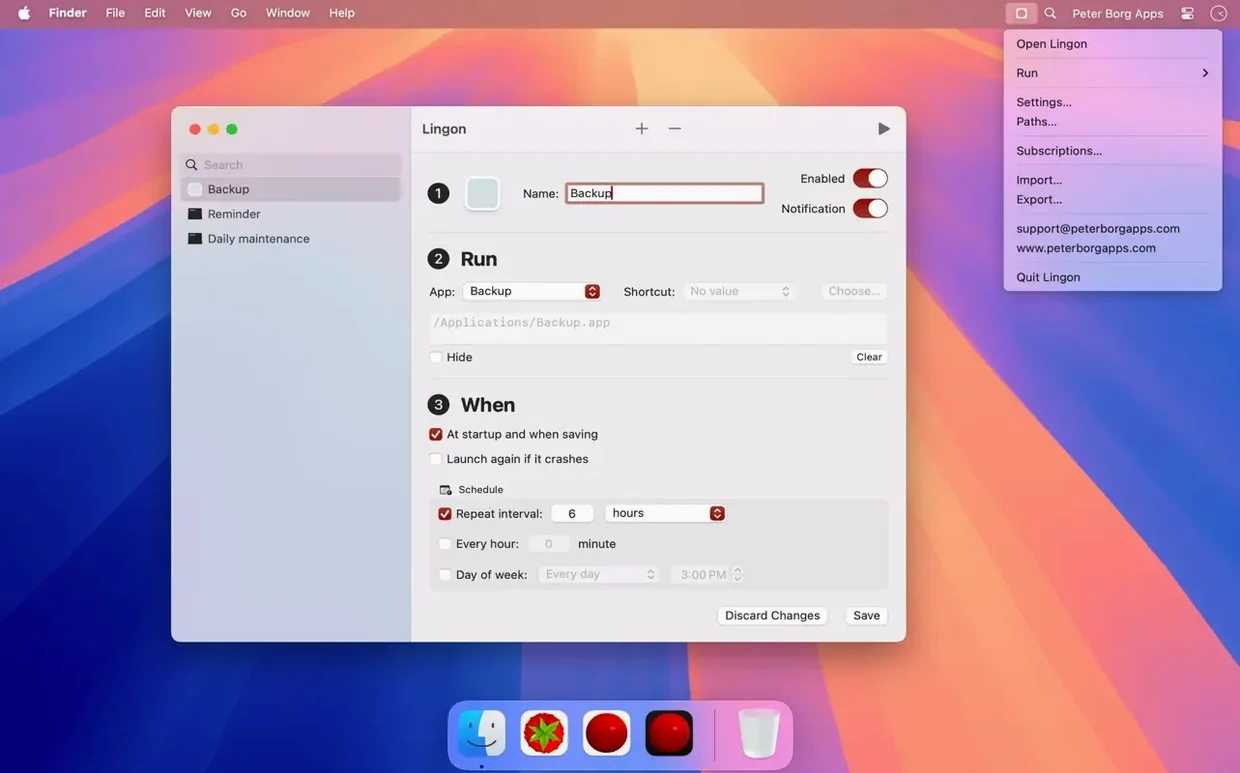
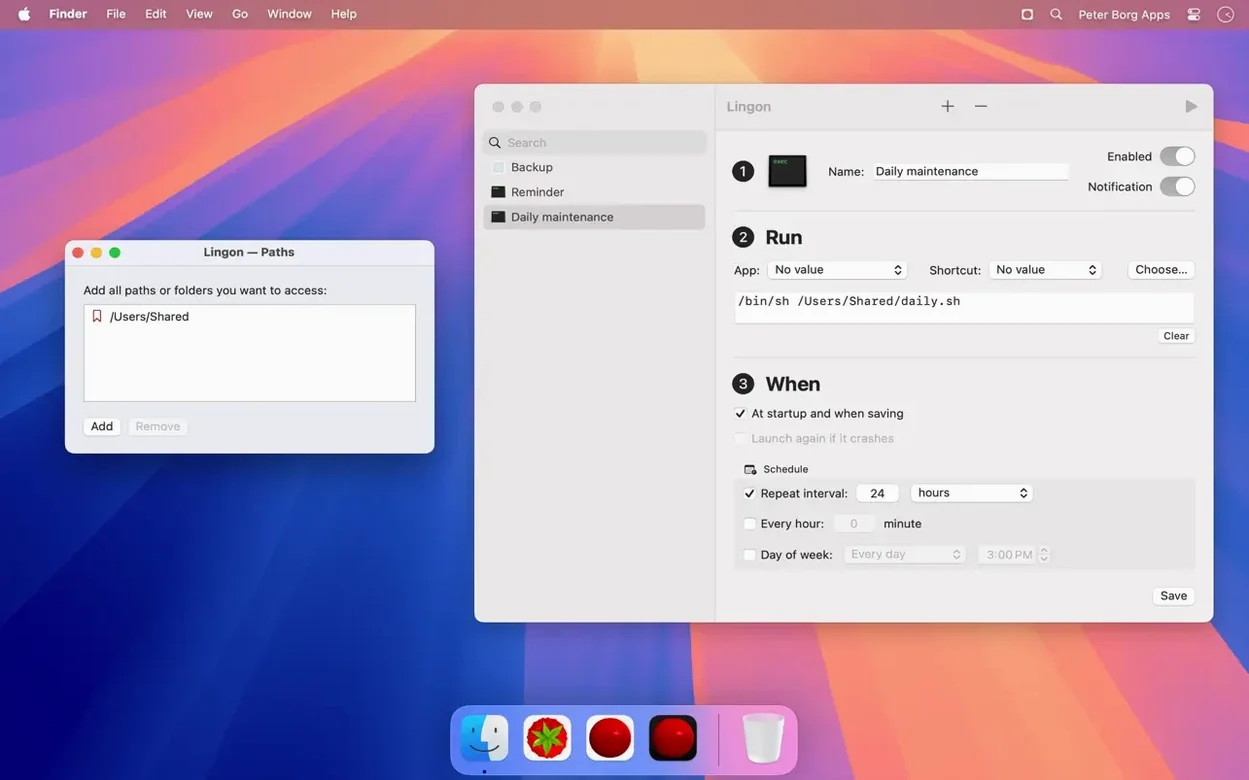
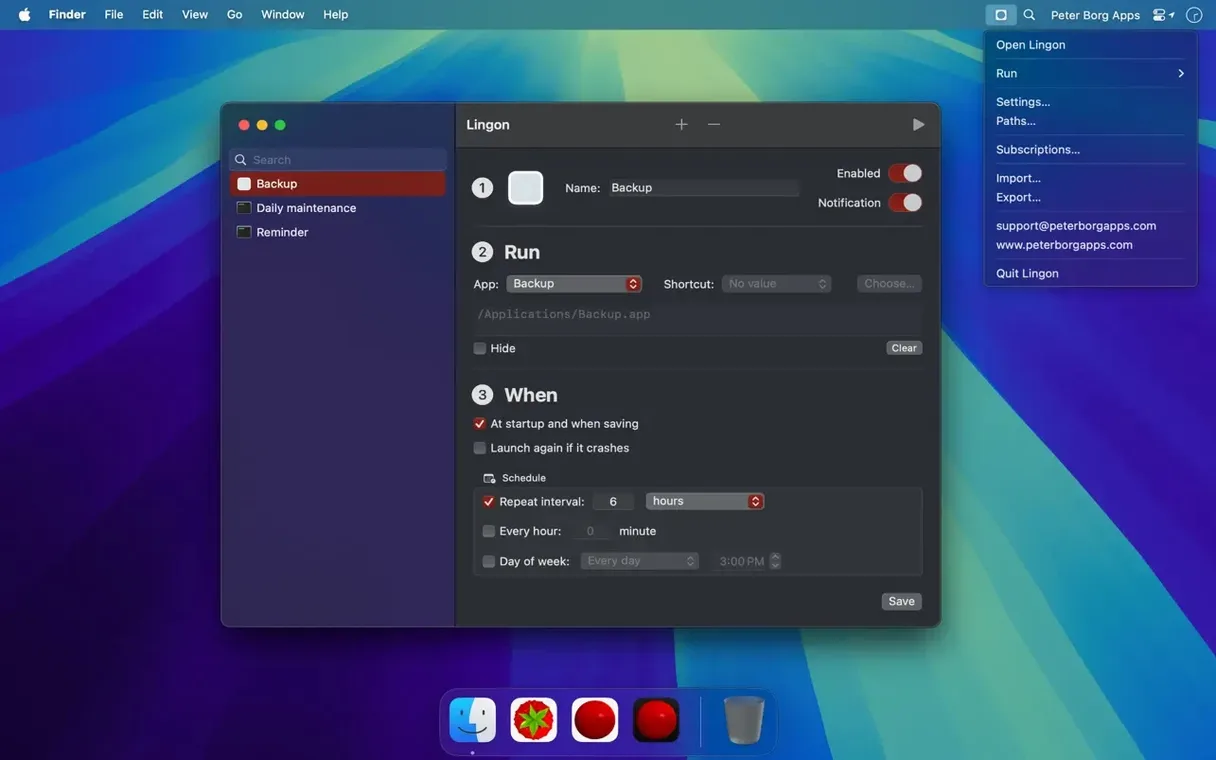
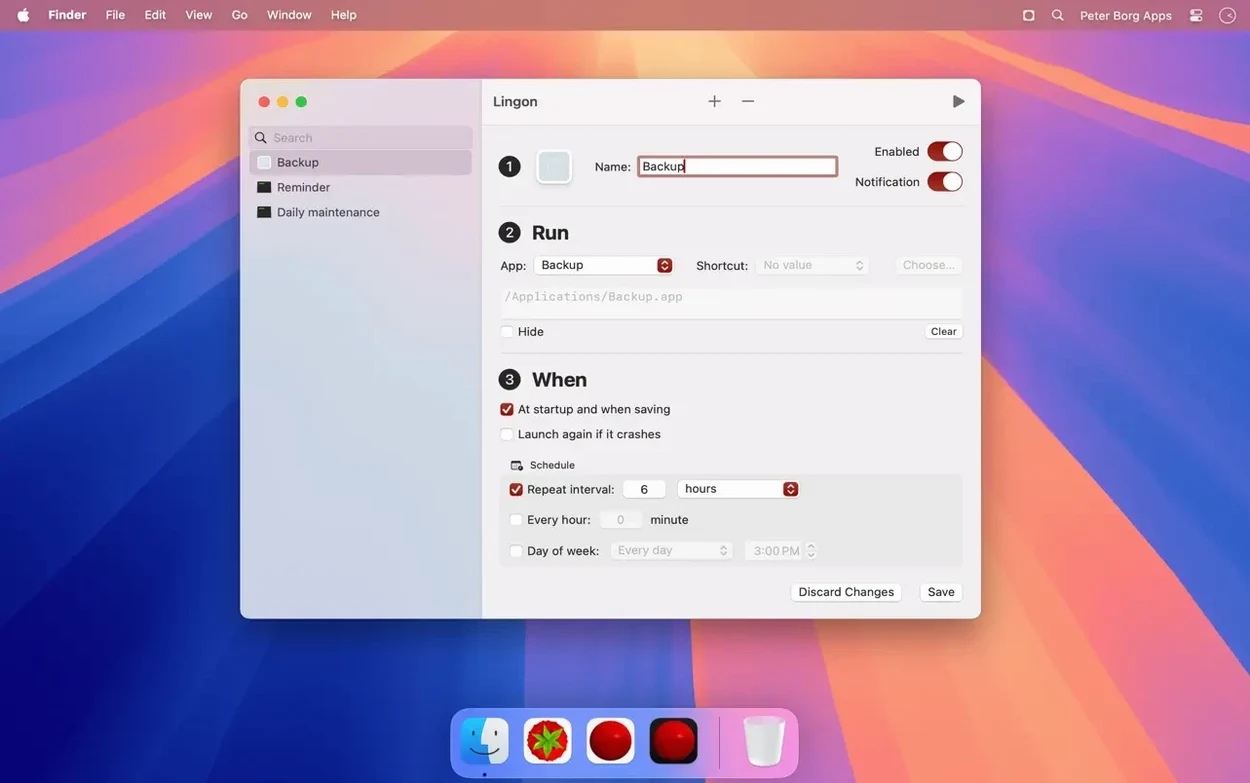
- Create a new job and pick what you want to run — an app, a shell script, or a Shortcut from your library.
- Set the schedule beyond a simple clock time. Tell it to watch a file path and fire when something changes, or run when a specific volume mounts.
- Toggle on the notification option so you get a brief banner when the task executes. Useful for catching silent failures in a long render chain.
- Enable the keep-alive setting. If the script or app crashes, launchd restarts it automatically — a quiet safety net for background render helpers or local servers.
- Assign a hot key or pin the task to the menu bar so you can trigger it manually during playback review without leaving your timeline.
Because Lingon sits directly on launchd, every job you build uses the same system scheduler macOS itself relies on. That means no helper processes eating CPU in the background — just a clean launchd plist, which you can also export for other machines.
Where Lingon fits in a working day
Lingon doesn't try to replace the Finder, Terminal, or your scripting environment — it threads between them. A Shortcut that renames exports from DaVinci Resolve can fire on a calendar trigger, then a shell script picks up the renamed files and rsyncs them to a NAS. The pieces stay small and testable on their own; Lingon handles the timing and the retries. Because it writes standard launchd plists, anything you schedule is visible to launchctl and to system monitoring tools, which matters when a render farm script misbehaves at 3 a.m. and you need to trace what ran.
Integration with Shortcuts runs deeper than just launching them. A shortcut can pass a file path as input to a script scheduled in Lingon, and the job can send a notification back with the exit code. For filmmakers stitching together command-line encoders and folder actions, that closes a loop that used to require a separate watchdog script. Siri triggers work the same way — speak a phrase, Lingon picks it up through the Shortcuts bridge, and your batch transcode starts while you're still walking back from the kettle.
Small things that reward attention
The menu bar agent holds more than a list of recent jobs. Right-click a job and you can run it, reveal its plist in Finder, or jump straight into editing without opening the main window. If you schedule something for when something special happens, the condition editor accepts paths dragged from Finder, so you're not typing /Volumes/ProjectDrive/ by hand. Holding Option while clicking the add button duplicates the selected job — a fast way to build variations of a render script with different watch paths. And the notification text is customisable per job, which means a failed ffmpeg encode can say "proxy render failed" rather than just "script exited with code 1."
There's also the root-user toggle, easy to overlook. Flipping it on for a single job lets that task run as root without elevating the whole app — useful for scripts that touch /etc/hosts or prune system logs, while everything else stays in your user space.
Lives lean alongside Logic Pro with 40 MB of memory
Lingon 10 launches cold in about two seconds on an Apple Silicon machine and settles under 40 MB of memory with a handful of jobs defined. The menu bar helper uses even less. I've run it alongside Logic Pro and DaVinci Resolve without noticing it in Activity Monitor — the heavy lifting belongs to launchd, and Lingon is essentially a specialised text editor for plists with a scheduling interface wrapped around it. Job execution feels instant when triggered manually, and scheduled tasks fire within a second or two of their appointed time, same as any native launchd job.
Stability has been uneventful in the best way. Over several weeks of daily use, the app hasn't beachballed or lost a job definition. The plist files it writes are clean enough that running plutil -lint on them returns no warnings — a small detail that matters when you're managing launch agents across multiple machines and don't want syntax surprises in the middle of a project.
- macOS 14 or later
- Apple Silicon or Intel 64-bit
Questions from the booth
Yes. Lingon lets you schedule a task triggered by a volume mount, so a backup or transcode script can fire the moment you plug in a specific drive.
It does — you can set a Shortcut to run automatically on a schedule or invoke it from Siri through Lingon's launchd integration.