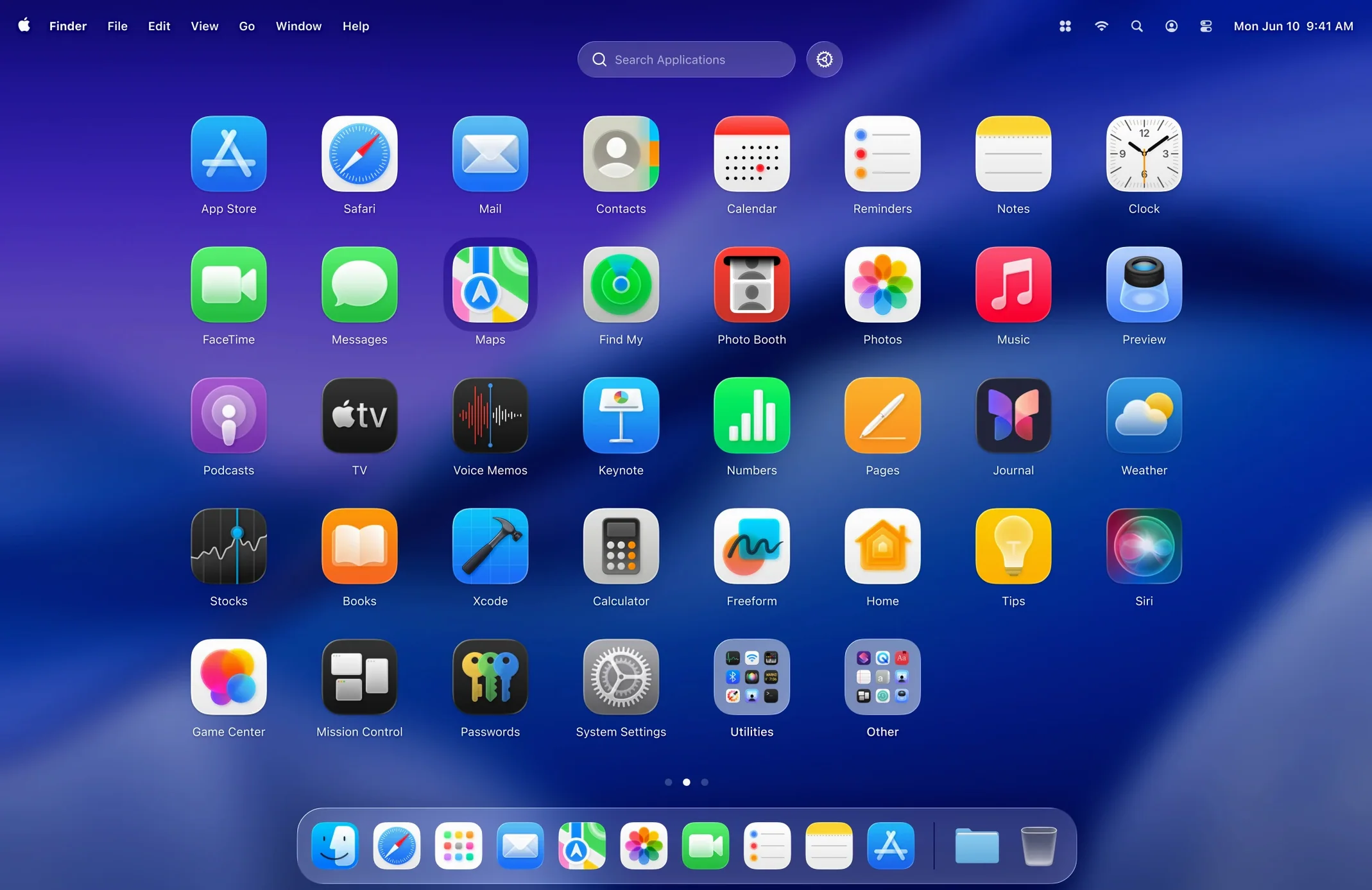
Apple’s Launchpad works until your Applications folder grows into a sprawling grid of icons you forgot you had. LaunchOS steps in as a direct replacement that keeps the same full-screen app-picking gesture but adds the curation the built-in tool never offered. It sits between your Dock’s essentials and Spotlight’s typed shortcuts — a visual launcher you can actually shape to match how you work.
- Hide apps you rarely open so the grid reflects your active toolset, not every utility you installed once.
- Uninstall apps with a long press or right-click, skipping the Finder hunt through the Applications folder.
- Runs natively on ARM and 64-bit Intel Macs, fitting neatly alongside your Adobe tools, DAWs, and code editors.
- Picks up macOS 26’s Liquid Glass translucency, so it feels like part of the system rather than an overlay.
- Restart from the status bar or right-click menu — a small touch that keeps the launcher feeling responsive.
The app lives quietly in the background until you trigger it, then gets out of the way. It respects the same gesture most Mac users already know, just with fewer distractions and more control over what stays visible.
Where things trip up and how to unstick them
LaunchOS feels straightforward until you realize your Dock icon has gone missing or the gesture you've used for years suddenly does nothing. These are almost never bugs — they're collisions between LaunchOS and macOS's own assumptions about who owns the app-launching territory.
The most common snag: you install LaunchOS, it runs, but the Launchpad keyboard shortcut still opens Apple's original grid. This happens because macOS holds onto that shortcut until you reassign it. Head into System Settings → Keyboard → Keyboard Shortcuts → Launchpad & Dock, disable the built-in Launchpad shortcut, then assign the same key to LaunchOS in its own preferences. Once you do that, the transition feels invisible. A related issue crops up with trackpad gestures — pinch with thumb and three fingers might still summon the old Launchpad even after LaunchOS is running. The fix is the same System Settings panel, this time under Trackpad → More Gestures, where you can turn off Launchpad entirely and let LaunchOS take over.
Another friction point: LaunchOS appears briefly then vanishes. Usually this means macOS's app management has decided the app shouldn't stay resident. Adding LaunchOS to Login Items (System Settings → General → Login Items & Extensions) keeps it alive across restarts and prevents the system from quietly offloading it. If the app still flickers out, check that no other launcher utility is fighting for the same trigger — apps like BetterTouchTool or custom Alfred workflows can intercept the gesture before LaunchOS sees it.
For anyone searching for is launchos free — the question surfaces often in forums and download pages, and it's worth knowing what you're getting. LaunchOS is an independent project from Remix Design, not a system patch or a cracked utility, so it carries its own distinct build signature. The version available on this site is the full 2.1.0 build, matching what the developer ships.
Set grid rows and columns to see more apps at a glance
Out of the box, LaunchOS gives you a reasonable mirror of what Apple's Launchpad looked like. But the defaults lean conservative, and a few quick adjustments turn it from a replacement into an actual improvement.
First stop: grid dimensions. The default grid packs icons at the same density as the stock launcher, which on a 14-inch MacBook Pro can feel cramped or sparse depending on your scaling. Drag the column and row sliders in LaunchOS's preferences until your most-used apps fit on the first page without scrolling. Seven columns by five rows tends to hit the sweet spot on a 16:10 display; ultrawide monitor users can push wider. The change is live, so you see the result as you drag.
Next, the visibility list. This is the feature that makes LaunchOS worth installing. Open preferences, switch to the Apps tab, and uncheck everything you don't want cluttering the grid — updaters, uninstallers, legacy utilities, that one printer app you needed once in 2023. The list is searchable, and hidden apps don't get deleted; they simply stop appearing until you re-check them. A filmmaker might hide every Adobe helper executable and leave only Premiere, After Effects, and Media Encoder visible. A musician might strip away DAW component installers and keep Logic and its MainStage companion.
One last tweak: the Liquid Glass intensity slider. On older Apple Silicon machines, dialling it back slightly can make text labels more legible against busy desktop wallpapers without losing the translucent effect entirely.
Dragging apps in the grid rearranges your real Applications folder
The first mistake is treating LaunchOS like a folder. People drag apps into the grid expecting to organize them there, but LaunchOS mirrors your Applications folder — it doesn't create a separate sandboxed collection. Moving an app into a different page or group within LaunchOS doesn't move it on disk. Beginners sometimes delete an app from the LaunchOS grid assuming they're just hiding it, then discover the app is gone from the system entirely. The long-press uninstall in version 2.1.0 is genuinely destructive, so pause before you confirm that deletion prompt.
Another early misstep: hiding too many apps on day one. It's tempting to strip the grid down to nothing, but you'll inevitably need that disk utility or font manager three weeks later and forget its name. A better approach — hide in batches, a dozen at a time, and live with each batch for a few days before pruning more. LaunchOS's search bar still finds hidden apps by name, so you're never fully locked out, but muscle memory takes time to rebuild.
Some users also overlook that LaunchOS needs to be running to catch its trigger. If you quit it from the status bar — not just close the overlay — the gesture and shortcut go dead. The status bar icon is small and monochrome, easy to miss on a crowded menu bar. Keep it there, or set it to launch at login so you never have to think about it.
A quiet note for those who've stumbled across a launchos crack or a launchos cracked download elsewhere: those can run older versions that lack the uninstall and restart features added in 2.1.0, so to get the full feature set on macOS 26 you'll want to confirm the build number matches. The build on this page is current and clean.
Launching a colour reference app, scratchpad and audio router mid-session
It's late morning and you're settling into an editing session. DaVinci Resolve is already open, timelines loaded, but you need to grab three more tools quickly — a colour reference app, a notes scratchpad, and the audio routing utility that lives somewhere between your interface and your speakers.
You pinch four fingers on the trackpad. The desktop blurs behind Liquid Glass and your app grid slides forward, icons arranged exactly as you left them. No updaters, no Adobe baggage — just the forty or so apps you actually touch in a given month. The grid is six columns wide, enough that Resolve, Fusion, and Fairlight each have their own tile on page one without scrolling. You spot the colour reference app on page two, two swipes right. Muscle memory kicks in: you've positioned it in the bottom-right corner of that page for weeks, and your thumb finds it before your eyes do. A tap opens it.
Back to page one for the notes app, then a quick two-key shortcut — Command-Space feels too ingrained to abandon, but LaunchOS's own shortcut is Option-Escape, and you've trained yourself to use it when your left hand is already on the keyboard. The audio utility isn't on any page because you hid it last month; you type its first three letters into the search bar at the top of the overlay, it appears instantly, and you tap to launch. Total time from pinch to having all three apps open: maybe twelve seconds.
Later, you notice a helper app from a video encoder you uninstalled weeks ago is still showing in the grid. You right-click its icon, choose Uninstall, and it's gone — no Finder window, no hunting through the Applications folder. The gesture still works, the grid still looks clean, and the session never left its flow.
Small conveniences you'd probably miss
Right-clicking a LaunchOS icon does more than uninstall. The context menu also offers Restart — useful when a creative app locks up and you want to kill it and bring it back without touching the Dock or Activity Monitor. The status bar menu mirrors this, so you can restart the last frozen app from the menu bar while keeping your hands off the keyboard.
The search field supports fuzzy matching. You don't need the exact app name; typing "ae" pulls up After Effects, and "logic" finds Logic Pro even if Apple's full name is "Logic Pro X." This matters when you remember an app by its colloquial name rather than its formal one.
If you've gone looking for launchos torrent links in the past, note that those distributions rarely include the localizations that version 2.1.0 ships with — ten interface languages including Russian, German, Spanish, French, Japanese, Korean, and both Traditional and Simplified Chinese. Switching languages is a single dropdown in preferences, and the whole interface re-renders immediately.
One last shortcut: holding Option while tapping an app in LaunchOS reveals its location in the Finder rather than opening it. It's unadvertised, tucked into the same modifier key behaviour that macOS uses everywhere else, but it's there and it works.
Version 2.1.0 brings app uninstallation right into the launcher grid — long-press an icon or right-click to remove the app without opening Finder. A Restart command has also landed in both the status bar menu and the right-click context menu.
- macOS 26 or later
- Apple Silicon or 64-bit Intel Mac
Questions from the booth
LaunchOS is a paid app from Remix Design Studio; the current version is 2.1.0 and it requires macOS 26.