You're laying down a synth part in Ableton Live and need to bounce the MIDI to audio, rename the new clip with today's date, and colour it indigo—three steps you perform dozens of times a session. Instead of reaching for the mouse, you tap a key combination you assigned once, and the whole sequence plays out in under a second. Keyboard Maestro 11.0.4 is the engine behind that kind of shorthand, turning repetitive Mac actions into macros you trigger with a keystroke.
Runs natively on Apple Silicon back to High Sierra
The 11.0.4 update keeps its system requirements grounded in stability rather than chasing the newest hardware gimmicks. Here is what you need:
- macOS 10.13 High Sierra or any later release
- Architecture runs natively on both Apple Silicon and Intel Macs
- Interface presented in English
What the macro editor brings to a workflow
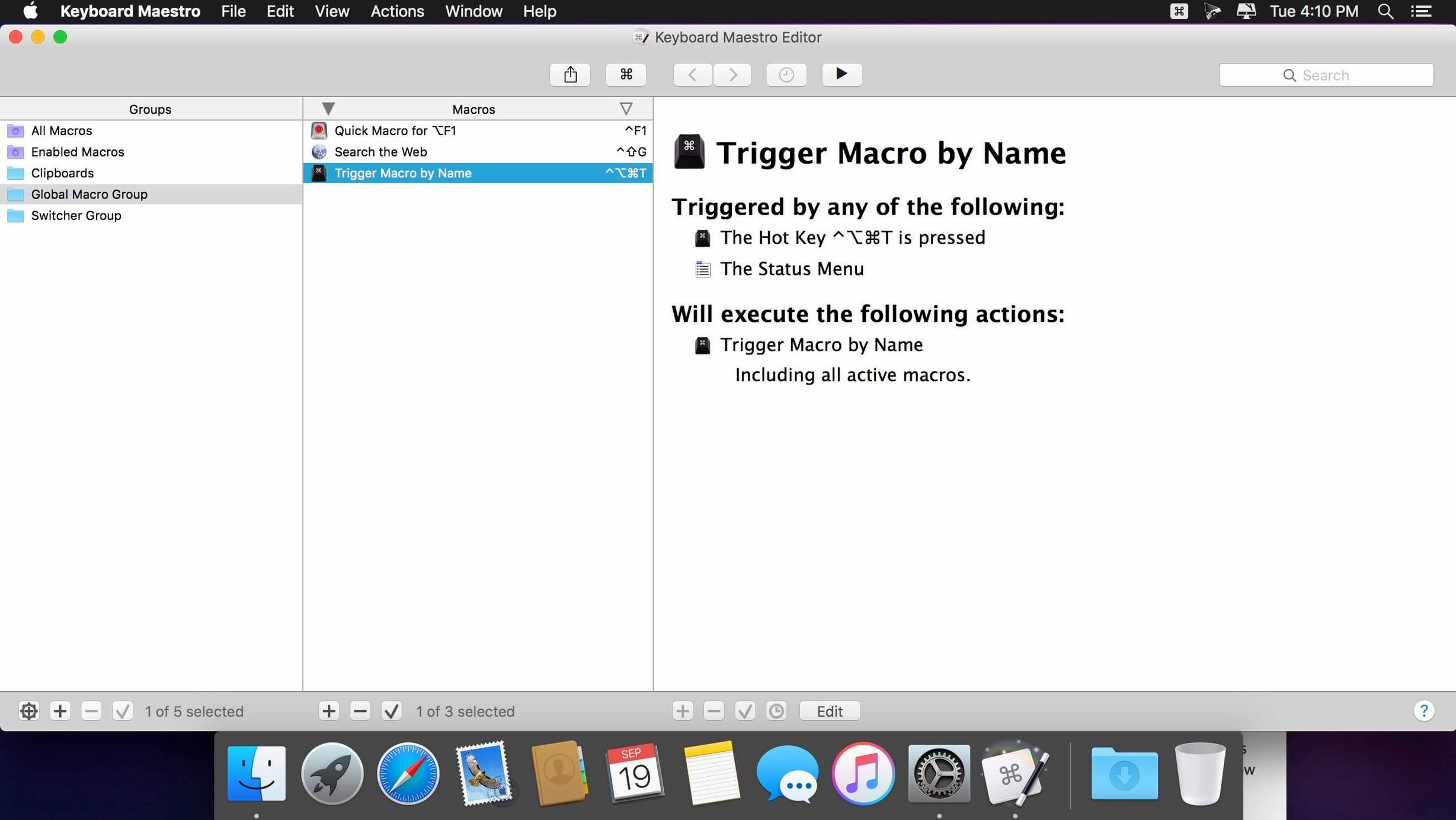
Beyond simple hotkey mapping, the application understands flow control, conditions, and loops, so a macro can make decisions. It can fill a web form with stored client details, expand a short text snippet into a full email template, reposition windows across multiple displays, or convert clipboard text between formats. The new Switch/Case display in this version shows which branch is currently true before execution, which makes debugging complex logic feel less like guesswork. For Ableton users searching for reliable ableton keyboard shortcuts mac solutions, Keyboard Maestro sits between the DAW and the Finder, letting you chain app-specific commands with file operations that Live's own key map doesn't touch.
Why your macro fails to fire and how to fix its scope
One of the first friction points is the macro that refuses to fire. Nine times out of ten, the trigger group is scoped to the wrong application. Open the macro in the editor and check the Available in these applications list, just below the trigger icon. If you've set a global hotkey but left the group restricted to Safari, nothing happens when you tap that shortcut inside DaVinci Resolve. Drag the target app into the list or switch the group to Available in all applications and try again.
Another recurring headache is the clipboard history that suddenly stops recording. The engine needs accessibility permissions to watch what you copy. Head to System Settings → Privacy & Security → Accessibility and confirm Keyboard Maestro Engine is toggled on. If it's already listed but unresponsive, remove it with the minus button and re-add it. The same permission governs window manipulation actions, so if a macro can't reposition your Premiere panels, this is the first place to look.
People who download a keyboard maestro mac download and jump straight into building elaborate loops sometimes hit a wall with infinite recursion. A macro that triggers itself, even indirectly through a chain, will spin until the app's safety timeout intervenes. The debugger, now with proper tool tips in 11.0.4, lets you step through actions one at a time. Watch the variable values in the bottom pane, and if you spot the same trigger firing inside its own flow, insert a Pause Until Conditions Met action or restructure the logic to use a semaphore variable, a simple boolean you set and check before re-entry.
OCR-related macros occasionally return blank results on older Macs. The new Apple Text Recognition support in the OCR Condition requires a machine with a neural engine, which means any Apple Silicon Mac or a recent Intel model with a T2 chip. On a 2015 MacBook Pro, the action will fall back silently to the legacy Tesseract engine, which is slower and less accurate with low-contrast text. Sticking to high-resolution screen captures and avoiding light-grey-on-white interfaces improves the output considerably.
The engine idles at roughly forty megabytes of RAM
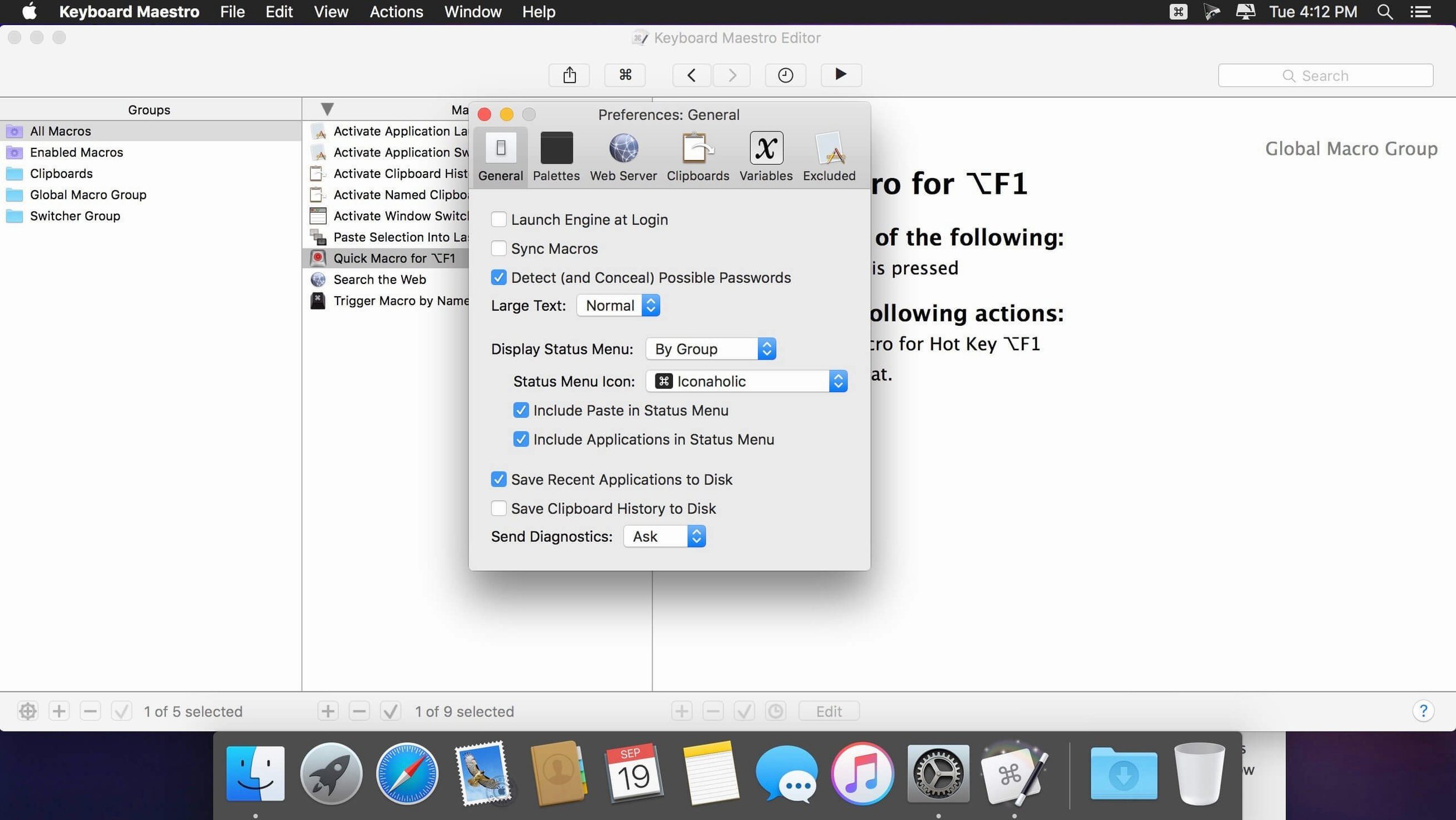
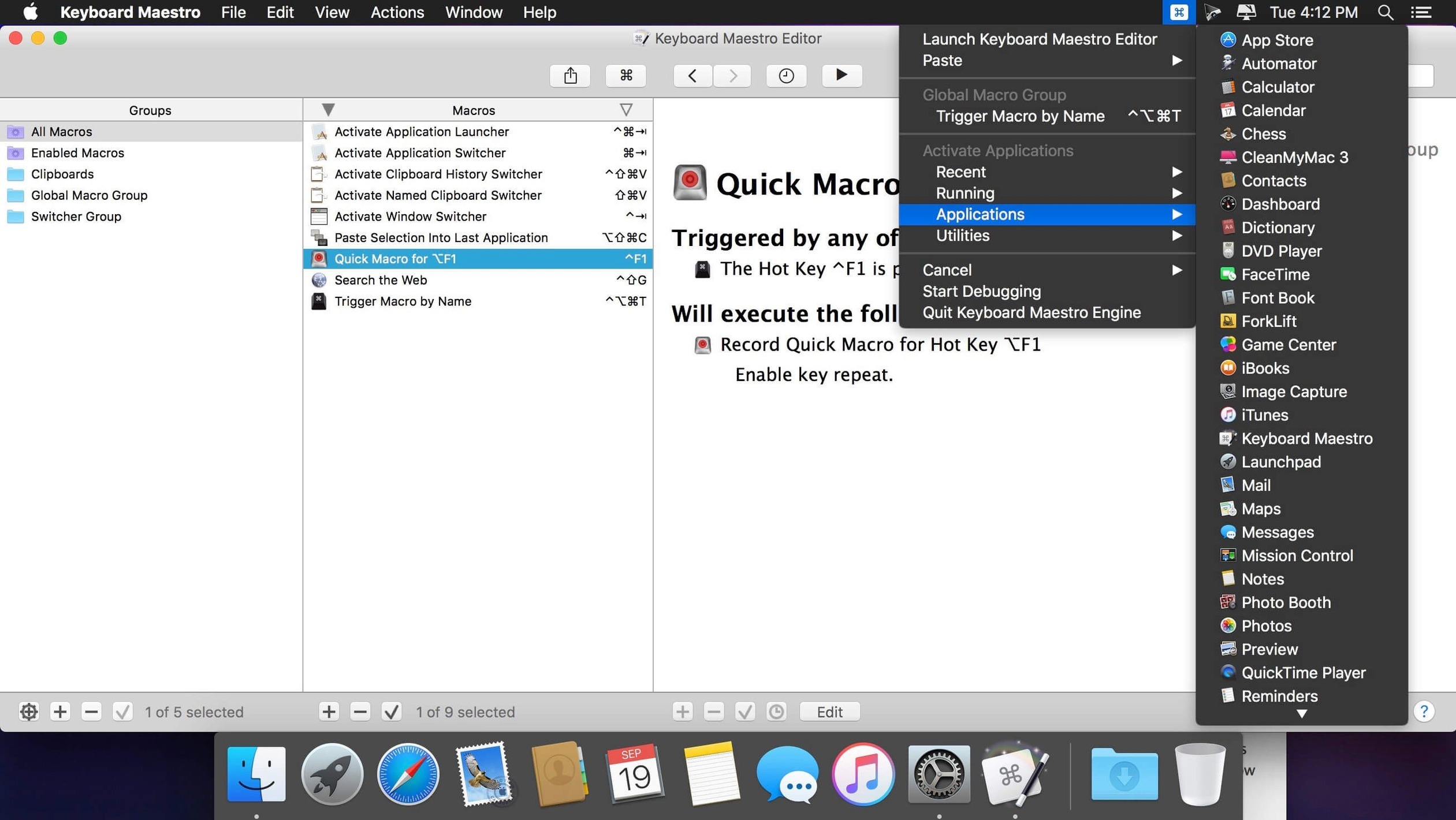
Does it run in the background all the time? The Keyboard Maestro Engine sits in the menu bar and watches for triggers, but it is lean. On an M1 MacBook Air, it idles at around forty megabytes of RAM and negligible CPU until a macro actually executes. You can quit the editor when you're not building macros, and the engine keeps your shortcuts live. If you're working on a film mix and need every cycle, pause the engine from its menu bar icon and resume it after the render finishes.
Will it conflict with other automation tools like BetterTouchTool or Hammerspoon? They coexist as long as you avoid assigning the same hotkey in two places. Keyboard Maestro registers hotkeys through the system's Carbon event layer, which means it can intercept combinations before most other apps see them. If a shortcut misfires, open the Conflicts panel under the Window menu to see which macro or external tool is claiming the same chord. Some users exploring a Keyboard Maestro crack or Keyboard Maestro torrent should verify the build includes the conflict detection improvements added in recent versions, as having those tools makes troubleshooting far more transparent.
Can it simulate mouse clicks reliably across different screen resolutions? Yes, but with a caveat. The Click at Found Image action searches the screen for a reference image you capture and clicks its centre. On a Retina display, capture the image at the resolution you use daily. If you switch between a built-in MacBook screen and an external 4K monitor with different scaling, store two reference images and branch the macro with a condition that checks the screen resolution. The Move and Click action by pixel coordinates is faster but brittle; reserve it for single-display setups.
Filling a dozen film metadata forms from a spreadsheet
It's half past ten in the evening and you are filling out metadata for a dozen short films ahead of a festival submission deadline. Each entry needs the same set of details pulled from a spreadsheet: director name, runtime, screening format, and a synopsis. You have been copying cells one by one, pasting them into a web form, tabbing between fields, and losing your place in the spreadsheet every other entry. After the third mistake, you open the Keyboard Maestro editor and build a macro you call Festival Metadata Filler.
The trigger is a hotkey you will not use anywhere else: Control-Option-Command-F. The first action is Pause Until, set to wait for your browser, Firefox, to be frontmost. Then a Filter Clipboard action grabs the current clipboard text and strips any trailing line breaks that Excel likes to add. You insert a Type Keystroke to paste the director name into the first field, followed by a Tab. Another paste for runtime, another Tab. Format. Tab. Synopsis. Tab. The final action is Set Clipboard to Text with a placeholder that reads done, a small signal that the macro finished.
Back in the spreadsheet, you copy a director's name, switch to Firefox, and tap Control-Option-Command-F. The fields populate in sequence, the cursor lands in the submit button area, and the clipboard now holds your done token. You copy the next row and repeat. Forty-five minutes of tab-switching collapses into a single keystroke per entry, and the festival deadline suddenly feels less like a threat.
Rearranging a multi-display editing setup
Your editing desk runs a three-display layout. The centre monitor holds Final Cut Pro in full screen, the left display shows the Finder and a notes app, and the right is reserved for Colour Finale scopes and a browser window with reference stills. Every morning you drag each window into place manually, a ritual that eats four or five minutes before you've even opened a timeline. You decide to automate the whole arrangement with Keyboard Maestro.
You create a new macro group scoped to the Finder and name the macro Editing Layout. The trigger is Control-Option-Command-L, a chord your fingers can find without looking. The action list starts with Activate Application for Final Cut Pro, then a Move and Resize Window action that sets its bounds to the centre display's dimensions: x starting at 2560, y at 0, width 2560, height 1440. The next block activates the notes app, Obsidian, and positions it on the left display. Then Safari on the right, with a specific URL loaded for the reference stills page. Colour Finale launches last, its window tiling neatly beside the browser.
You test the macro. The windows snap into position over two seconds, the displays flicker once as Final Cut enters full screen, and you are staring at your editing layout without having touched the trackpad. You add a Pause action of half a second between each window move to give the system compositor time to settle, a small tweak that prevents
Version 11.0.4 makes conditional logic a little more transparent. Switch/Case actions now display which entries are currently true or would execute, so you can trace a macro's path without running it blind. Apple Text Recognition support arrives in the OCR Condition, and the Macro Debugger window gained tool tips for its controls. A fix for search highlighting triggers rounds out the release.
- macOS 10.13 or later
- Apple Silicon or Intel Mac
- English interface
Questions from the booth
Yes, it can trigger menu commands and simulate keystrokes for Ableton keyboard shortcuts on Mac, combining them with Finder actions like file renaming or moving bounces.
It runs natively on both Apple Silicon and Intel processors from macOS 10.13 onward.