Jump Desktop is a remote desktop client that lets you step inside a distant Mac or PC as though you're sitting right in front of it. The connection doesn't feel provisional; it feels like an extension of your own desk, whether you're pulling a project file from the iMac in the edit suite or checking a render on the Windows machine upstairs.
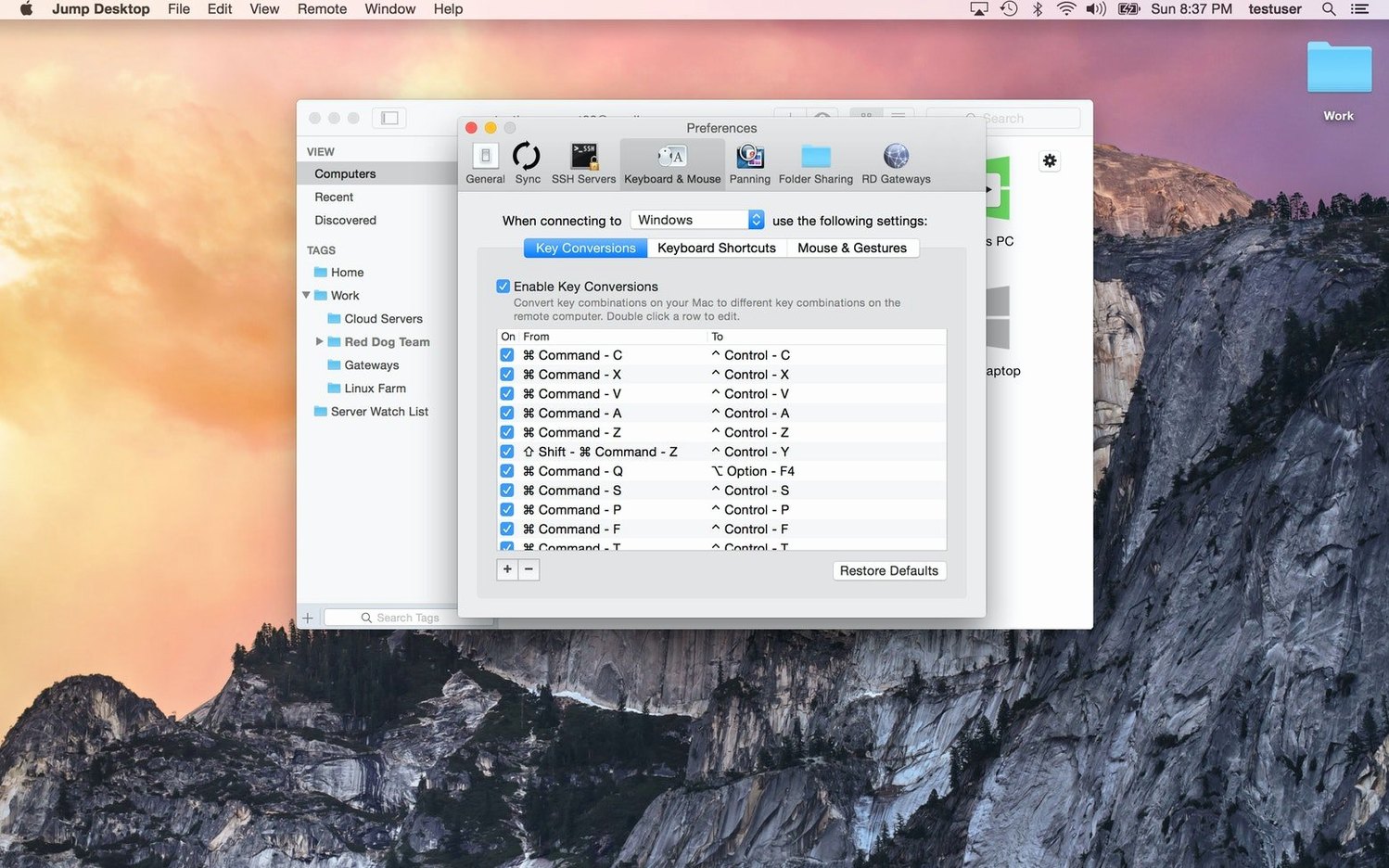
Under the hood, it speaks RDP and VNC fluently, so it slots into existing infrastructure without extra setup. But the detail that changes how you work is keyboard remapping. When you jump from a Mac to a Windows host, you can rewire the muscle memory of your modifier keys so Command becomes Control where it needs to — a small thing that stops creative flow from shattering mid-sentence.
The client runs natively on both Apple Silicon and Intel Macs, and the real-time responsiveness makes scrubbing a timeline or adjusting a comp feel less like a compromise. Fluid Motion, their frame-rate smoothing tech, does some heavy lifting behind the curtain to make the remote display feel local, even over ropey Wi-Fi.
Start with low-stakes, short sessions to build muscle memory
Give yourself a day or two of deliberate use before you trust the muscle memory. Start with short, low-stakes sessions — checking email on the remote machine, opening a document, moving a file. The goal isn't productivity yet; it's letting your brain map where the cursor lives and how the screen refreshes under different network conditions.
If you're connecting to a Windows host, resist the urge to remap every key immediately. Work through a ten-minute typing task first and note which shortcuts trip you up. Then open the keyboard settings and fix only those three or four collisions. A minimal remap—say, swapping Command and Control for copy and paste, leaving everything else alone—keeps you functional on both sides of the connection without building a tangled custom layout you'll have to unlearn later.
One thing that catches people early: the clipboard passthrough works beautifully for text and images, but large file transfers are better handled through the dedicated file sharing pane. Drag a 2 GB video file across the remote session window and you'll feel the lag. Instead, use File Transfer from the connection menu — it tunnels the data more efficiently and doesn't tie up the display channel.
Also worth doing on day one: connect once from the worst Wi-Fi you expect to use. A coffee shop, a train station, a hotel with that one-bar signal. You'll learn quickly whether Fluid Motion needs to be dialled up or down and what resolution trade-offs keep text legible without making every click feel sluggish.
Video editors juggling Mac and Windows machines adopt it fastest
Video editors and motion designers who bounce between a Mac workstation and a Windows render box tend to adopt it fastest. They're already thinking in terms of timelines and proxies, and the concept of "good enough preview here, final render there" translates neatly to remote desktop. Being able to kick off a Media Encoder queue on the office machine from a laptop at a shoot saves a trip back to the suite.
Developers working on cross-platform builds are another natural fit. One dev I know keeps a Windows machine in a cupboard running test suites. He connects from his MacBook, remaps the keyboard once, and treats the Windows desktop as just another Space on macOS — swiping between local and remote without breaking concentration. The fact that Jump respects native gesture handling on the Mac side makes that possible; pinch-to-zoom and three-finger drag still work as expected, even when the focus is on a remote app.
IT support staff get a more obvious benefit: they can walk a colleague through a problem without leaving their desk. But the less obvious winner is the academic researcher or data analyst who needs occasional access to Windows-only statistical software. Rather than maintaining a Boot Camp partition or a separate machine, they fire up Jump, run their SPSS or ArcGIS session, and close it when the analysis is done. The remote machine can be a modest PC tucked away on the same network, and the experience on a MacBook Pro's Retina display is sharp enough that small type in data tables doesn't become a headache.
If your work involves heavy GPU acceleration — real-time 3D viewports, colour grading with scopes — you'll hit the limits of any remote desktop client. Jump handles it better than most, but it's still a compressed video stream. Treat it as a control layer, not a final-output viewer. The moment you need pixel-accurate colour, you're back at the physical machine.
Trimming a rough cut from a café before the morning client call
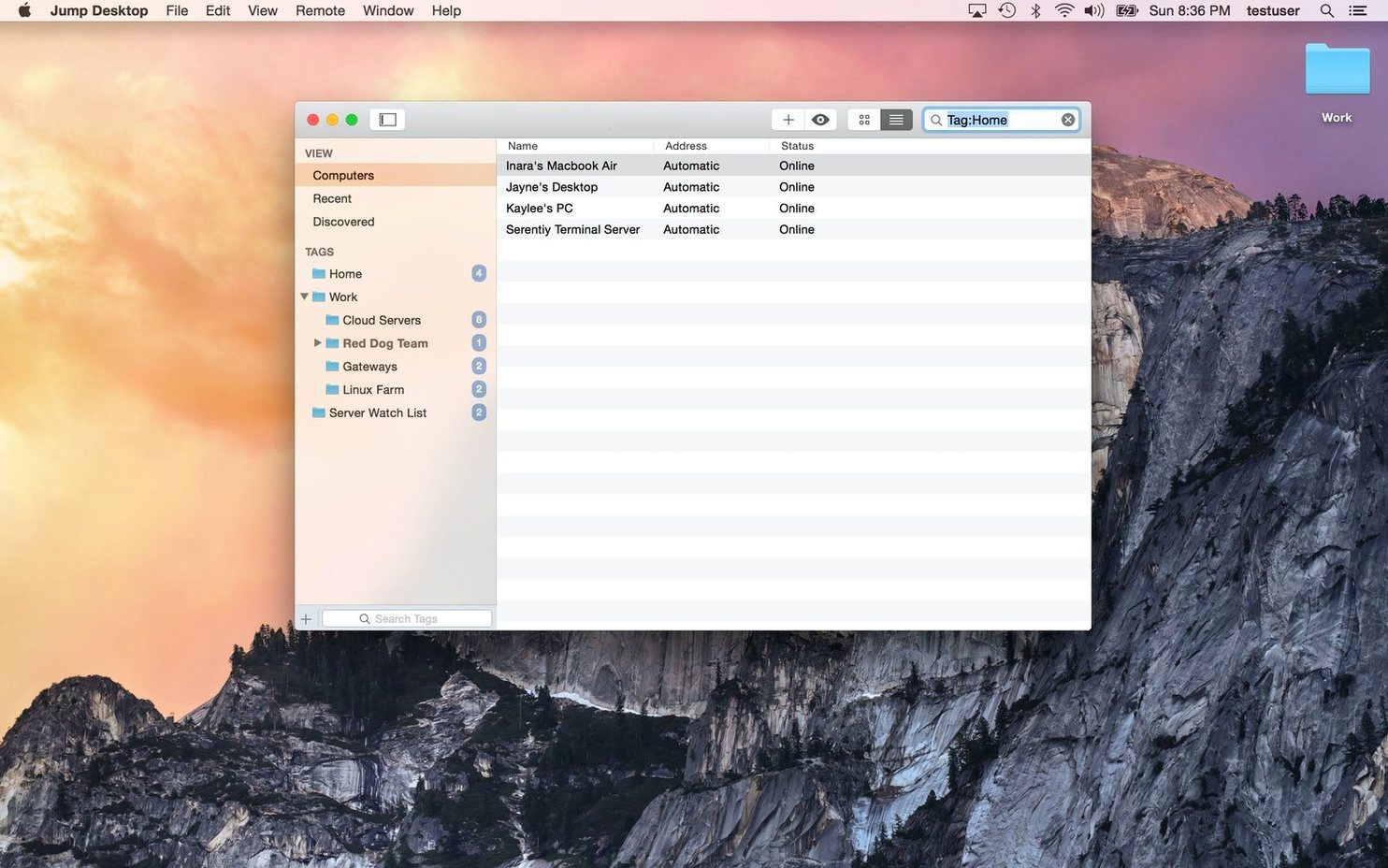
It's 8:30 a.m. and you're at a café with a MacBook Air. The edit suite Mac Studio is twenty minutes away, but the rough cut needs a quick trim before the client call at nine. You open Jump Desktop. The saved connection to the Studio appears in the sidebar — it's been idle overnight, still signed in through Jump Desktop Connect. One click.
The remote display unfurls. Fluid Motion is already smoothing the framerate, so the desktop feels awake, not groggy. You spot the Premiere project file on the second monitor — Jump shows both screens as a single wide canvas, or you can swipe between them. You open the timeline, scrub to the offending clip, and make the edit with keyboard shortcuts that map cleanly because you set them up properly a week ago. Three minutes of playback confirms the pacing works.
Now you need to send the export to the client. Rather than downloading the file locally and re-uploading, you open the file transfer pane, navigate to the render folder, and pull the H.264 straight to the Air's desktop. The transfer runs in parallel with your remote session — you're still poking around the timeline while the progress bar ticks. When it's done, you disconnect, attach the file to an email, and close the laptop. The whole session lasted twelve minutes and felt like sitting at the Studio, minus the desk chair.
Settings worth changing immediately
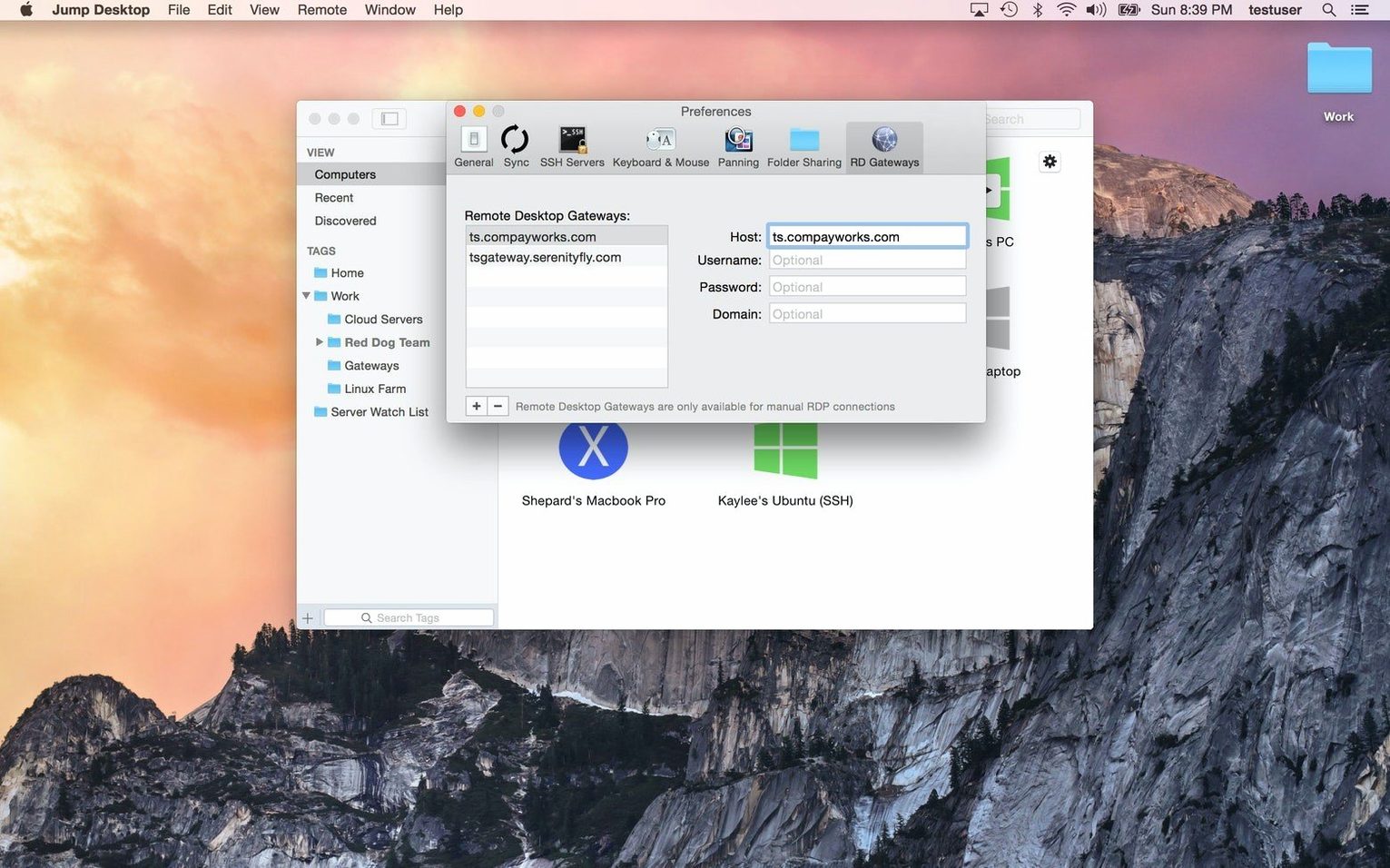
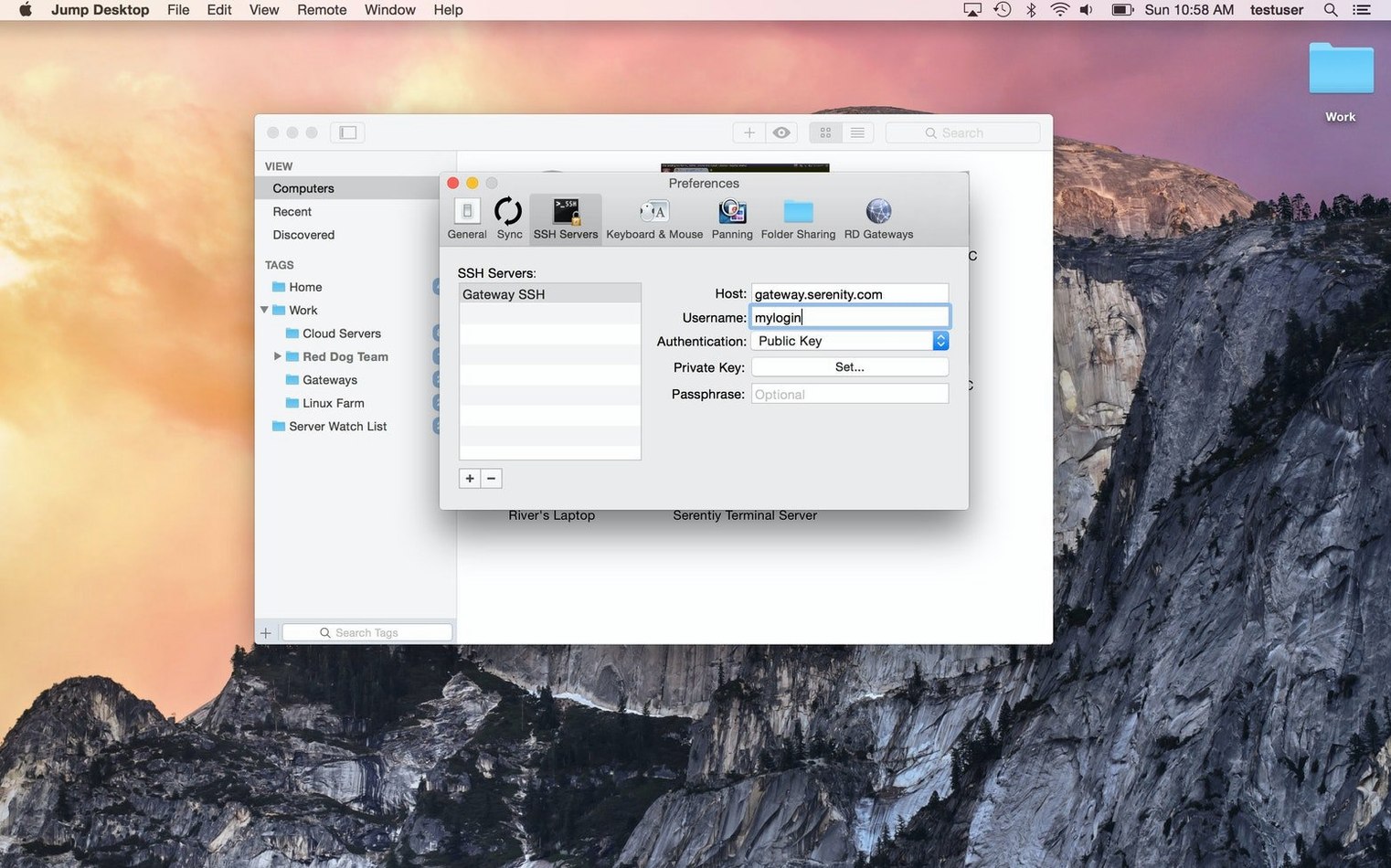
Open Preferences before your first real connection and adjust a handful of defaults. Under Display, switch the colour depth to 32-bit if your network can handle it — the default sometimes leans conservative, and you'll notice banding in dark gradients. While you're there, check the resolution scaling. "Fit to Window" is fine for quick tasks, but "Native Resolution" preserves the sharpness you want when reading small UI labels in After Effects or DaVinci Resolve.
In Keyboard, disable "Send macOS shortcuts" if you're connecting to a Windows host and plan to use the remote machine's native shortcuts instead. Otherwise you'll get strange double-translations where both the Mac and Windows interpretations fire at once. The profile system here is underrated — you can save different keyboard maps per connection, so your muscle memory for the office PC doesn't bleed into how you control a VNC-connected Raspberry Pi.
The Quality slider deserves a deliberate choice, not a guess. Push it toward "Smooth" when you're animating or scrubbing video; pull it toward "Sharp" when you're reading documentation or writing code. Jump lets you bind this to a hotkey, and it's worth doing — toggling quality on the fly is faster than digging into menus every time the task changes.
Finally, turn on Clipboard Sharing but disable "Auto-sync" for large items. The manual sync button gives you control over what crosses the wire and when, which matters if you copy a password on one machine and don't want it sitting in the remote clipboard while you grab coffee.
Jump Desktop 10 is a substantial release that rethinks the connection between your Mac and the remote hosts you rely on. The marquee feature is frame rate: the app now reaches up to 480 fps, so games, scrolling, and fast window movement stay fluid on high-refresh displays—set Framerate to Auto and it follows your screen. Hardware encoding sharpens detail at the same bandwidth while dropping CPU load on the host and extending battery life on the Mac side; switch to it under Codec > Hardware. Virtual displays get a serious lift with savable presets that let you set exact resolution, scale, and refresh rate. The new Keep After Disconnect toggle leaves those displays live on the host between sessions, which is a quiet gift for anyone who steps away from a render and wants the arrangement waiting exactly as it was. USB device redirection now routes the peripherals on your desk straight to a Windows or Mac host, and game controller support means the controller in your hands talks to the remote machine without extra plumbing.
Creative workflows get their own attention. Input Trail draws stylus and mouse strokes immediately, even on high-latency links, so the lag between your hand and the mark on screen no longer feels like guesswork. Color Passthrough shows the host’s colours unprocessed on calibrated displays—a small, crucial detail for grading and finishing. On the everyday side, back and forward mouse buttons work as expected, pinch-to-zoom on a trackpad feels native, and Chinese, Japanese, and Korean text composition is more reliable.
Version 10.15.46 also bundles a long list of fixes. Fluid sessions now respect your Mac’s input-source shortcut: Control–Space switches the local keyboard layout instead of sending the keys through, and when the shortcut is disabled in macOS the keystrokes pass to the host as before. Wake-on-LAN sends fewer packets on connect, and automatic reconnects will no longer wake a host you deliberately put to sleep or shut down. A pair of crashes—one on quit, one on launch when a saved computer had no name—are squashed. Mouse-wheel behaviour on Mac hosts is reined in so that a single notch no longer overshoots, which previously sent a video editing timeline zooming all the way in with Option–scroll wheel. Applying a saved preset again, or switching to another preset with the same number of virtual displays, now restores the saved window arrangement instead of leaving windows where they sat. USB redirection works for devices that previously failed, including colour grading control panels. RDP sessions stop ignoring a custom resolution, and full-screen RDP across all displays no longer swaps screens arranged one above the other on the host—a fix that keeps the Windows taskbar on the correct display. The Eisu and Kana keys on Japanese keyboards now behave in Fluid sessions, and security updates close the release.
- macOS 11 or later
- Apple Silicon or Intel 64-bit Mac
Questions from the booth
Yes, it connects to Windows machines using RDP, with full support for keyboard remapping between the two operating systems.
The client runs natively on both Apple Silicon and Intel Macs.
Yes, it can connect to any VNC server, which makes it useful for accessing Linux machines and other VNC-compatible hosts.