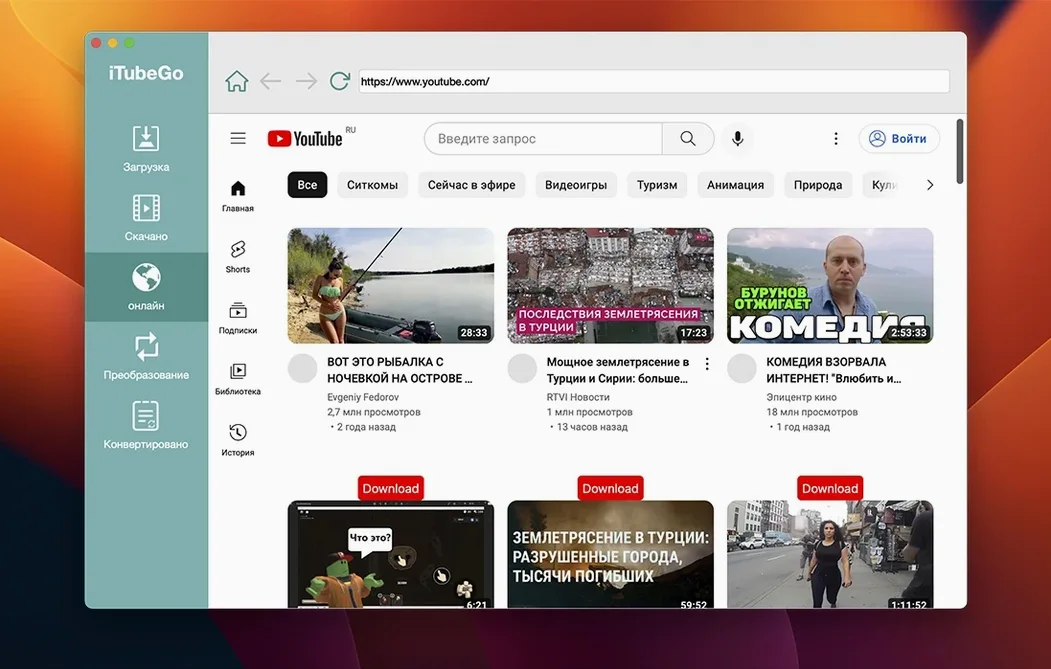
You see it on the laptop of a documentary researcher gathering B-roll references, on the desktop of a DJ pulling high-bitrate sets from SoundCloud, and in the dock of anyone who has learned the hard way that streaming playlists don't last forever. iTubeGo is for people who want the file, not just the stream — the full-resolution master, sitting on their own drive.
Does it actually handle 8K?
Yes, and it lists the option clearly in the quality dropdown. The app supports resolutions from 480p through Full HD and 4K right up to 8K, provided the source video was uploaded that way. On an internet connection fast enough to serve it, the downloader pulls whatever resolution YouTube or the other supported sites make available.
What does the built-in browser do?
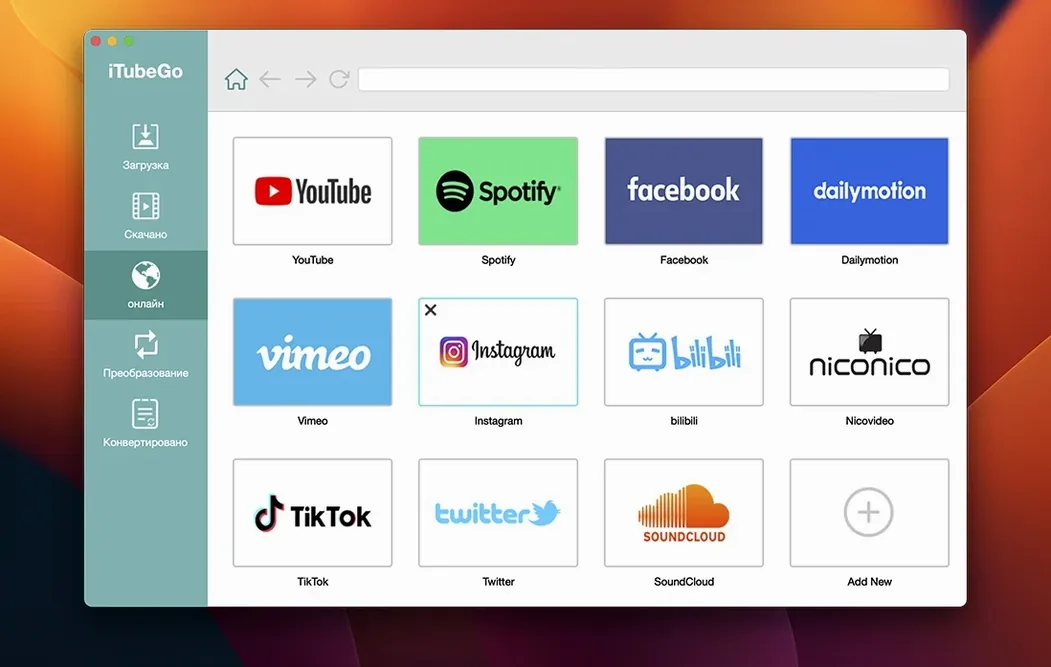
Instead of copying and pasting URLs from Safari, you browse directly inside the app. It loads the video or music site, you navigate to what you want, and the download starts with a click — no extension, no clipboard juggling, just a self-contained media grab window that talks to over ten thousand websites.
Can I pull just the audio?
That is where the MP3 extraction comes in. iTubeGo can download only the audio stream from most music sites and save it as an MP3, which makes it quietly useful for live sets, long interviews, or anything where the picture is secondary and the file size matters.
How does the bulk downloading actually feel?
Queue up a playlist or a handful of tabs and the app claims up to ten times the speed of a single-threaded download. In practice, that means a short film's worth of reference clips arrives while you make coffee, not while you edit a reel.
Late at night, a podcast producer named Mira closes her DAW and opens iTubeGo. She has a list of six long-form interviews hosted across three different platforms: two on YouTube, one on Vimeo, and three private talks uploaded to a lesser-known video site she discovered through a forum. Her goal isn't video. She needs clean, 320 kbps MP3 files to load into her transcription software by morning. She pastes the first URL, selects MP3 from the format dropdown, and ticks the high-quality preset. Within minutes, all six audio files sit in a single folder on her desktop, named and ready. She never once opened Chrome.
The shortcuts most people scroll past
Hover over the download queue and a small pause button appears next to each active item — handy when one large file is hogging bandwidth and you want a smaller clip to finish first. Right-click any completed download in the history list and the contextual menu offers “Reveal in Finder” and a one-click option to re-download the same file with different settings, which saves you digging through your browser history to find the original URL. If you work with a lot of audio, holding Option while selecting the format flips the preset automatically to MP3 at 320 kbps, no extra click needed. And if you are the sort of person who names files meticulously, the preferences pane lets you define a rename template that applies to every download — artist, title, date, format — so your archive stays consistent before you even look at it.
From quarantine override to clean single-window launch
You mount the disk image and run the Gatekeeper-friendly opener. A Terminal window appears; you press Enter, and the quarantine attribute lifts. You drag iTubeGo into Applications, launch it, and close the welcome window. The interface settles into a single panel with a built-in browser on the left and a download queue on the right.
Today you are pulling reference material for a colour grade. You type a director’s name into the YouTube search bar inside the app. Three music videos come up. You set the quality dropdown to 4K, click the download button beneath each one, and watch the queue populate — file names, sizes, progress bars. While the first video downloads, you open the Vimeo tab, log in, and find a password-protected short film you have permission to grab. The built-in browser handles the login flow just like Safari would. You click download. The queue now holds four items, all running concurrently.
Halfway through, you remember you need audio from a live set on a music site. You switch to the music tab, search the artist, and this time hold Option while clicking download — the format jumps straight to MP3. The track lands in the queue without interrupting the video downloads. Fifteen minutes later, everything is local. You open the output folder, rename one file for the editor, and drag the MP3 into your colour suite’s timeline directly.
It skips the separate converter step that Downie requires
Compared to Downie, iTubeGo leans harder into format conversion. Downie excels at simplicity — drop a link and it downloads — but it sends you to a separate converter if you need MP3 extraction or a specific codec. iTubeGo keeps both steps inside one window, which matters when you are processing a dozen files and don't want to manage a pipeline.
PullTube feels more Mac-native in its interface, with a lightweight sidebar and per-site settings. But its bulk download speed is pedestrian next to iTubeGo’s multi-threaded queue, and PullTube rarely exposes the full 8K option on YouTube, even when the source is available. If resolution matters more than interface polish, iTubeGo is the one that fetches the master file.
ClipGrab is a free, open-source alternative that covers basic YouTube and Vimeo grabs well. It lacks a built-in browser, so you are always copying and pasting. It also stops at MP3 conversion without offering the fine-grained control over bitrate and naming that iTubeGo does. For occasional use, ClipGrab is enough. For a working archive, iTubeGo fits a different rhythm — one where naming templates, quality presets, and a self-contained browser save real time across a week.
- macOS 10.10 or later
- Intel processor