
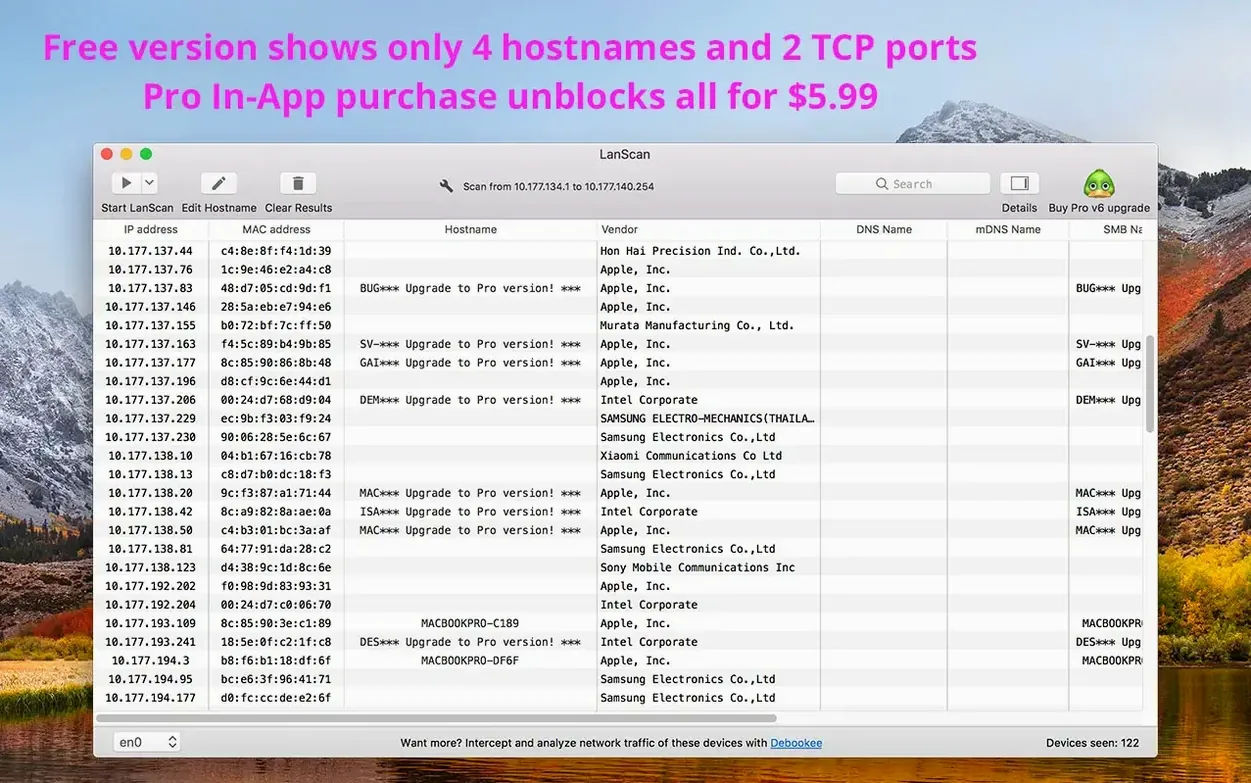
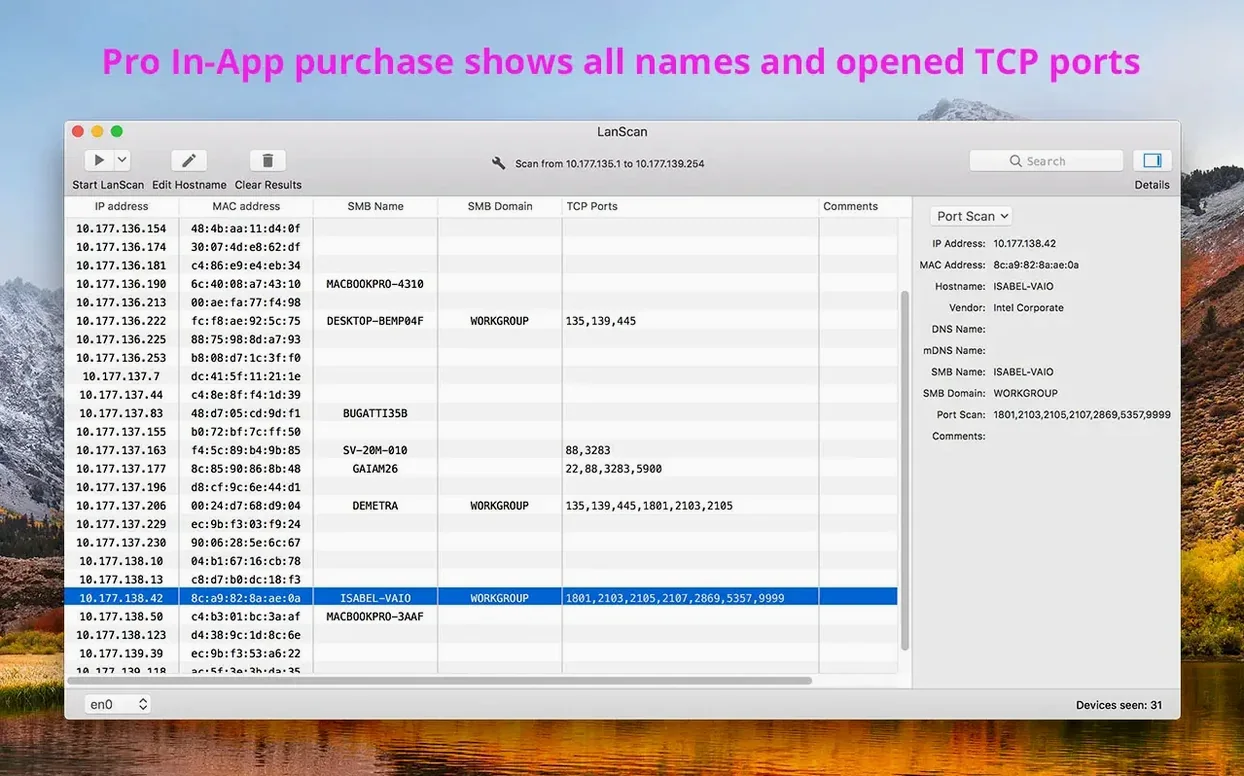
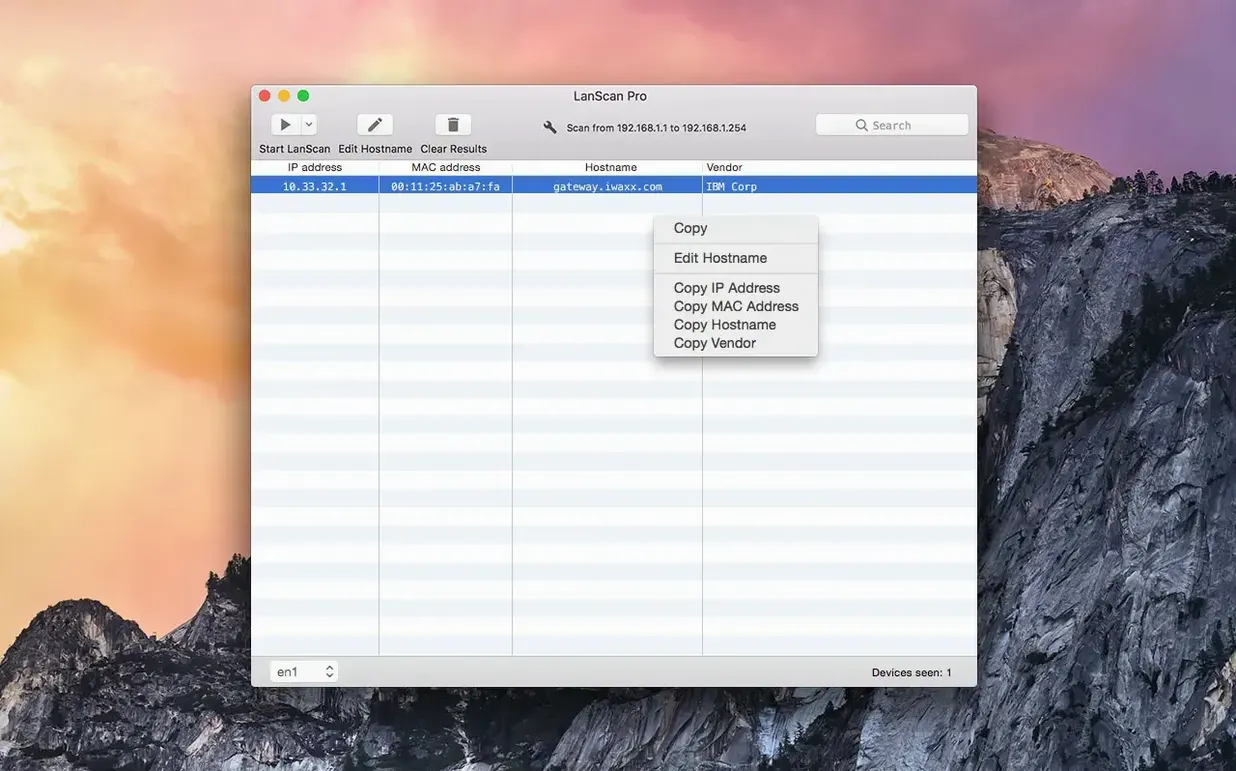
LanScan is built for the person who wants to know what’s actually on the network without wading through command-line flags or enterprise dashboards. A home-lab tinkerer mapping out a Raspberry Pi cluster; a studio tech tracking down which IP the render node grabbed after a power cycle; a small-office admin who just needs a clear list of devices and their vendors before a security audit — this is their tool. It’s a native Mac app that quietly enumerates IPv4 and IPv6 devices, using ARP on the local subnet and Ping, SMB and mDNS packets when you point it at a wider range. There’s no device limit, and it automatically picks up your configured interfaces — Ethernet, AirPort, virtual adapters — so you’re scanning the right slice of the network from the first click.
What the scan shows you
- IP address, MAC address and hardware vendor for each device
- Host names — up to four per device — pulled from mDNS, NetBIOS and your own manual edits
- A detected SMB domain when one is configured on the network
- A custom comment field for your own notes on each entry
The quiet pleasure of a good list
There’s a particular satisfaction in watching a network scanner populate a clean table of results, and LanScan leans into that. You can scan a single address or the full IPv4 space; you can rename hosts by hand and add comments that stick between sessions. It’s not trying to be a full network management suite — it’s trying to give you an accurate, readable snapshot of what’s talking on the wire, and it does that with a quiet competence that makes it one of those utilities you keep in the dock.
Plug in a mystery device and watch its name appear
You’ve just plugged a new piece of gear into the switch — a second-hand NAS with no label, no display, and a DHCP lease you didn’t think to reserve. The room is quiet except for the drives spinning up. You open LanScan and it’s already halfway through listing your interfaces. The Ethernet adapter is highlighted because that’s where the NAS lives. You hit Scan.
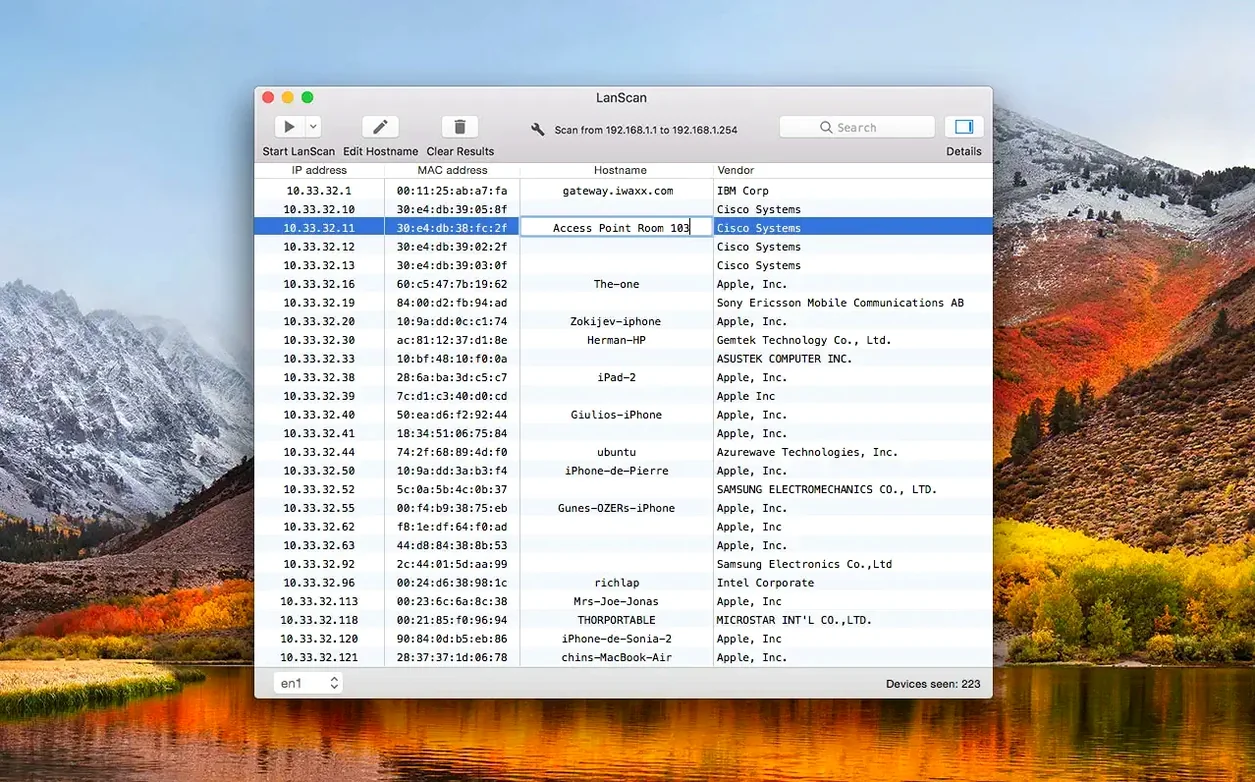
The table begins filling row by row. Most entries are familiar — the Mac Studio, the printer, the Philips Hue bridge whose vendor string always reads “Philips Lighting BV” and makes you smile. About twelve seconds in, a new IP appears with a MAC address you don’t recognize. The vendor column says “Synology Inc.” — that’s the one. You double-click the host-name cell, type archive-syno, and add a comment: DS920+, bay 2 needs watching. Right-click, copy the IP, and you’re already pasting it into a browser to reach the admin panel. The whole detour took under a minute.
Later that evening, you widen the scope. You switch from the local subnet scan to a custom IP range — just the /24 block where the media servers sit — and toggle on SMB and mDNS resolution. LanScan takes a little longer here, pinging each address in sequence, but the results come back with host names already filled in from NetBIOS responses. You export the list as CSV before shutting down, because tomorrow you’ll need to document which MAC addresses belong to the render farm.
Home-lab tinkerers, IT generalists, and privacy-conscious owners
Three kinds of Mac users seem to settle into LanScan fastest. The first is the home-lab builder — someone running Proxmox on a mini PC, a couple of Raspberry Pis, and a managed switch they picked up second-hand. For them, the app’s automatic interface detection means they don’t have to think about which bridge or VLAN they’re on; it just scans the right subnet. The vendor column alone saves them from keeping a physical inventory of MAC prefixes.
The second is the IT generalist in a small or mid-sized office — the person who inherited the network alongside everything else. They’re not writing firewall rules all day, but when a VoIP phone stops registering or a contractor’s laptop can’t reach the file server, they need a quick read on the address space. LanScan gives them that without requiring them to remember the difference between an ARP table and a routing table. The ability to add comments and edit host names means the scan becomes a living document they can refer back to.
The third is the audio-visual tech on a gig. Dante devices, control processors, wireless microphone receivers — they all grab IPs from a show network that gets rebuilt every morning. Scanning the subnet before soundcheck reveals which piece of gear landed where, and the CSV export goes straight into the show file for the next venue. They’ll probably never touch the IPv6 or SMB features, and that’s fine. The tool doesn’t demand they do.
Drag column headers to put MAC addresses front and center
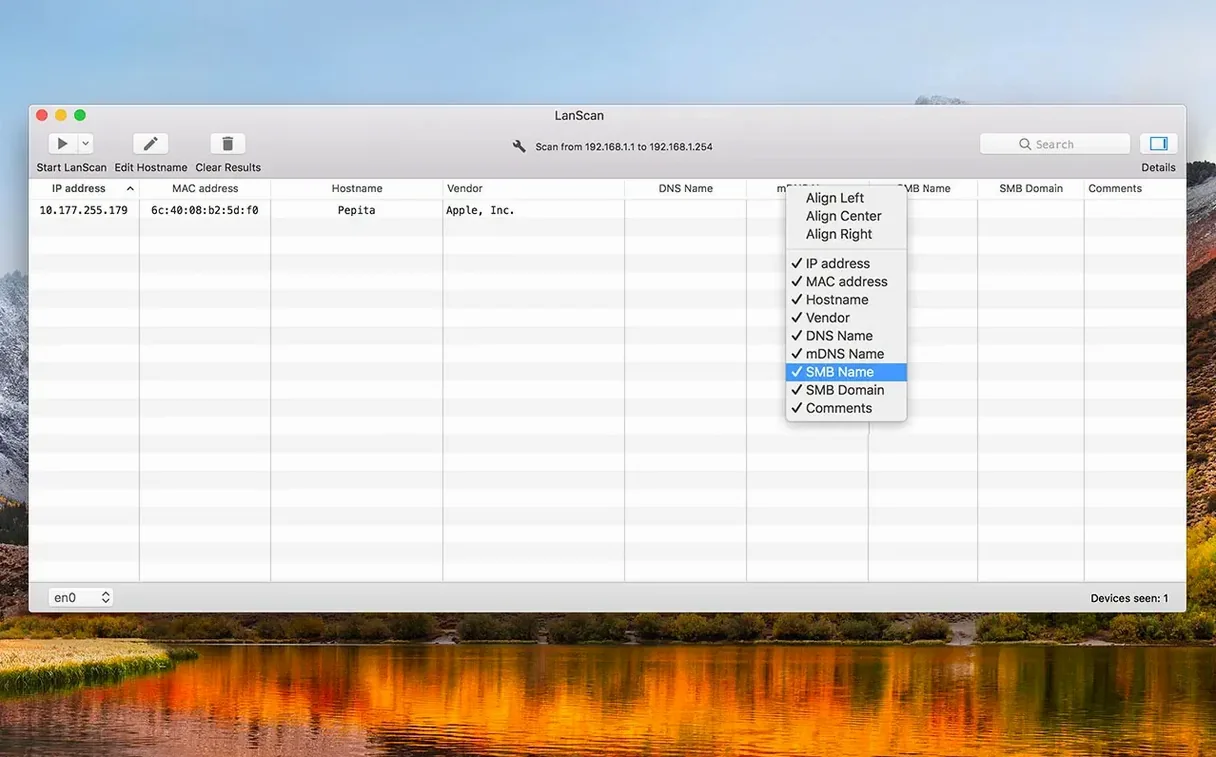
A few conveniences hide in plain sight. You can reorder the columns by dragging their headers — useful if you care more about MAC addresses than IPs and want that column closer to the left edge. Each column can also be hidden or shown from a right-click on the header, so if you’re on a network without an SMB domain, you can clear that column and reclaim the space. The alignment of individual columns is adjustable too, which sounds trivial until you’ve stared at a right-aligned vendor column for an hour and realized it’s subtly easier to scan.
The custom URL feature is easy to overlook. In the preferences, you can set a URL template that includes the IP address or host name as a variable. When you select a device and trigger it, LanScan opens that address in your browser. It’s meant for jumping to a device’s web interface — a camera feed, a switch management page — but it’s just as handy for SSH bookmarks if you pair it with a terminal helper. One URL, one click, no copying and pasting.
If you’re scanning a public range, the mix of protocols matters more than the interface suggests. ARP doesn’t cross subnet boundaries, so LanScan falls back to Ping, SMB, and mDNS in that order. Devices that block ICMP but respond to NetBIOS will still surface — a small detail that explains why some IPs appear with host names but no ping reply. And when you manually edit a host name, it persists across scans and exports, overriding whatever DNS or mDNS returned. That persistence turns a transient scan into a labelled map you can rely on.
- macOS 11 or later
- Apple Silicon or Intel 64-bit
Questions from the booth
Yes, it scans IPv4 and IPv6 networks, using ARP packets locally and Ping, SMB and mDNS for wider ranges.