

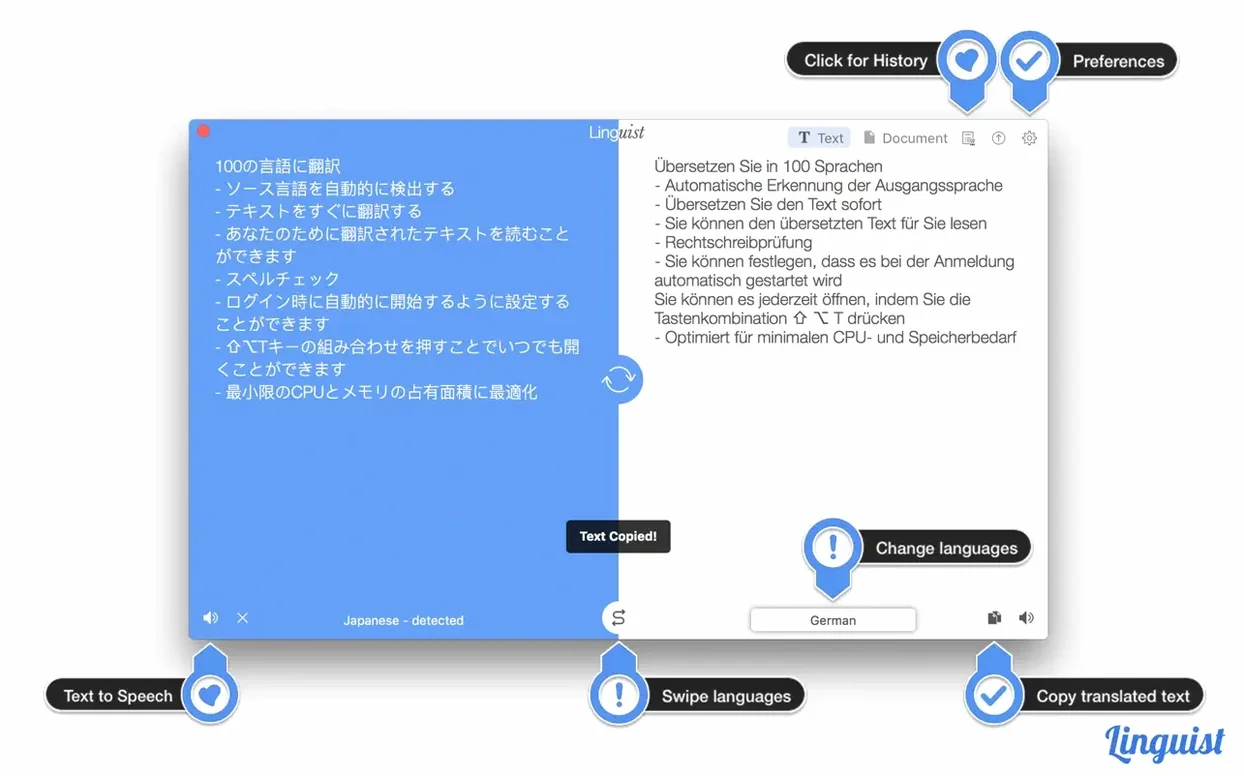
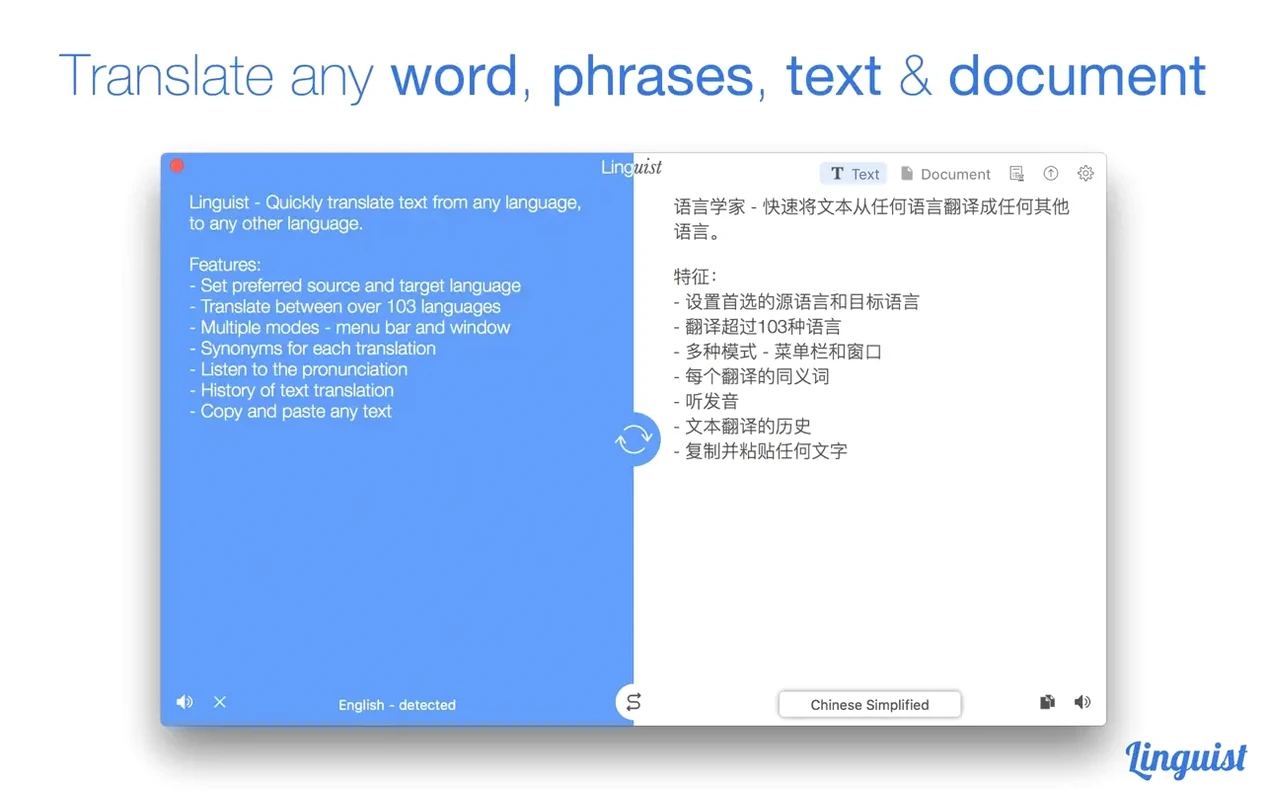
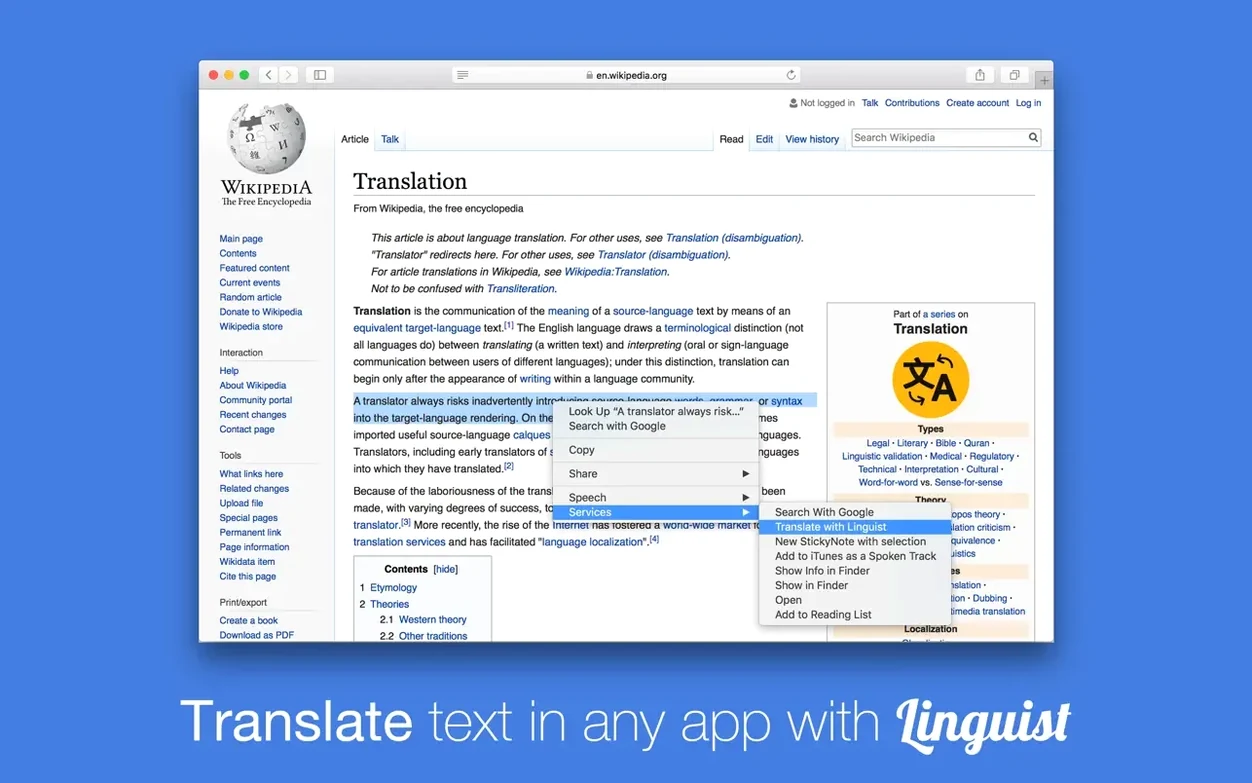
Linguist is for the Mac user whose first instinct isn't a browser bookmark — it's a keystroke. Slotted alongside a text editor, a PDF reader, or a notes app, it stays quiet until you highlight something and hit a shortcut. The translation arrives fast, and the app keeps a running history you can scroll through or export.
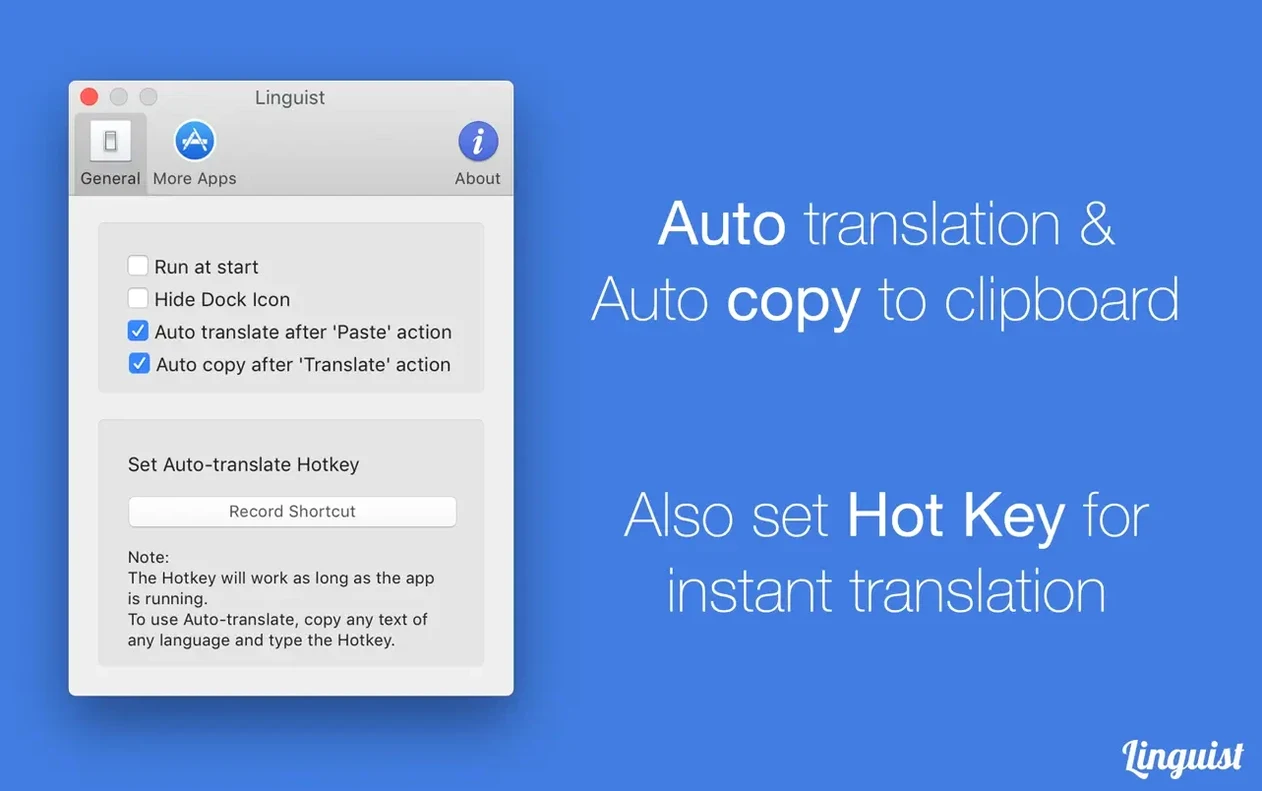
- Translate selected text from any app with a click or configurable hotkey.
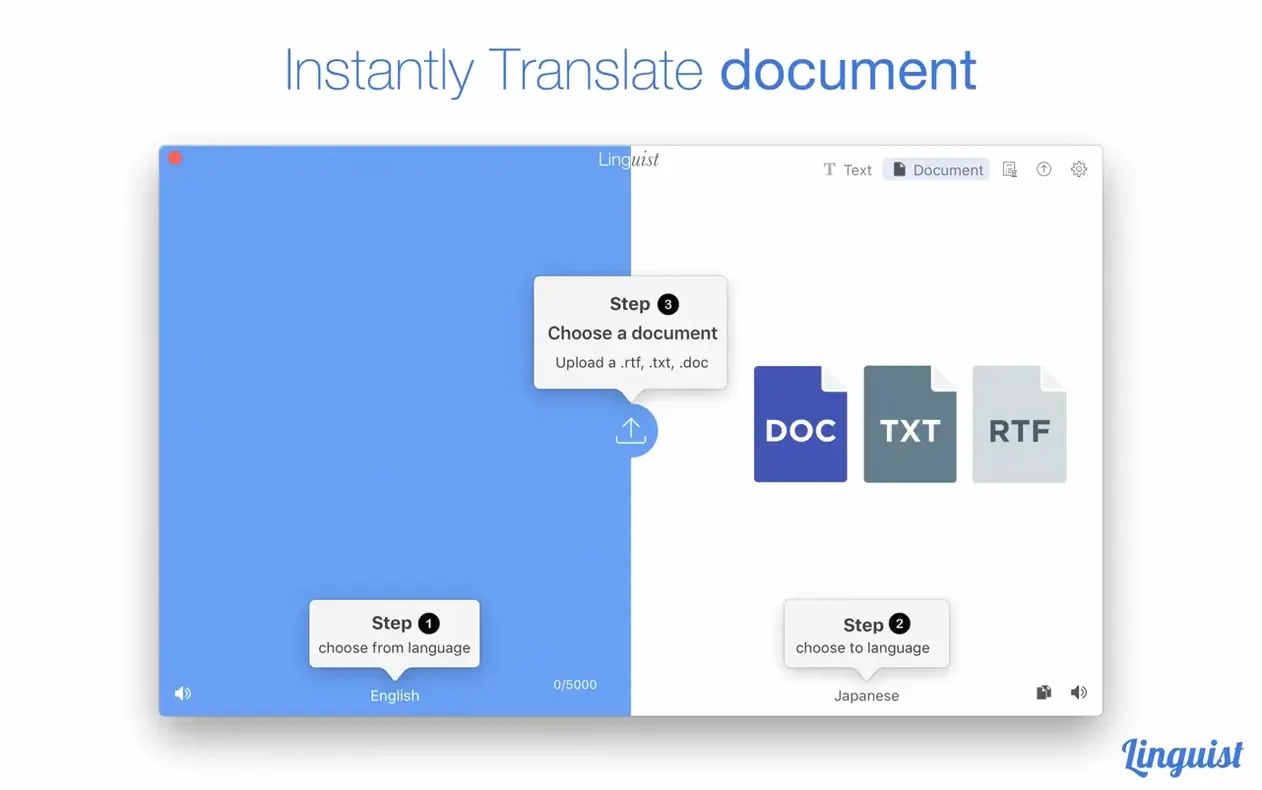
- Drop in full documents — PDF, DOC, TXT, RTF — and the layout is preserved as much as a straight translation allows.
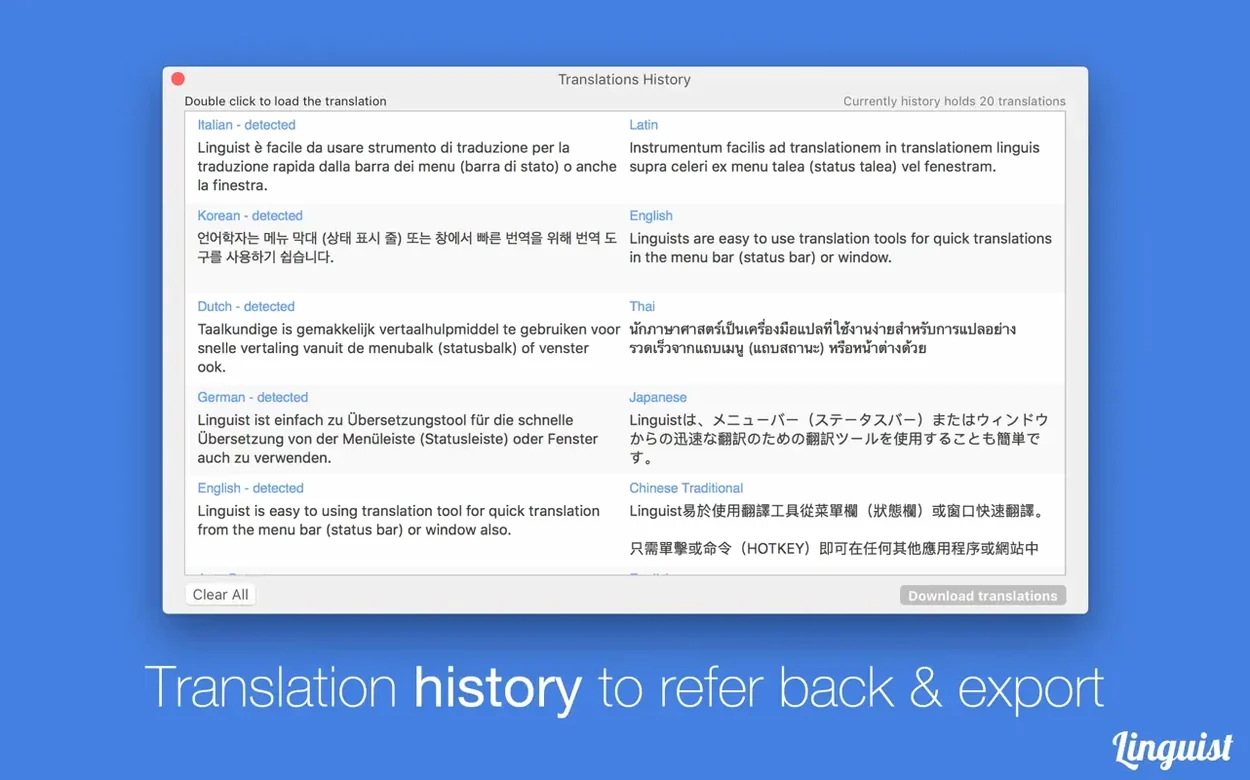
- A built-in history panel stores every result; export it as a .txt file when you need a record.
- Runs on both Apple Silicon and Intel Macs, dating back to macOS 10.11.
- Interface is localized into over twenty languages, so switching the app's own menus is quick.
Because it requires an internet connection, Linguist doesn't attempt offline translation — it leans on the network fully, which keeps the app light and the engine current. It's the kind of utility that earns its spot in the menu bar not by being clever every day, but by being there on the one afternoon you need to read a Swedish product sheet before a call.
Your first fifteen minutes: resolve the hotkey conflict before it interrupts you
Give yourself fifteen minutes to set up the hotkey properly. The default shortcut works, but you will trip over it if it clashes with something else — system screenshot commands are the usual culprit. Head into Preferences on day one, pick a combination that feels deliberate, and try it across three different apps: a browser, a text editor, and Preview. You want muscle memory before you actually need it.
Next, pin the app to the menu bar and leave it there. The windowed interface is fine for document work, but the menu bar drop-down is where Linguist earns its keep during a reading session. You highlight a phrase in an article, tap your hotkey, and the translation appears in a compact panel without pulling focus from what you were reading. That rhythm — highlight, tap, glance — becomes second nature surprisingly fast, and keeping the menu bar icon visible reminds you the tool exists during the first week when you might otherwise forget to reach for it.
If you translate the same terms repeatedly — product names, legal phrases, technical vocabulary — start exporting your history early. The .txt export is bare-bones, but a running log of real-world translations is more useful than a generic glossary. After a few days, you will have a personalised reference file built from your actual work, not from a textbook. Drop it into a notes app or pin it nearby, and you have a lookup table that grows organically.
The internet tether: why Linguist stays silent on a plane
The first concern is almost always about the internet requirement. Yes, Linguist needs a connection — every translation request goes out to the network, which means it does not work on a plane or in a cabin with spotty Wi‑Fi. The trade-off is that the translation engine stays current without the app itself needing constant updates. If your workflow regularly takes you offline, this is not the tool for those stretches. But for desk work, the dependency is light: it sends text, receives text, and keeps no persistent connection open.
Another common question is about document fidelity. A PDF with heavy formatting — tables, columns, embedded images — will not come back looking identical. Linguist handles the text layer, and the layout survives best with simple prose documents. TXT and RTF files pass through cleanly. DOC files fare well enough for business correspondence. PDFs with complex design elements may need manual tidying afterwards. The app does not claim to be a desktop publishing tool, and setting that expectation early saves frustration.
People also ask whether the menu bar shortcut works in every app. The answer is mostly yes — browsers, text editors, PDF readers, email clients — but some apps that handle text selection in non-standard ways (certain design tools, a few older Java-based programs) may not respond. Testing it in your daily driver apps during the first session is the fastest way to map the boundaries. If a highlighted phrase does not trigger the translation popover, copying to clipboard and pasting into the main window is the fallback, and it is reliable everywhere.
Highlight one adjective, unlock the whole sentence
You open your Mac and a research paper in PDF form — the abstract is in French, and your reading knowledge is decent but patchy. You highlight a sentence that hinges on a single adjective you do not recognise. Your left hand taps the hotkey; a small panel slides down from the menu bar with the English rendering, plus a row of synonyms below the translation. You glance, absorb the meaning, and click away. The panel vanishes, and you stay inside the PDF. Ten seconds, no window management, no copy‑paste.
Later, an email arrives from a collaborator in São Paulo. The body is in Portuguese. You select the whole message, tap the shortcut, and read the translation in the panel. You need to keep this one, so you switch to the main window — one click on the menu bar icon — and there it sits in the history, timestamped. You copy the translated text directly from the history tab into your reply draft. Before sending, you tap the pronunciation button and listen to a phrase you plan to use in a call later that week. The voice is synthetic but clear, and it gives you enough confidence to attempt the pronunciation yourself.
By the afternoon, you are working on a bilingual product listing. You drag a short RTF file onto the Linguist window, select German as the target, and wait a few seconds while the document processes. The result appears in the main pane — the structure is intact, the line breaks are preserved, and only a few proper nouns need adjusting. You copy the output, paste it into your working document, and export the session history as a .txt file for your project folder. The whole sequence — quick lookup, email translation, document conversion, pronunciation check, history export — happened without opening a browser tab.
A translator's evening routine
Consider a freelance translator who splits her day between literary work and corporate invoices. In the evening, she wades through a batch of supplier emails in three languages. She keeps the linguist app mac shortcut mapped to a key combination her fingers find without thinking. As she reads, she highlights a Dutch phrase about shipping terms, taps the shortcut, and reads the translation in the popover. She clicks the pronunciation icon — the synthesized voice reads the original aloud, and she mouths the syllables once for practice. The translation is logged; she does not need to write anything down.
When an Italian client sends a contract addendum as a DOC file, she does not open a web translator. She drags the file onto the Linguist window and watches the document fill the pane, sentence by sentence. The formatting holds — clauses stay separated, the signature block remains at the bottom. She reads the English rendering alongside the original in a split view, makes notes on three ambiguous phrases, and then exports the history as a .txt file that she attaches to her project folder. The export is plain but searchable, and months later she can trace exactly how she translated a specific term in that contract.
The session ends with a moment of quiet study. She opens the history tab and scrolls back through the week's translations — a scattered diary of the languages that crossed her desk. She clicks through synonyms for a few recurring adjectives, listening to pronunciations in German and French, filing the sounds away. The menu bar icon sits there as she closes her Mac, ready for tomorrow's first unread message.
- macOS 10.10 or later
- Apple Silicon and Intel 64‑bit
Questions from the booth
No, all translation requests require an active internet connection because the engine processes text remotely rather than on your Mac.