
CloudTree Sync & Share reshapes the rhythm of research. A discovery made on the desktop in Vancouver appears moments later on a family member's iPad across the country, each edit settling into place without manual file transfers or version confusion. The tree stays encrypted in iCloud, and the app requires nothing more than an iCloud account to bridge those distances, turning solitary genealogy into a quietly collaborative act.
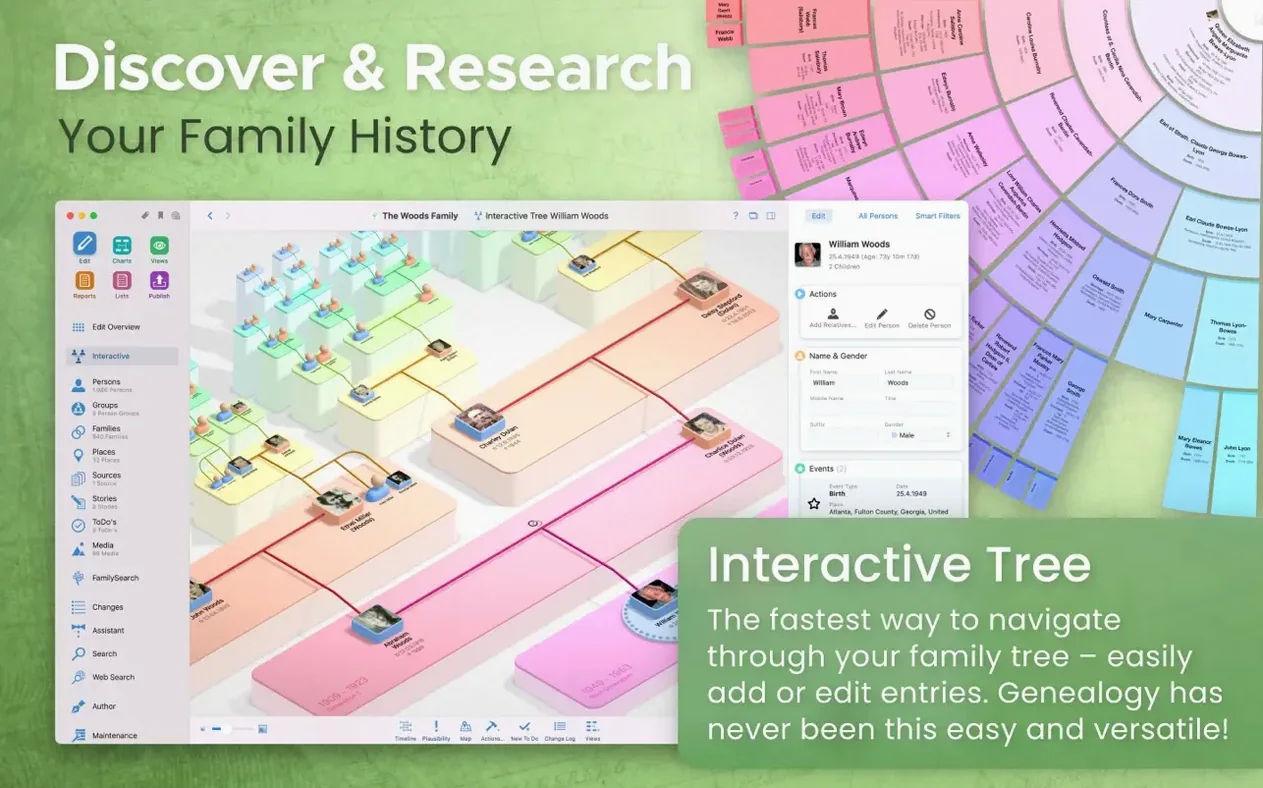
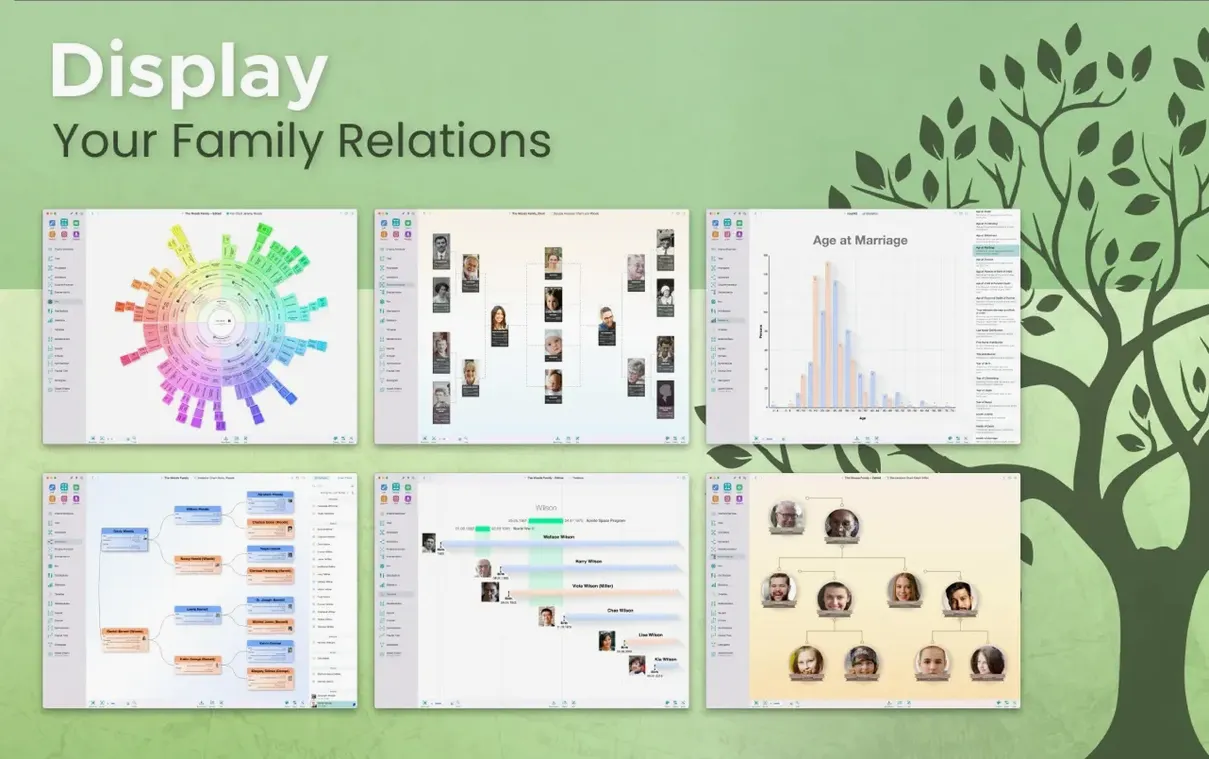
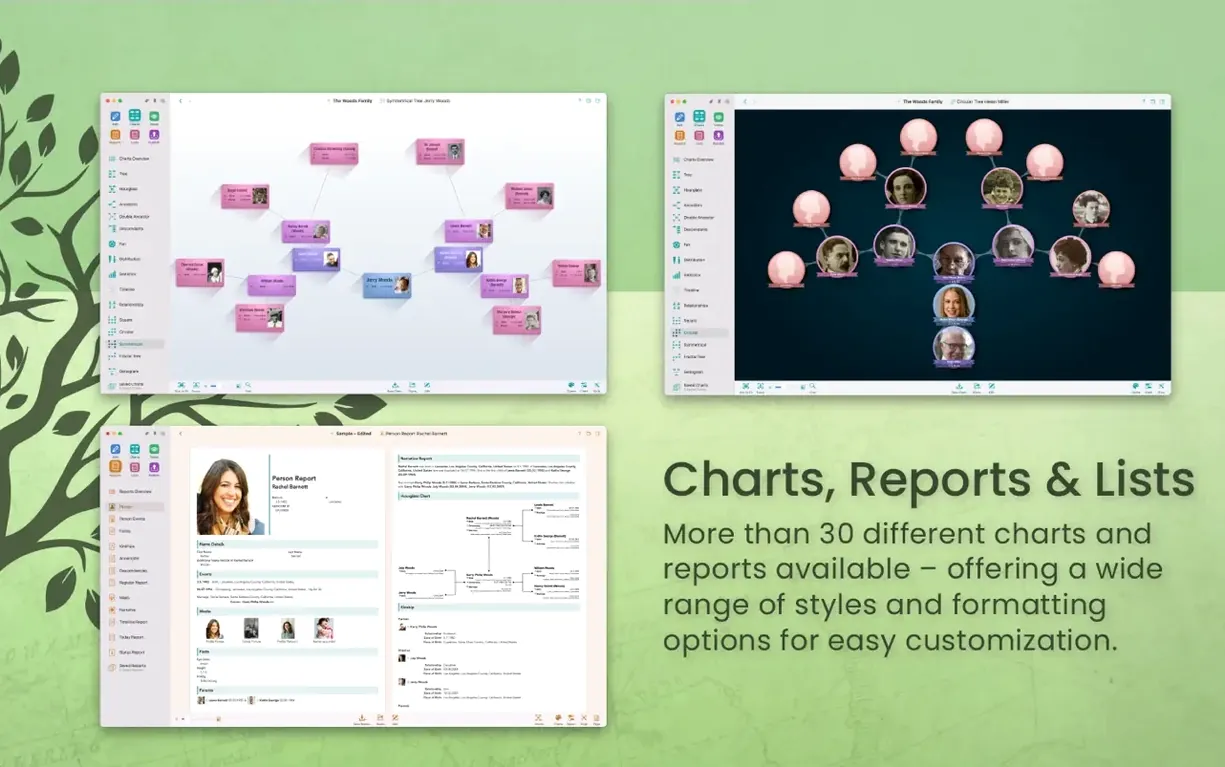
That living tree takes on a different character in the Virtual Globe 3D view, where ancestors lift off a flat canvas and rearrange themselves across geography and time. It is one of over a dozen chart types the app offers — hourglass, double pedigree, fan, genogram, and statistical maps among them — each answering a different question about a family's shape. Swapping between a timeline that lays out lifespans against historical events and a name distribution map that traces a surname's migration feels less like switching tools and more like changing lenses on the same story.
When a branch needs verification, the built-in FamilySearch integration pulls in historical records without leaving the workspace. And once the narrative is solid, exporting charts and reports in multiple formats turns research into something shareable beyond the screen — a printed pedigree for a reunion, a GEDCOM file for an archive, or a password-protected website that keeps sensitive dates within the family.
Fix the place name hierarchy before your tree grows tangled
MacFamilyTree ships with sensible defaults, but a few preferences tucked behind the gear icon reward early attention. The first stop should be the Place Name Format setting under Database Preferences. By default, the app structures locations hierarchically — town, county, state, country — which feeds the Virtual Globe and statistical maps with clean data. If your research spans regions where that hierarchy breaks down, switching to a custom format early prevents a tedious cleanup later.
Next, open the Date Display options. The app can show dates as exact, circa, before, after, or ranges, and how you set the default interpretation of "about 1842" affects every report and chart downstream. The Double Date toggle matters especially for records straddling the Julian-to-Gregorian calendar shift — small detail, outsized ripple in a tree with 18th-century roots.
Under Privacy & Sharing, the toggle for hiding living individuals from exports is unchecked by default. Flipping it on spares you from remembering to scrub sensitive dates every time you hand a GEDCOM file to a distant cousin or generate a web tree for MacFamilyTree.com. While you are there, set the threshold year for what counts as "living" — the app assumes 100 years, but for families with long-lived branches, nudging it to 110 tightens the net.
Type a name to jump, then press Return to edit
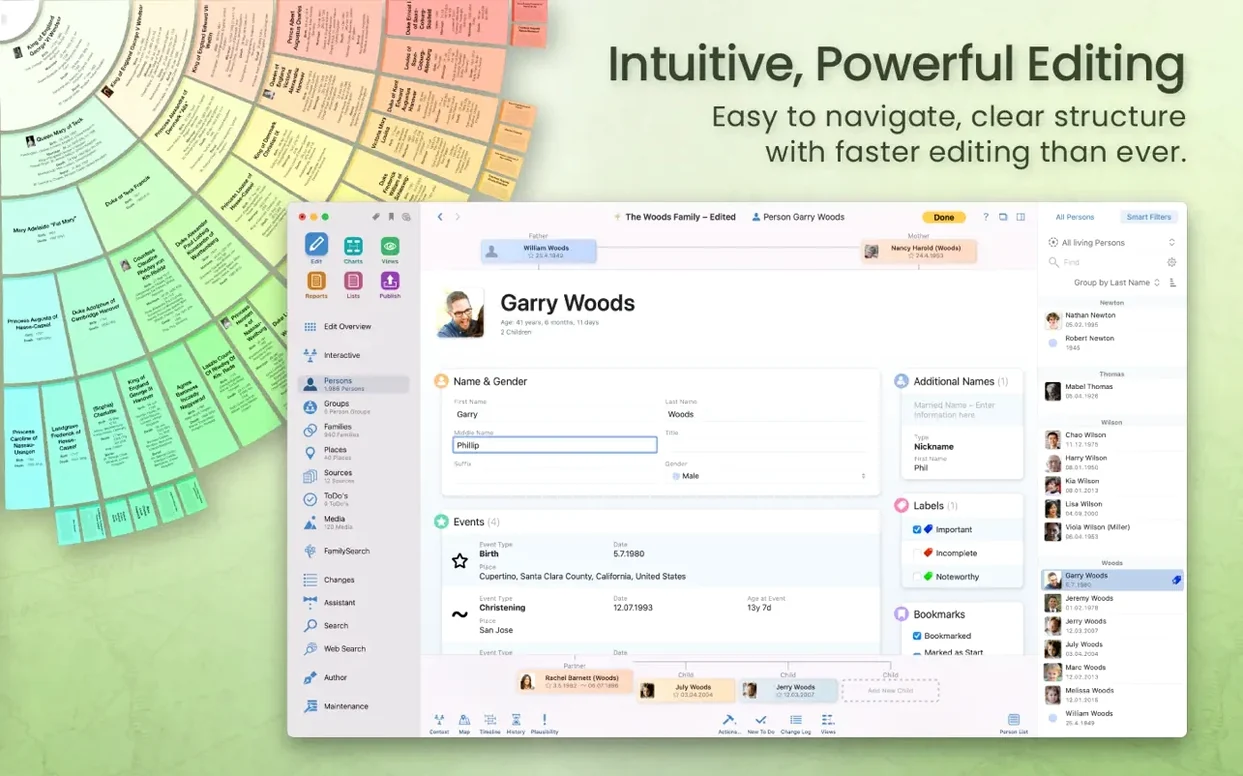
The Navigator panel on the left edge of the main window does more than list people. Start typing a name with the panel focused and it filters in real time — no need to open a search dialog. Press Return and the selected person centres in the interactive tree, surrounded by their immediate relations. It is the fastest way to hop between distant branches without losing your place.
In any chart view, holding the Option key while clicking a person reveals a popover with their vital dates, parents, and spouses. From that popover you can jump directly to their edit sheet, cutting out the round trip through the main tree. In the Virtual Globe view, Option-clicking a pin does the same — geography and biography in one gesture.
The To-Do list attached to each person is easy to overlook because it lives as a small checkbox icon in the edit sheet's toolbar. Attaching a note like "Find baptism record, St. Mary's, 1871" to a specific individual keeps research threads from tangling, and the global To-Do report under the Reports menu collects them all into a single list — essentially a research plan you can print before a library visit.
On the keyboard side, Command-Shift-F opens the FamilySearch panel without reaching for the menu bar. And if you drag an image from Finder onto a person's tile in the tree view, MacFamilyTree offers to attach it as a portrait, a source, or both — no need to open the media manager first.
Turning thirty headstone photos into a searchable family database
Picture someone documenting a rural cemetery's family plots for a county historical society. They return from the site with thirty photographs of headstones and a notebook of half-legible dates. Back at the desk, they create a new database — kept local, not synced, since the society's Mac is shared — and start entering names.
For each person, they drag the corresponding headstone photo straight onto the tree tile, attach it as a source, and enter the inscription text in the source's transcription field. The Credibility Report becomes unexpectedly useful here: it flags entries where a birth date comes only from a headstone, with no corroborating record. Those get a To-Do note — "Check parish register, St. Anne's, 1840s" — and the global To-Do list becomes the afternoon's roadmap for the next archive trip.
Before calling it a day, they run the Place List report to see every burial location plotted, then switch to the statistical map view to check surname clusters across the county. The map reveals three families sharing an uncommon name within a ten-mile radius — a connection the paper notes had missed entirely. That single observation reshapes the next week of research, and it came from a chart that took two clicks to generate.
Version 11.3.4 arrives with compatibility for macOS Sonoma, keeping your family trees right at home on Apple's latest desktop experience.
- macOS 12 (Monterey) or later
- Apple Silicon or Intel 64-bit processor