
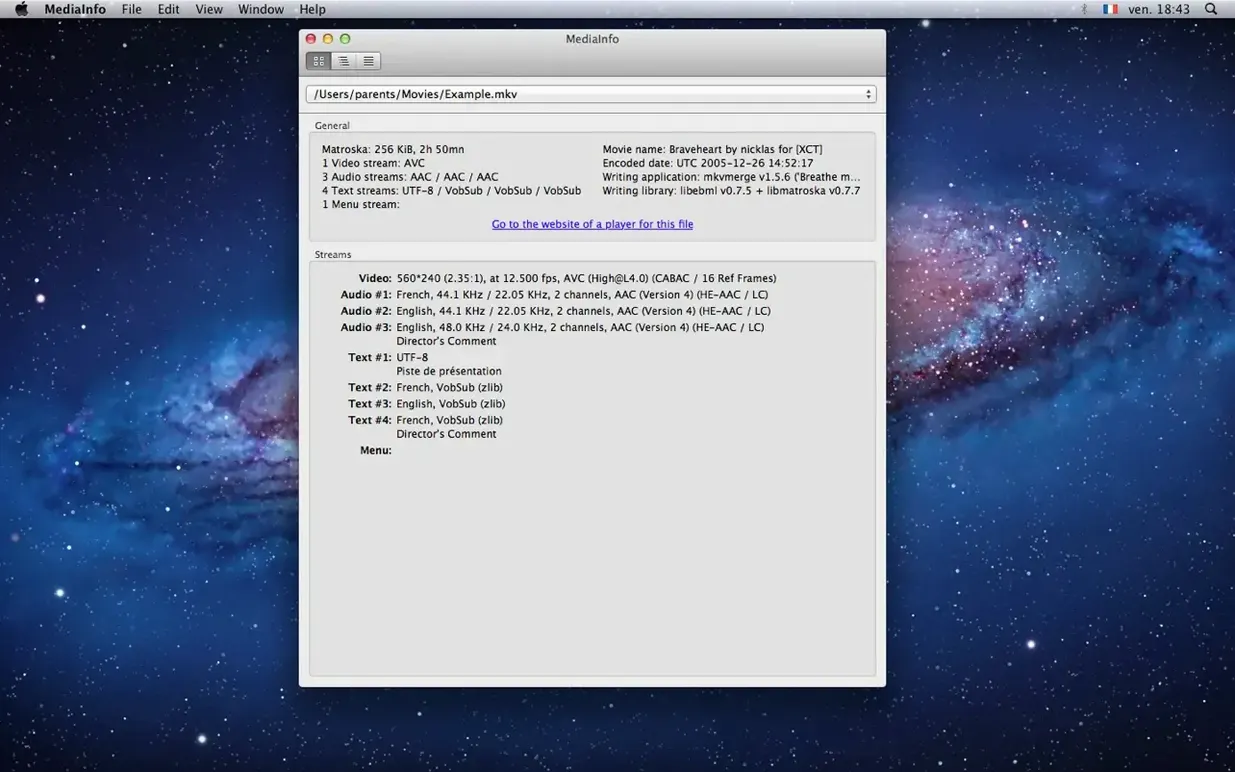
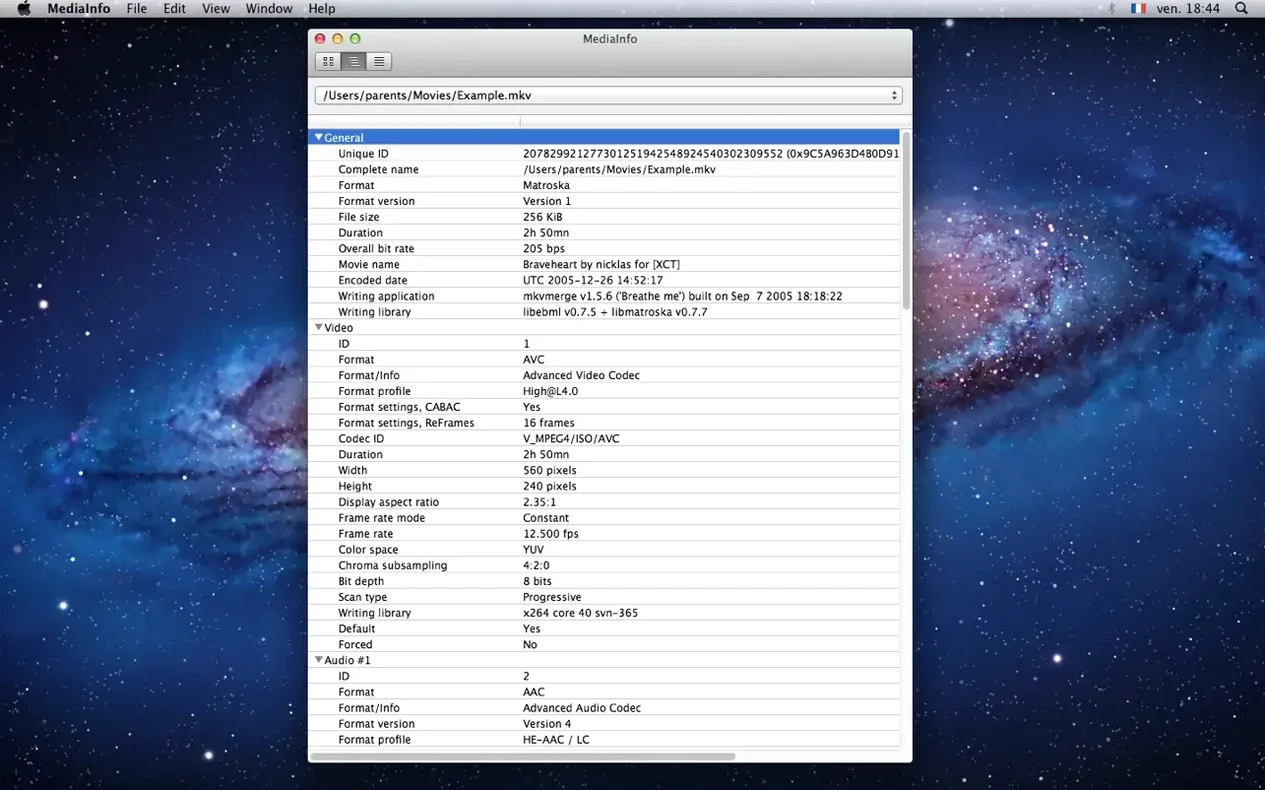
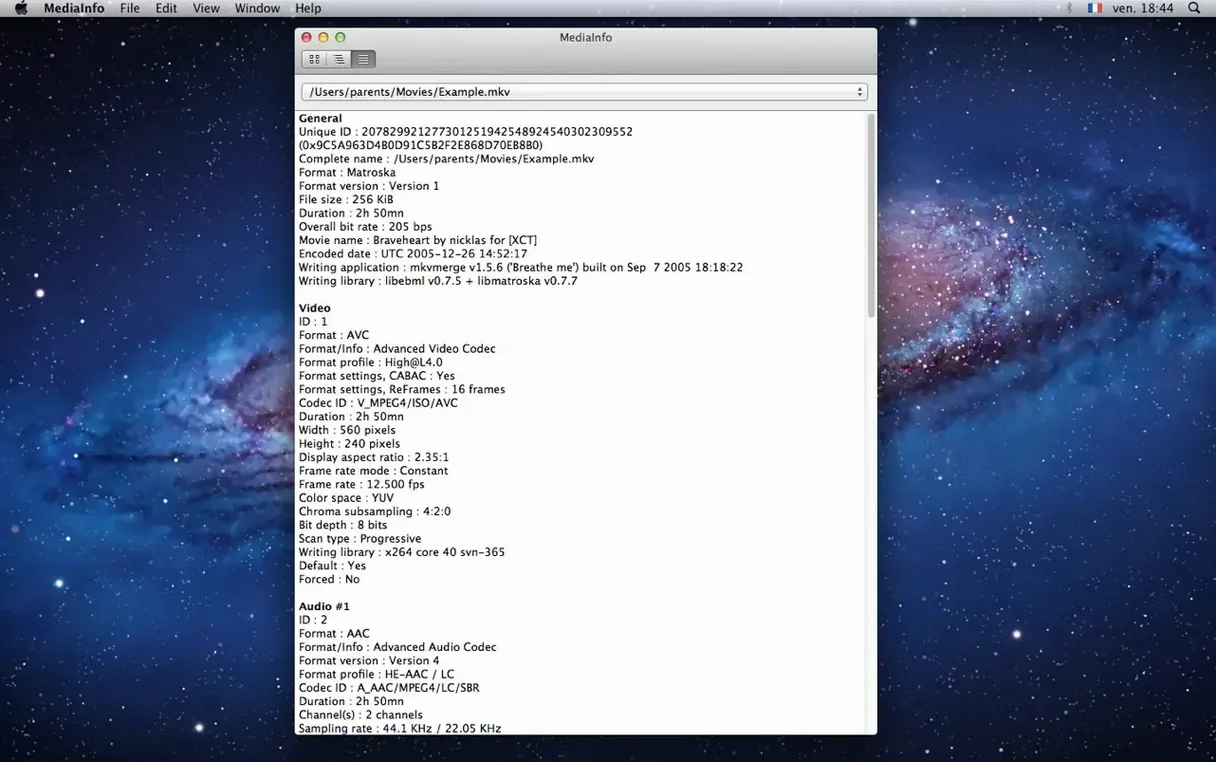
The "Tree" view is where MediaInfo stops being a simple inspector and becomes a kind of forensic timeline. A single click unfolds the whole architecture of a file: the container wrapping, the video stream's quantization matrix, the audio stream's delay relative to picture. It is the kind of detail an editor needs when a clip stutters in the timeline and the NLE offers no explanation.
What does MediaInfo actually show?
It reads the header, container, and stream-level metadata of video and audio files. That means format, profile, duration, overall bitrate, and every tag embedded along the way — from encoder settings to language tracks.
The curious archivist and the render-fix detective
Anyone who troubleshoots a render, archives a project, or wants to know exactly what is inside a file before importing it. Filmmakers, post-production assistants, compressionists, and the insatiably curious.
Drag, peek, and let the same engine drive your batch scripts
Drag a file onto the window or use the context menu. The GUI wraps the same MediaInfoLib engine that powers command-line batch scripts, so moving between a quick desktop peek and an automated pipeline feels natural.
A real-world workflow: diagnosing a delivery reject
Picture it. A DCP has just bounced back from the festival tech check with a terse note: audio configuration non-compliant, please re-deliver. The timeline in your editor looks fine, so the problem is in the export. This is where a methodical pass through MediaInfo saves an afternoon of guesswork.
Open the bounced file directly in the app — no import, no project, just drag and drop. Switch to the Tree view and expand the audio section. You are looking for three things at once: the number of channels, the channel layout, and the bit depth. A festival spec might call for 5.1 at 24-bit; if MediaInfo reports 2 channels at 16-bit, you have found the mismatch before you even open the mix session. Next, check the container section for the overall duration and total bitstream size. If the duration is off by a few seconds, a stray frame at the tail is padding the run time. With that information in hand, you return to the NLE, adjust the output module, and re-wrap — confident the next upload will pass.
When the fix is made, export a small test segment and compare the new file side-by-side with the rejected one in the tree view. Seeing two audio stream hierarchies next to each other makes the correction undeniable. It turns a panic email into a five-minute fix.
Why stopping at the flat summary betrays the file
The most common misstep is reading the summary text view like a spec sheet and stopping there. The summary is a flat list; it will tell you the codec is AVC and the bitrate is 28 Mbps, but it will not reveal that the colour primaries are buried in the video stream as BT.601 instead of BT.709 — information that matters enormously when matching footage from different cameras. Beginners glance at the top-level format string and assume the file is compatible, missing the deeper stream properties that cause gamma shifts or chroma clipping later. You have to drill down.
Another habit that trips up newcomers is trusting the file extension. A .mov container can carry ProRes, DNxHR, or an H.264 stream, and the icon on the desktop tells you none of that. Opening the file in MediaInfo and reading the codec identifier string, not just the commercial name, reveals exactly what the post-production chain will actually decode. A file named "master_prores.mov" that contains an H.264 stream is a headache averted before the grade begins.
Finally, beginners often overlook the export formats. The text export is plain and readable, but for anyone building a media asset database, the XML or JSON output can feed directly into cataloguing scripts. Ignoring that feature means retyping metadata by hand, which is precisely the kind of busywork the tool was built to eliminate.
Dailies from three cameras land on your desk
Video editors and post-production assistants live closest to MediaInfo. They are the people receiving dailies from three different camera systems and needing to confirm, in seconds, which clips are log-encoded and which have baked-in LUTs. For them, the app is less a tool and more a reflex — a quick right-click on any file before it ever touches a timeline.
Archivists and media librarians form another devoted group. When a decade of documentary footage arrives on a shuttle drive with no consistent folder naming, the batch export of MediaInfo metadata into a structured format makes the difference between a weekend of manual logging and a database that is searchable by lunchtime. Because the GUI and the command-line interface read the same library, an archivist can prototype a workflow by dragging files in the morning and automate it with a shell script in the afternoon.
Developers and compressionists who build ingest pipelines also lean heavily on the tool. They are not just looking at a single file; they are validating hundreds of encodes against a delivery specification. The tree view shows them the exact chroma subsampling value, the scan order, and the writing application string — details that tell the truth about what an encoder actually did, as opposed to what the preset claimed it would do. For these users, a mediaInfo free download mac session often becomes the first step in scripting a quality-control pass that runs unattended across entire watch folders.
MediaInfo picks up the 26.05 library under the hood, which means a quieter, more accurate read on your files. The update is mostly bug fixes — the kind of housekeeping that keeps frame rates, codec strings and subtitle track counts showing up correctly when you drag a folder of rushes onto the window. No new buttons, just a little more trust in the numbers.
- OS X 10.10 or later
- Apple Silicon and Intel 64-bit
Questions from the booth
Yes, a separate CLI version is available for scripting and batch workflows, powered by the same MediaInfoLib library.
It reads a wide range of video and audio containers and codecs, including all common production and distribution formats.
Absolutely. Alongside technical parameters, MediaInfo surfaces embedded tags such as title, artist, album, and track language.