
A blank timeline is a lonely place when a room full of people is waiting for the show to begin. That specific pressure — turning projection surfaces, LED strips and audio cues into one coherent moment — is what Millumin was built for. It treats a live performance as a canvas where video layers, sound files and interactive triggers can be arranged, rehearsed and performed without the software getting in the way.
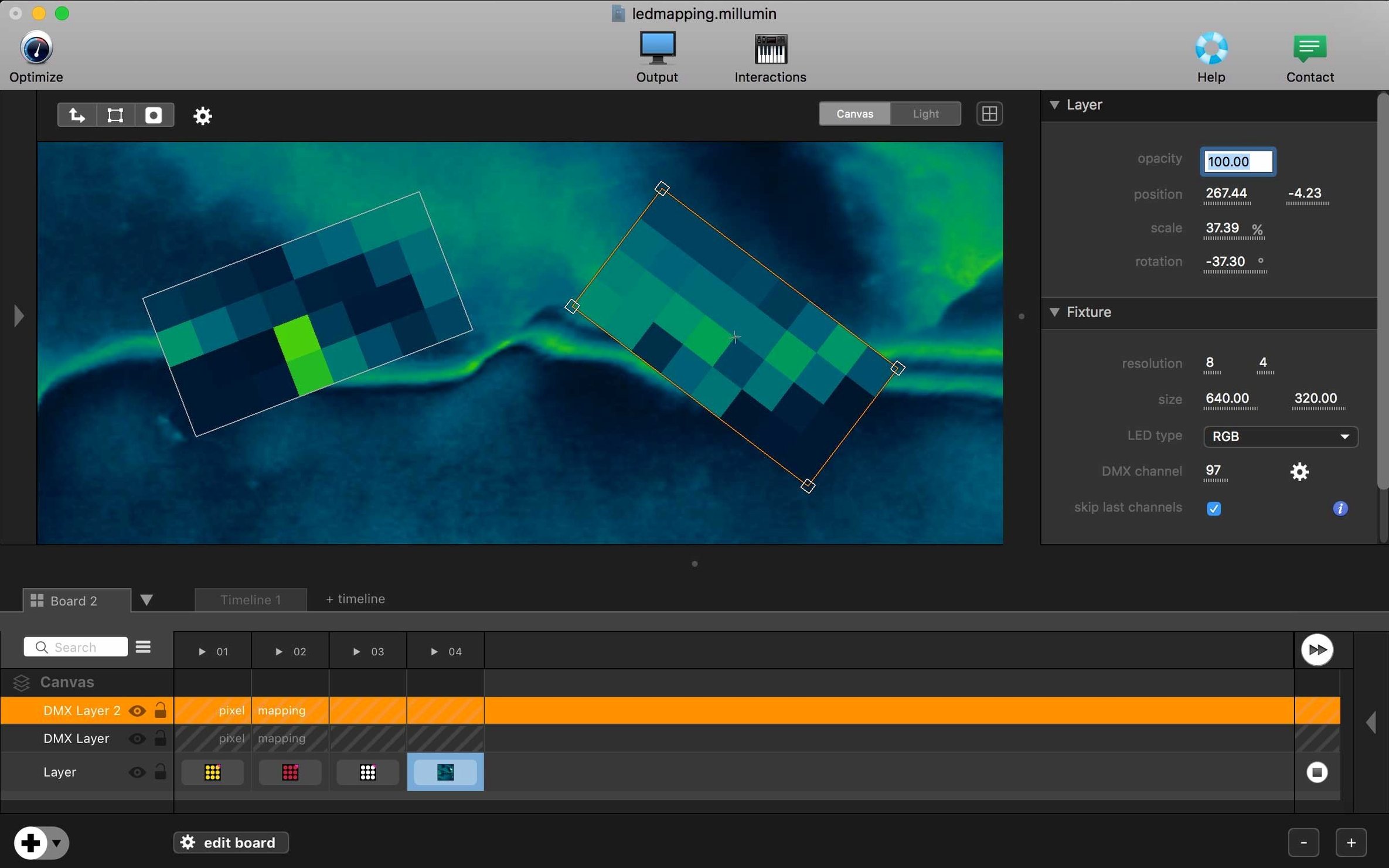
Open the app and it doesn’t leave you staring at empty panels. Contextual help slides in from the side, walking through the core ideas in a couple of minutes. The first thing worth trying is dropping a video file onto a layer and assigning it to a real output — a projector, a second monitor, anything connected. Seeing your own footage hit a surface outside the Mac’s desktop is a small revelation that clarifies the rest of the interface quickly. From there, follow one of the built-in tutorials to map a few surfaces and build a short cue list. Mapping polygons across uneven walls and linking them to keyboard triggers gives you a working mini-show in under an hour.
Millumin V5 runs on recent macOS versions, including Tahoe 26 and Golden Gate 27, and the current 5.14.j release keeps things stable on Intel machines from Big Sur forward. The help centre is specific to V5, and the tutorial library grows alongside each update. For anyone stepping into interactive storytelling — whether for theatre, dance or installation work — the ramp from first launch to a basic show is surprisingly gentle.
Where things tend to go sideways at first
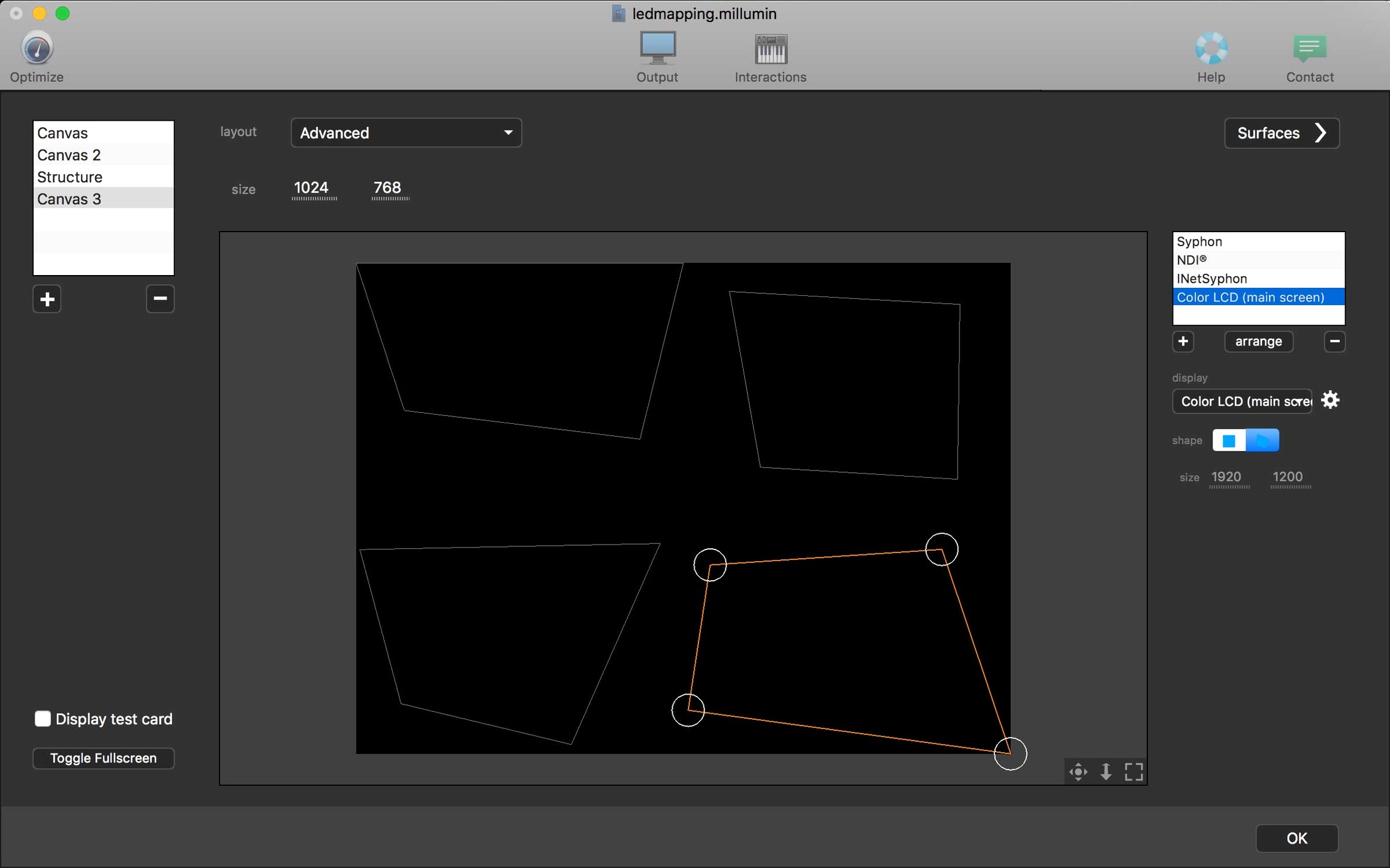
Most early frustrations aren't about the software being difficult — they're about the jump from timeline thinking to live-performance thinking. A common one: someone builds a beautiful cue sequence, hits play, and nothing appears on the external display. Nine times out of ten, the output hasn't been assigned to the right screen. Millumin treats displays as independent entities, and it won't guess which one you meant. Open the Output panel and drag the correct display onto your canvas before cueing anything. The difference is immediate.
Another snag shows up when a video stutters during playback. The culprit is almost always a codec mismatch. H.264 files, especially 4K ones, ask the CPU to do too much decoding in real time. Transcode your footage to ProRes 422 or Photo JPEG before importing. It feels like a chore the first time, but once you see a three-layer composition running without a single dropped frame, you'll stop questioning it.
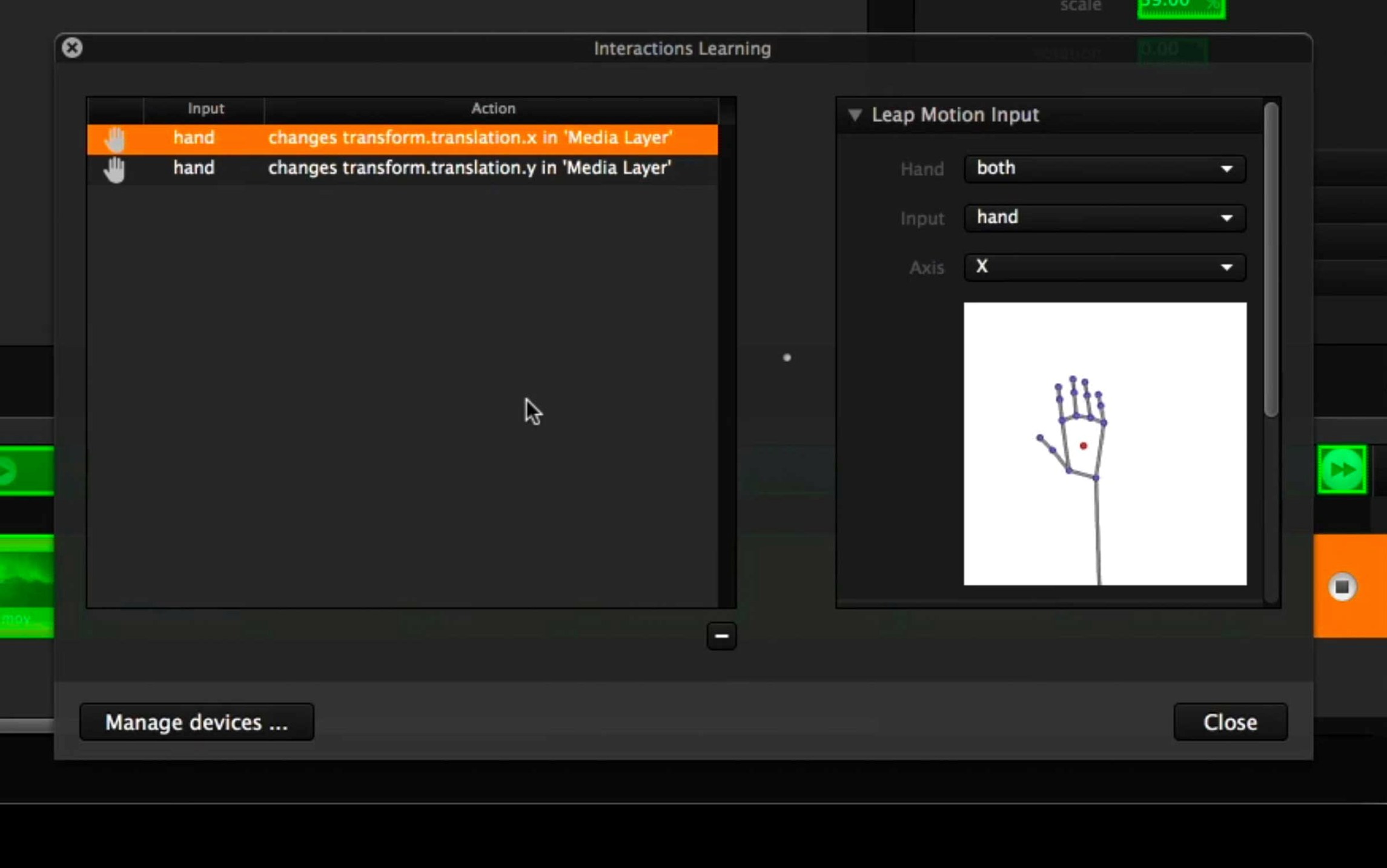
MIDI mapping confusion is the third classic. Someone plugs in a controller, Millumin sees it, but nothing triggers. The step people miss is toggling the Learn mode in the interaction panel, mapping the physical control, then switching back to Perform mode. Leaving the panel in Learn mode locks out your cues, and the software won't warn you — it just waits politely until you remember.
A quiet first afternoon with the app
Install it on a Tuesday. Don't wait until tech week when the pressure is on. The first hours are best spent doing unglamorous but necessary things: organising a media folder structure that makes sense a month from now, building a template project with your most-used output configurations, and saving a few blank columns pre-routed to your typical hardware layout. The template alone will save you twenty minutes every time you start a new production.
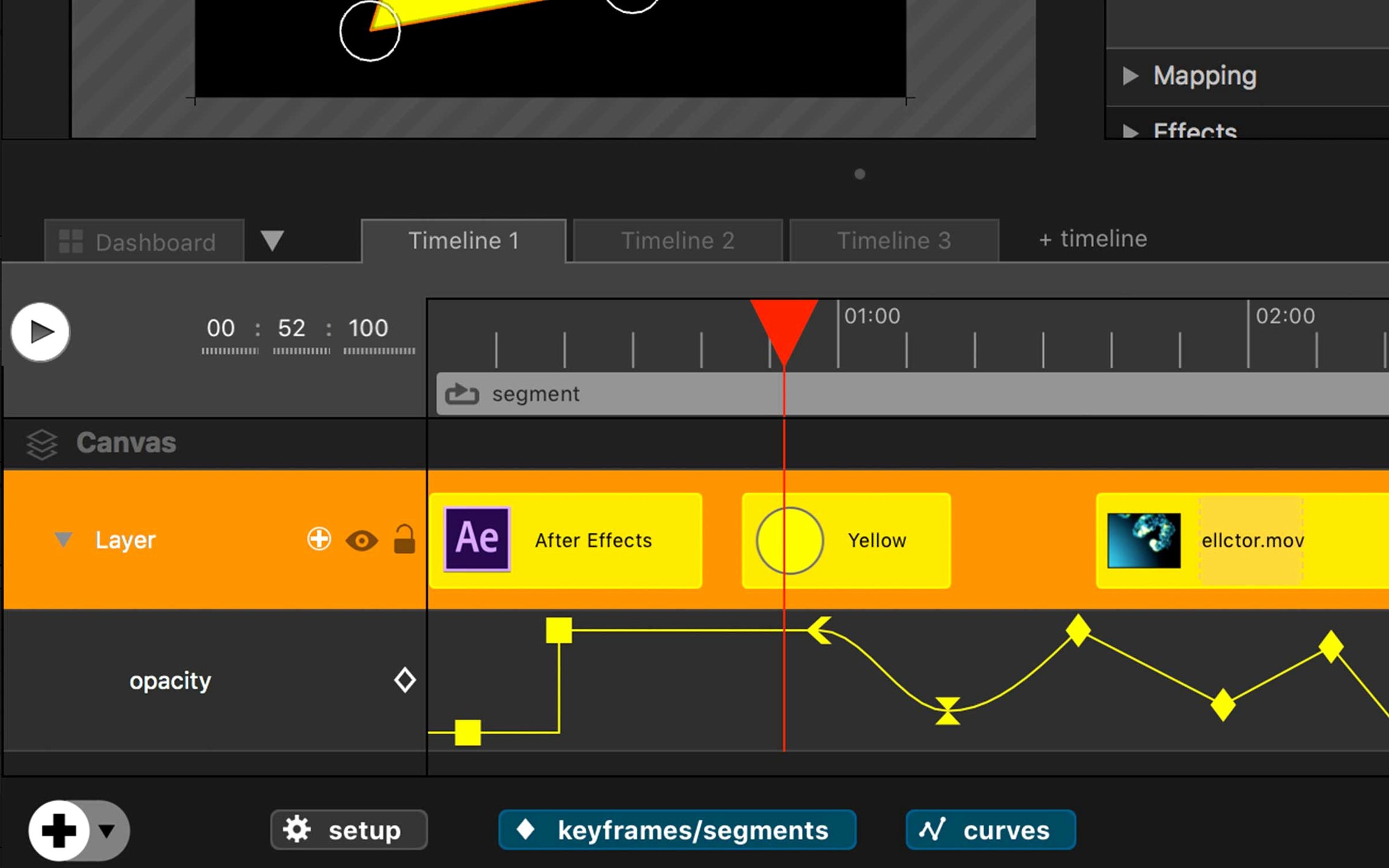
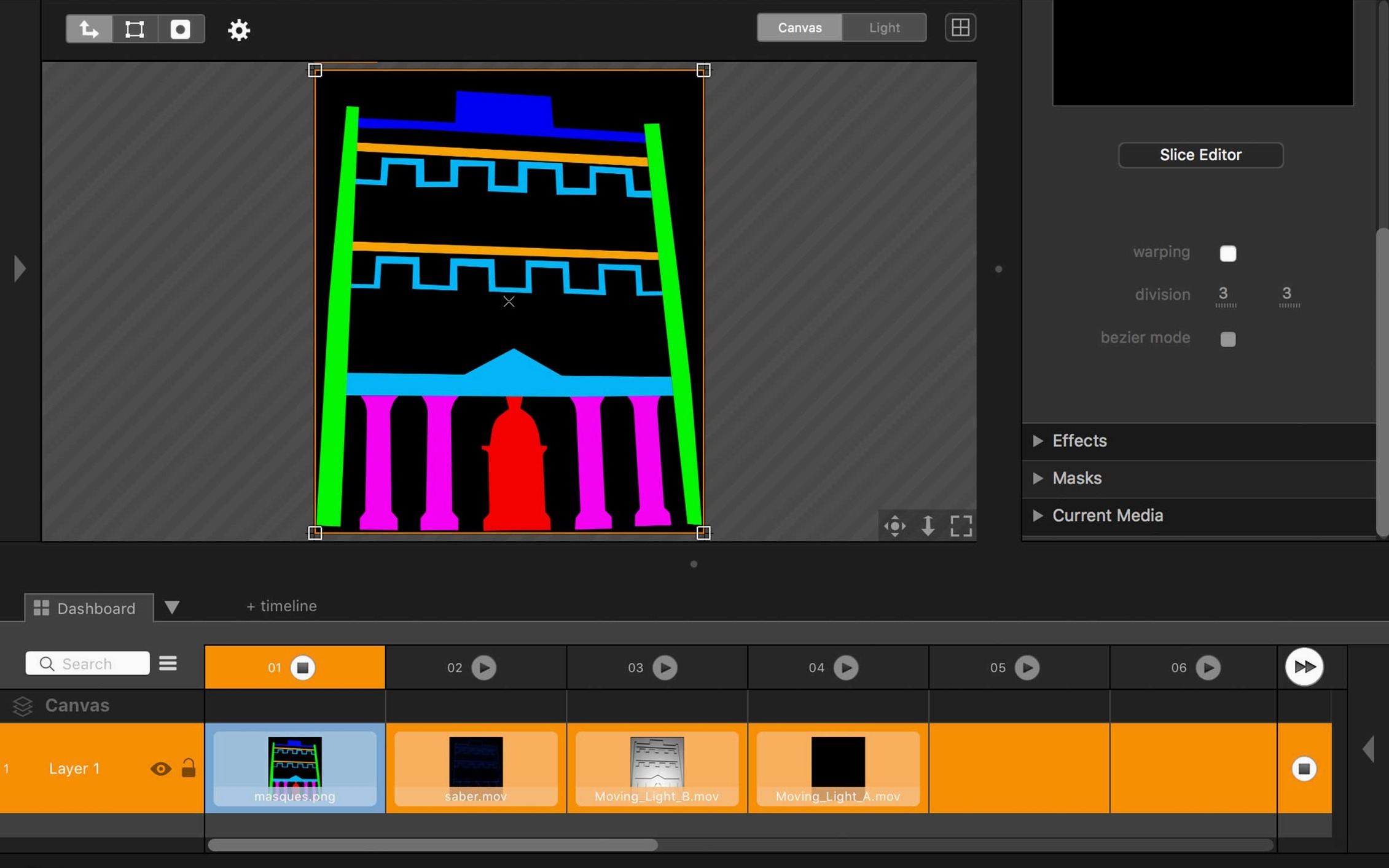
Next, run through the interactive tutorial on keyframes. It lives in the help centre and takes about fifteen minutes. Pay attention to the easing curves — they're easy to overlook when you're racing toward a deadline, but a fade that lands gently instead of linearly changes how an audience reads a transition. After that, spend half an hour with the canvas mapping tool using an uneven surface you actually work with — a curved wall, a corner, a fabric drop. The software handles irregular polygons well, but the feel of dragging bezier points onto real architecture is something you want in your fingers before the director is standing behind you.
A session, from boot to blackout
You arrive early. The projector is already warmed up, throwing a blue field across the stage. Millumin opens to last week's project, but tonight is a run-through with a different setlist, so you create a new composition and drag in the media bin from the previous file. A dancer is on stage marking positions, so you drop a test pattern onto the cyc and start mapping. Four corner pins later, the image sits flush against the fabric. The director asks for a slow dissolve between the opening video and the first live camera feed. You add the camera as a live source, place it on the layer below, and set a crossfade cue triggered by a MIDI foot pedal the stage manager will operate. Five minutes of rehearsal confirms the timing. During the run, you sit beside the lighting desk and watch the cues fire — video entering exactly as the backlight dips. After blackout, you save a timestamped copy and power down knowing nothing drifted.
Option-drag media into the timeline to auto-create a new layer
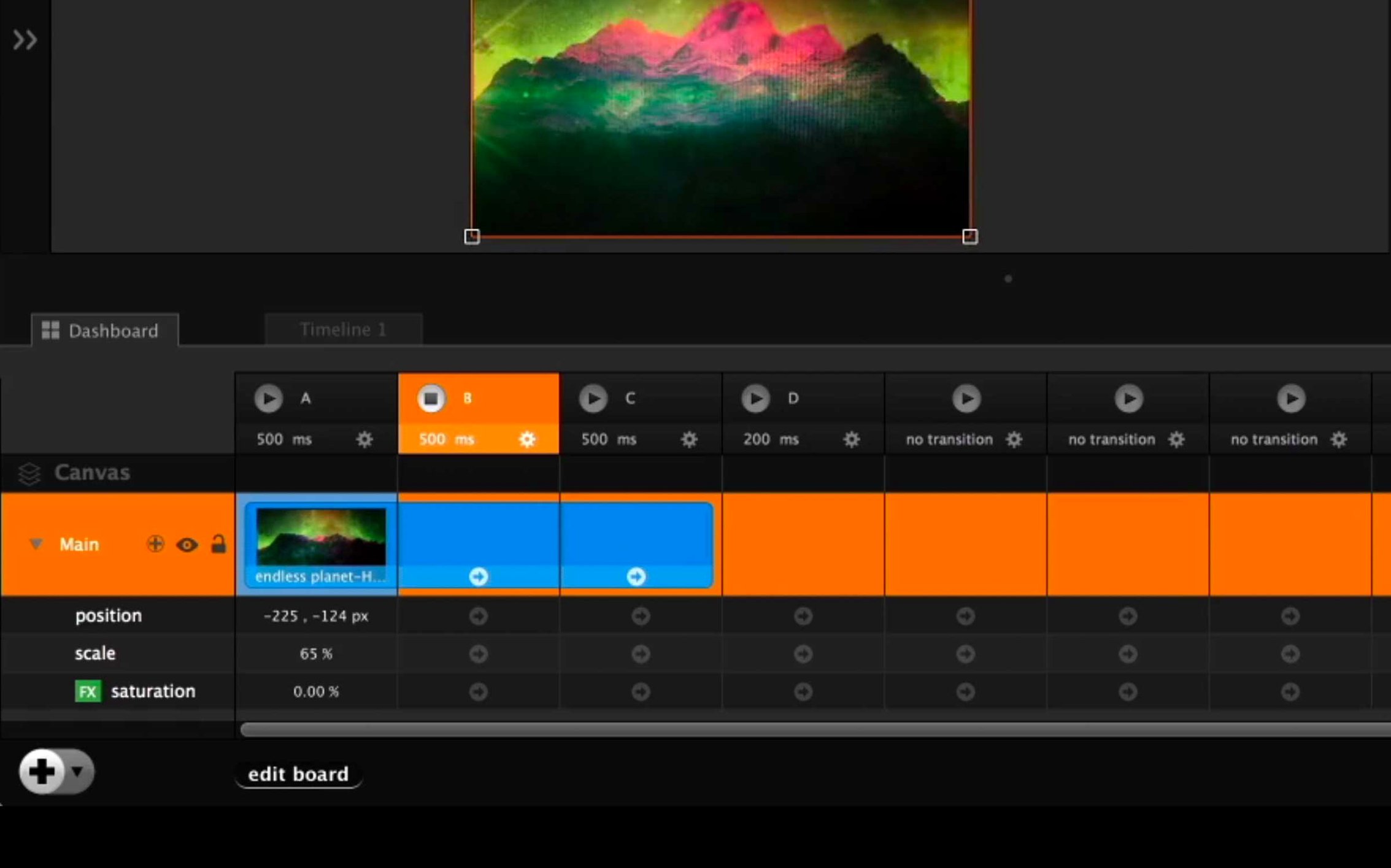
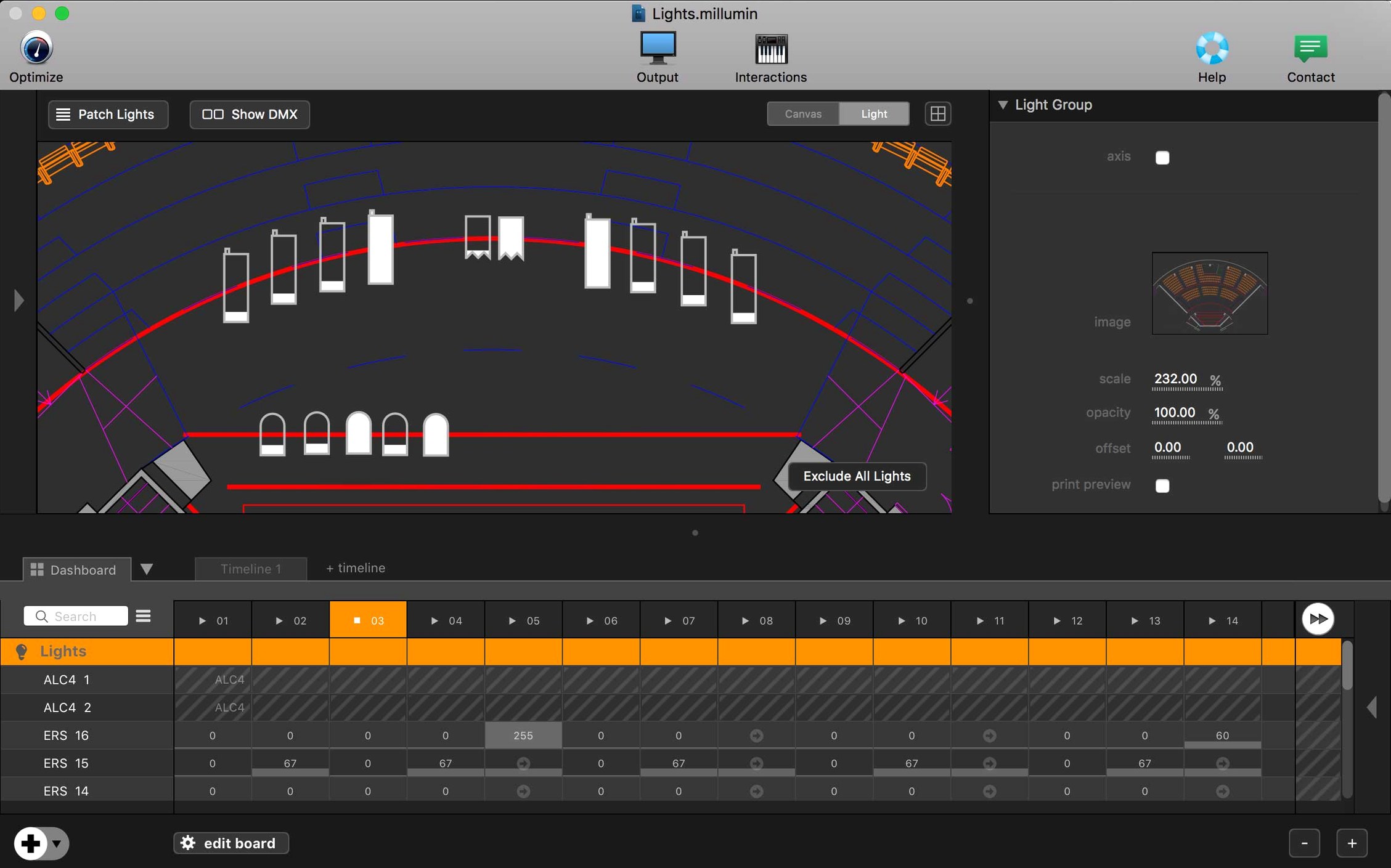
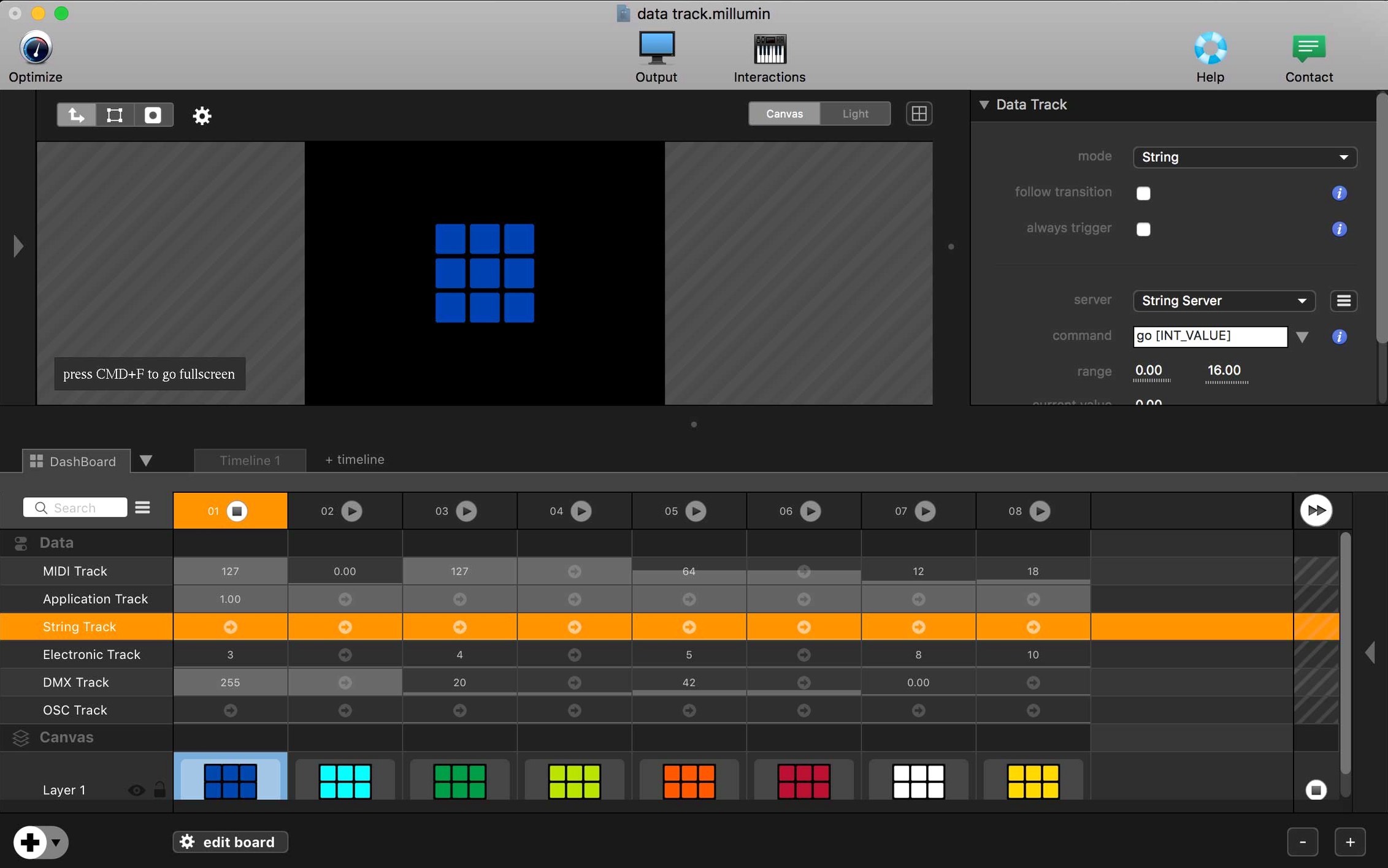
Hold Option while dragging a media file into the timeline and Millumin creates a new layer automatically instead of dropping it onto an existing one. It's a tiny shortcut, but when you're assembling a dozen cues in a hurry, it removes half the clicks. The Dashboard panel, which many people minimise and forget, gives you a live readout of every active layer, its remaining time, and whether it's looping — useful when you're troubleshooting mid-show.
Naming your columns descriptively pays off faster than you'd think. "Scene 3 transition" tells you something; "Column 7" tells you nothing when you're exhausted and the show derails. The same goes for colour-coding layers: green for video, blue for audio, orange for live inputs. It takes two minutes to set up and makes the timeline readable at a glance from across the desk.
If you're working with a team, export a shared media folder at the start of the production and point every machine to the same relative path. Millumin resolves media relatively, so moving a project between a rehearsal laptop and the booth Mac doesn't trigger a cascade of missing-file warnings — as long as the folder structure stays identical. That one habit alone spares you from the sinking feeling of opening a show file ten minutes before curtain and seeing red exclamation marks everywhere.
- macOS 11 Big Sur or later
- Intel processor
- Interface languages: English
Questions from the booth
Yes, Millumin V5 supports recent macOS versions including Tahoe 26 and Golden Gate 27.
The app opens with contextual help, and the Millumin V5 help centre offers a growing library of online tutorials.
It is a creative solution for live audiovisual shows and interactive storytelling, used in theatre, dance performances and installations.