

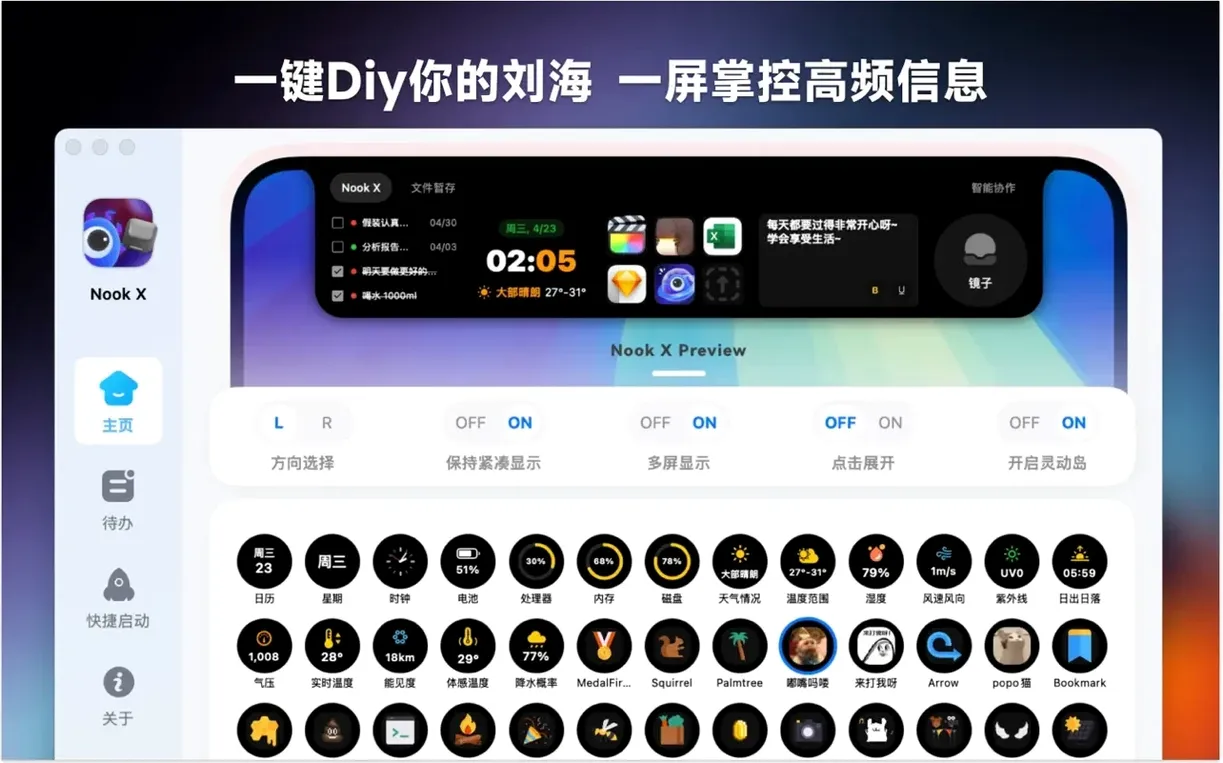
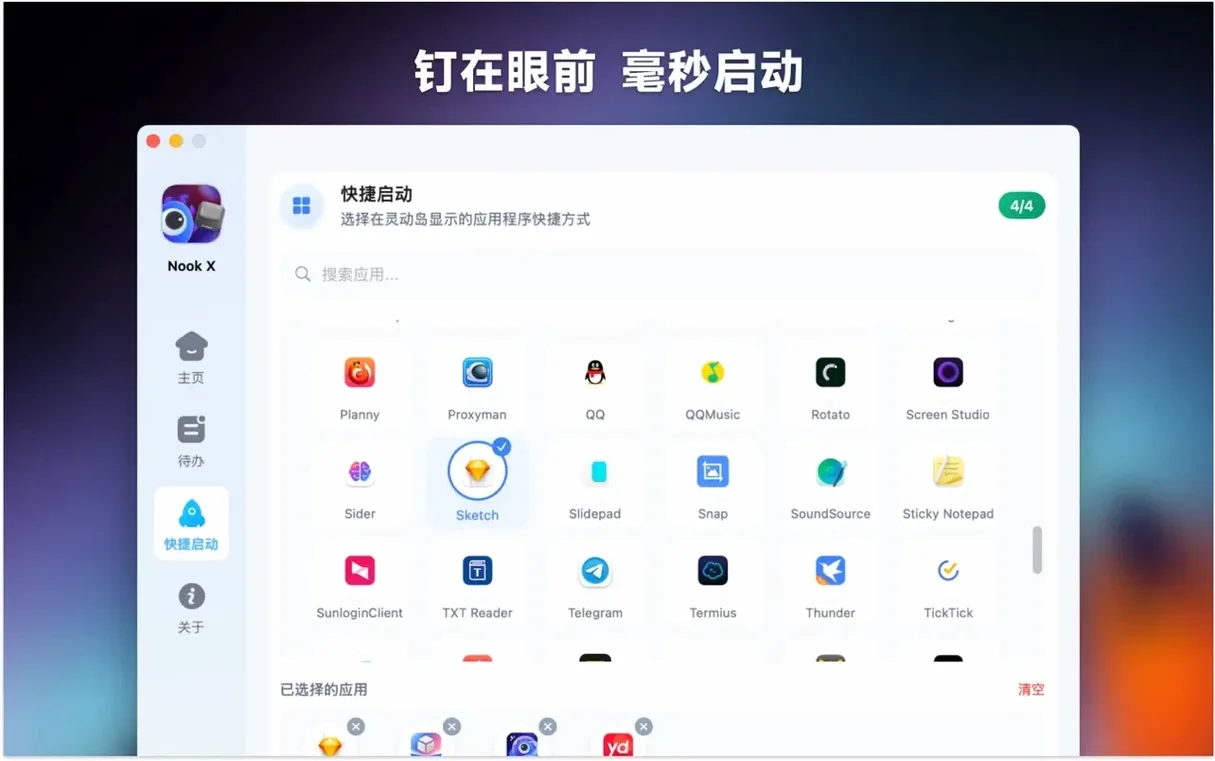

A lot of people who end up keeping Nook X in their menu bar are the kind who want small, focused tools that stay out of the way until they’re needed. It lives in the notch area of a MacBook and holds three things side by side: a to-do list, a lyrics‑aware music player, and a text‑based AI assistant.
How do I set a reminder that actually grabs my attention?
Create a task and assign it a priority level. High‑priority items surface visually so they aren’t buried in a long list, and the app can nudge you with a local reminder at the time you choose.
Can I find a song if I only remember a fragment of the lyrics?
Yes — the built-in player includes a lyrics search. Type a remembered phrase into the search field and Nook X will match it against its song database, then play the track in a small, minimally styled audio player that handles common formats.
What’s the AI assistant good for in a daily workflow?
It sits in the same compact panel and handles quick translation, question answering, and idea generation without pulling you into a separate app. You can also dictate your request with voice input and read the reply right below your tasks.
The rush of trying everything at once the moment you launch it
When you slide Nook X into the Applications folder and launch it, the instinct is to try everything at once — chat with the AI, queue up a few songs, and dump twenty tasks into the list. That rush feels productive but it buries the quiet design choices that make the app stick. Give yourself a slower first week.
On day one, use only the task panel. Type three things you actually need to finish before evening, set a high priority on the one you’re most likely to avoid, and let the reminder fire. Don’t open the music player. Don’t touch the AI. Just watch how the priority colour draws your eye when you glance at the notch. By the end of the day you’ll know whether the visual nudge works for you or whether you need to adjust what counts as high priority.
Day two, add music. Pick an album you know by heart — something where you already know most of the lyrics — and turn on karaoke mode. The lyrics display scrolls in time with the track, and seeing words you half‑remember appear in sync teaches you how the app handles timing and line breaks. This is also the moment to test the lyrics search: deliberately misremember a phrase, type what you think it is, and see how close the match engine gets. It’s surprisingly forgiving with near‑misses.
Day three, bring the AI into a real task. Not a test prompt — something you’d otherwise open a browser for. A translation of a short paragraph, a name for a character in a script, a wording alternative for a task description you’ve been staring at. Dictate it with voice input if you’re alone. The assistant’s replies appear in the same compact panel, and the habit of reading them without switching windows is the thing that eventually keeps Nook X open all day.
Things newcomers often get wrong
The most common early mistake is treating the task list like a full project manager. Nook X doesn’t do subtasks, dependencies, or kanban columns, and forcing it into that shape just creates a long, undifferentiated list that stops being useful around item twelve. It works best when you treat it as a daily focus strip — the three to five things that matter right now, not everything that matters eventually.
Another slip is leaving karaoke mode on during instrumental passages and assuming the app froze. The lyrics panel goes quiet because there’s nothing to display, and the blank space looks like a bug if you’re not expecting it. It isn’t. Skip ahead or wait for the next verse.
People also overlook the create task from chat gesture. When the AI suggests something actionable — a phrasing to try, a reminder to follow up on a thread — you can turn that reply into a task without retyping it. Missing this means you’ll lose the thought the moment the chat scrolls away. Practise it once deliberately: ask the assistant for a small errand, then capture its reply as a task. After that, the gesture becomes muscle memory.
Voice input trips up beginners who speak too fast or trail off mid‑sentence. The assistant listens for a complete utterance, and if you pause to think, it may cut you off earlier than you intended. Speak in full, unhurried sentences and give it a beat of silence before you start. You’ll get cleaner transcriptions.
Lyrics search as a recovery tool: a walkthrough
Say you’re editing a short film and a temp track has a line you can only half‑remember: something about rain and a station platform. You heard the song once in a café and the melody haunts you, but Shazam has nothing and the director needs a replacement track by Friday.
Open the Nook X music panel from the notch. Into the lyrics search field, type rain platform waiting — fragments are fine, the engine doesn’t need a full sentence. Hit search. The app returns a handful of matches, each with the song title and a snippet of the lyric where your words appear. Scroll through the results and listen to thirty‑second previews directly in the built‑in player. When one feels right, play the full track to confirm. If it’s the song, you’ve just recovered a needle from a haystack without leaving the edit timeline. If it’s not, refine the search: swap waiting for standing, or drop the word that felt least certain. The engine re‑ranks quickly, and each refinement narrows the field.
Once you find the track, create a task from the chat panel — something like send café song to director — so the follow‑up doesn’t evaporate when you return to the cut. The whole sequence, from vague memory to actionable reminder, sits inside a single notch‑sized utility. That’s the scenario where Nook X stops being a curiosity and becomes part of the toolkit.
Alongside other Mac utilities
Set against a dedicated lyrics app like Musixmatch, Nook X feels lighter and less socially connected. Musixmatch syncs across devices, pulls in community‑contributed lyrics and translations, and ties into Spotify. Nook X doesn’t connect to streaming services — it plays local files and searches its own database. That’s a limitation if your library lives in the cloud, but a quiet advantage if you work with offline audio and want lyrics without a login screen or a social feed.
Beside a focused AI tool like MacGPT, Nook X trades depth for integration. MacGPT gives you a dedicated chat window, prompt templates, and system‑wide shortcuts. Nook X’s assistant is simpler — no conversation history beyond the current session, no custom personalities — but it sits next to your tasks and your music, and it turns replies into to‑dos. That linkage is the difference. You’re not just chatting into a void; you’re chatting next to a list that catches what matters.
Compared to a notch utility like NotchNook, the overlap is structural but the philosophy differs. NotchNook turns the notch into a general‑purpose shelf for widgets, media controls, and shortcuts. Nook X commits to three specific tools and keeps them in a tight, scrollable panel. Where NotchNook spreads outward, Nook X goes deeper into fewer things. If your day revolves around tasks, lyrics, and quick AI lookups, that depth pays off. If you want a calendar widget and a clipboard manager in the notch too, you’ll drift toward the broader option.
- macOS 13 or later
- Apple Silicon or Intel 64-bit Mac