
Clipboard history, anchored in the notch
When you catch yourself retyping a code snippet or scrambling for a link you copied three steps ago, the notch becomes a scrollable timeline. NotchBox keeps a running clipboard history that you access without leaving the current window—tap the notch, find the entry, and it's back in play. That alone changes the rhythm of assembling edits or filling out production forms, but it's how the history works alongside the other panels that makes the utility feel less like a collection of widgets and more like a considered workspace.
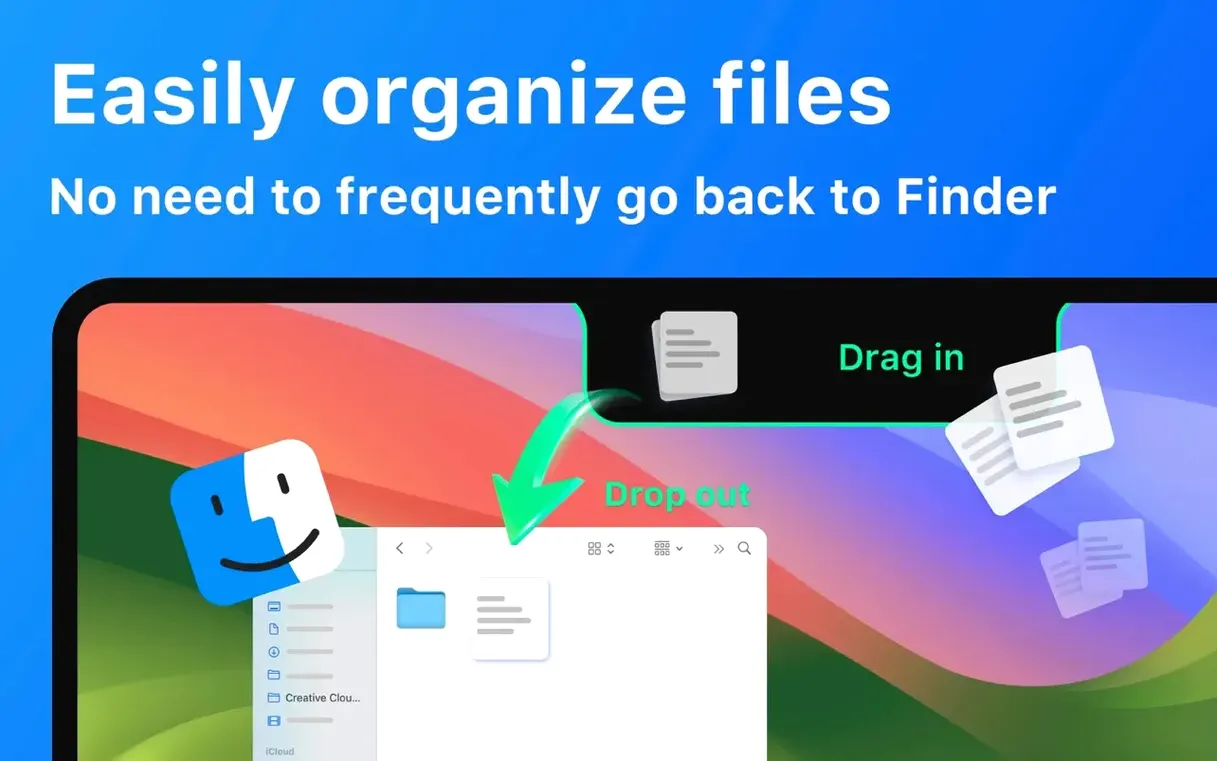
- Drag a folder of dailies or a handful of audio stems directly onto the notch. They sit there as a temporary shelf—grab them when you need them, clear them when the session ends. Nothing gets buried in a Finder tree.
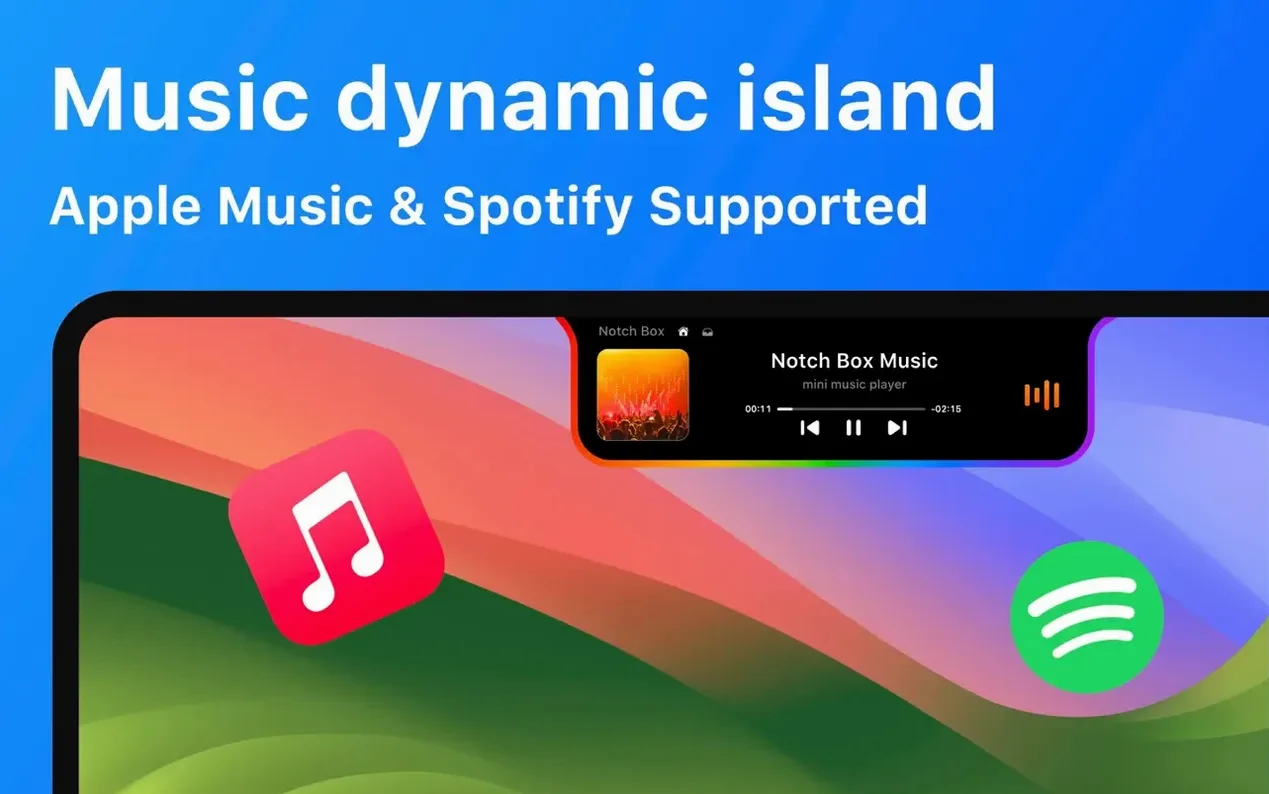
- Swipe to the Apple Music panel. Playback controls and current track info live next to your stored files, so switching between reference mixes and your timeline shelf happens in the same glance.
- Pull up the network monitor when you are about to upload a rough cut. Wi‑Fi speed and signal strength read out in real time, right next to the camera mirror view that doubles as a framing check before a remote call.
It all runs on macOS 13 or later, with interface support spanning sixteen languages from Arabic to Vietnamese—a quiet signal that the notch can be a universal shortcut, not just a design quirk.
Click the notch to choose your panel order first
After dragging NotchBox into Applications and launching it, you will see almost nothing change — until you click the notch. The first thing worth doing is deciding which panels earn a spot in the narrow strip and in what order they appear. Open the app's preferences and drag the modules into a sequence that matches your morning: calendar events first, then the clipboard, then the music widget. You can pull the timer to the front on deadline days and push it to the back when the schedule clears. Spend ten minutes with the defaults before you rearrange anything; the logic of the layout reveals itself once you have reached for the same panel three times in an hour.
The shelf function rewards a little experimentation early on. Drop a PDF, a folder of stills, and a voice memo onto the notch in quick succession. You will notice they stack in the order they arrived, not alphabetically, and that the shelf persists through panel switches but not through a restart. That behaviour is useful to know before you treat it as permanent storage. A good habit is to treat the notch shelf like a camera card — offload it regularly and never let it hold the only copy of anything.
Shortcuts you might not notice at first
NotchBox loads most of its cleverness into gestures that do not announce themselves. A two-finger swipe on the notch strip cycles through panels without opening them fully; a long press on the calendar entry expands the next three events instead of just showing the current one. The clipboard history supports a quick-pin gesture — swipe right on an entry and it stays locked at the top of the list even as new copies pile up beneath it. That single move saves the kind of repeated scrolling that clipboard managers usually demand when you are pasting a licence key or a long URL across multiple forms.
On the music panel, the tiny waveform icon next to the track title is not decorative. Clicking it reveals a compact equaliser preset list, and holding Option while clicking it toggles between Apple Music and Spotify without opening either app. The AirDrop target inside the file shelf accepts not just individual files but selected text dragged from a browser — NotchBox converts it into a .txt clipping and sends it out, which turns the notch into a one-step note-sharing channel during a meeting.
The camera mirror view has a hidden tap-to-freeze gesture that locks the frame, useful for checking lighting or focus without holding a pose. Tapping again releases it, and the frozen image never saves to disk unless you drag it out of the notch yourself.
Fix the shelf rejecting .webloc and network alias drags
A common frustration in the first week is the shelf refusing to accept a file. The usual culprit is a file format the system does not recognise as drag-and-drop safe — certain .webloc files or aliases from network volumes tend to bounce off the notch. The workaround is to drop the actual file rather than a shortcut to it, or to zip the item first. Another frequent hiccup: the music panel shows a spinner and nothing else. That almost always means neither Apple Music nor Spotify is running in the background. Launch either app once, let it authenticate, and the panel populates within seconds.
The Wi‑Fi speed readout occasionally shows zero even when the connection is fine. This is a known quirk when the Mac has just woken from sleep; clicking the network panel to refresh it resolves the display without any settings change. If the countdown timer does not fire a notification at zero, check that NotchBox has notification permission in System Settings — the app does not prompt for it on launch, so it is easy to miss.
Language mismatches can happen if your system language is not among the sixteen supported ones. NotchBox falls back to English in that case, but switching the app's language independently is not currently an option, so setting your Mac to one of the supported languages — even temporarily — brings the full localised interface into view.
Check your calendar through the notch before a deadline day
You have a rough assembly due by four, a video call at two, and a track you want to audition while you log clips. The morning starts with a calendar check: a single click on the notch shows the first meeting is at ten, so you have an hour. You drag a folder of proxy files onto the notch shelf and open your timeline. The proxies sit above the edit window, invisible until you need them.
Mid-morning, you copy a colour grade value from a reference still and paste it into the clip inspector. An hour later you need the same value for a second shot. Instead of hunting through menus, you open the clipboard history pinned to the second panel slot, find the hex code still locked at the top, and copy it again. No typing, no searching.
By noon the Wi‑Fi monitor reads low signal strength — the router is struggling. You glance at the network panel, confirm the drop is real, and move closer to the access point before the call. The camera mirror sits next to the signal bars; a quick tap freezes the frame so you can check for backlight glare without opening Photo Booth or squinting at a tiny preview elsewhere.
Lunch ends and you start the countdown timer for a thirty-minute focused pass on audio. The timer sits in the notch strip, counting down silently until a notification chimes. You have kept the notch shelf clear except for a single music reference file, and as the timer runs, you swipe to the music panel, switch to Spotify, and pull up the reference track. Everything happens in the same narrow band at the top of the screen. When the proxies are offloaded and the shelf is empty, you clear the notch with a single swipe — the session ends, the desktop returns to its usual state, and nothing lingers in the menu bar that was not there before.
- macOS 13 or later
- Apple Silicon or Intel 64-bit Mac