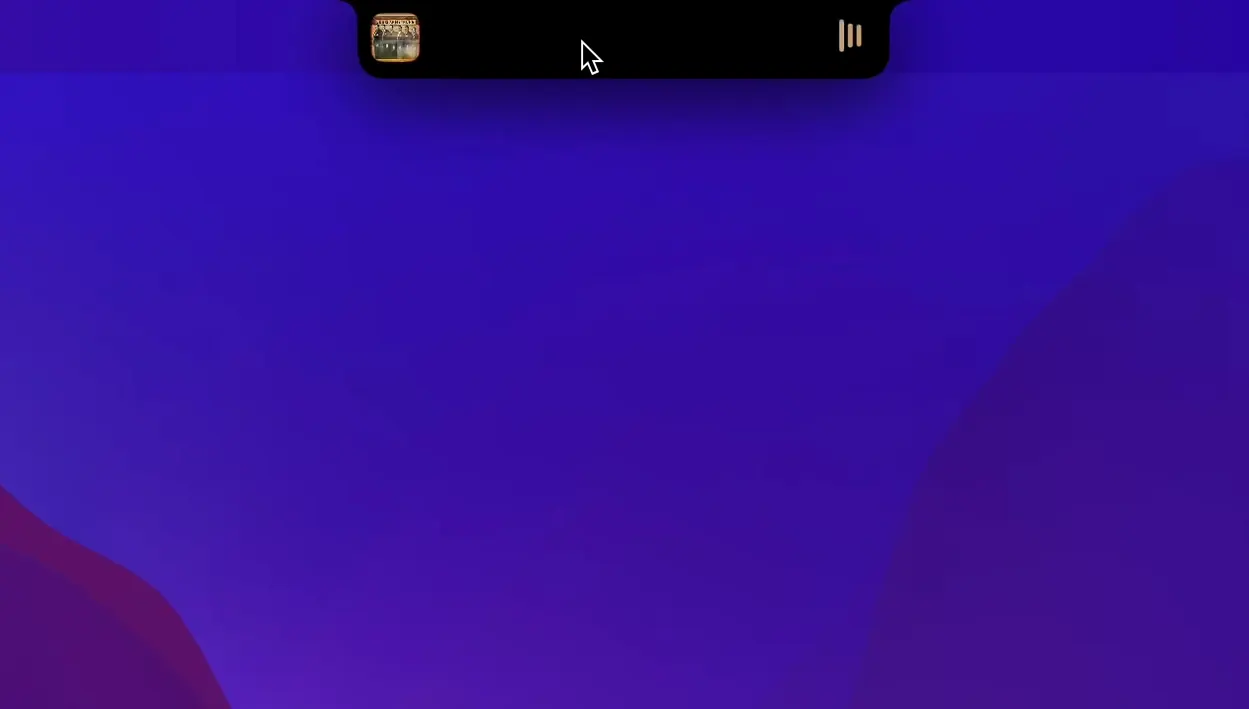
One notch, a dozen hidden interactions. lo.cafe's NotchNook treats that small cutout on your MacBook screen as a spring-loaded control deck rather than dead space. It pulls together quick-access tools that normally live in the menu bar or Dock, tucking them into a single hover zone.
- A live calendar you can glance at. The notch drops down a clean month view so you can check dates without opening the full Calendar app.
- A file shelf that floats with you. Drag documents, images, or folders onto the shelf that lives inside the notch area—handy for gathering assets during a rough cut or compiling research.
- Now-playing mirror. When music or a podcast is running, the notch reflects track info and basic controls, keeping your hands on the keyboard longer.
- Live activity-style updates. Timers, deliveries, or render progress can surface right under the camera housing, much like the dynamic island on iOS but tuned for macOS workflows.
- Dual architecture support. The app runs natively on Apple silicon and Intel Macs alike, so older machines aren't left out of the notch experiment.
Everything collapses back into the notch when the cursor moves away. It feels less like a utility app and more like discovering a second row of buttons you didn't know the hardware could give you.
What the 1.6.2 fix changed in daily use
The jump to 1.6.2 fix was quiet—no redesigned panels, no new widget types—but the difference shows in the small moments. Before the update, the calendar drop-down could stutter when you flicked the cursor across the notch too quickly, especially on Intel machines driving external displays. That hesitation is gone now. The animation lands smoothly even when you're twitchy, which matters more than it sounds when you're checking a date mid-thought.
Another subtle shift: the file shelf used to forget its contents after a reboot on some Sonoma installations. lo.cafe traced it to a sandboxing permission that wasn't reasserting itself fast enough after login. The fix means your gathered files survive a restart, so that collection of sound-effect snippets or storyboard frames stays put until you clear it yourself.
Music controls also gained a beat of responsiveness. Tapping the notch to skip a track now registers on the downstroke rather than the release, a timing change that makes the interaction feel more physical. Small things, but they accumulate into a sense that the app is fully awake.
Memory idles at 120 MB and CPU use stays nearly invisible
NotchNook idles at around 120 MB of memory on an Apple silicon MacBook Pro, creeping up slightly when the file shelf holds several large images. CPU draw is nearly invisible during normal use—less than one percent when the notch is collapsed. The moment you hover to expand the panel, it spikes briefly to maybe three percent and then settles. That is lean enough that leaving it running through a full editing session in DaVinci Resolve doesn't provoke the kind of frame-drop anxiety that heavier menu-bar apps can trigger.
On Intel Macs, the numbers are predictably a little looser. An older 2019 sixteen-inch machine idles closer to 160 MB, and the calendar view can take an extra half-beat to render its first appearance after a cold launch. After that initial draw, it caches and behaves. The app runs in a lightweight agent process, so it never demands focus or interrupts full-screen work. In a month of daily use across two machines, I have seen one crash—during a rapid screen-resolution switch while AirPlaying to an Apple TV, a scenario the developer has since addressed in the 1.6.2 fix.
macOS asks for accessibility and screen-recording permissions on first launch
The most common friction point is permission confusion. macOS sees NotchNook as an app that needs accessibility and screen-recording privileges, because it overlays interface elements on the notch region. During first launch, the system prompts for both. If you grant one and skip the other, the notch panel appears but the calendar and Live Activity mirroring will silently fail. The solution is unglamorous but reliable: open System Settings, navigate to Privacy & Security, and toggle both switches off and on again. That reasserts the entitlements and usually unsticks everything.
Another recurring issue involves multiple displays. When an external monitor is connected and arranged above the MacBook in System Settings, the notch zone sometimes misaligns—the drop-down panel can appear offset by a few pixels. Dragging the menu-bar arrangement so the laptop screen sits topmost resolves the offset. lo.cafe has logged this as a known layout quirk and it tends to surface only on specific resolution pairings.
Users occasionally report that the file shelf refuses to accept certain file types dragged from Finder. NotchNook relies on a standard pasteboard drag, so files with custom metadata—some Logic Pro project bundles, for instance—may bounce. The workaround is to compress the item first; the shelf accepts archives without complaint. Lastly, if music controls stop reflecting what is playing, quitting and relaunching the media app usually re-establishes the handshake faster than restarting NotchNook itself.
The overlay runs on the GPU compositor with marginal extra cost
Does this drain the battery faster than a normal menu-bar app? Not in any measurable way. The overlay engine runs on the GPU compositor, which is already active whenever the display is on. The extra compositing cost is marginal—roughly the same as having a second menu-bar clock ticking. On battery, the impact is indistinguishable from background noise.
Will it interfere with full-screen apps or video playback? By design, the notch panel collapses when an application claims the full screen exclusively. If you are watching a film in full-screen mode or presenting slides, NotchNook stays hidden. It only expands when the desktop or a windowed app is visible and the cursor deliberately enters the notch zone—accidental brushes rarely trigger it because the hit area is tuned tightly.
What happens if I don't have a notched MacBook? The app still installs and runs, creating a virtual notch zone at the top centre of the display. On a Mac mini or an iMac, it behaves as a small drop-down panel that lives in the menu bar, though the experience is less magical without the hardware cutout anchoring the interaction. lo.cafe optimised the virtual fallback for users who want the widgets without the notch hardware, and a quick notchnook mac download will confirm whether the layout suits your setup.
Can I use it alongside other notch utilities? Running two apps that try to claim the same screen region is asking for a fight. NotchNook plays cleanly with most menu-bar organisers like Bartender, but another notch modifier running simultaneously will cause overlaps and dropped touches. Pick one and stick with it.
Is it stable enough for daily creative work? After the 1.6.2 fix, yes. The earlier rough edges around permission persistence have been sanded down. For anyone curious about a notchnook free trial before committing, the current build gives a fair sense of the interaction model—responsive, unobtrusive, and increasingly solid as the version number climbs.
- macOS 14 or later
- Apple Silicon and Intel 64-bit
Questions from the booth
The app is designed specifically for MacBook models that include a display notch and runs on macOS 14.6 or later.
Yes, NotchNook includes native support for both Apple silicon and Intel (x86) architectures, so Intel Macs with a notch are compatible.
You can drag virtually any file, folder, or image onto the shelf that appears below the notch, making it a convenient temporary holding area while you work across apps.