OmniPlayer runs on any Intel Mac with macOS 11 or later, so it slots into older and more recent setups without a fuss. No Apple Silicon native build yet, but it functions under Rosetta for those who need it.
Dropping a 30 GB MKV that choked other players now plays instantly
Drop it in and playback starts quickly, even with large files — the latest update specifically addressed a loading bug with 30 GB MKVs. You can scrub through the timeline using preview thumbnails that appear right on the progress bar, which takes the guesswork out of finding a scene in a long video.
Your playlist auto-empties on quit, so no file clutter lingers
Media files land in a playlist automatically, and everything clears when you quit, so there is no leftover clutter. While it is running, you can search for a specific item, delete one from the list, or loop a section using the repeat-mode controls — simple, but it keeps a viewing session on track.
How does it reach media beyond my local drive?
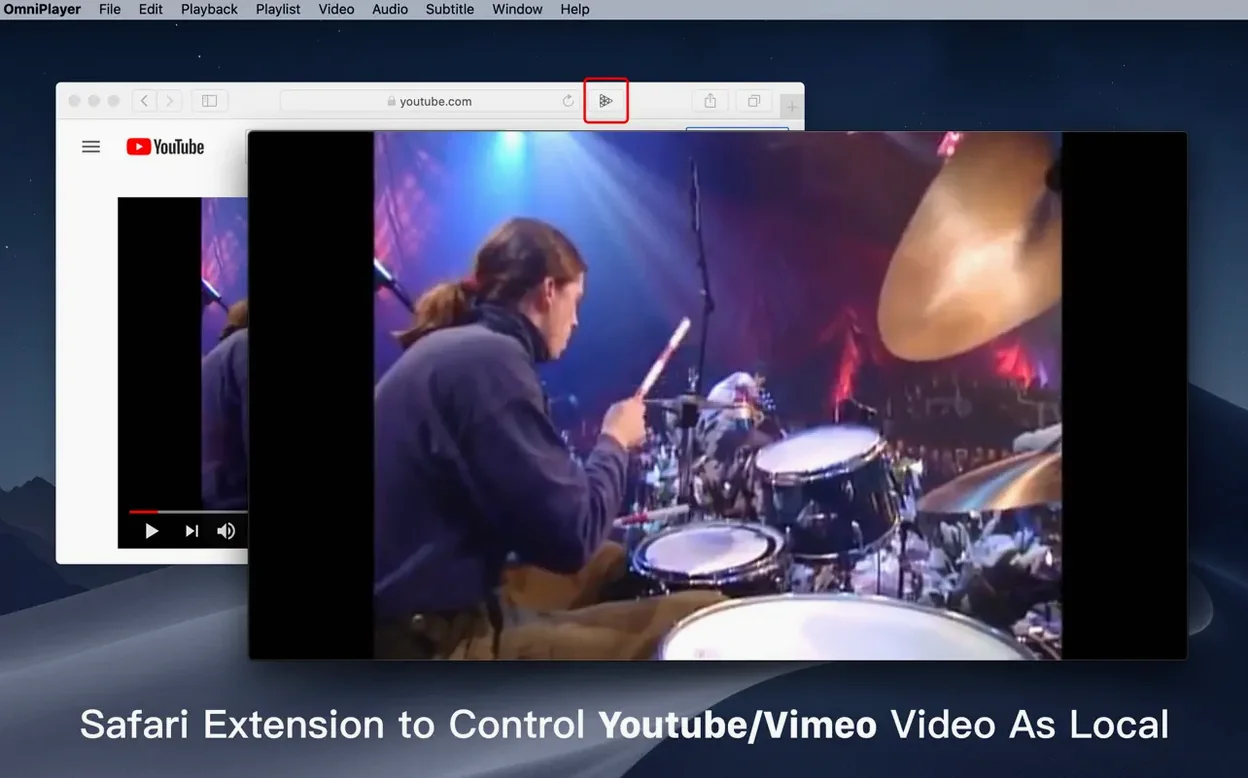
You can pull in video over SAMBA or FTP, and stream online media via HTTP and HTTPS. Switching audio tracks mid-playback and rotating the picture are both available from the standard control set, alongside pause, fast-forward, rewind, and direct jumps to a timestamp.
Auto-hide controls for a completely clean playback frame
Out of the box, OmniPlayer keeps controls visible. For long viewing sessions I prefer a clean frame, so I head into preferences and enable auto-hide controls during playback — the interface fades away a few seconds after the mouse stops moving, leaving only the picture. The other switch I flip immediately is remembering the last playback position. It is off by default, but turning it on means a film picks up right where I left it, which matters when I step away from a two-hour project screening and come back the next morning.
Subtitle defaults are worth a look too. The player ships with a small white font that can get swallowed by bright scenes. I bump the size up a notch and switch the colour to a warm yellow — it reads clearly against almost any background, and the change applies in real time, so you see the result on the current frame without closing a menu. If you work with files in multiple languages, set the subtitle encoding preference early; switching to the correct code page prevents the gibberish that appears when a Cyrillic or East Asian subtitle track loads with the wrong character set.
A colourist reviewing dailies at home
Imagine someone grading footage on a MacBook Pro, receiving a batch of reference exports as MKV files from the editor. Opening them in OmniPlayer is straightforward — drag the folder in, the playlist populates automatically, and hitting space plays the first clip. They scrub through a take, notice the shadows feel a little crushed, and pause. The brightness, contrast, and saturation sliders are right there in the playback controls, so they pull contrast down a few points and bump brightness until the detail in the actor's jacket reads clearly. It is not a calibrated grading monitor, but for a quick sanity check on a laptop screen, having those adjustments inside the player avoids a round trip back to the colour software.
They spot a sync issue about forty minutes into a long take — the audio drifts half a frame ahead of lip movement. The audio delay control lets them nudge it back by a few hundred milliseconds until it locks in, and the adjustment stays for the rest of the clip. Later, they want to send the director a still of a particular moment. A single keyboard shortcut grabs a PNG screenshot at full resolution, saved directly to the desktop. No export queue, no extra application.
A 25 GB DTS file sits at 12–15% CPU on an older Intel iMac
On an Intel iMac from 2019, playback of a 25 GB MKV with DTS audio sits around 12–15% CPU. The fans stay quiet, and scrubbing through the timeline with thumbnail previews enabled adds only a minor spike — the thumbnails pop in quickly, drawn from a cache that builds during the first pass. Streaming the same file from a NAS over SMB is smooth on a wired connection; over Wi-Fi, a brief buffer at the start is all that separates you from uninterrupted playback.
Stability holds up well in daily use. I have thrown playlists of mixed codecs at it — H.264 interviews, ProRes LT exports, old AVI files from an archive drive — and version 2.1.22 has not crashed once during playback. The only quirk I have seen is a slight pause when loading a very large folder into the playlist for the first time, but once the files are indexed, switching between them is instant. Memory usage hovers around 300–400 MB for a single 1080p file and climbs closer to 600 MB with a long playlist loaded, which is modest enough that I never think about quitting other applications to free up space.
Version 2.1.22 fixes a handful of bugs, including one that tripped up playback when loading a 30 GB MKV file.
- macOS 11 or later
- Intel 64-bit
Questions from the booth
Yes, the player saves the last playback position after an auto stop, so you can pick up right where you left off.
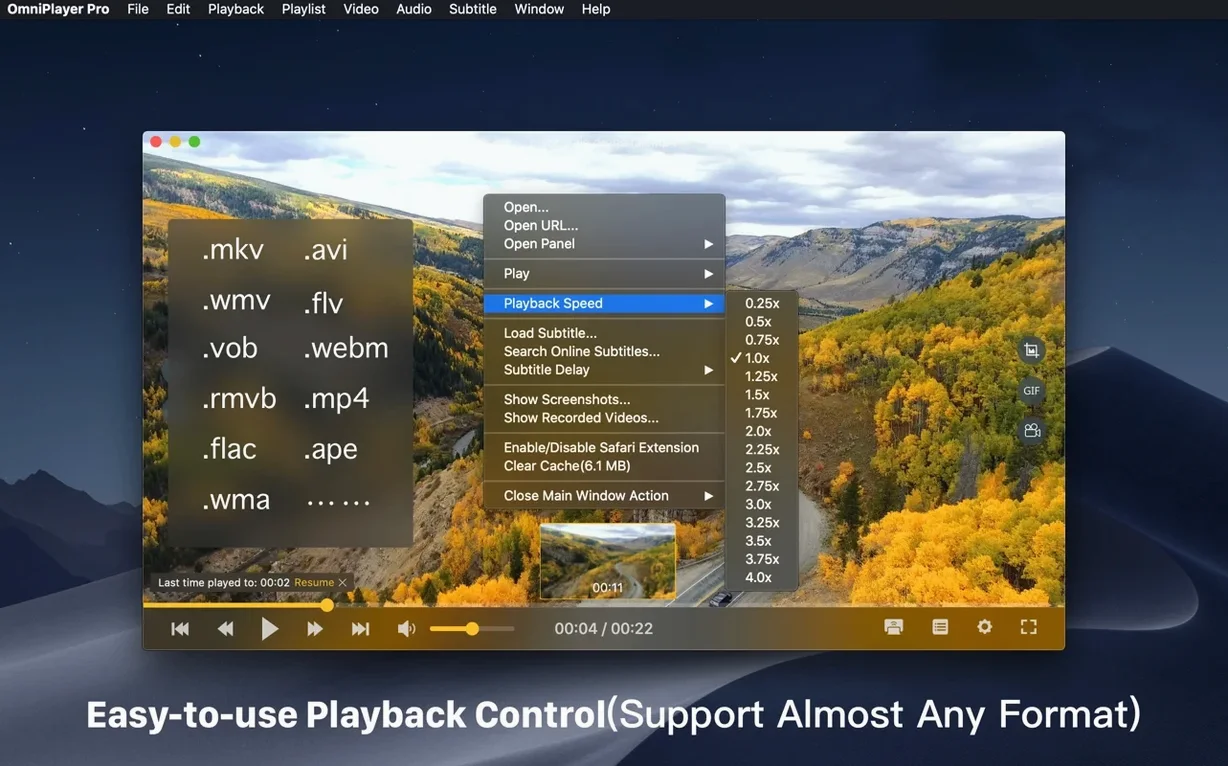
You can adjust the speed anywhere from 0.25x for slow study to 4x for skimming, with fine control between those extremes.