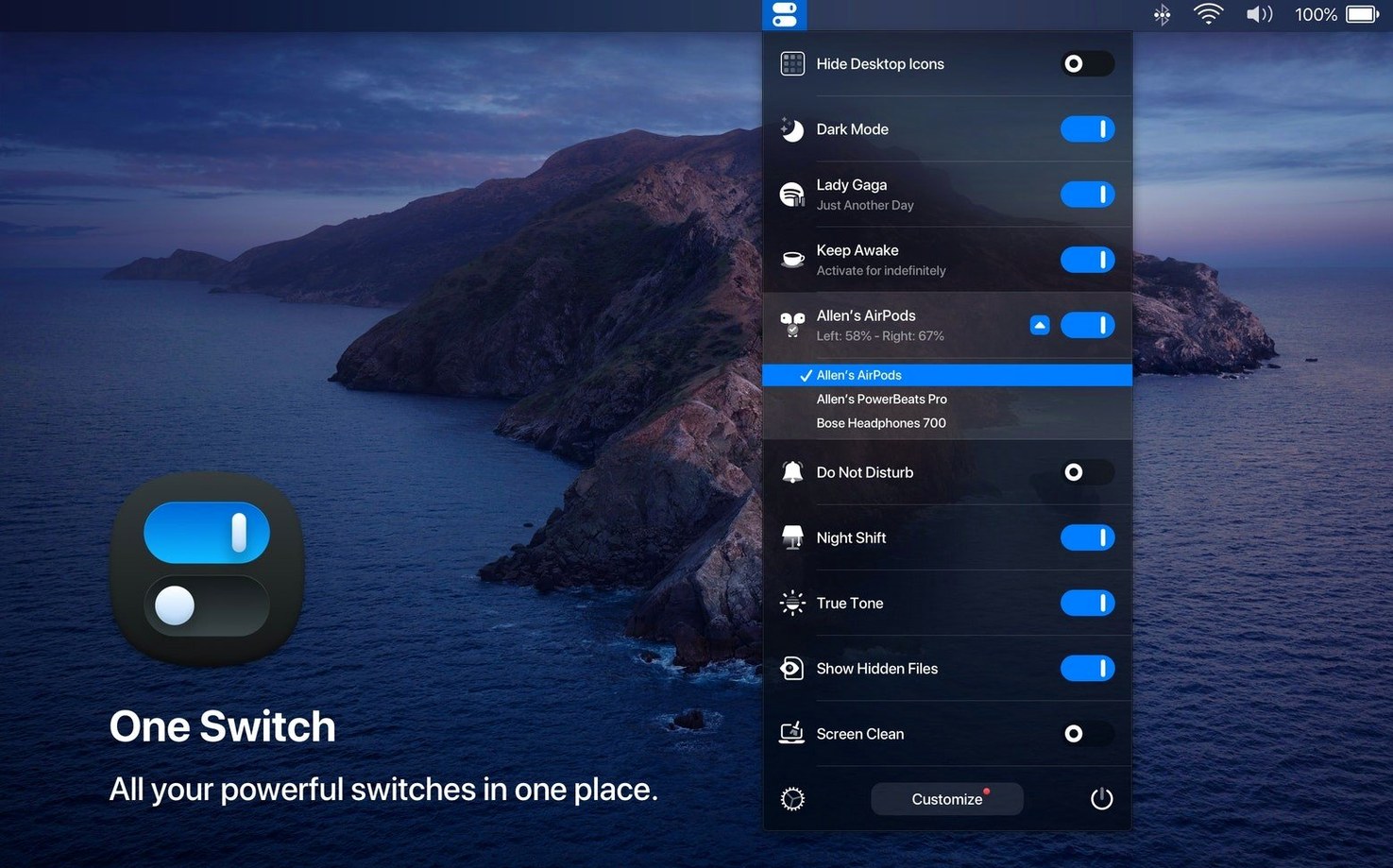
After a long editing session, toggling Dark Mode, hiding desktop clutter, and connecting AirPods for a preview shouldn’t mean visiting three separate preference panes. One Switch lives in the menu bar and collapses those trips into a single compact panel. It’s built for anyone who treats system state as part of the creative flow rather than an interruption.
Flip one toggle before a render so the display never dims
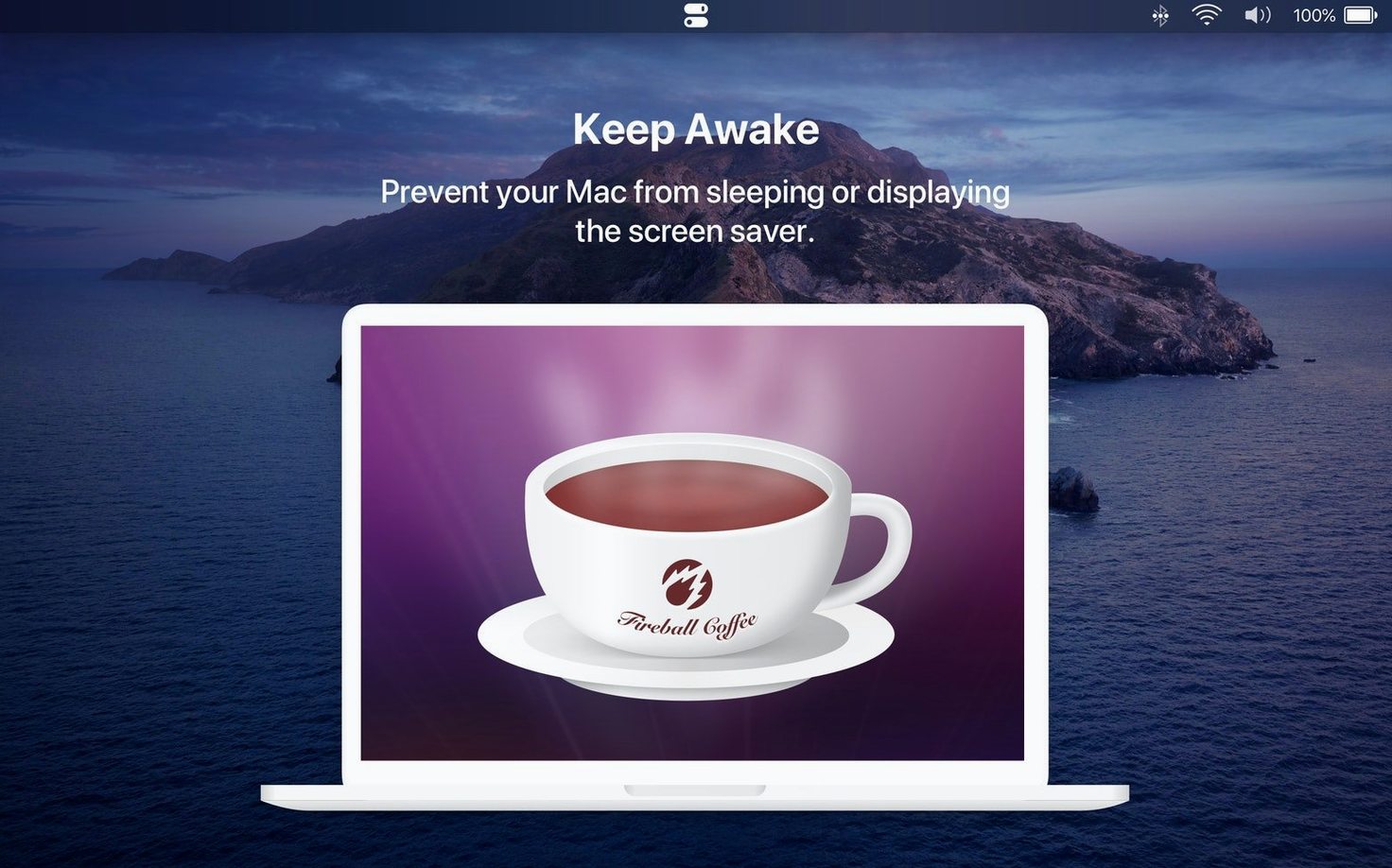
- Keep the screen awake. Flip the “Keep Screen On” switch before a render or a long export. It stops the display from dimming without touching Energy Saver settings, then you turn it off when the job finishes.
- Hide desktop icons with one flick. Perfect when you’re about to record a screen capture or share your desktop during a call. The switch conceals all the loose files and folders, then brings them back exactly as they were.
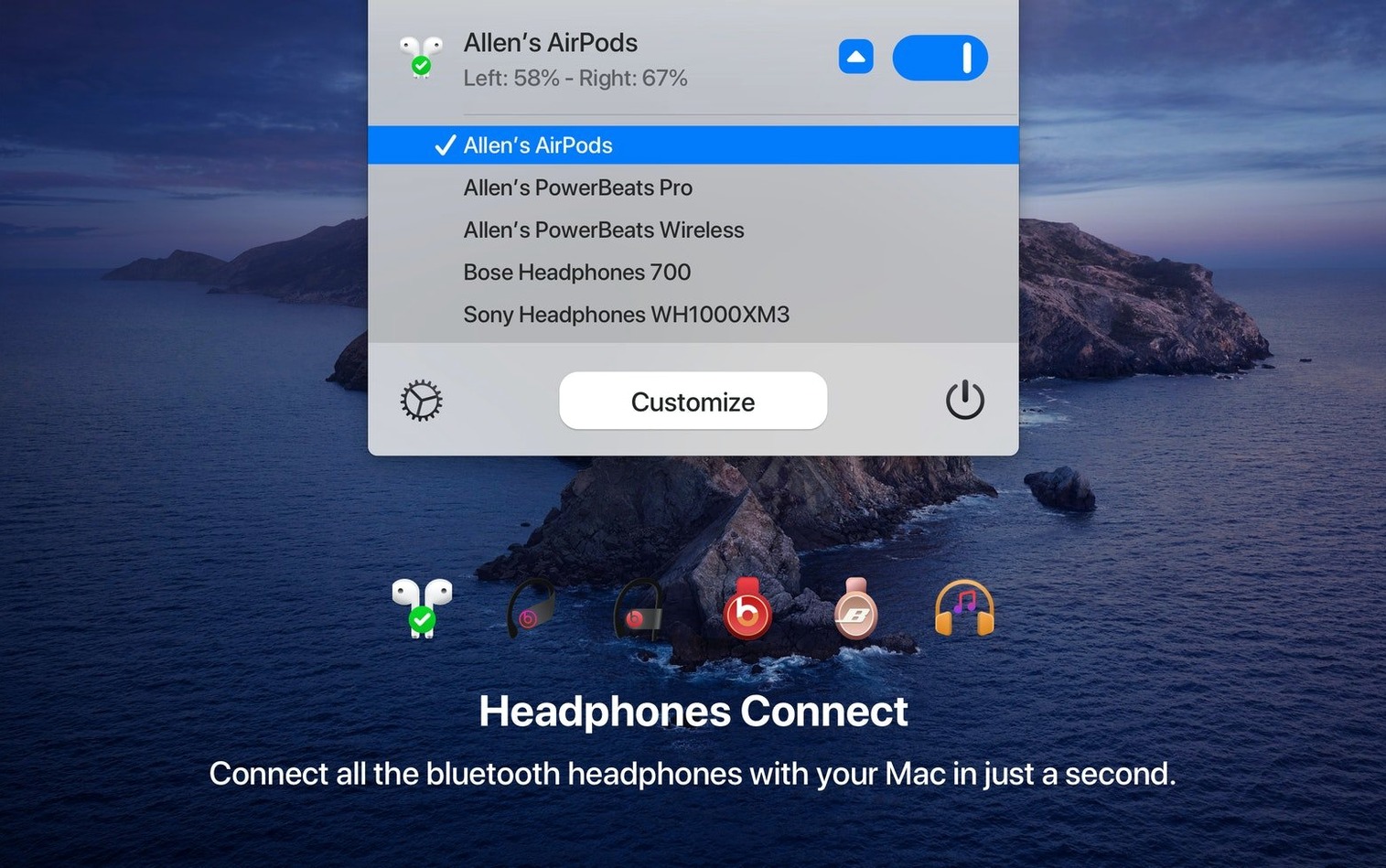
- Connect AirPods without opening Bluetooth preferences. One Switch sees your nearby AirPods and jumps straight into pairing. No menus, no digressions.
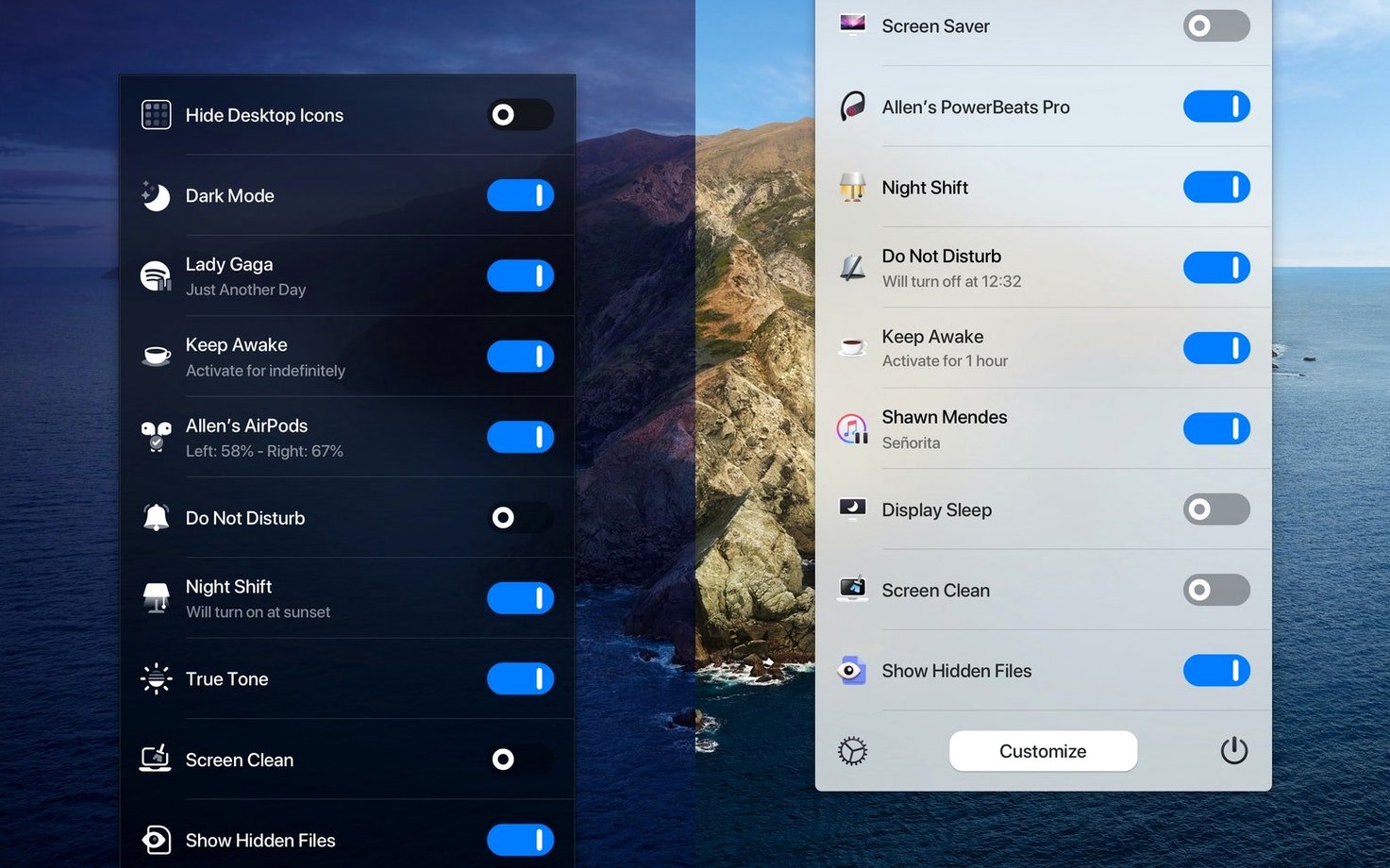
- Toggle Dark Mode during the day. The app’s appearance switch is faster than System Settings and feels like flipping a physical 12 position rotary switch — immediate and certain. You can slim the menu to show only the switches you use, so Dark Mode and Do Not Disturb might be the only two visible.
- Send the Mac to sleep. A clean shutdown of attention when you step away, triggered from the menu bar without hunting for the Apple menu.
The app supports seven switches at once, runs natively on Apple Silicon and Intel Macs, and works from macOS 10.15 onward. In version 1.35.4, the interface gained multilingual support including German, Japanese, and Spanish, which makes it easier to recommend to collaborators working in other languages.
A dark-mode shortcut that thinks ahead
Most people flip Dark Mode manually and call it a day. One Switch can automate the whole rhythm. Inside the app preferences you’ll find a scheduler that ties appearance to sunrise and sunset, or to custom times you set. On a winter afternoon when the light dies around 4 p.m., the screen warms into dark palettes before you even notice the gloom. By morning it’s back to Light, ready for reading scripts or scanning a timeline. The scheduler runs quietly in the background; once it’s configured, the menu bar switch becomes a safety valve for the moments you want to override the schedule without dismantling it.
A small detail that’s easy to miss: the scheduler respects your current manual choice until the next trigger point. If you switch to Dark at noon for a screening, it stays dark until sunset, then carries on with the normal cycle. That bit of restraint means the automation never fights you.
Toggling states while bouncing between Final Cut and a live review
Imagine Wednesday evening. You’ve been cutting a short in Final Cut Pro and the desktop is strewn with audio stems, a few stills, and three versions of the same export. A collaborator messages to say she’s ready for a live review. You click the One Switch icon in the menu bar — a quiet glyph that doesn’t clamour for attention — and tap Hide Desktop Icons. The clutter vanishes. One more tap engages Do Not Disturb, silencing notifications so they don’t float over the playback window. Then you connect AirPods through the same panel; the app finds them in under two seconds and the chime confirms the link. Three states changed, under ten seconds, and you never opened System Settings.
After the call you toggle desktop icons back on, turn off Do Not Disturb, and hit the Screen Saver switch to walk away. The screen dissolves into your photo library. When you return, the Mac is exactly as you left it, down to the file arrangement. The session wasn’t about configuring the OS — it was about the work between those switches.
Workflow: preparing for a live recording
Scenario: you’re about to record a screencast of a game prototype or a motion-graphics reel. You need a clean desktop, no notifications, a consistent dark appearance, and the display should stay lit for a thirty-minute take. Here’s the sequence, start to finish.
First, open One Switch and enable Keep Screen On. This is the switch that prevents the display from dimming mid-recording, and it’s far less intrusive than digging into Battery or Energy Saver preferences. Next, toggle on Hide Desktop Icons — every stray file and folder disappears. Then switch to Dark Mode if you aren’t already there; the scheduler will have handled this if you set it, but a manual flick confirms the look. Engage Do Not Disturb. Finally, click the AirPods switch if you need to monitor audio through wireless earbuds rather than the Mac’s speakers.
All five states are now active. The menu bar icon shows a small indicator so you can glance up and confirm without opening the panel. When the recording ends, return to One Switch and disable each toggle in reverse order. The desktop reappears, notifications resume, the display sleeps normally again. The entire prep and teardown lives in a single menu, which means you’re less likely to forget a setting and discover halfway through the edit that iMessage bubbles popped up over the timeline.
It handles system states your launcher and clipboard manager don’t touch
One Switch doesn’t try to replace Shortcuts, Automator, or any launcher you already use. It complements them by handling the system states that normally require manual toggling. A common pairing is with a clipboard manager and a window manager — three menu bar utilities that together cover appearance, focus, and workspace arrangement without overlapping. You might trigger a window layout with the keyboard and then reach for One Switch to drop into Do Not Disturb and Dark Mode in the same breath.
The app also plays well with macOS Control Centre. Some of its functions mirror what Control Centre offers — Dark Mode, Do Not Disturb — but One Switch surfaces them with one click instead of a hover and secondary click. For people who keep the menu bar dense with custom tools, the ability to choose exactly which switches appear keeps the footprint small. You may run only four switches and disable the rest from preferences, so the panel stays tight and searches the one switch mac app users reach for don’t clutter the interface.
If you use AirPods across multiple Apple devices, the connection switch saves a particular frustration: the moment when the earbuds latch onto your iPhone instead of the Mac. One Switch’s AirPods toggle grabs the connection directly, bypassing the cross-device guessing game. And because the app stays in the menu bar, it loads at login and sits there silently — no Dock presence, no windows to manage, just a slim list that expands when you click it. In a creative workflow where every second of context-switching costs momentum, that restraint is the whole point.
Version 1.35.4 adds multilingual support, with the interface now available in German, Italian, Japanese, Korean, Portuguese, Russian, and Spanish alongside English.
- macOS 10.15 or later
- Apple Silicon or Intel 64-bit Mac
Questions from the booth
Yes, you can enable only the switches you use regularly and hide the rest from the menu bar inside the app’s preferences.