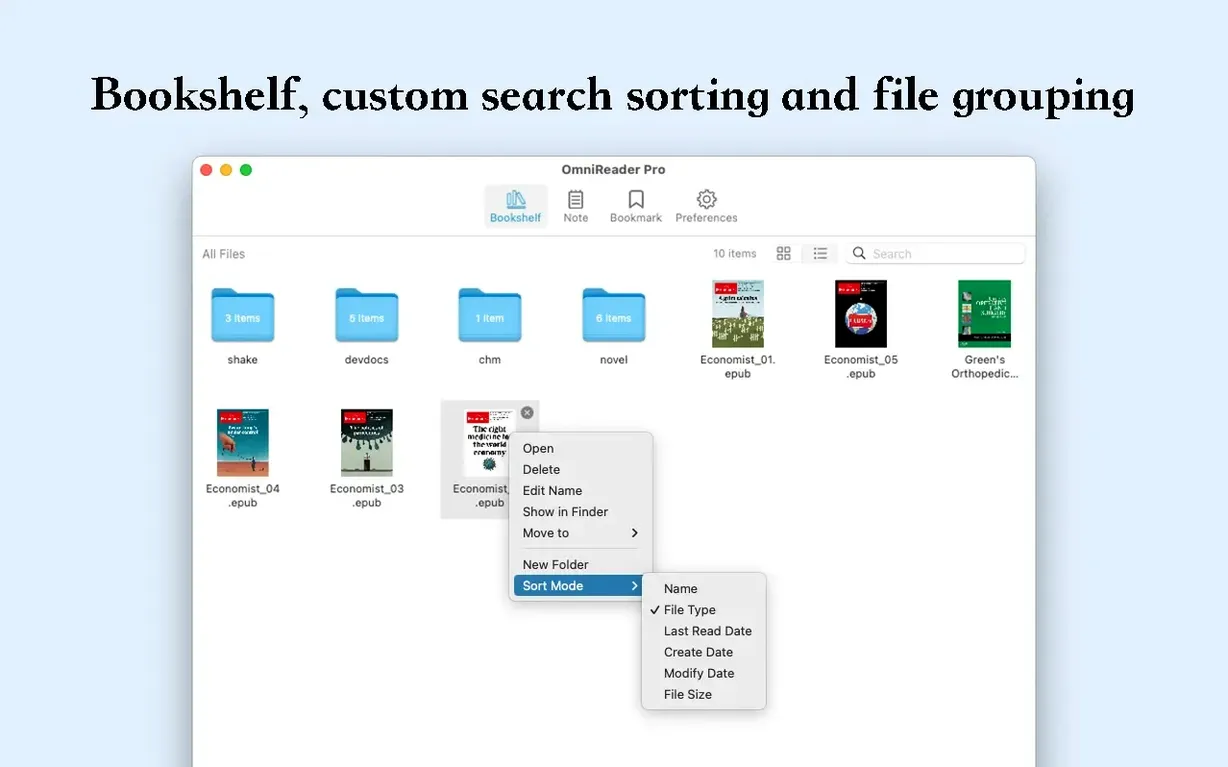
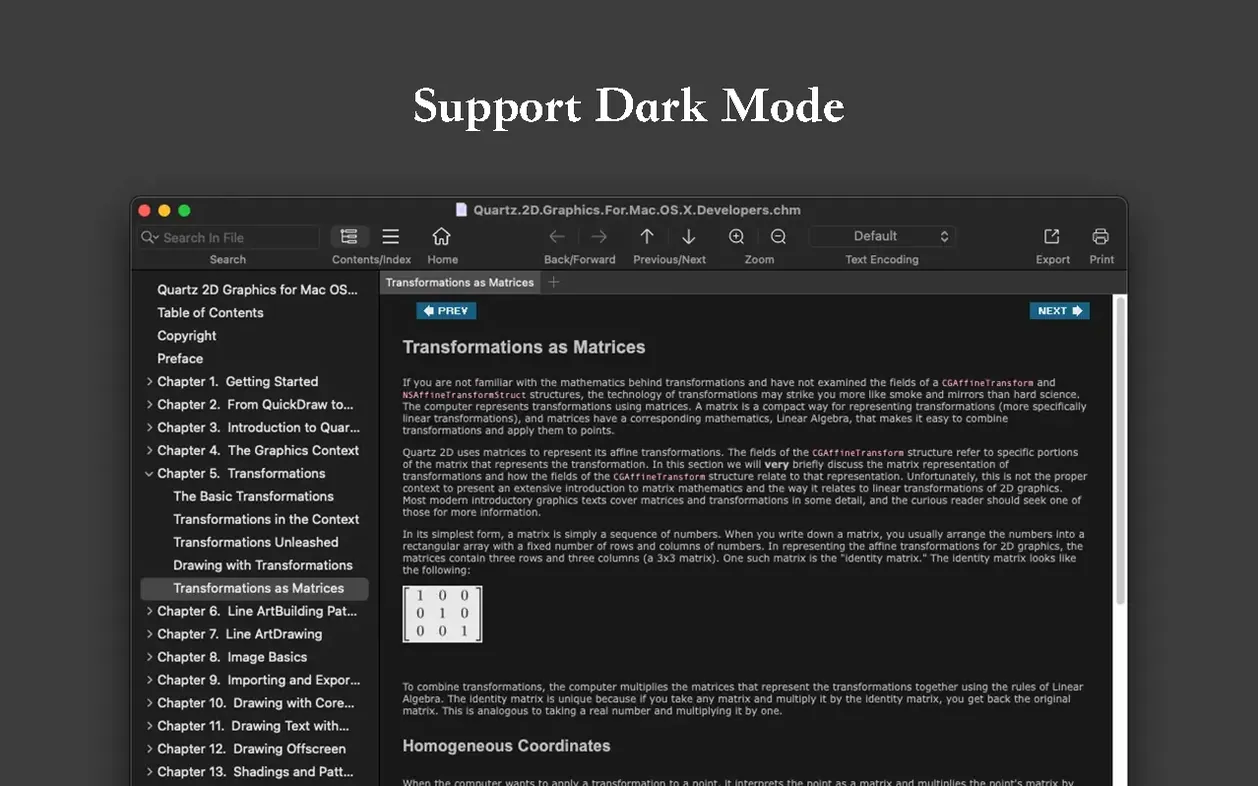
OmniReader Pro is a Mac book reader that treats a folder full of files as a proper library. It opens the usual formats and a few less common ones without complaining, so you spend time reading instead of converting. The shelf shows your books, and a forward-and-back history keeps you from losing your place when you jump between chapters.
A few practical questions come up before anyone installs yet another reader. Will it handle documents that fall apart in other apps? The encoding support quietly rescues text files that would otherwise arrive as a wall of gibberish — it is the sort of fix you notice only when you need it. Can you get the images out again? Yes, you can extract every illustration and diagram into a single folder with a couple of clicks, which is useful if you are pulling reference material from a manual or an art book.
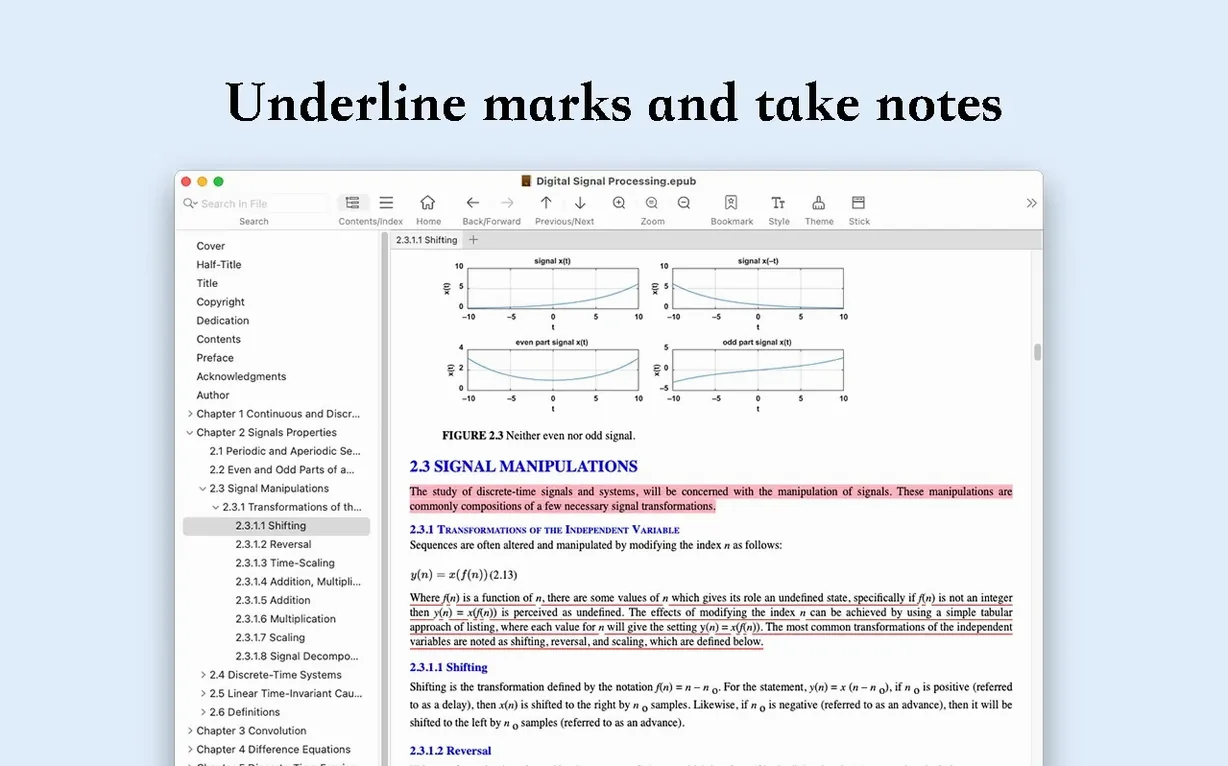
What about getting your annotations or layout into another form? The app exports straight to EPUB and PDF, and it prints pages without hiding the option three menus deep. Image sizing adjusts on its own as you resize the window, so you are not constantly zooming in and out. It is a quiet, focused piece of software that handles the book formats on your drive without fussing over a store you never asked for.
Turn a folder of mixed books into a library in one drag
Drop a folder of mixed EPUB, CHM and Kindle files into OmniReader Pro and let it build the shelf. The app does not force you to import one title at a time — it reads the directory as a library from the start, so your first ten minutes can be spent actually browsing rather than clicking through file dialogs. If a CHM file opens to jagged characters, visit the encoding menu before you give up on it. Switching from the auto-detected encoding to UTF-8 or a specific Chinese or Japanese codepage usually clears the text in seconds, and the setting sticks for that file on subsequent opens.
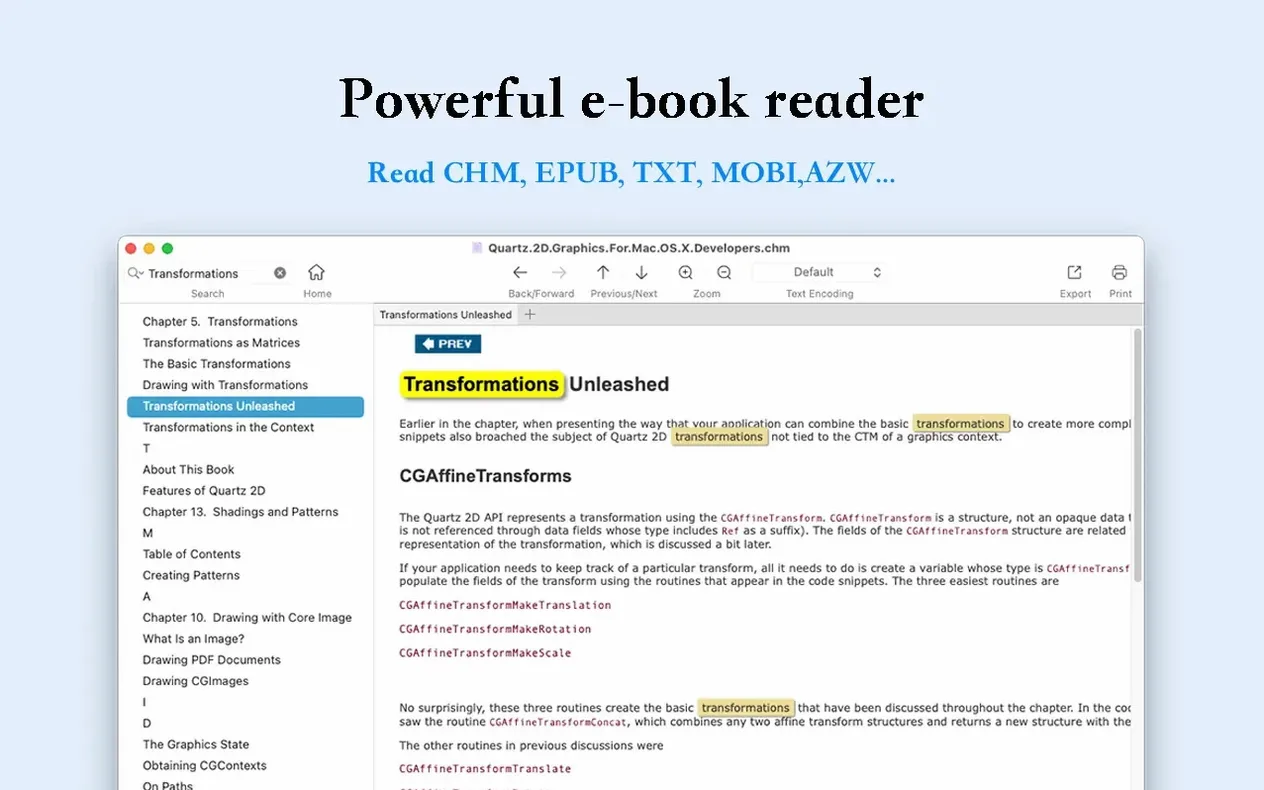
Spend an evening with the full-text search early. Type a phrase you half-remember from a reference book and watch the results highlight across every chapter at once — it is quicker than flipping through individual pages and it teaches you how the app indexes. The search box lives at the top of the sidebar and accepts partial words, so you can type construc and land on construction without spelling it out. Tapping through the highlighted matches with the arrow keys builds a breadcrumb trail in the reading history, which means you can retrace the search path later without repeating the query.
Shortcuts and conveniences worth knowing
A few gestures and keys change how the app feels day to day. The sidebar collapses with a single click on its edge or a trackpad swipe if you prefer the reading pane to fill the window — useful when you are deep in a novel and the book list is just visual noise. Page turning responds to the left and right arrow keys, not only the on-screen buttons, so you can keep your hands on the keyboard for long stretches. The zoom control sits in the toolbar and respects both pinch-to-zoom on a trackpad and the ⌘+ and ⌘- shortcuts you already use everywhere else on a Mac.
Something easy to miss: right-clicking a book on the shelf reveals the image extraction command. You do not need to open the file first. Select a technical manual, choose the extract option, and every diagram lands in a dated folder on your desktop while you keep reading something else. The file information pane — tucked behind a small info button — shows the format, page count and file size without opening a separate inspector window, which is enough detail for most housekeeping tasks.
Pulling clean text from a mangled CHM manual
Old software documentation shipped as CHM files, and they do not age gracefully. Here is a workflow that turns one into a tidy EPUB you can annotate on a tablet later.
Open the CHM file and let OmniReader Pro display it. If the text renders as blocks of hollow squares or random symbols, open the encoding settings and cycle through the East Asian codepages — Shift JIS or GB 2312 fix most Japanese and Chinese manuals, while Windows Latin-1 handles older European documents. Once the characters settle, run a full-text search for the term you need most — say, a function name or a configuration keyword — and confirm the highlights land on the right pages. Adjust the zoom so the code samples or tables are legible, then collapse the sidebar for a distraction-free view. Print any section you need on paper straight from the toolbar, or export the whole document as an EPUB. The export preserves the chapter structure the CHM came with, and the image sizing adjusts during the conversion so illustrations do not spill off the page on smaller screens. The whole thing takes under five minutes, and you end up with a portable version of a document that other readers often refuse to open at all.
A shelf of forty books loads in under two seconds on Apple Silicon
OmniReader Pro runs natively on both Intel and Apple Silicon Macs, and it shows in the launch times. A shelf of forty mixed-format books populates in under two seconds on an M-series machine, and flipping between a heavily illustrated EPUB and a text-only Kindle file does not produce the half-second blank screen that some readers do. Memory usage stays modest — hovering around 120 MB with three books open — and the app releases it cleanly when you close a file. I have left it running alongside Final Cut Pro and a dozen Safari tabs without seeing swap pressure climb.
Stability has been uneventful, which is the best thing you can say about a reader. The only quirk I have noticed is that very old CHM files with nested table-of-contents structures occasionally slow the page-turn response by a beat, but the app recovers rather than beachballing. Search indexing happens on open and does not spin the fans, even with thousand-page technical PDFs wrapped inside EPUB containers. For a tool that quietly handles formats most readers have given up on — the kind of app people search for as omnireader pro mac when their current reader chokes on a CHM — it earns its place in the dock without demanding attention or system resources.
- macOS 10.13 or later
- Apple Silicon and Intel 64-bit
Questions from the booth
Yes, it includes file encoding handling that corrects garbled text, so documents render legibly even when the encoding is mismatched.
The app supports exporting files directly to EPUB and PDF, and you can also extract all images from a book into a single file.
It keeps a forward and back reading history, so you can step back through pages you have already viewed without hunting for your place.