If you’ve ever dragged a folder onto ImageOptim and wished for a few more levers to pull, Optimage sits just to the left of that impulse. Vlad Danilov has been refining this Mac desktop optimizer since 2013, and the current 3.5.1 build is less a one‑button wonder than a set of calibrated controls for people who think about colour profiles and Exif tags as part of the export.
The tuning an experienced eye reaches for
- Lossless and lossy compression that reads ICC colour profiles rather than stripping them.
- Automatic rotation driven by the Exif orientation tag — lossless, so a portrait shot stays upright without a re‑encode.
- Quality metrics that guide the compression engine instead of a fixed slider, letting the image itself set the ceiling.
- Video and animation scaling with frame‑rate adjustment for when a short GIF or screen recording needs to ship lighter.
Where the tool settles into a pipeline
The built‑in interface doesn’t try to hide what it’s doing. You see the metric, the profile, the orientation decision — details that matter when you’re preparing assets for a site where colour shifts would be visible, or batch‑processing photos for an app where orientation errors break the layout. It’s the kind of tool you return to after you’ve already tried the faster, more automatic alternatives and found you wanted a finer hand.
Gatekeeper blocks the app at first launch so right‑click to bypass it
A few friction points show up often enough to be worth naming. One is the Gatekeeper hurdle at first launch — the app ships outside the App Store, so macOS will refuse to open it until you right‑click and select Open, or follow the Terminal command included in the disk image. People sometimes miss the Open Gatekeeper friendly script and assume the download is broken; it isn’t, it just needs that one manual override.
Another snag surfaces with HEIF files. Version 3.5.1 specifically addressed a detection bug where Optimage would misread certain HEIF containers and either skip them silently or apply the wrong compression path. If you’ve updated from an earlier build and still see odd behaviour with iPhone‑shot HEIFs, trashing the preferences file and relaunching usually clears the stale detection cache.
Colour shifts are the third recurring topic. Optimage honours embedded ICC profiles, but when the destination demands sRGB and your source is Adobe RGB or Display P3, the conversion can clip saturated reds and blues harder than expected. The fix isn’t in Optimage itself — it’s in ticking the “Convert to sRGB” checkbox before the batch runs, and previewing one image first if you’re working with a palette‑critical project. Skipping that preview step has burned more than one designer who only noticed the shift after a full folder had been processed.
A session with Optimage, step by step
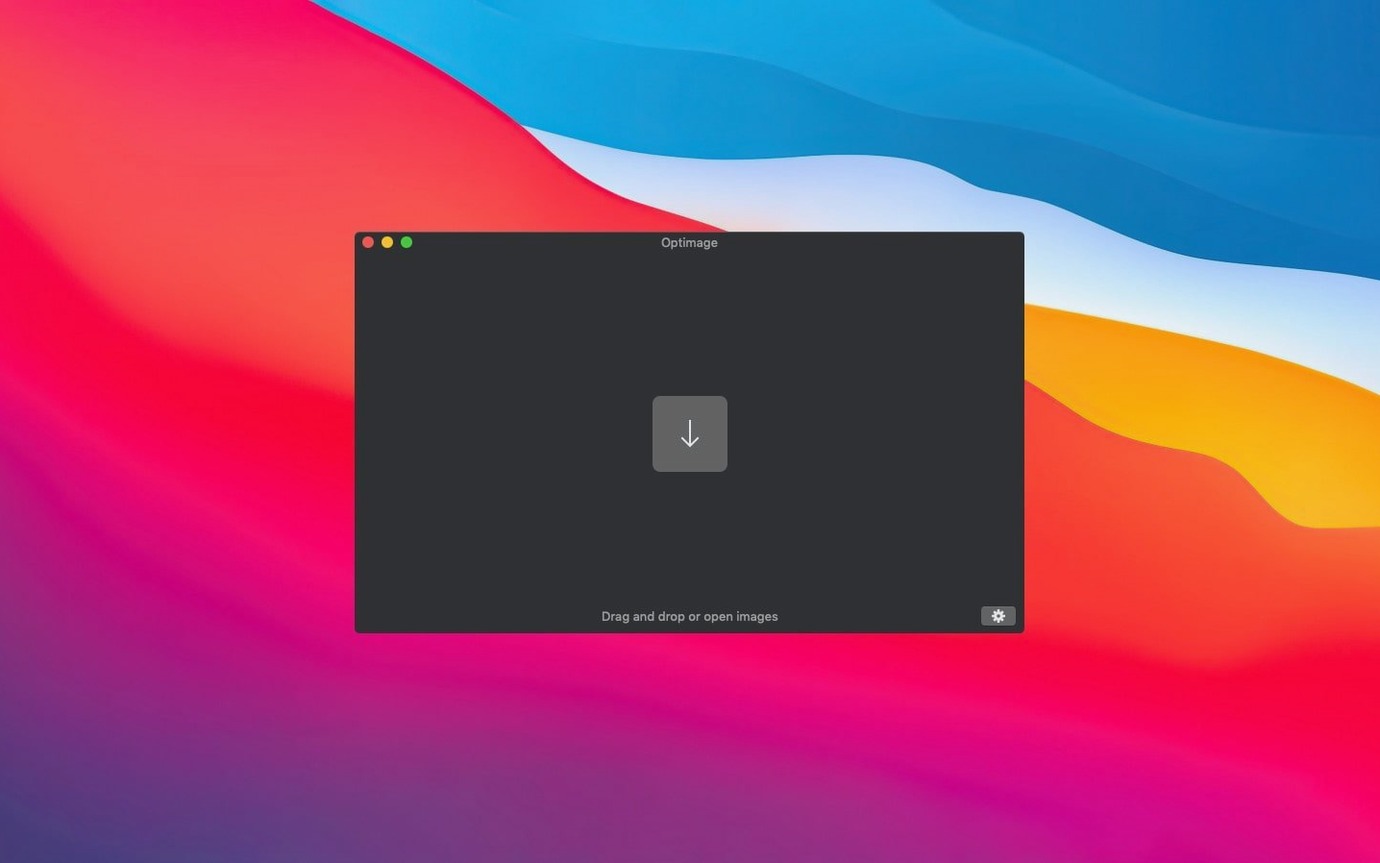
Mara has just exported thirty‑six product photos from Capture One. They’re 16‑bit TIFFs with an embedded ProPhoto profile, each around 80 MB. She needs them on the company’s Shopify storefront by end of day, and the site’s performance audit is already flagging image weight. She mounts the disk image, runs the Gatekeeper‑friendly script, types her admin password into Terminal, and drags the app to Applications. The first launch is quiet — a single window with a drop zone and a sidebar of toggles.
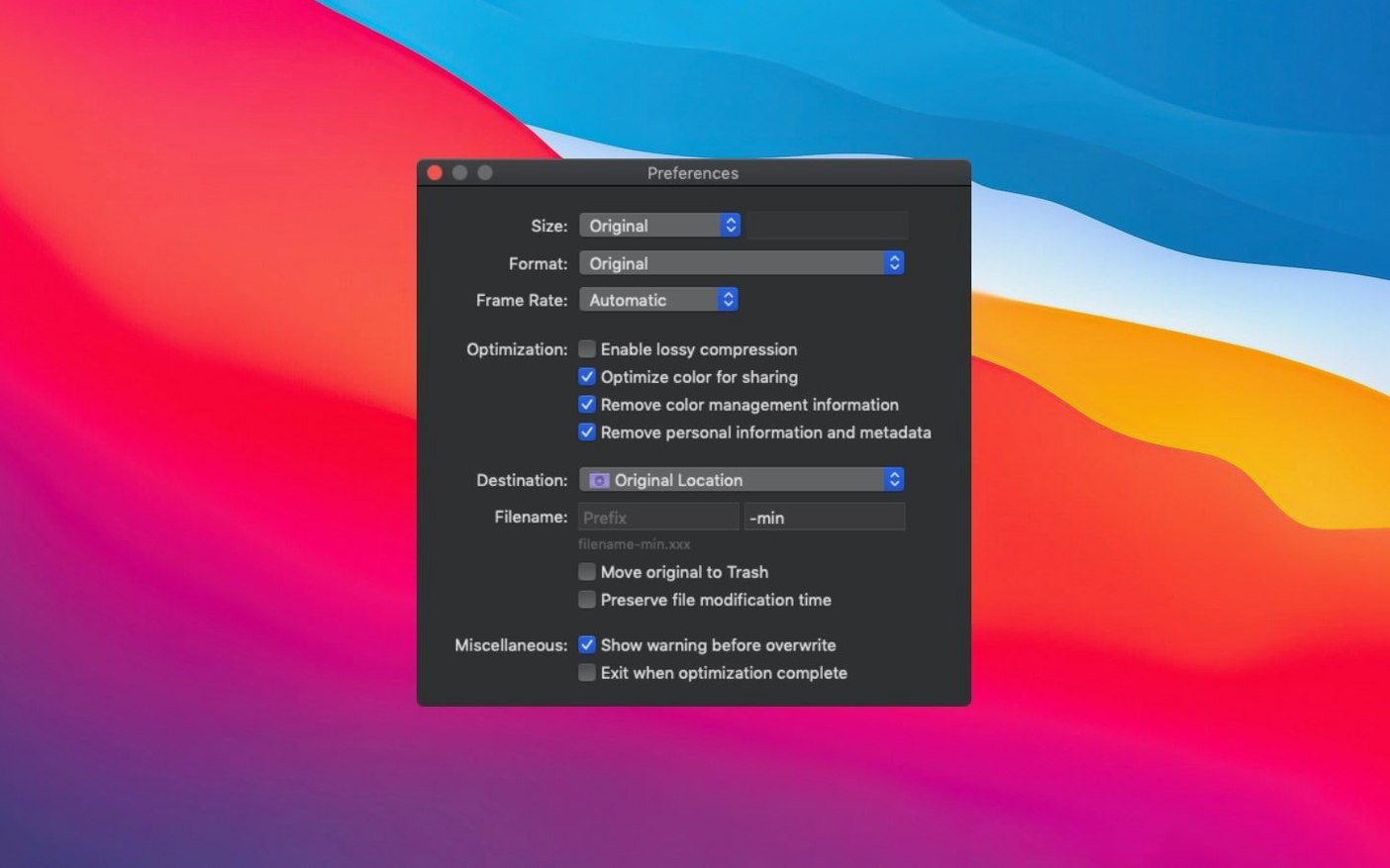
She drags the folder in. Optimage reads the batch and immediately shows the orientation for each frame; two of the shots were taken in portrait and still carry the Exif rotation tag. She checks “Automatic rotation” and watches those thumbnails flip upright without a re‑encode penalty. Next she ticks “Convert to sRGB,” sets the quality metric to a perceptual threshold she’s used before, and enables metadata stripping except for copyright — she needs the geotags and camera serial numbers gone before the images touch the CDN. A single click starts the batch, and over the next eight minutes the folder shrinks from 2.8 GB to 412 MB. She spots one image where the red of a lipstick tube lost a little punch, adjusts its individual quality ceiling, and re‑runs just that file. Done.
Test your worst‑case images before touching a production folder
Before you feed Optimage a production folder, feed it a test set of ten images that span the worst‑case scenarios in your work: a high‑ISO night shot with plenty of noise, a graphic with flat colour blocks and hard edges, a portrait with skin tones, and a photograph with embedded GPS data you’d rather not publish. Run the batch three ways — lossless, lossy at the default quality metric, and lossy with a slightly more aggressive threshold — and compare the outputs side by side in your usual viewer. The differences will teach you more about the tool’s decisions than the documentation will, and you’ll build your own mental map of which slider corresponds to what visual trade‑off.
If you work with video shorts or animated GIFs, the frame‑rate adjustment deserves early attention. Optimage can drop the frame rate of a screen recording to 15 or 10 fps during scaling, which is often the single largest weight saving you’ll get on a how‑to clip that’s mostly static UI. The trick is to set the rate before you set the resolution, because the two interact. A common early mistake is scaling a 60 fps recording to half dimensions and then wondering why the file barely shrank — the frame count stayed the same, so the bitrate reduction was modest. Halve the frame rate first, then scale, and the savings compound.
Keep the CLI client in mind even if you prefer the graphical interface. Once you’ve settled on a compression recipe that works for a recurring task — say, stripping metadata and converting to sRGB for a weekly newsletter’s hero images — wrapping it in a shell script or a folder action saves you from ever re‑ticking those boxes manually. The command‑line tool reads the same settings and runs headlessly, which is where Optimage starts to feel less like a utility and more like a quiet part of a pipeline.
Strip client metadata and cap every portfolio image at 200 KB
A photographer is building a portfolio on a static‑site generator and needs every image in the gallery to meet three constraints: under 200 KB, sRGB profile, and no residual metadata that could leak client names or shoot locations. She has a mix of edited JPEGs and a few PNG screenshots of her layout mockups. The JPEGs are tagged with Adobe RGB and carry full Exif, IPTC, and GPS blocks from her camera. The PNGs are RGB with transparency that must survive the optimization.
She opens Optimage and drags the entire portfolio folder — 120 files — onto the window. She sorts by type in the list view so she can treat JPEGs and PNGs separately. For the JPEGs, she selects all, enables lossy compression with a quality metric of 94 (a threshold she tested earlier and found invisible on screen but effective for file size), ticks “Convert to sRGB,” checks “Remove metadata” and unticks everything except copyright. She leaves orientation correction on because several vertical shots still carry the tag. For the PNGs, she switches to lossless — transparency is non‑negotiable — and disables chroma subsampling entirely. She runs the JPEG batch first, checks three random outputs in Preview with the Digital Color Meter open to confirm the sRGB shift didn’t introduce banding, then runs the PNGs. The total folder drops from 1.1 GB to 84 MB. She copies the output into her site’s /img directory, rebuilds the static pages, and runs Lighthouse. The “Properly size images” audit clears for the first time.
Version 3.5.1 resolves an issue with HEIF detection, so the app correctly identifies High Efficiency Image files when they land in the queue.
- macOS 10.11 or later
- Intel processor
Questions from the booth
Yes, it supports ICC colour profiles so the compressed image keeps its intended colour space.