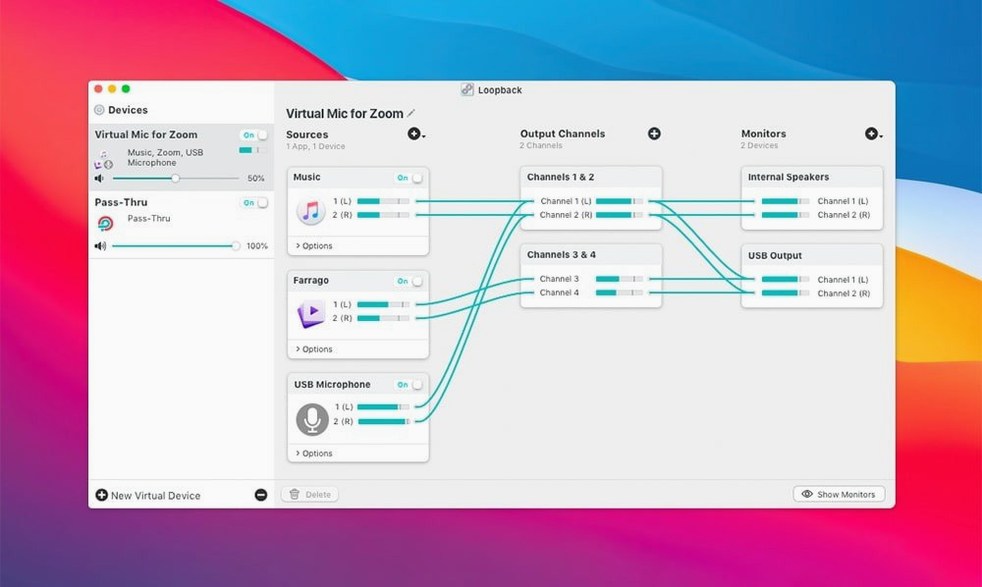
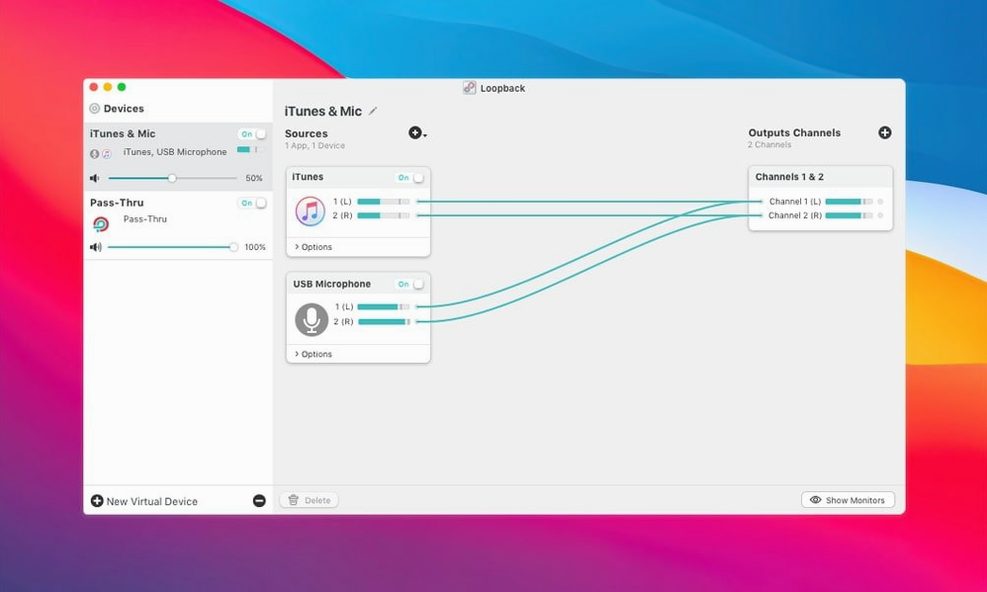
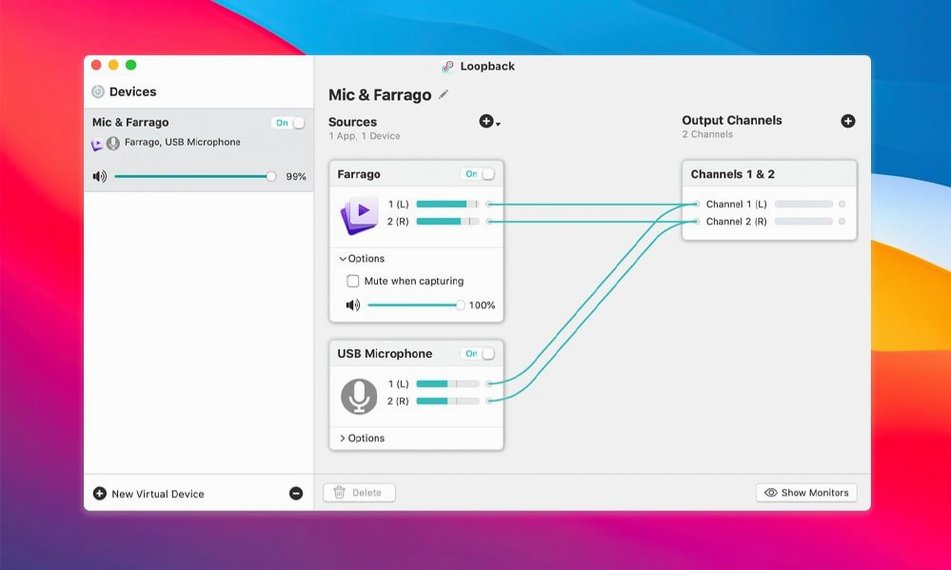
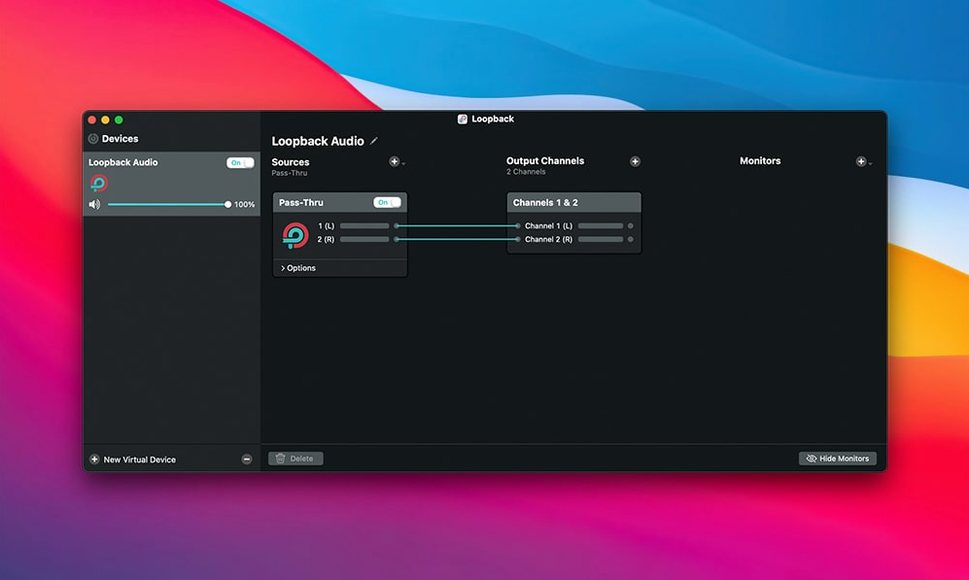
Loopback is a Mac audio router that wires sound from one place to another using virtual devices you build on a cable-free canvas. You drag in application sources and physical inputs, then connect the resulting device anywhere macOS expects a microphone or an output — no format negotiation, no middleware, just the audio arriving where you need it.
Capture a screen recording with mic and system audio together
QuickTime sees only one input at a time, so recording your voice over a Logic session or a browser tab normally requires workarounds. Create a Loopback device that pulls from your USB microphone and your browser or DAW simultaneously, select it as the mic in your screen recorder, and both sources land on the same track.
Send clean application audio into a voice call
When Discord or Zoom expects a single microphone, Loopback can merge your XLR mic with the output of a sampler or a YouTube window. The person on the other end hears you and the source as one blended signal, without your speakers bleeding back into the room.
Feed Audio Hijack a custom capture source
Rogue Amoeba's own Audio Hijack sees Loopback devices as selectable inputs, which turns a routing setup into the front end of a larger processing chain. Route a synth app and a hardware effects return into one virtual device, hand it to Hijack for EQ and limiting, then broadcast or record the treated result.
Building a podcast recording rig, step by step
Let's walk through a setup that solves a recurring headache for interview podcasts: you want a local guest in the room on a dynamic mic, a remote caller coming through FaceTime Audio, and a soundboard app for drops and stingers — all landing on separate tracks inside your DAW for later editing. Loopback turns that from a cable salad into fifteen minutes of wiring on a virtual canvas.
Open Loopback and click the plus button to create a new virtual device. Name it something obvious like "Podcast Record". The device starts empty, just a single output bus waiting for sources. From the Sources column, drag in your audio interface — select the specific input channel your dynamic mic occupies, not the whole device. Now add a second source: find FaceTime in the application list and drag it in. Loopback isolates the incoming caller's voice without capturing your own side of the conversation, since your mic will arrive separately. Finally, drag your soundboard app — Farrago, Soundboard Studio, whatever you use — into the canvas as a third source.
Each source block has its own level slider and mute button. Balance the caller against the soundboard so drops don't steamroll the conversation. The virtual device now combines all three feeds into a single stereo output called "Podcast Record." Switch to your DAW — Reaper, Logic, whatever you track in — and create three mono input tracks. Assign each track to a different channel of the Loopback device by using the channel mapping built into the device inspector: send the mic to channel 1, FaceTime to channel 2, and soundboard to channel 3. Arm the tracks, hit record, and you have isolated stems from a single virtual input. Nothing passes through a physical mixer, nothing bleeds.
When you finish recording, the Loopback device stays in your sidebar for next time. The routing remembers every source and level, so the next episode starts with one click — open the session, verify levels, go.
A streamer's afternoon
Mar spends Saturdays streaming a city-builder to about eighty regular viewers. Their setup is a MacBook Pro driving an external display, a Shure MV7 on a boom arm, and OBS handling the broadcast. For months they dealt with a familiar compromise: OBS could capture game audio or their mic, but routing Discord chatter from their mods into the stream required a second machine or some janky hardware loopback cable that hummed whenever the fridge compressor kicked on.
After installing Loopback, they built a device called "Stream Mix." The sources: their MV7 via a USB interface, the game audio from the city-builder application, and Discord's voice output. They muted the game source in OBS and instead pointed OBS at the Stream Mix device as the sole desktop audio capture. Now the broadcast hears the game, Mar's commentary, and the mods' voices in one cohesive blend. Mar can tweak the Discord level inside Loopback while the stream is live — pulling mod chatter down during a tense moment without alt-tabbing into Discord's own sliders. The loopback mac setup replaced three virtual cables and a hardware dongle with a single device that survives reboots and remembers its routing.
The side effect Mar didn't expect: the Stream Mix device appears in QuickTime too, so clipping a moment for Twitter later captures exactly what the audience heard, no remixing required.
Routing audio between apps that don't normally connect
Loopback makes the most sense for anyone who regularly needs to move sound between apps that weren't designed to talk to each other. The common thread is that macOS already handles audio routing competently for straightforward cases — one mic into one app — but falls apart the moment you want two sources landing in one destination, or one source fanned out to three places at once.
Podcast producers and live streamers sit at the centre of the target audience. They typically juggle three to five audio sources simultaneously and need repeatable routing that doesn't require rebuilding every session. The virtual device model means a routing setup becomes a named, selectable entity that appears in every audio picker on the system. For someone running a weekly show, that persistence alone justifies the tool.
Screen recording tutorial makers — people recording software walkthroughs, design critiques, or code reviews — benefit from the ability to capture system audio and voiceover as a single input. QuickTime and most screenshot tools see only one microphone, so Loopback effectively fuses the two sources before the recording app ever sees them. No post-hoc sync, no separate audio file to align in Resolve later.
Musicians who work in the box and want to route a software instrument into a Zoom lesson or a collaborative session find Loopback quicker than setting up aggregate devices in Audio MIDI Setup. The visual patching metaphor maps cleanly to how audio interfaces with patchbays work in the physical world, so the learning curve for studio veterans is nearly flat.
Accessibility-conscious users sometimes discover Loopback as a way to route VoiceOver output into a recording or a call without the screen reader bleeding out of the speakers and back into the room mic. The isolation is clean because Loopback grabs the application audio before it hits the output stage.
What all these users share is an impatience with workarounds. They've tried the free methods — Soundflower, BlackHole, multi-output devices in Audio MIDI Setup — and hit the limits of those tools when stability or channel mapping became necessary. Loopback doesn't add features those free tools lack so much as it removes the friction from tasks the free tools make possible but painful.
Option-drag any volume slider for finer control
Loopback's interface is sparse by design, which means several useful behaviours sit just below the surface. The volume slider on each source block supports fine adjustments by holding Option while dragging — the resolution jumps from coarse percentage points to fractional decibel steps. This matters when you're balancing a quiet application against a hot microphone and two clicks of the coarse slider swing the level too far in either direction.
The monitoring section in the device inspector isn't just a pass-through toggle. You can route the monitored signal to any physical output independently of the system default. That means you can listen to a combined mix on wired headphones plugged into an audio interface while the virtual device feeds a clean version to your recording software. No one hears the headphone bleed.
Channel mapping lives inside the device configuration panel and lets you assign sources to specific channels in the virtual device's output bus. A stereo device can carry two completely independent mono mixes — one to channels 1-2 and another to 3-4 — and applications that understand multi-channel input can pick them apart downstream. This is how the podcast setup earlier split three sources into three DAW tracks through one device.
Loopback devices appear in the Mac menu bar's volume control and in the Sound system preference, but they also show up in any app that respects Core Audio input selection. That includes obscure utilities, old 32-bit applications running under compatibility layers, and command-line tools like ffmpeg that enumerate available input devices. If the app can see a microphone, it can see a Loopback device.
A quiet but powerful feature: you can rename a virtual device at any time and the new name propagates everywhere instantly. No need to restart applications, no stale entries in audio selectors. This makes it practical to label devices by task — "Interview Setup," "Stream with Discord," "DAW Return" — and switch between them contextually without confusion.
The launch warning disappears on macOS Sequoia
The 2.5.0 update arrived primarily to carry Loopback onto macOS 27, which Rogue Amoeba refers to by its internal numbering. The immediate practical effect is that the app no longer warns on launch when it detects the newer operating system — a cosmetic fix, but one that removes the low-grade anxiety of seeing a compatibility alert every time you start a session.
Under the hood, the ARK audio-handling plugin jumped to version 13.5. ARK is the system-level component Rogue Amoeba uses across their entire product line to intercept and route audio, and the update brought its behaviour in line with changes Apple made to the audio stack in recent macOS releases. For everyday use, the ARK update means fewer dropped samples when routing between applications that use different sample rates, and more predictable behaviour when a source application quits unexpectedly. Previously, a crashed source could sometimes leave the virtual device in a state where it needed to be toggled off and on; that edge case tightened up noticeably after the ARK revision.
No interface changes shipped in 2.5.0, no new source types, no adjustments to the patching workflow. The release was a compatibility and stability pass, which is typical for a mature routing utility that has largely solved its core design problems. Longtime users who rely on a Loopback torrent distribution should note that version mismatches between the app and ARK can cause routing failures — the 2.5.0 package keeps the components in lockstep for the current macOS generation. The Loopback Mac workflow remains identical to what version 2.0 established, which is itself a feature: routing setups built two years ago open without migration steps.
Loopback 2.5.0 adds full support for macOS 27 and removes the launch warning that appeared on that system. The ARK audio plugin, which handles much of the capture work under the hood, has been updated to version 13.5.
- macOS 11 or later
- Runs on both Intel and Apple Silicon Macs