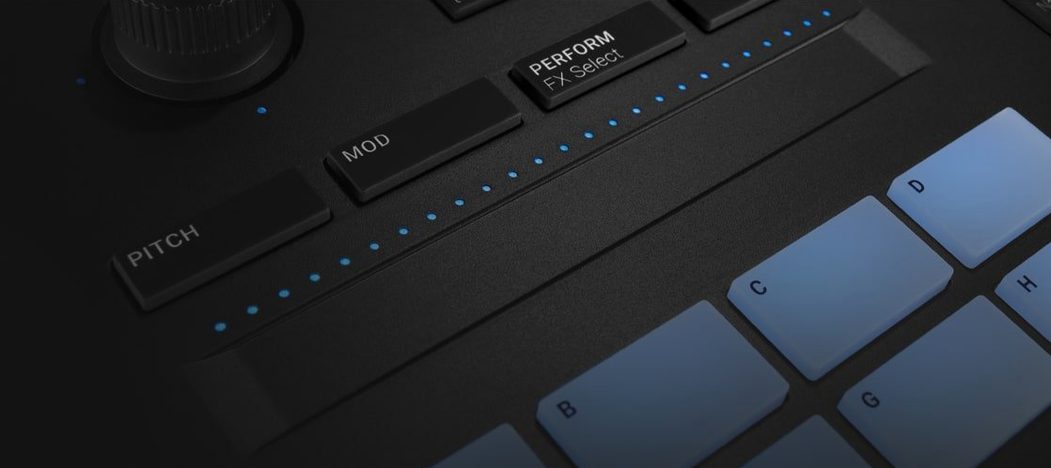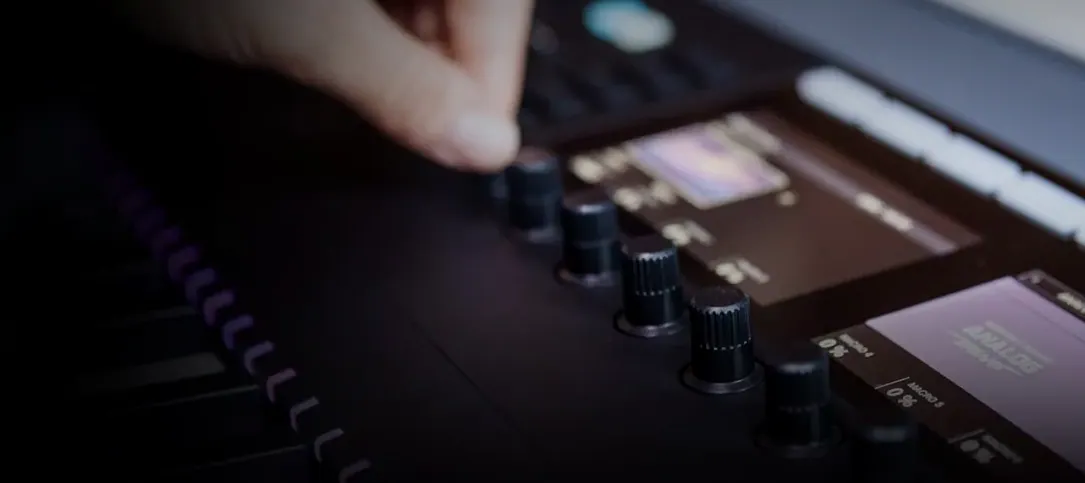
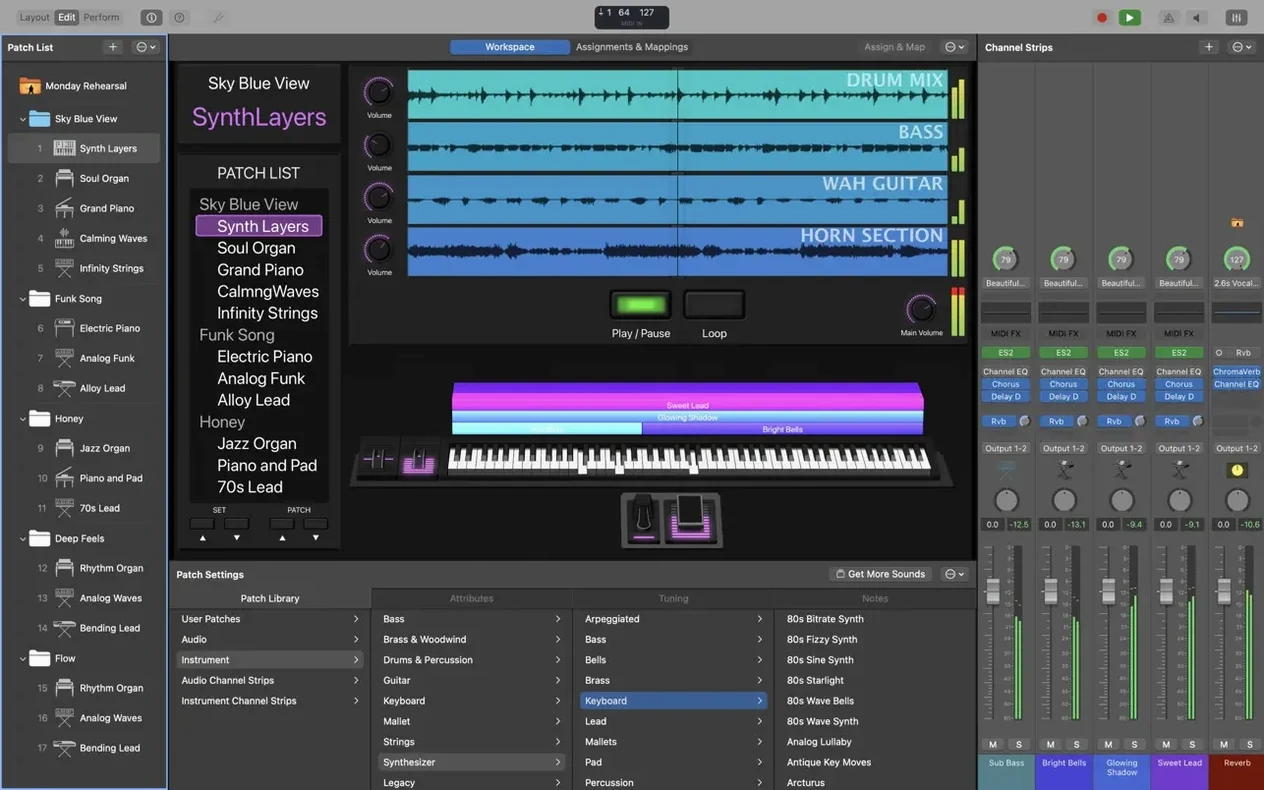
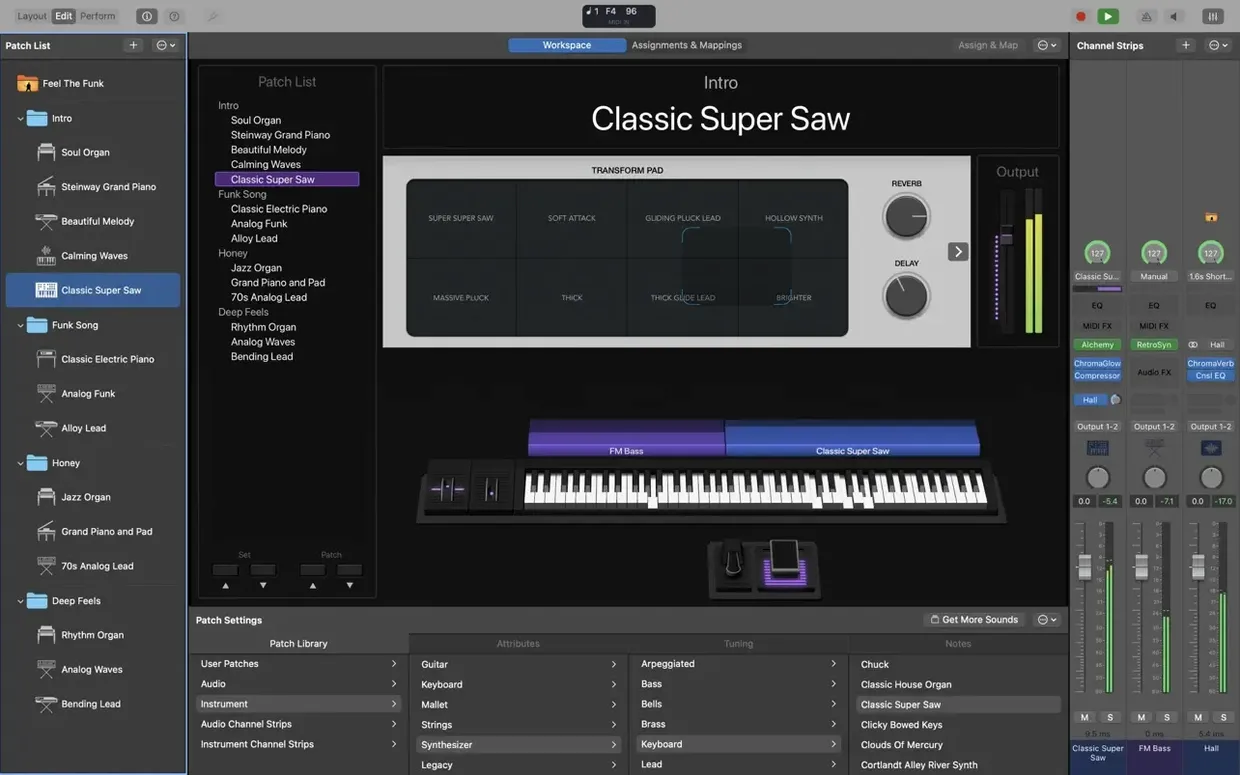
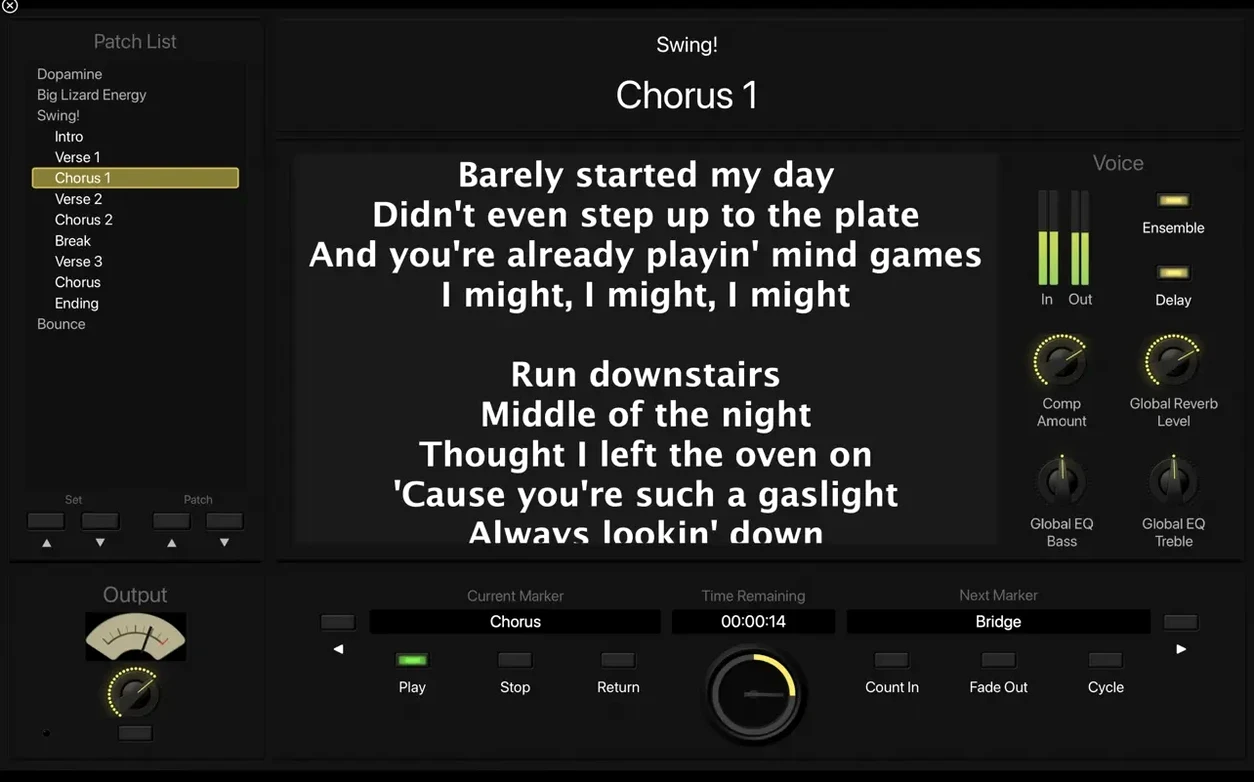
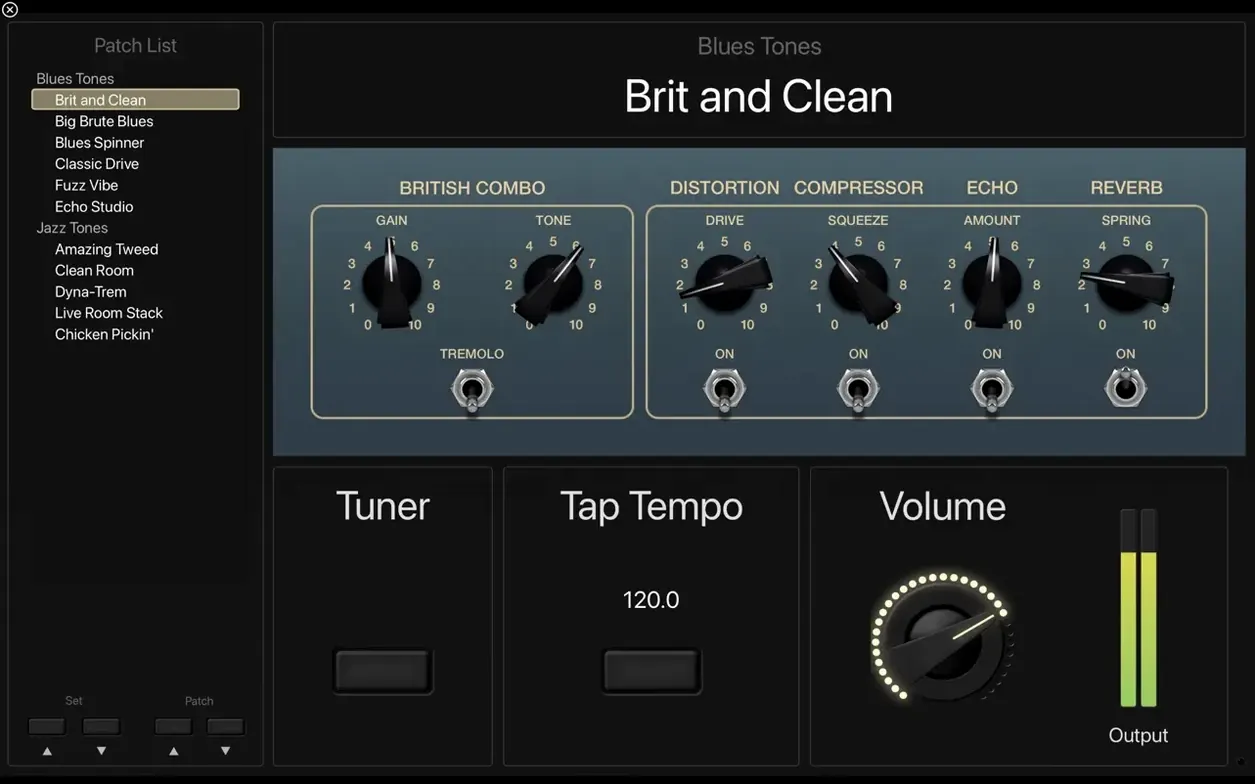
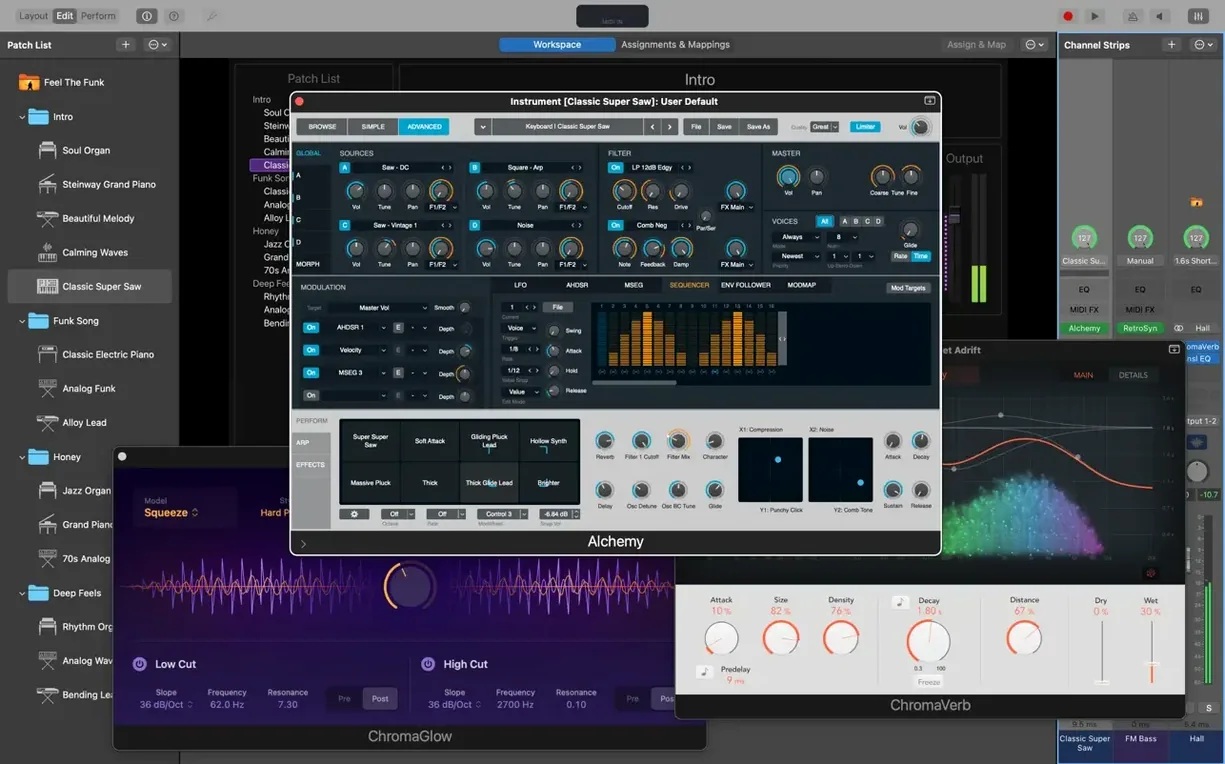
Keyboardists tap a footswitch and their entire rig changes mid-song — grand piano to a layered synth pad, no silence between the notes. Guitarists run pedalboard emulations through a full-screen tuner while a backing track plays from the same laptop. Theatre sound designers fire off a hundred sampled cues from a single patch list. MainStage is built for that one thing: performance, live, with no room for the interface hesitation that a recording DAW can tolerate. It wraps Logic Pro's sound engine in a full-screen layout meant to be read from a keyboard stand, not a desk chair.
Good for
- Keyboard players and guitarists running virtual instruments and amp sims on stage
- Musical theatre and church bands that need to switch between dozens of patches during a show
- Solo performers who want backing tracks, loops, and live effects from a single Mac
- Anyone who already owns Logic Pro or GarageBand sounds and wants to take them live
Keep in mind
- Designed for live performance, not recording or mixing — it is not a DAW replacement
- Only runs on Apple Silicon Macs with macOS 15.6 or later
- A full Sound Library installation needs 57 GB of free disk space
- Third-party plug-ins must be 64-bit Audio Unit format
How it holds up under real stage conditions
A quiet room at home tells you almost nothing. Load a concert patch with a layered piano, a string section, two software synths and a convolution reverb, then step on a sustain pedal while the Playback plug-in streams a multitrack backing arrangement — that is when you learn whether the system stays upright. On a recent Apple Silicon MacBook Air, a twenty-channel concert file with half a dozen Alchemy instances and three Space Designer reverbs sat at about forty per cent CPU, with memory pressure staying deep in the green. The fan never spun up once across a two-hour rehearsal, which matters when your Mac is perched on a keyboard stand three feet from a condenser mic.
Patch switching is the real test, and version 4.3.1 has sorted out a longstanding annoyance where incoming MIDI SysEx messages could get blocked between transitions. The fix means hardware controllers that send active-sensing or device-specific data — Roland keyboards are notorious for this — no longer choke the signal path mid-set. Tails from held chords and decaying reverb carry across patch changes cleanly, provided you keep "Patch Switching" set to "Keep held notes" in the concert-level audio preferences. The one thing that still catches people out is loading third-party sample libraries that have not been optimized for Apple Silicon. A Kontakt instrument that runs natively in Logic Pro can still trip up MainStage's memory handling if the AU plug-in wrapper is a few versions behind. The telltale sign is a brief audio dropout at the moment of patch change, and the fix is almost always updating the plug-in to its latest ARM-native build.
The friction points worth knowing about
The installer dumps a lean six gigabytes on your drive and calls it done, but the first time you pull up the Vintage B3 or scan through the orchestral string patches, a download prompt appears because the full fifty-seven-gigabyte Sound Library is sitting on Apple's servers, not in the disk image. In a venue with dodgy Wi-Fi, that pop-up is a brick wall. The workaround is to block out an afternoon at home, open the Sound Library Manager from the MainStage menu, and download everything in one go while your connection is solid.
Another snag that surfaces regularly is the Patch List unexpectedly leaping to a different selection while you are typing a numeric value into a plug-in field. Apple addressed this in the 4.3.1 update — keyboard entry no longer triggers rogue patch changes — but users running older concert files should double-check that their patches do not have hidden key commands assigned. A stray "Next Patch" mapping on a MIDI note that was useful three tours ago has ruined more than one set opener.
System audio routing trips up newcomers who treat MainStage like any other Mac application. By default it claims the system output device, which means a notification ping from Calendar will blast through the PA if you forget to turn on Do Not Disturb. The concert-level audio settings let you pick a dedicated interface instead, and the habit is worth forming early. While you are in there, set the I/O buffer to 128 samples for a reasonable balance of latency and CPU headroom; dropping to sixty-four samples feels responsive under the fingers but leaves much less room for effects processing.
Where it sits among the alternatives
Camelot Pro shares the same live-performance DNA — setlists, patch lists, a full-screen workspace — but leans harder on external hardware integration. It recognizes more MIDI controllers by name and maps their knobs and faders without manual assignment. The trade-off is that its built-in sound library is essentially nonexistent. You bring your own Audio Unit plug-ins or you make no sound at all, which makes sense for a touring keyboardist with a curated third-party collection but feels sparse for someone who wants to open the app and play a Rhodes patch immediately. MainStage ships with over seventy-five gigabytes of instruments, loops and effects that are ready the moment installation finishes.
Gig Performer takes a modular approach that appeals to routing obsessives — every audio stream is a visible cable, every MIDI filter a discrete block you can reposition on a canvas. It is transparent in a way MainStage's channel strip metaphor is not, and its CPU footprint is remarkably light. What it does not offer is any sound content at all. No pianos, no strings, no amp sims. MainStage's bundled library covers so much ground that a keyboardist can build a full concert without spending an extra dollar on third-party instruments, and that alone shifts the decision for performers who play in cover bands, pit orchestras or worship settings where the repertoire changes weekly.
Ableton Live can absolutely run a live set — thousands of electronic acts prove that every weekend — but it was designed as a production and performance hybrid, not a dedicated stage rig. Session View is brilliant for triggering clips and scenes, yet pulling up a three-layer keyboard split with a different effect chain per zone takes more clicks and more template preparation. MainStage's patch-based architecture and the Layout mode, where you design exactly the on-screen controls you need for one concert and nothing else, make it the more focused tool when the set list is fixed and the transitions need to be invisible.
Settings to change before your first rehearsal
Open Preferences and head straight to the Audio/MIDI tab. The I/O buffer size is the most consequential dial in the application — too high and the latency feels swampy, too low and you risk crackles when the arrangement gets dense. Start at 128 samples and nudge downward only if your ears tell you the timing is loose. Next, disable "Display alerts" under the General tab. The last thing you want mid-song is a dialogue box asking permission to access a folder that your Sampler instrument referenced six months ago.
In the concert inspector, set the "Patch Switching" behaviour to "Keep held notes" unless your performance style demands abrupt cut-offs between songs. Turn on "Send MIDI clock" only if an external device — a looper pedal or a delay unit — actually needs tempo sync from your Playback plug-in; otherwise it is just a stream of unnecessary data on the MIDI bus. Finally, open the Layout mode and delete every screen control you did not place there yourself. The default workspace is a reasonable starting point, but a cluttered screen at a gig is a distraction you can eliminate in ten minutes of tidying.
Building a vocal-and-keys patch from scratch
Start with an empty concert. Create a new patch and name it after the song it serves — a small habit that keeps the Patch List readable when you are scrolling with a footswitch mid-set. Add two channel strips: one software instrument and one audio input. On the instrument strip, load the Vintage Electric Piano and dial in a Wurlitzer patch with the treble pushed past two o'clock. On the audio strip, set the input to your audio interface channel and insert a compressor, a Channel EQ with a high-pass filter at 100 Hz, and a short stereo delay set to a dotted eighth note.
Now open Layout mode and drag two Smart Controls onto the workspace. Map one to the electric piano's tremolo rate and label it "Wobble." Map the second to the vocal delay's wet/dry mix and call it "Echo." Resize them large enough that you can grab them without hunting — glossy knobs look elegant in screenshots but are useless under stage lights. Switch back to Edit mode, select the patch, and assign a MIDI program change number in the Attributes tab so your set list controller can recall it without you touching the keyboard.
Hit the Perform button to enter full-screen mode. The workspace fills the display with nothing but your two Smart Controls and the patch name. Tap the "Wobble" control during a verse to push the piano into motion, then ease it back for the chorus. The vocal delay sits dry until the final phrase of a bridge, where a quick nudge of the "Echo" control throws the last word across the stereo field. When the song ends, a tap on a footswitch assigned to "Next Patch" loads the next setup with all its instrument states and effect routings intact — no pause, no clicks, nothing but the next downbeat.
Version 4.3.1 clears a stubborn MIDI issue where SysEx messages were getting blocked — useful for anyone sending patch dumps or controller data between songs. The Add Channel Strip window once again lets you type numbers directly instead of only using the stepper, and sampler instruments now load their correct sounds rather than leaving you with a silent key press.
- macOS 15.6 or later
- Apple Silicon Mac
- 64-bit Audio Unit plug-in support
- 6 GB free disk space for minimal installation
- 57 GB free disk space for full Sound Library installation
Questions from the booth
Yes. MainStage includes the same instruments and effects, and you can add any custom sounds you have saved in Logic Pro or GarageBand.
MainStage is designed to switch patches without interrupting held notes, trailing delays, or reverb tails, so one sound flows into the next.
It includes Amp Designer, Pedalboard for stompbox-style effects, and a full-screen tuner built for stage use.