
Version 7.9.4 arrives as a maintenance update, keeping the vault steady on Intel Macs running macOS 10.12 and above. The quiet release suits an app that, at its best, operates invisibly — stepping in only when a login field appears, then retreating before you notice the friction it removed.
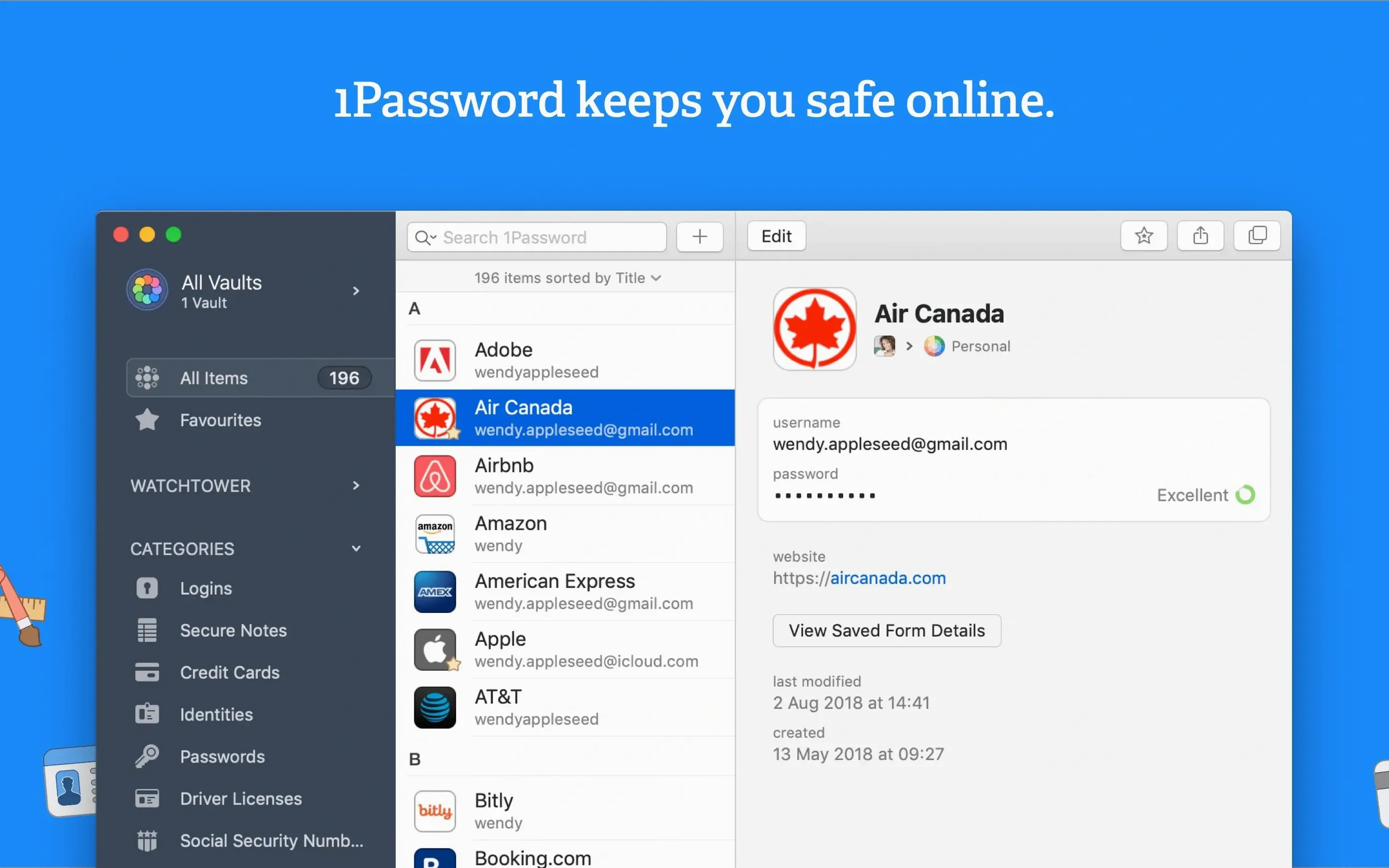
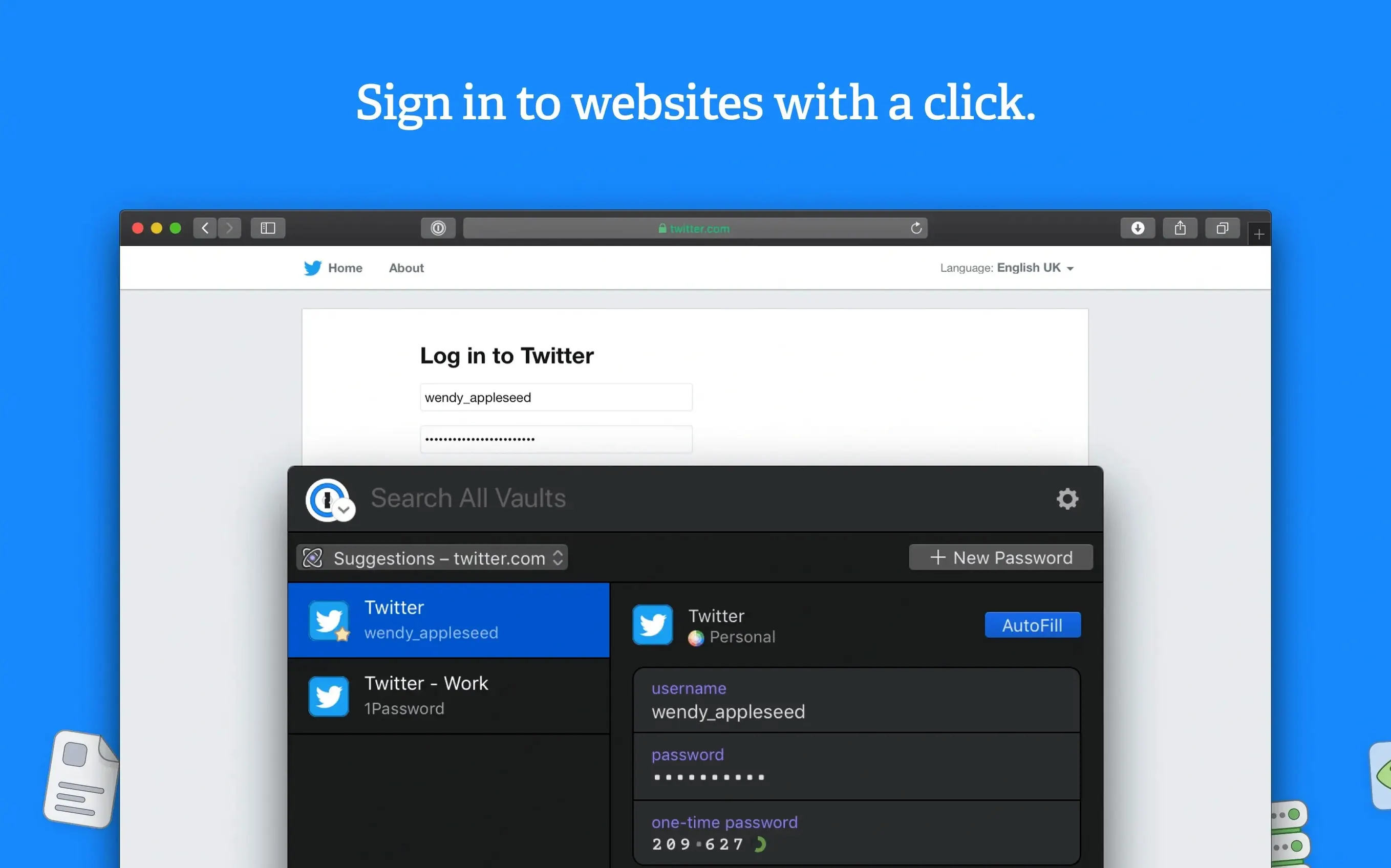
Watchtower still surveys saved sites for unencrypted HTTP connections, a detail that matters when production documents and location agreements live alongside personal credentials. The browser integration saves usernames and passwords as you sign into apps and websites, and a single action fills entire forms — casting logins, crew call sheets, or festival submission pages without hunting through a keychain. Secure notes hold the rest: set locker combinations, gear serial numbers, the Wi-Fi password for a rented edit suite.
A single vault holds passwords, cards, and secure notes
- Storing passwords, credit card details, and freeform secure notes in one encrypted vault
- Filling login forms and web fields with a single click or keyboard shortcut
- Catching sites that still use unencrypted HTTP through Watchtower alerts
Built for Intel Macs, so Apple Silicon runs it through Rosetta
- Built for Intel 64-bit Macs; native Apple Silicon support isn’t part of this release
- Requires macOS 10.12 or later, so older creative workstations may need an earlier version
People coming from a browser’s built-in autofill often trip over the same detail: they create a login item inside the desktop app, then sit confused when the extension doesn’t offer it on the matching site. The vault item’s website field needs to match the actual sign-in URL, including the subdomain — if the studio’s crew portal lives at crew.studioname.com, the item won’t appear for www.studioname.com. A minute spent checking the URL mapping saves friction later. Another early mistake is treating the master password as something to type slowly. You should be able to recite it from muscle memory even when tired, because forgetting it means losing everything — the encryption gives AgileBits no back door, and no recovery phrase exists unless you set one up ahead of time in your emergency kit. Speaking of which, beginners rarely print or store that kit somewhere offline, then one hardware failure leaves them locked out of festival submission accounts and banking logins simultaneously.
A subtler habit that trips new users: creating multiple items for the same service. When you change a password on a website but the old 1Password item sticks around, you end up with two entries — one working, one stale. The 1password duplicate item clutter builds quietly, especially on shared family or team vaults where two people save the same credentials under slightly different names. Watchtower flags reused passwords across items, but it can’t merge duplicates for you; periodically searching the vault for near-identical titles and consolidating them keeps the autofill suggestions clean.
The greyed-out extension icon finally stopped appearing
Version 7.9.4 is a maintenance build, and the 7.9 line leading up to it focused on tightening the browser extension’s reliability rather than adding visible features. Everyday use became quieter: fewer moments where the extension icon sits greyed out on a page that definitely contains a login form, fewer sync pauses that make you wonder whether a newly saved password actually reached your other Macs. Under the hood, the Watchtower engine gained sharper detection for compromised domains — sites where a breach happened after your last password change now surface more reliably, even when the breach announcement itself is fresh. The other practical shift across recent 7.x updates was improved handling of one-time passwords; the app now copies a TOTP code to the clipboard automatically after filling a login, which shaves a few seconds off every sign-in that requires two-factor authentication. Small seconds, but they accumulate across a day of logging into production insurance portals, equipment rental accounts, and cloud storage dashboards.
Where it sits between other apps and the system
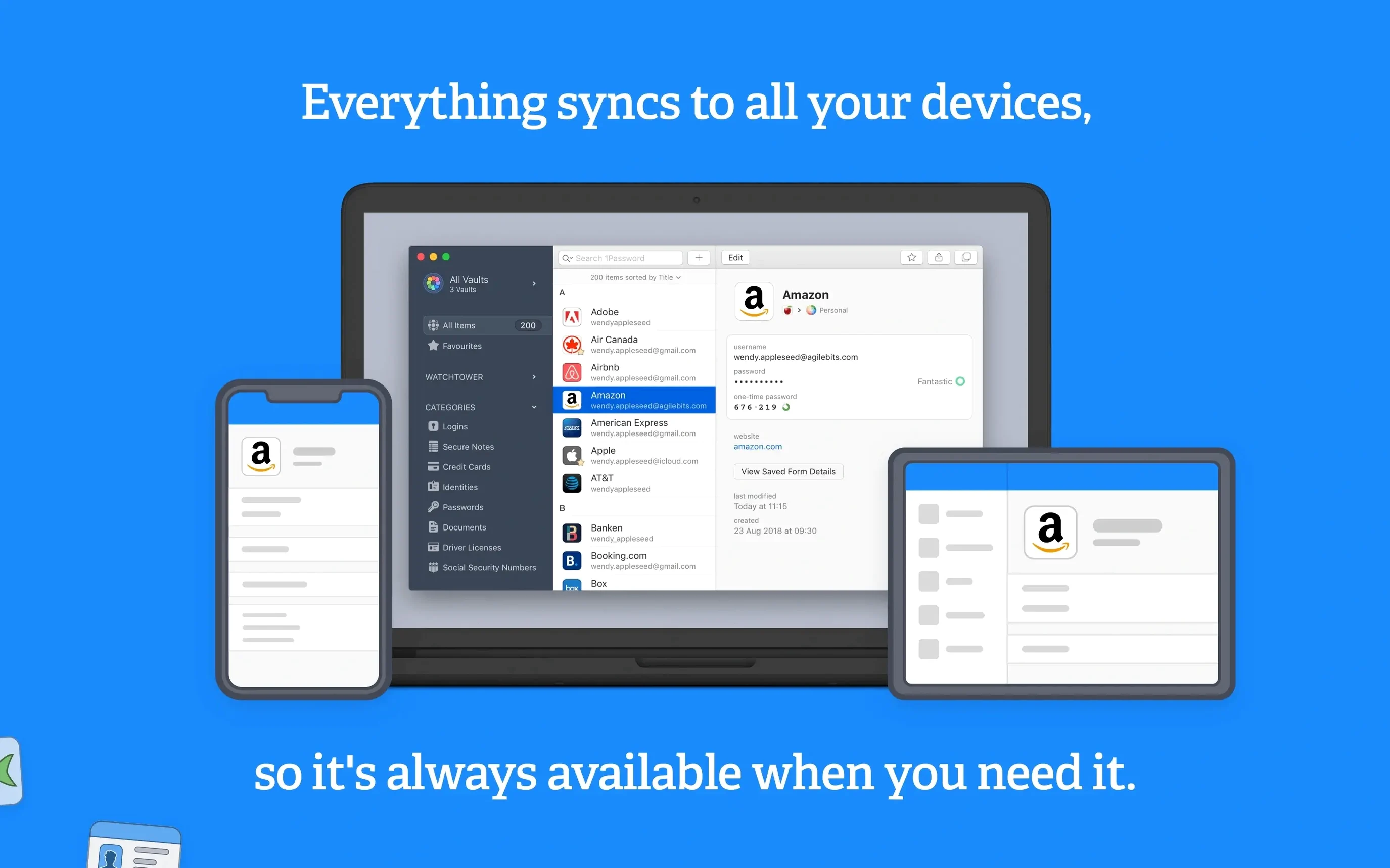
1Password doesn’t replace the macOS Keychain so much as sit beside it, each handling different territory. Keychain catches Wi-Fi passwords, certificate trust decisions, and some Safari-saved logins; 1Password holds the structured stuff — credit cards, secure notes, software licence keys, bank account routing numbers — and syncs it across devices where the Keychain won’t reach. If you run a Mac-only editing setup, the two can coexist without conflict, though you’ll want to disable Safari’s built-in password saving once the 1Password extension is active, to avoid two autofill prompts competing for the same field.
The app also pairs naturally with utilities that clean up digital clutter. After a session of consolidating those 1password duplicate item entries, running something like DaisyDisk or CleanMyMac on the Mac itself can feel like the same ritual applied to the file system — one pass for the vault, one for the drive. In a filmmaker’s workflow, 1Password bridges the gap between secure storage and the browser, while Finder tags or a notes app like Bear handle the non-sensitive project tracking. The separation matters: scripts and rough cuts live in the open, but the passwords that protect the final DCP uploads or the Vimeo review links stay behind the master password, accessible only to the people who need them.
- macOS 10.12 or later
- Intel 64-bit processor
Questions from the booth
Yes, it stores credit cards, secure notes, and other sensitive information, all protected behind a single master password.
It also reports when a saved site uses unencrypted HTTP, flagging connections that expose data in transit.