
You drag a photo onto a second monitor and the app stretches it across both displays without a second thought, then sets a timer to swap it out by evening.
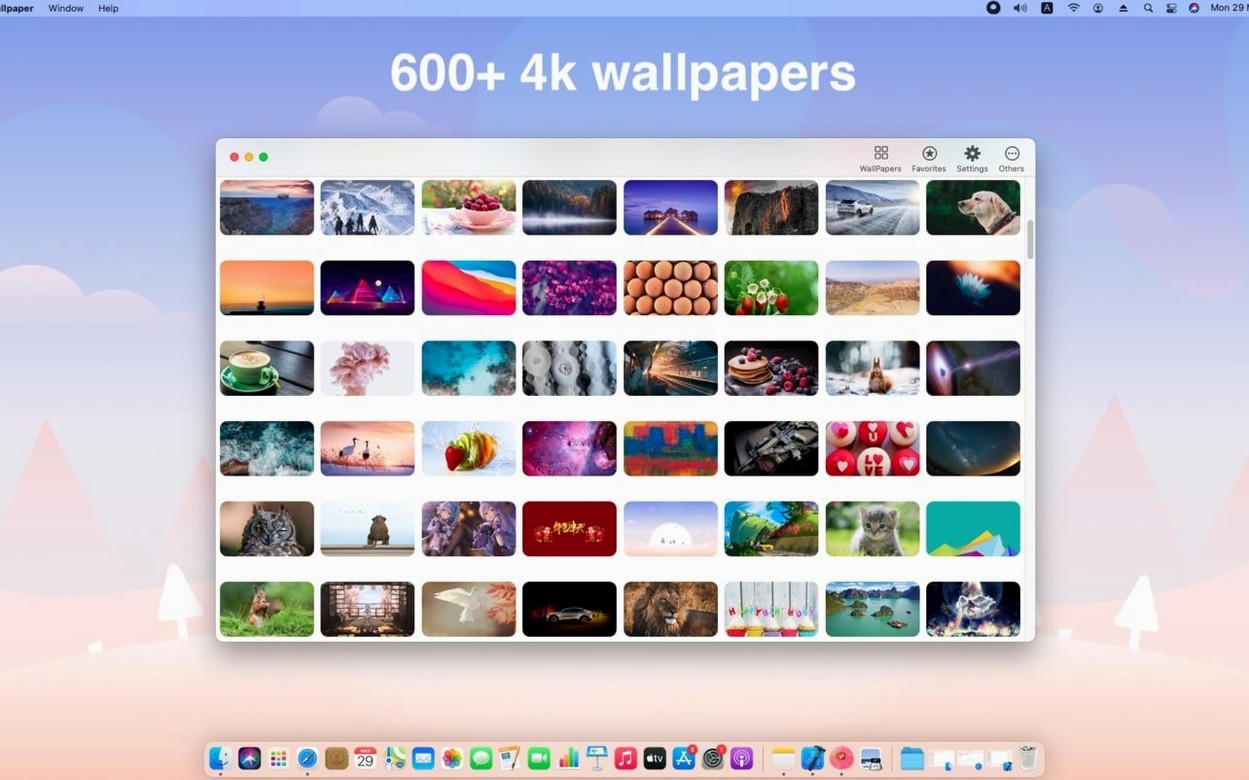
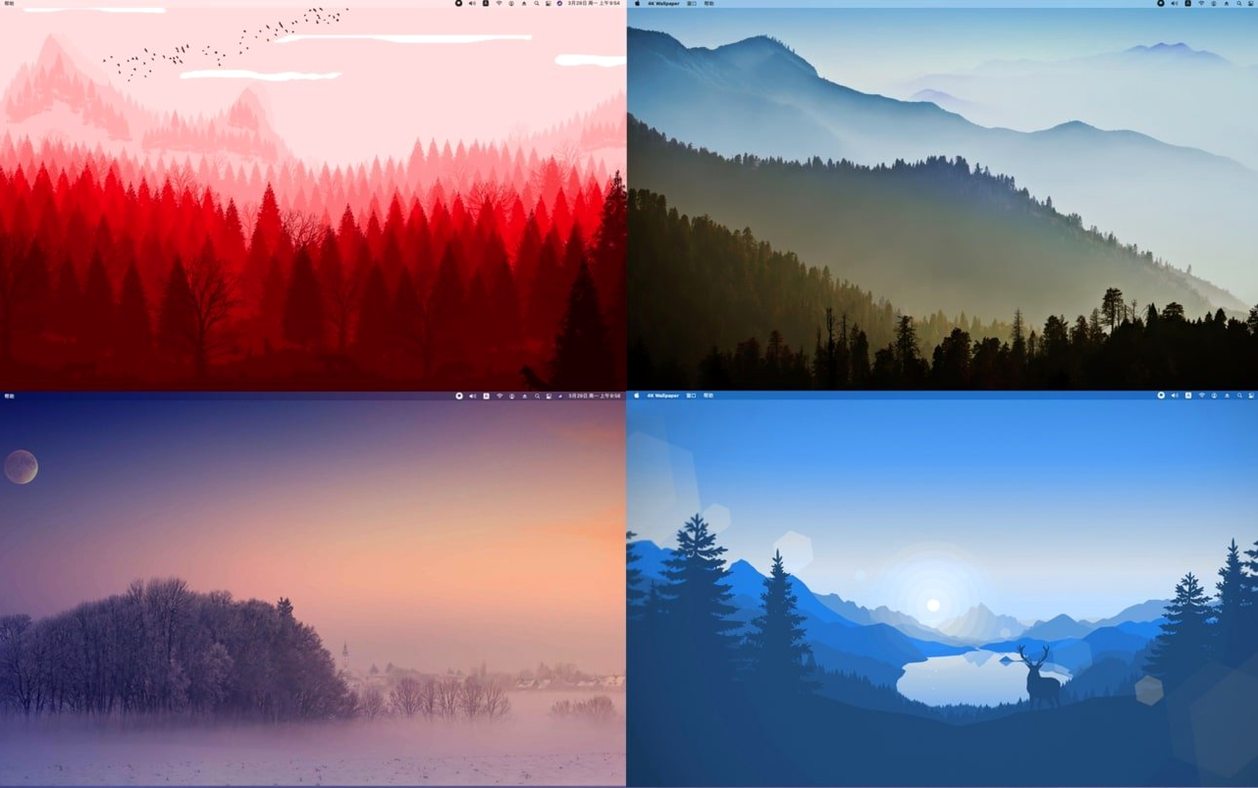
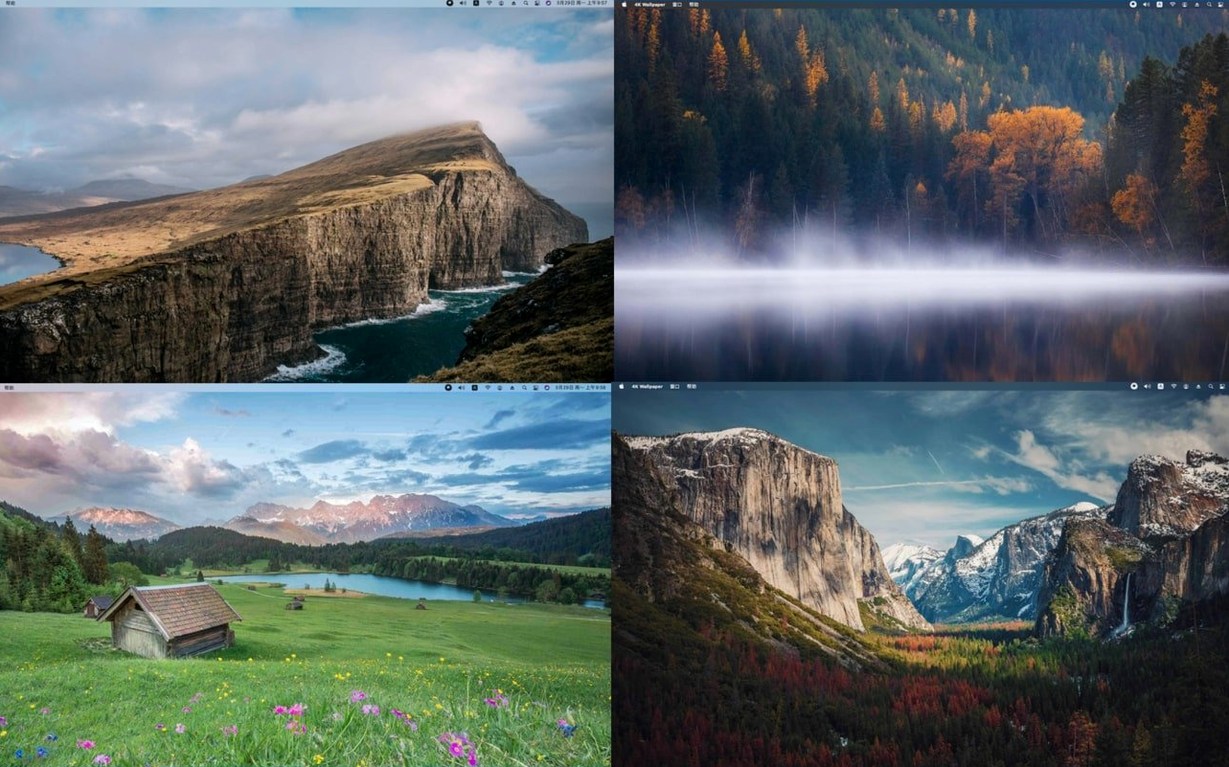
From the menu bar, the app pulls from a library of more than 600 4K and HD wallpapers. It can cycle through them on a schedule, adapt images to full-screen mode so nothing sits awkwardly on a widescreen display, and automatically gather the wallpapers you have actually used into one place. There are no ads tucked into the interface. The build runs as a 64‑bit Intel app and asks for macOS 11.1 or later.
All 600+ wallpapers are stored locally, not fetched on demand
One concern that comes up often is whether the app phones home every time it fetches a wallpaper. It does not. The full collection of more than 600 images lives locally once the app is in place, so the menu bar picker works even when you are offline. People also ask if it plays nicely with multiple displays and mismatched resolutions. It handles that by detecting each screen separately and fitting the image to the aspect ratio of whichever display you set as primary, then extending cleanly to the second. No stretching a 16:9 image across a 32:9 ultrawide and hoping for the best.
Another question is whether the automatic cycling interferes with apps that use their own full-screen spaces. The wallpaper change happens at the desktop level, so it does not yank you out of a full-screen code editor or a game. You notice the new background only when you swipe back to the desktop. Some people worry about the startup launch option slowing down their boot sequence; on an Intel Mac it adds roughly a second and a half to the desktop appearing, which is about what any lightweight menu bar utility costs.
Auto-collect stays off until you flip that toggle first
The most common slip is forgetting that the auto-collect feature needs to be switched on before it does anything useful. People cycle through a dozen wallpapers, then open the collected folder and find it empty because the toggle was off by default. Flip it once and the app quietly saves every wallpaper it sets, so you can revisit an image you cycled past three days ago without digging through the full library.
Another mistake is dragging a local image onto the app icon instead of the desktop preview area. The app accepts drag-and-drop onto its own window, not onto the Dock icon; missing that step leads to a moment of confusion. Beginners also occasionally set the cycle timer to one minute and then wonder why their machine feels subtly busy. A one-minute interval means the app reads and sets a new 4K image every sixty seconds, which on an older Intel Mac can produce a faint disk-access flicker. A five‑minute or daily cycle is far gentler without losing the sense of a living desktop.
Dragging Fuji X‑T5 scouting frames straight into the app while grading
A stills photographer I know keeps a folder of location-scouting frames she shoots on a Fuji X‑T5. They sit on an external drive, and she drops them onto the app’s window one by one as she edits. While she grades the matching video footage on her main display, the second monitor cycles through those stills at a ten-minute interval. The app saves the ones she has used into its collected folder, which means by the end of the afternoon she has a shortlist of the compositions that held up long enough to live on the desktop for a while — an accidental edit that costs her no extra clicks. She mentioned once that the same folder occasionally gets a handful of 4k wallpaper hd wallpapers mac torrent pulls from wallpaper dumps she finds online, and the app treats them the same as her own frames: full-screen, no watermark, no fuss.
- macOS 11.1 or later
- Intel 64-bit
Questions from the booth
Yes, it can automatically gather the wallpapers you have used, so you do not have to hunt through folders to find a background you set days ago.