
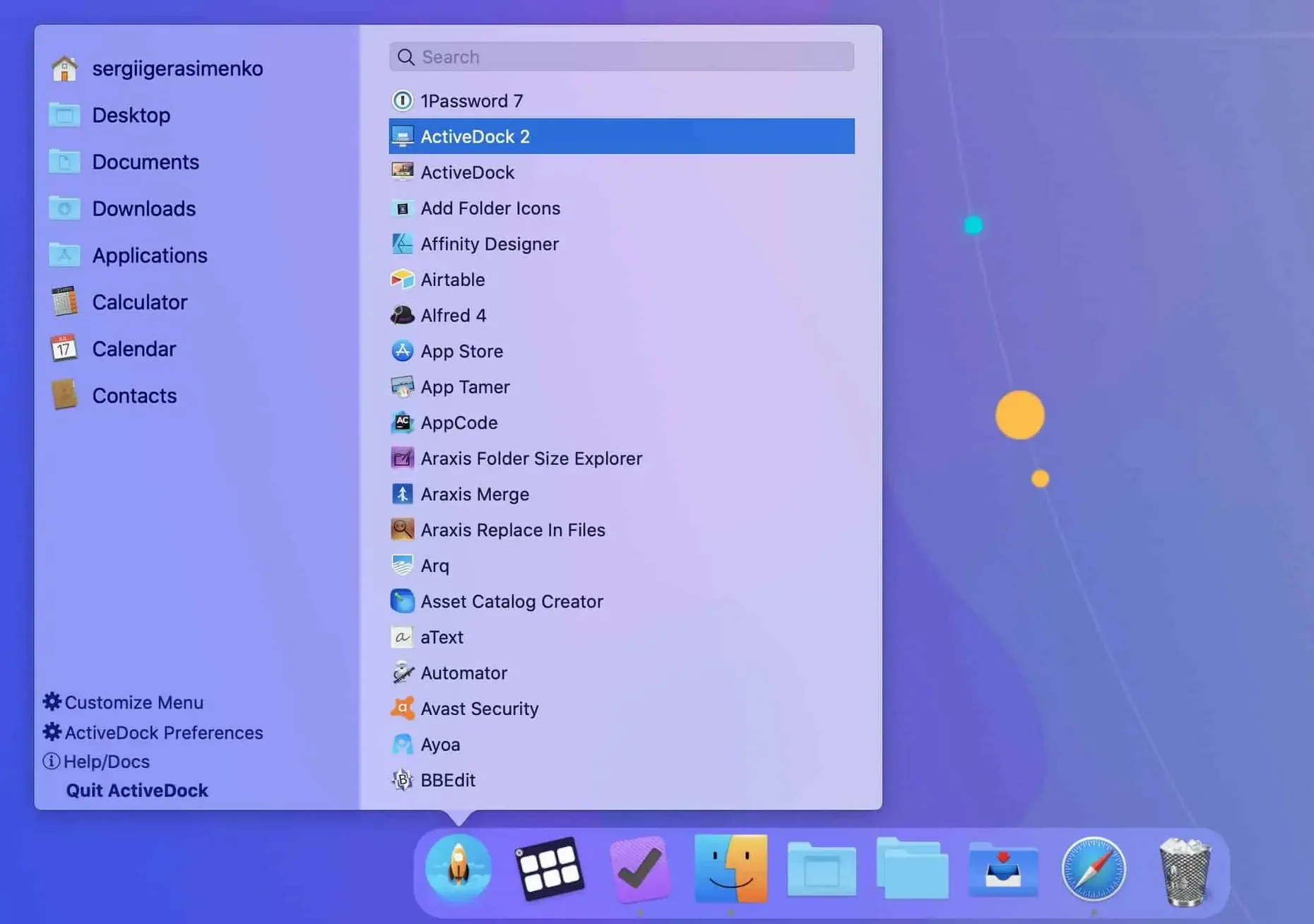
MacPlus Software built ActiveDock for people who organize their workspace around muscle memory — editors who know exactly where every app sits, developers juggling terminal windows, and anyone who has ever lost an icon in the clutter of the standard Dock. It slots in next to the tools you already use daily, offering a layer of control that the default Dock never quite reaches.
Building a Dock that works the way you do
1. After dragging the app from its disk image into your Applications folder, launch it from Launchpad. ActiveDock takes over immediately, but it does not throw away your existing setup — it reads your current Dock and lets you reshape it.
2. Start by hiding the app icons you rarely need to see. A few clicks in the preferences panel clear the visual noise, leaving only the tools you actually launch. The hidden apps are not gone; they are simply tucked out of the way.
3. Next, create groups and folders for the remaining icons. You might pull all your writing tools into one tidy stack, or gather document shortcuts that usually sit scattered across the desktop. The groupings feel more like a drawer system than a row of icons.
4. When your layout settles, the window-switching tools come into their own. ActiveDock gives you a fast way to hop between open windows within an app — something the native Dock handles clumsily — which turns a crowded workspace into something you can navigate without thinking.
The result is a Dock that mirrors how you actually move through your projects. It runs on any Mac with Apple silicon or an Intel 64-bit processor, as long as macOS 11.5 or later is installed, and it quietly replaces both the Dock and Launchpad without asking you to change the rest of your system.
Window management in a real editing session
Suppose you are cutting a short film in DaVinci Resolve, three Finder windows open with sound effects folders, a colour chart in Preview, and notes in a TextEdit scratchpad. The native Dock would flatten all of that into a row of identical icons. With ActiveDock, you hold the pointer over the Resolve icon for a beat and the window previews fan out — the timeline, the colour panel, the scopes — each with a small thumbnail you can actually read. Clicking one pulls that window forward without cycling through the others. Right-click the same preview and you can snap it to the left half of the display, then drag the Preview window to the right edge and it tiles neatly alongside. Between cuts, you move from timeline to scopes to notes without once glancing away from the screen to hunt for a window title. The whole rhythm becomes tactile: hold, glance, click, move on. That alone reshapes how long an editing session feels by hour three.
Open apps by typing two letters instead of using Launchpad
ActiveDock hides several details that quietly change daily use. The Start button — styled after the Windows equivalent — sits at the left edge and opens a searchable application grid that replaces Launchpad. Type two letters and the app you want is under your cursor; no gesture, no trackpad swipe. Dragging a folder from Finder onto a group icon adds it to that group without opening any preferences panel. The appearance controls go further than colour: you can dial down the icon size and spacing independently, so a slim vertical dock on the left of the screen holds twice as many icons as the Apple Dock in the same space. A small detail worth finding early: holding the Option key while clicking an icon hides all other applications, a quick way to clear the stage when you need to focus on a single task. These are not headline features, but they are the things that make someone who downloads activedock macos keep it running weeks later, long after the novelty of the custom look has settled.
- macOS 11.5 or later
- Apple Silicon or Intel 64-bit Mac
Questions from the booth
Yes, it takes over the functions of both the Dock and Launchpad, offering a single customizable interface for launching and switching between apps.
Absolutely. Hiding an icon simply removes it from the Dock view; the app remains installed and fully accessible through other methods like Spotlight or the Applications folder.
It supports any Mac running macOS 11.5 or later, with native compatibility for both Apple silicon and Intel 64-bit processors.