
This is for the person who treats a hard drive like a library. Someone who has been burned by a deleted channel or a region-locked clip and decided, never again. 4K Video Downloader is a lean Mac utility that grabs videos, audio, and subtitles from a long list of sites and saves them as local files you actually control. Beyond the one-click paste-and-go, there are a few deeper tools that make it stick for heavy downloaders.
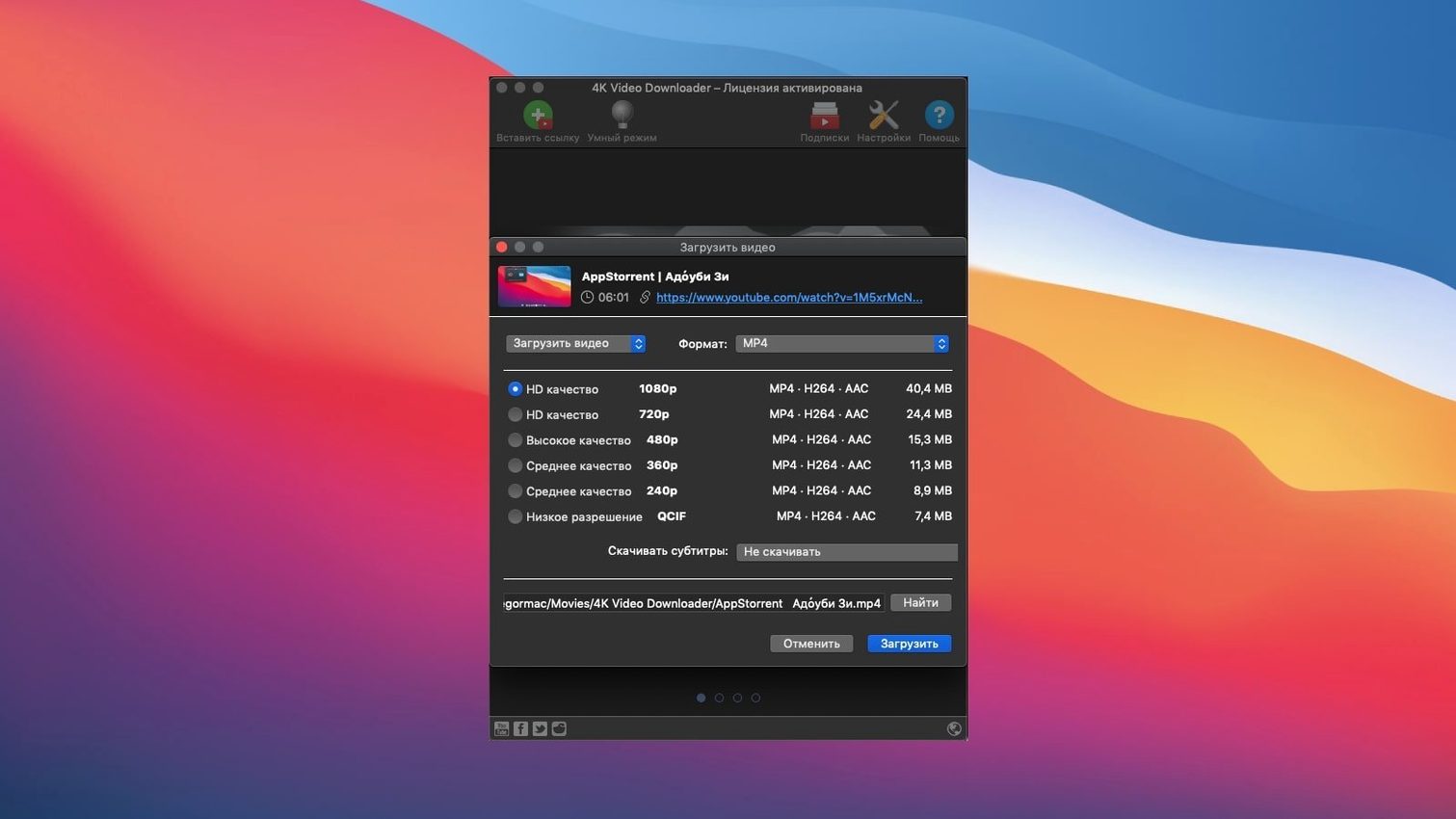
- Choose your container, not just the resolution. You can save a 4K lecture as an MKV with the original codec intact, pull it as an MP4 for broad compatibility, or strip it to M4A audio when you only need the voice.
- Subtitles, separate or baked in. The app grabs available subtitles and lets you save them as a clean SRT file for translation work, or mux them directly into the video track so they travel with the file.
- M3U files for smart playlists. When you download an entire channel, it can generate an M3U playlist that mirrors the upload order, ready to drop into VLC or a media server without manual sorting.
- Embedded video detection. Paste a URL for a blog post or news article that has a YouTube embed, and the app finds the source video without you hunting through page source.
The current build runs on Intel Macs from macOS 12 upward, and the interface ships in sixteen languages. It is not a player, not a media manager — just a quiet tool that pulls what you ask for and gets out of the way.
A quiet middle step between browser and Finder
4K Video Downloader is not a hub. It is a quiet middle step between a browser and everything else. Once a file lands in the designated folder, the rest of macOS picks it up naturally. Quick Look opens MKV and MP4 files with a tap of the space bar, so a fast preview needs no extra app. Spotlight indexes the download folder, which means searching for a clip by name, date, or codec works from the menu bar seconds after the download finishes.
The M3U files the app generates slot straight into VLC, IINA, or a Plex library pointed at a local media folder. For anyone building a reference library of lectures, B-roll, or archival footage, the M3U acts as a ready-made viewing order without dragging files into a separate playlist manager. A downloaded channel lands as a folder with the playlist file sitting at the top, and dragging that single file into a player queues the whole batch in upload sequence.
For subtitling and translation work, the SRT export matters beyond convenience. Dragging an SRT file into a text editor or a tool like Aegisub gives you a clean timecoded transcript without extracting anything from a video container. If the plan is to edit in DaVinci Resolve or Final Cut Pro, the MP4 with baked subtitles saves a round-trip step — the titles arrive as hard subs, visible in the viewer from the first import. For audio-only pulls, dropping an M4A into GarageBand or Audacity for transcription or sampling is immediate, with no transcoding step needed.
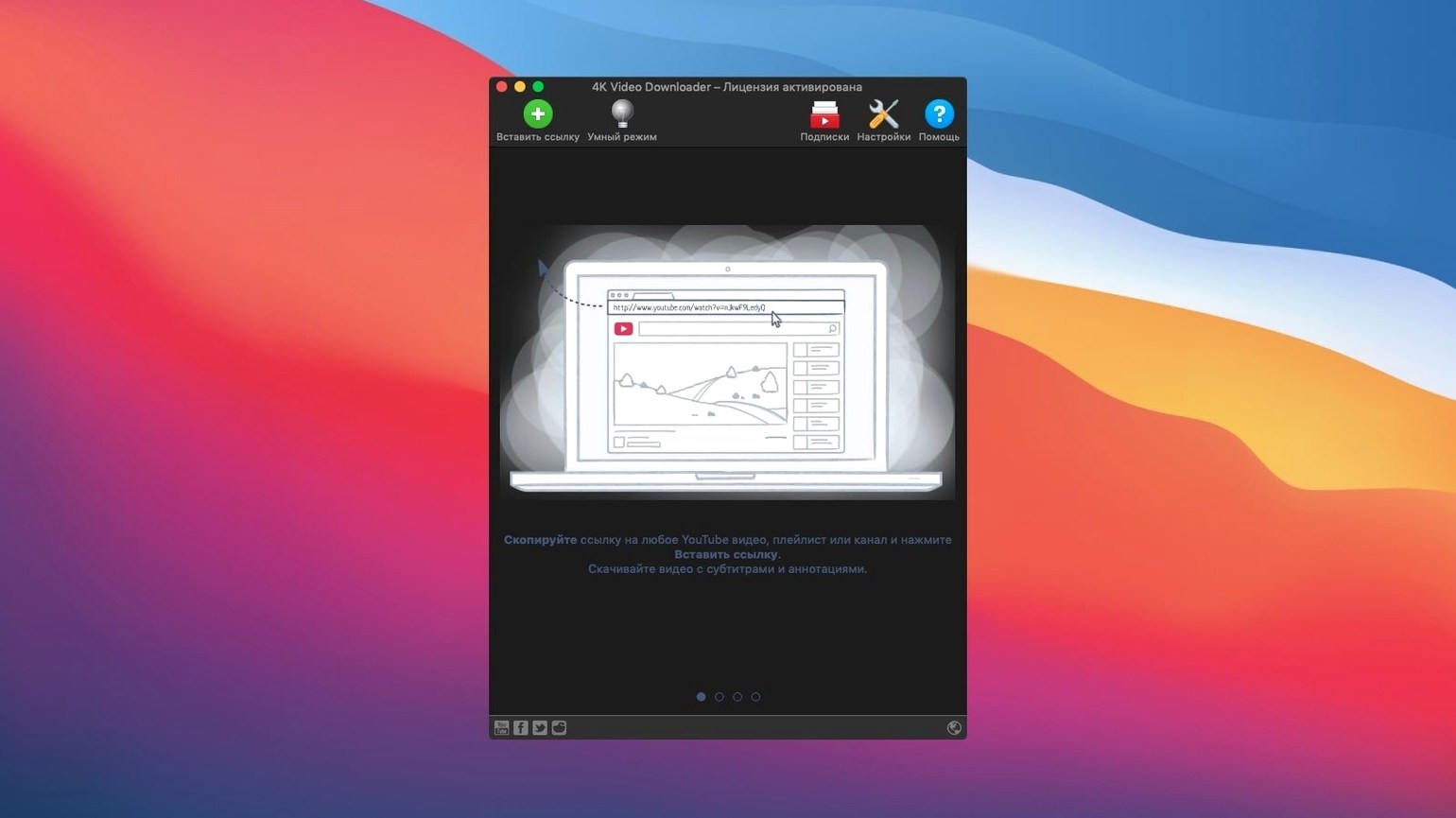
The clipboard watcher ties it to the browser without a browser extension. Copy a link in Safari or Firefox, switch to the app, and the URL is already parsed. No drag-and-drop, no manual paste. It is the kind of small integration that fades into muscle memory after a few sessions.
Under 80 MB of RAM at idle on Intel Macs
On an Intel Mac running macOS 12 or later, the app is lightweight at rest. Activity Monitor shows it idling under 80 MB of RAM with no downloads active. During a 1080p pull from YouTube, memory use climbs to about 150–200 MB, and CPU sits in the 4–8% range on a 2019 i7 MacBook Pro. A 4K download pushes CPU closer to 12–15% briefly while it parses the stream, then drops back once the write begins. Network throughput is the real bottleneck — the app writes as fast as the connection delivers, and it does not artificially throttle.
Stability has been uneventful in the best way. Leaving it to pull a fifty-video playlist overnight, the queue completes without hangs, and the Mac does not spin up fans unless ambient temperature already has them running. The app respects App Nap on supported Macs, so background downloads do not keep the processor from stepping down. If the network drops mid-download, a red entry appears in the queue with a retry arrow, and clicking it resumes from the break rather than starting over. That resume behaviour is not universal among downloaders, and it makes a practical difference on slow or flaky connections.
One quirk worth knowing: the app writes each file to a temporary location during the download and renames it on completion. If a download fails before finishing, the partial file sometimes lingers in the temp folder. A quick sweep of ~/Library/Application Support/ under the app's folder every few months reclaims a few hundred megabytes. It is not a leak, just housekeeping the app does not automate.
Cat-and-mouse parsing fixes for YouTube’s shifting structure
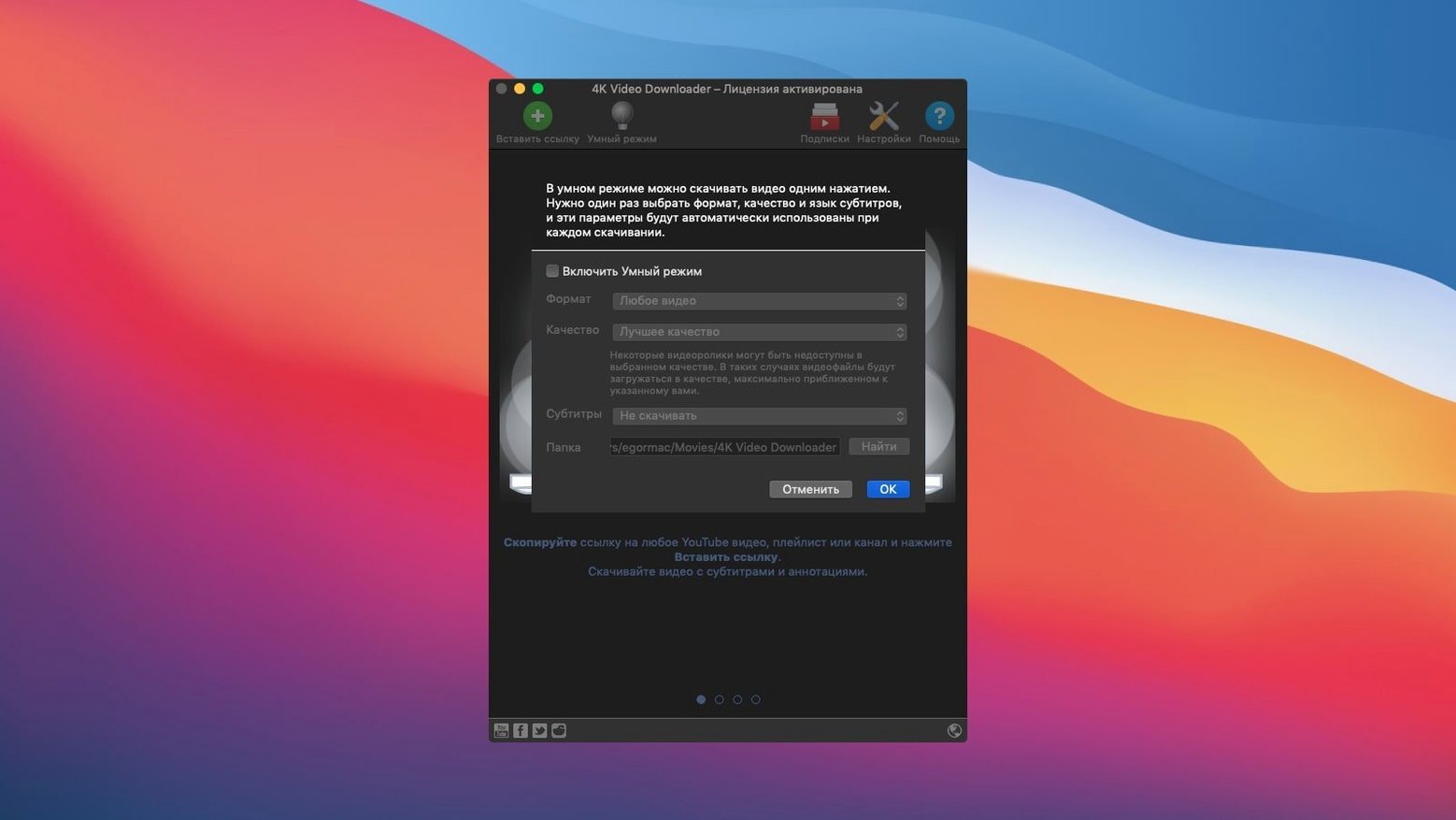
Version 26.3.5 tightened parsing for YouTube's shifting page structure — the cat-and-mouse game that every downloader plays with Google's engineers. Earlier in the 26.x cycle, some playlist downloads would stall after the first ten videos on channels with mixed resolution streams. The current build handles those edge cases without manual intervention. The Smart Mode toggle also gained persistence across app restarts, a small fix that removes a daily annoyance: previously, restarting the app would drop Smart Mode back to off, and you would notice only after a batch of downloads came through in the wrong format.
Subtitles handling saw a quiet improvement. Where older builds would occasionally miss auto-generated captions on livestream archives, 26.3.5 pulls them reliably when they are available. The SRT files land with cleaner timecodes too — fewer overlapping entries that needed manual cleanup before use in an NLE timeline. For anyone who works with interviews or lectures, that cleanup time saved adds up across a dozen videos.
The embedded video detection, which finds YouTube players tucked inside blog posts and news articles, got more tolerant of lazy-loaded iframes. Pages that defer video embeds until you scroll now resolve correctly more often than not. It is not perfect — some JavaScript-heavy news sites still hide their embeds behind enough layers that the app cannot sniff them — but the hit rate is noticeably higher than in the late 25.x builds.
Seven tabs, three platforms, one Smart Mode shortcut
Morning, coffee, a research brief open in Safari with seven tabs. Three are YouTube lectures, one is a Vimeo documentary trailer, two are SoundCloud field recordings, and the last is an Instagram reel a colleague sent for reference. Smart Mode is already set: MP4, 1080p, subtitles as separate SRT, download to a folder called Research_Week12 on an external drive.
The first step is the browser. On the YouTube tabs, I copy each URL with Command-L, Command-C, and glance at the app — a small notification badge confirms each link landed in the queue. The Vimeo link gets the same treatment. For the SoundCloud pages, I switch Smart Mode off for a moment because I want M4A audio, not an MP4 with a static waveform visual. Two clicks: toggle Smart Mode, paste the URLs, toggle it back on. The Instagram reel needs a manual paste — the clipboard watcher sometimes misses short-form links from Meta's apps, so Command-V in the app window is more reliable.
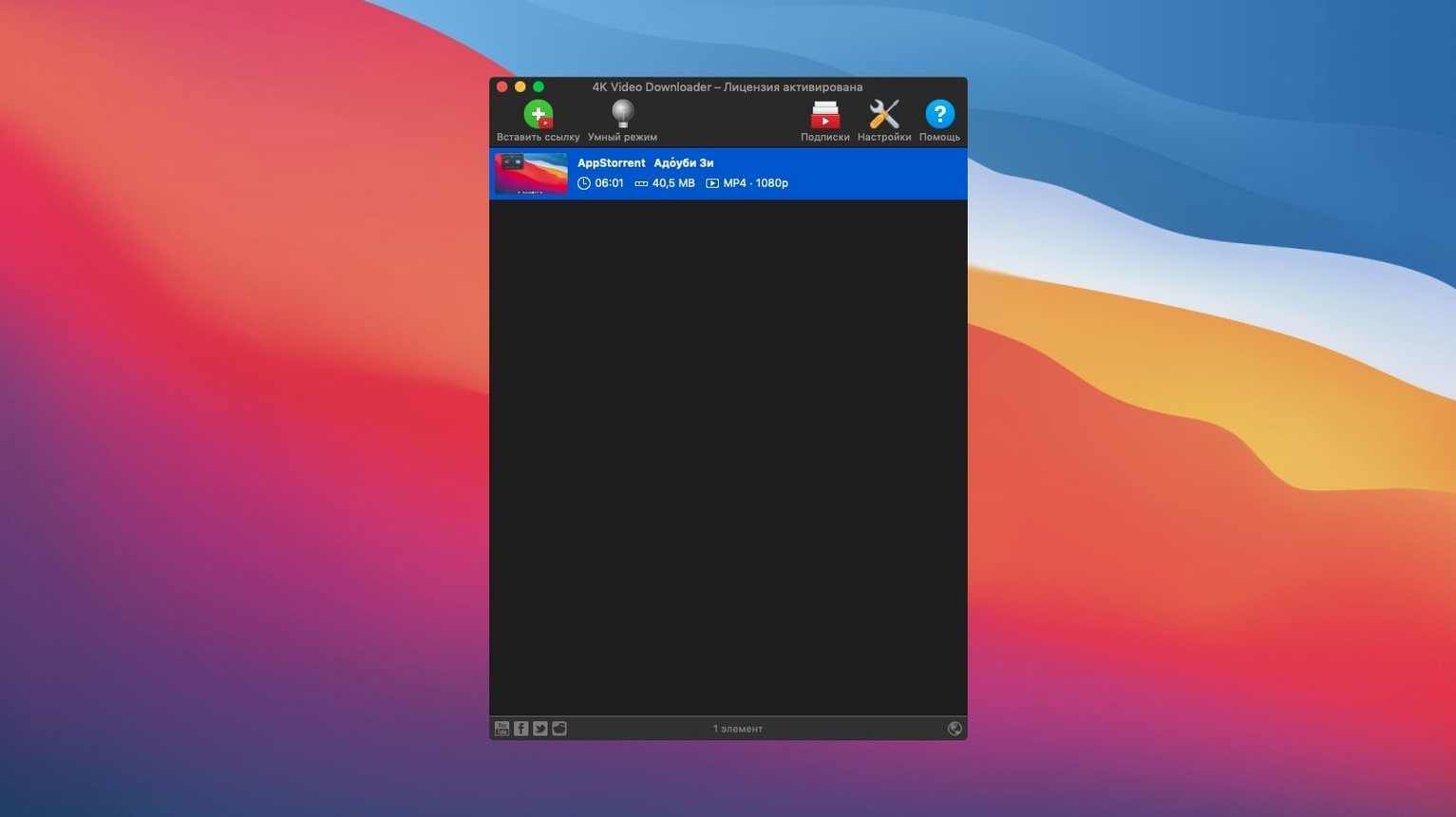
The queue shows eight items. I click Download All and watch the first three YouTube videos kick off in parallel. The progress bars move at slightly different speeds — the hour-long lecture predictably slower than the ten-minute clip. While they run, I drag the Finder window for Research_Week12 to the right side of the screen. As each file completes, it appears in the folder, and a quick space-bar preview confirms the video and SRT are both present. The M4A files from SoundCloud finish first and are already playable in the Finder preview pane.
Twenty minutes later, everything is local. I drop the SRT files into a text editor for annotation, drag the MP4s into a DaVinci Resolve bin, and rename the M4A files with the speakers' names. The external drive now holds the raw material for the rest of the week, independent of any platform's availability.
A download stuck at Parsing usually means the URL changed
The most common hitch is a download that sits at Parsing and never progresses. Nine times out of ten, the source URL changed between copying and pasting. YouTube playlist links with timestamp parameters at the end (&t=120s and the like) sometimes confuse the parser. Stripping everything after and including the first & from the URL usually resolves it. A clean video ID, no tracking cruft, and the app grabs the stream on the next try.
Another snag: the app reports Format not available for a resolution you know exists. This often happens on newly uploaded videos where YouTube has not finished transcoding the higher resolutions yet. Waiting an hour and retrying the same link typically fixes it — the app is not broken, the server simply has not generated that stream. For 4K pulls specifically, checking that the source video was actually uploaded in 4K saves time. Many "4K" labelled uploads are 1080p masters upscaled by the platform, and the app will show only the real available resolutions.
On Intel Macs with limited RAM, downloading a very large channel — hundreds of videos — can make the queue window sluggish to scroll. The fix is to break the channel into smaller playlist chunks or to download in batches of fifty. The app does not paginate its queue view, and rendering a list of 400 entries pushes the interface beyond what it handles smoothly. For most users, this is an edge case; for archivists pulling entire channels, batching is the practical workaround.
Gatekeeper on first launch catches some users off guard. The disk image mounts cleanly, but double-clicking the app triggers the unsigned-developer warning. The install path is straightforward: right-click the app icon, choose Open, and confirm in the dialog. After that first approval, macOS remembers the exception, and the app launches normally from the Applications folder on every subsequent use.
- macOS 12 or later
- Intel processor
Questions from the booth
Yes, you can paste a playlist or channel URL and set the output format to M4A or MP3, and it will download all the videos as audio tracks.