Smart Mode’s parsing rules are where the app really earns its place in a post-production toolkit. Set once, and every VEVO or SoundCloud link you drop in follows a consistent loudness target and container choice, without revisiting a dialogue box. It is the kind of quiet automation that keeps a sound library growing while you cut picture.
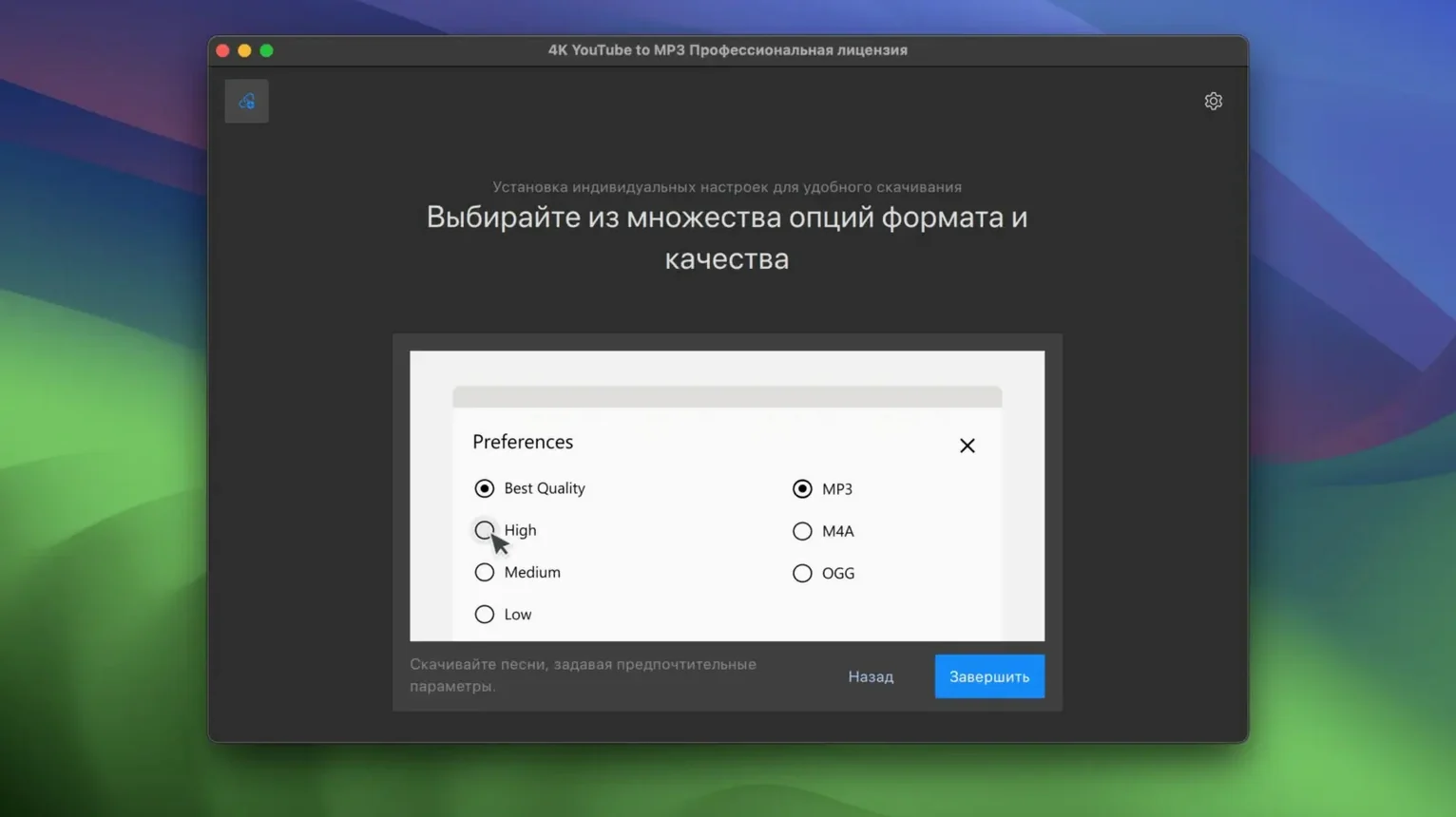
- MP3, M4A, and OGG output give you flexibility for editorial proxies, broadcast-ready stems, or lossy reference tracks that import cleanly into DaVinci Resolve.
- Per-playlist extraction applies your format rules to a whole series at once — useful when a composer sends a private SoundCloud set instead of a zip file.
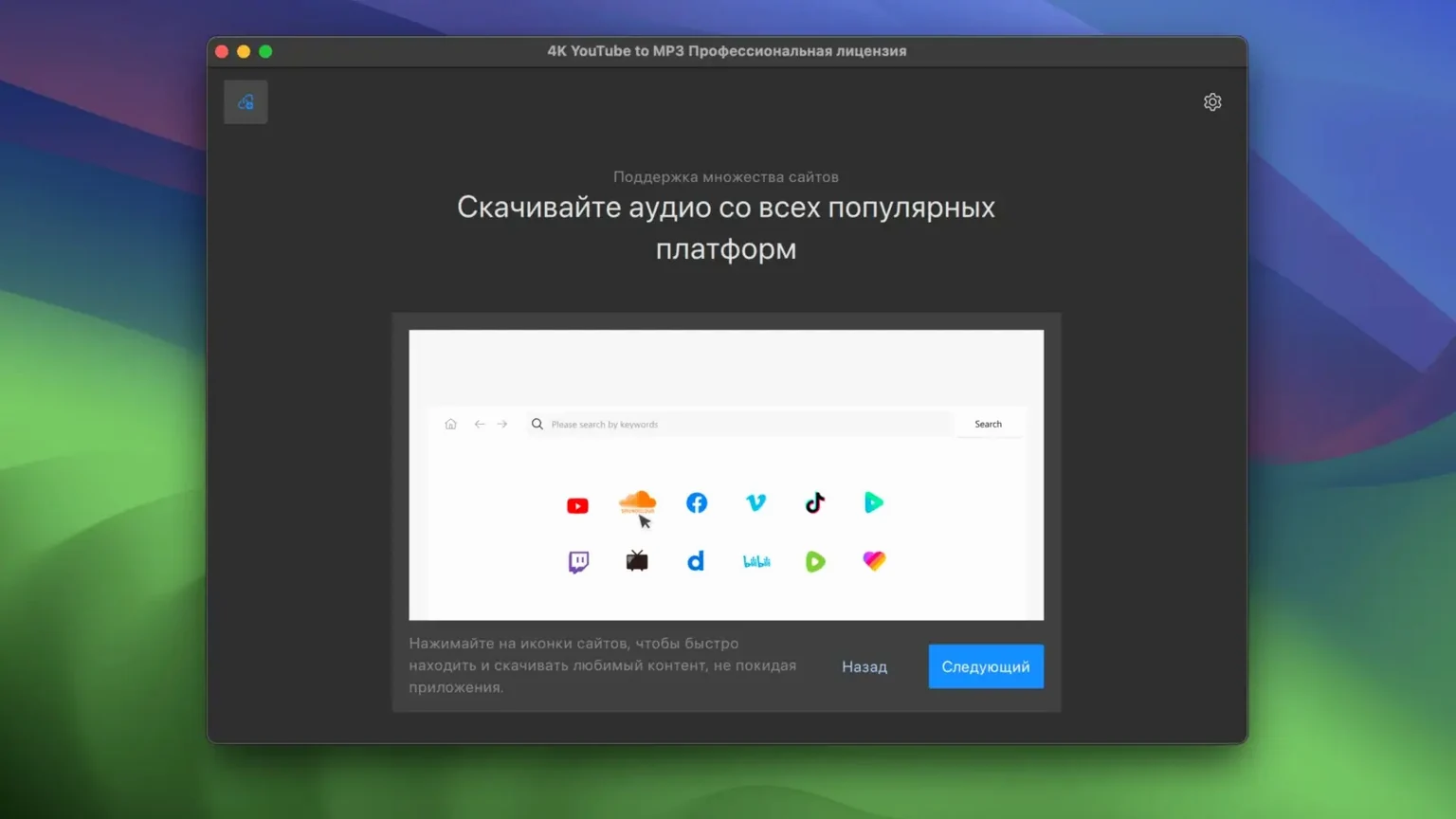
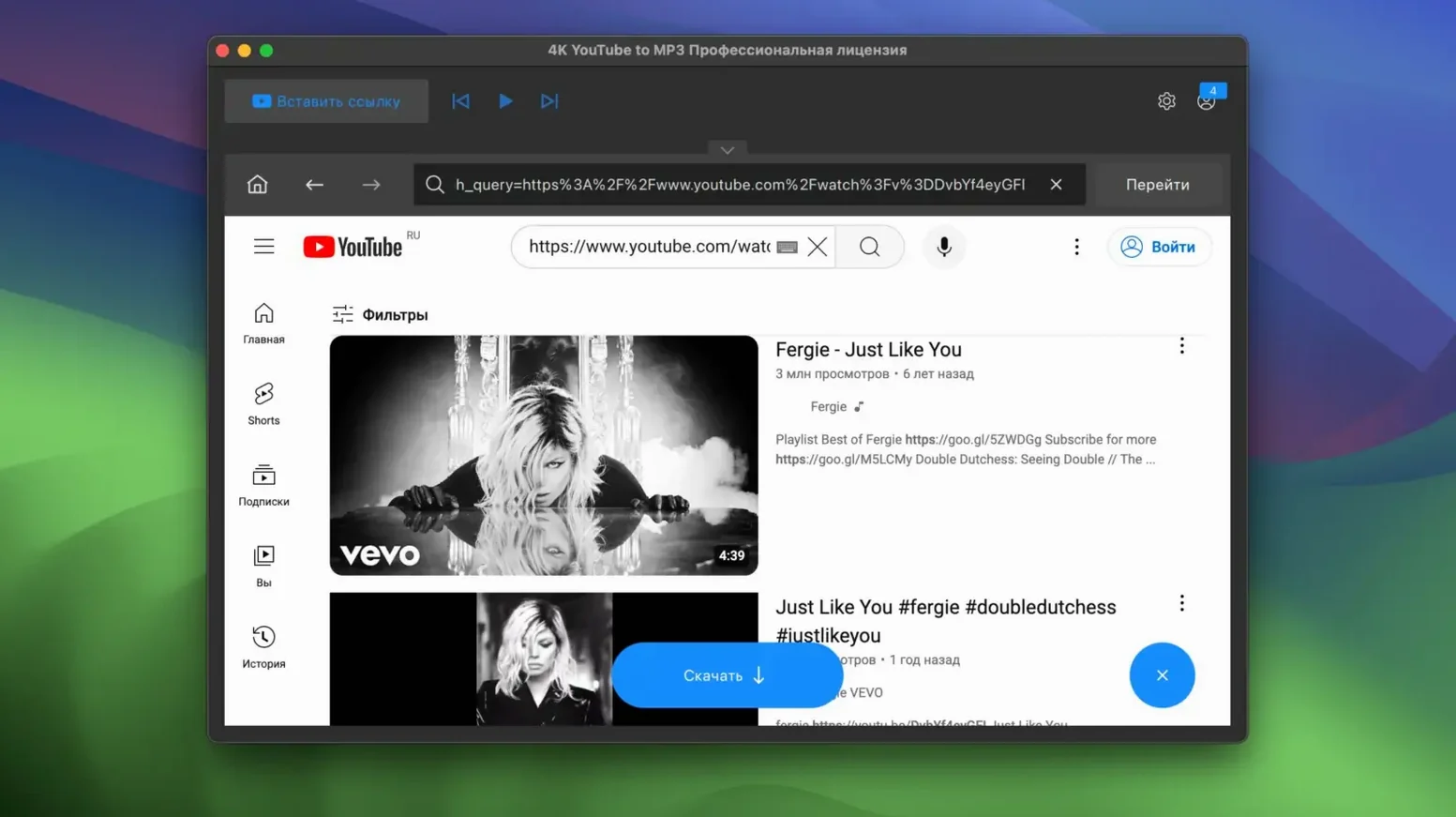
- Direct parsing of YouTube, VEVO, SoundCloud, and Facebook links means no intermediate screen-recording step that degrades the signal before conversion.
- Intel-native architecture on macOS 12 keeps the app light on an older Mac Pro or a rent-to-own Mac mini parked in a machine room.
It is not a swiss-army-knife converter. The focus stays narrow: pull a clean audio file from a URL and get back to the timeline. On a late-night ingest session, that single-mindedness is exactly what you want.
One of the first things worth changing is the output naming template. The default pattern is functional but verbose — artist, track, album, year all smashed into a filename that gets truncated the moment you browse it in Finder. Head into Preferences and set a simpler scheme: Artist – Title is usually enough. While you are there, switch the destination folder to something project-adjacent. The app defaults to ~/Music, which makes sense for casual listening, but for anyone pulling reference tracks or temp audio into a timeline, a per-project directory saves a scavenger hunt later.
Another setting that repays the thirty seconds it takes to find it is the concurrent download limit. It sits at three by default, and on a decent broadband connection you can push it higher without any ceremony. A large playlist pulled at five or six simultaneous connections finishes noticeably faster — useful when a director is waiting in the suite and you are assembling a temp score from a YouTube playlist they just sent over.
The MP3 bitrate slider deserves a mention too. It defaults to 256 kbps, which is a sensible middle ground, but if you are pulling audio for an offline music library that lives on a phone or an old iPod Classic, dropping to 192 kbps saves real space across hundreds of tracks. Conversely, if the source material is quiet, detailed ambient work, pushing to 320 kbps preserves the texture that lower rates can flatten. The difference is small but audible on headphones late at night.
Your clipboard is already being watched for links
The Paste Link button in the toolbar is obvious enough, but the app also watches your clipboard. Copy a YouTube URL anywhere in macOS, switch back, and the link is already sitting in the field. No paste command required. It is the kind of detail that feels invisible after two days and infuriating to lose if you ever use a converter that lacks it.
Dragging a file of URLs is another quiet feature. Save a plain text list of links — one per line — and drop the file onto the app window. It queues every line as a separate download. For a sound designer pulling thirty reference cues from a shared document, this turns a tedious half-hour into a single gesture.
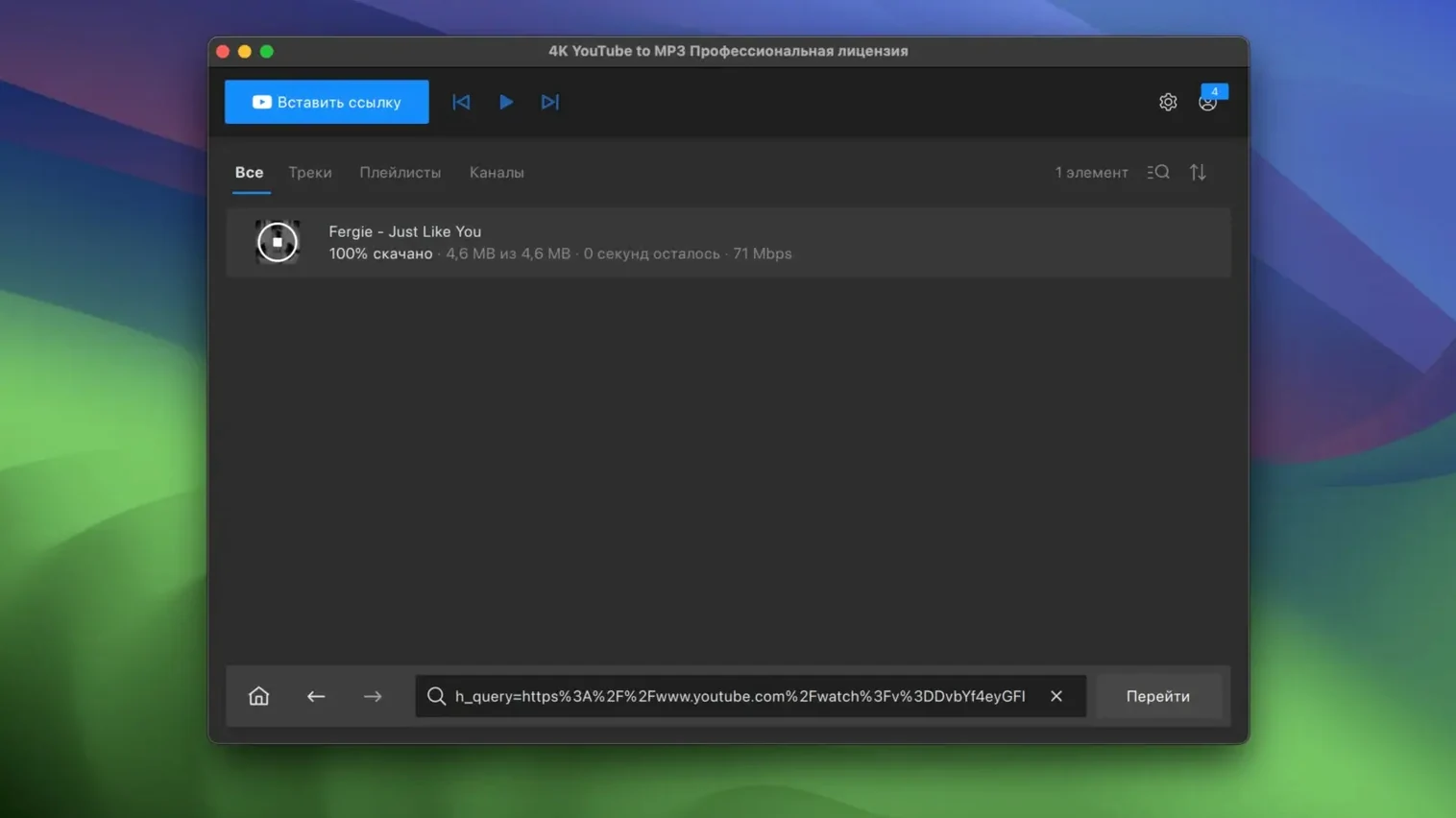
The download queue itself has a right-click menu most people never discover. From it you can copy the source URL of any queued item, which is handy when a download fails and you need to check whether the video was taken down or your connection dropped. You can also remove completed items in one click rather than selecting them one by one.
On the playback side, the built-in preview player is not going to replace VLC, but double-clicking a completed file in the list plays it back instantly. It is a quick way to verify that the conversion caught the whole track — occasionally a long DJ mix or a two-hour ambient stream gets truncated at the source, and catching it before you import saves a confused moment in the edit.
Playlist downloaders and offline library builders
The obvious audience is the offline listener — someone building a local music library from YouTube deep cuts and SoundCloud exclusives that never hit streaming services. For them, the playlist support alone justifies the download. But the app sharpens into something more specific for a few other groups.
Editors cutting trailers or sizzle reels often need a placeholder track that matches a temp score the director described as “that one track from the VEVO live session.” A quick pull into M4A drops straight onto the timeline without transcoding gymnastics. The quality is not final-mix grade, but for a temp track that will be replaced by a licensed version later, it is exactly right.
Language learners who work with podcast-style YouTube content get a different benefit: pulling long spoken-word videos as MP3 files and loading them into a spaced-repetition audio player. The app strips the video weight, leaving only the speech. A ninety-minute discussion roundtable becomes a 90 MB file instead of a 2 GB video download, and it plays in any podcast app without further conversion.
DJs crate-digging on SoundCloud and YouTube for unreleased edits and bootlegs form another natural user base. The ability to point the app at a private SoundCloud playlist — the kind an artist shares as an unlisted link — and pull the whole thing as 320 kbps MP3s means a set list can come together from sources that never touch Beatport.
Default 256 kbps MP3 ruins spoken-word recordings
The most common mistake is trusting the default format for everything. Out of the box, the app saves as MP3 at 256 kbps, and plenty of people never open Preferences to check. That is fine until someone pulls a spoken-word file at the same bitrate as a music track — voice does not need 256 kbps, and the file size is wasteful for a two-hour lecture.
Another early misstep is queuing an entire playlist without checking which tracks are actually available. The app does not pre-flight links; it starts downloading and reports failures as they happen. On a playlist of fifty tracks where eight have been region-blocked or taken down, a beginner watches the queue stall and assumes the app is broken. The fix is simple: scroll the list, spot the red icons, clear the dead items, and resume.
Some users treat the app as a real-time converter and close the window while a large playlist is still running, expecting background processing. It does work in the background, but killing the app mid-queue loses the unprocessed items. The queue is not persistent between sessions — close the app, and the remaining links are gone. For a hundred-track playlist, let it finish or at least note where it stopped.
Finally, beginners sometimes drop a full YouTube channel URL expecting bulk extraction. The app parses individual videos and playlists, not channel indexes. That long list of uploads on a channel page is not a single parseable feed — you need to point it at a specific playlist or individual links. Once that distinction clicks, the workflow smooths out fast.
- macOS 12 or later
- Intel processor