

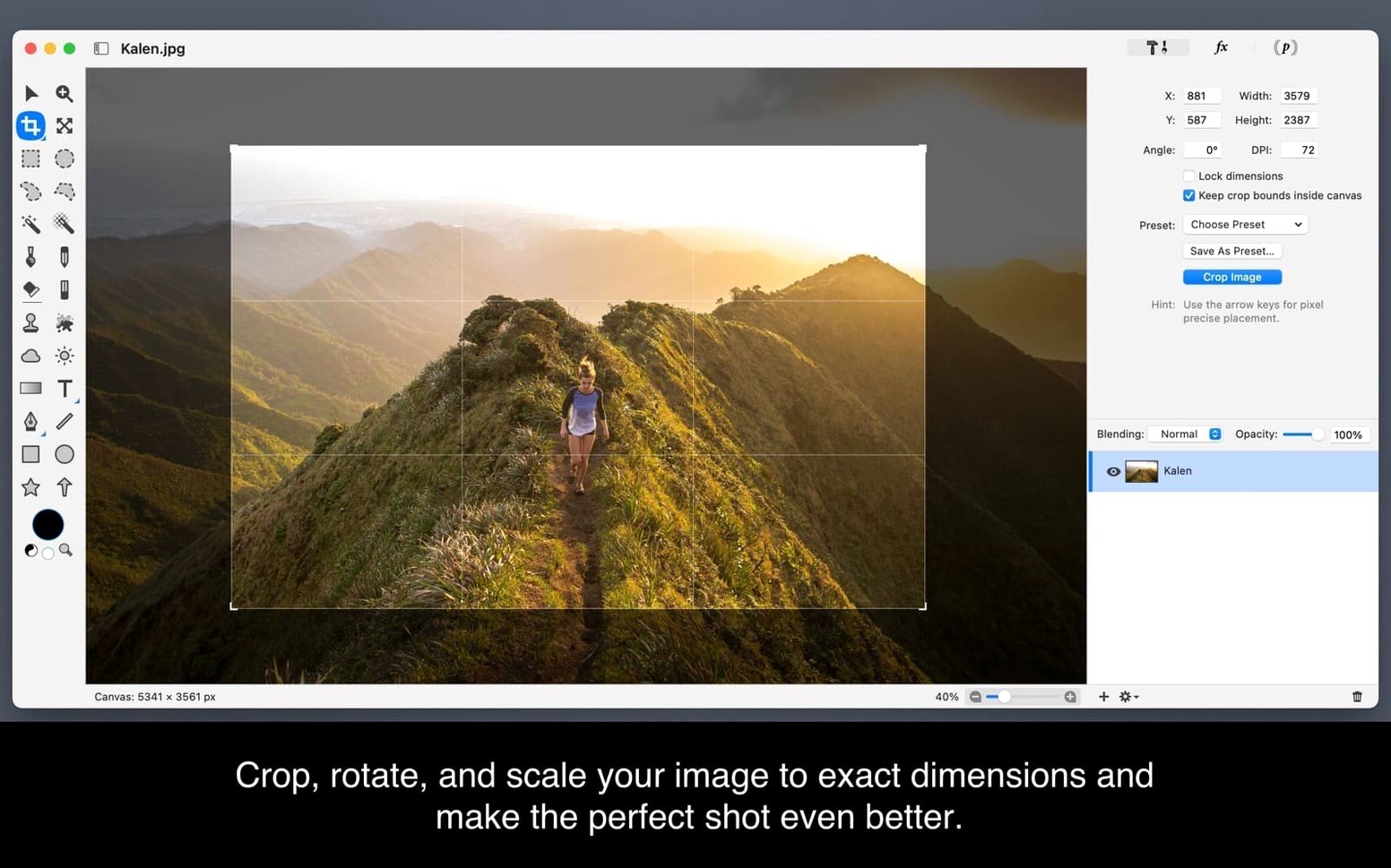
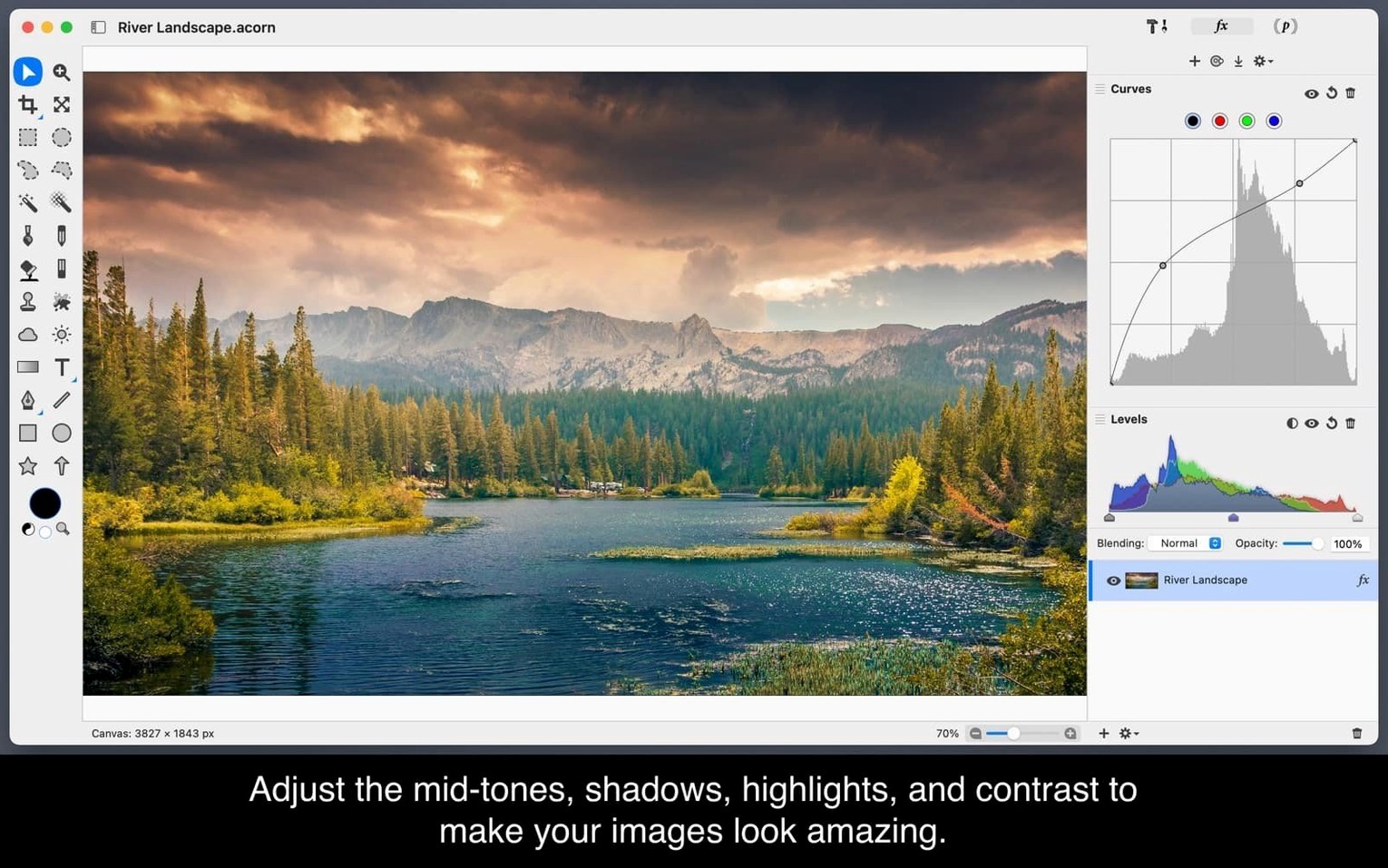
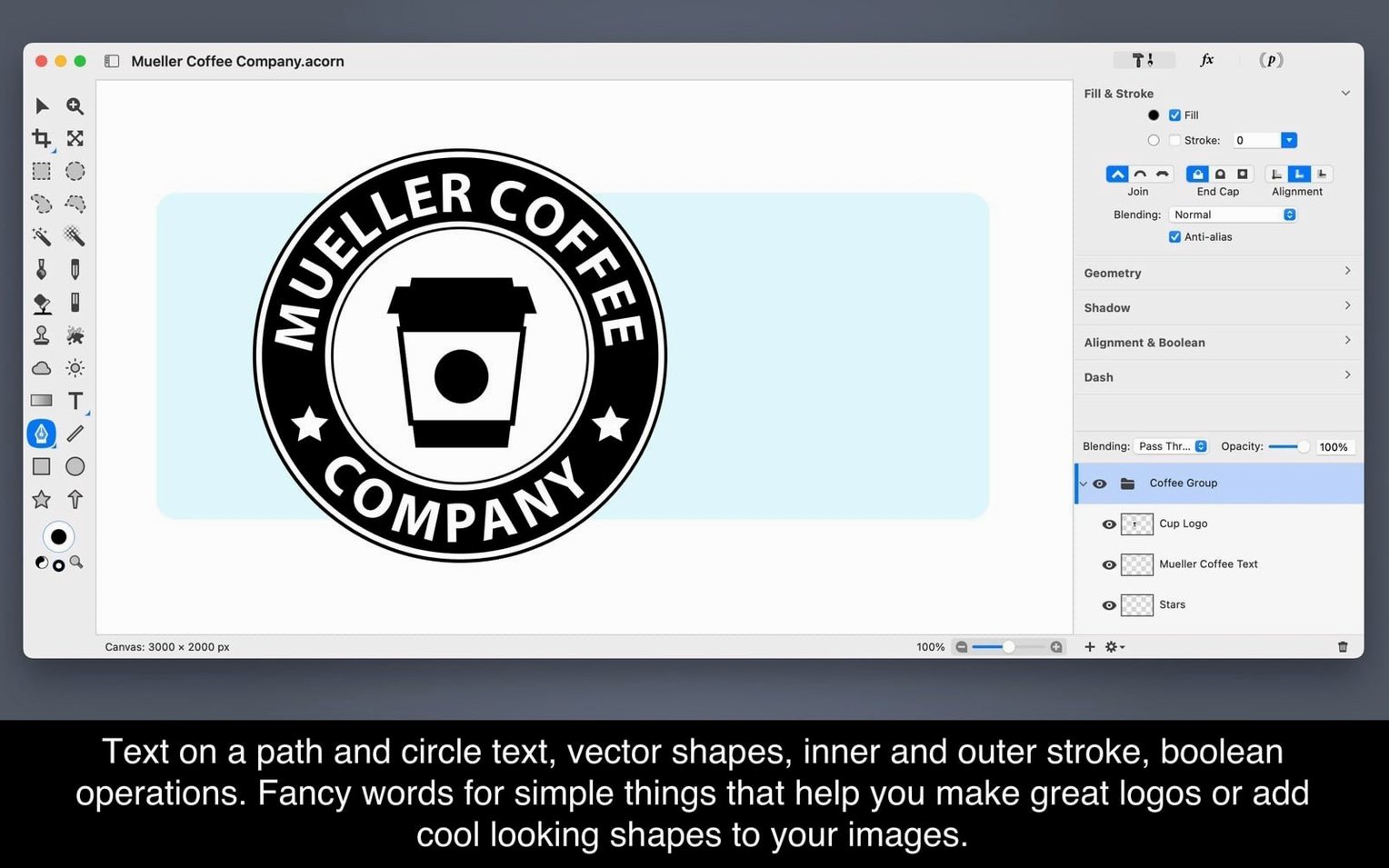
When an image editor feels like an operating system, the simple act of cropping a photo or painting a mask becomes a negotiation. Acorn steps back from that.
Layers — the backbone of any composite, handled with a clarity that makes blending modes and grouping feel explorative rather than technical.
Drawing tools — basic but responsive brushes and shapes that sit comfortably alongside photo adjustments, so a quick sketch and a colour grade live in the same canvas without friction.
Text layers — editable type that stays live, useful for watermarking stills or laying out a title card mockup before it moves to a timeline.
Screenshot editing — Acorn can capture and immediately open a screen, and the toolset is already right there for annotations, crops, or blurring sensitive details.
Fullscreen mode — the interface steps aside, leaving only the image on a black field, which matters when you are judging colour or composition late at night in a dim room.
iSight capture — a small thing, but being able to drop a new layer straight from the camera turns a reference self-portrait into a lighting check or a texture source without leaving the app.
Beginners often reach for Acorn like it is a slimmed-down clone of something larger, and that expectation leads to the first mistake: ignoring the filter chain. Rather than applying a single effect and flattening it, you can stack multiple filters on a layer and reorder them by dragging. Someone new to the app will frequently flatten too early, losing the ability to tweak a blur behind a vignette later. Another early misstep is overlooking vector shapes as masks. Drawing a rectangle and then using it to clip a photo layer is faster than painting a mask by hand, but the option sits quietly in the layer menu, not in a pop-up tutorial. And because the canvas does not nag you with warnings, a beginner sometimes works at screen resolution, then wonders why a print layout looks soft — setting the canvas to a higher DPI from the start is a habit worth forming.
A nimble middle ground between markup and full editor
Acorn works best as a nimble middle ground between a quick markup utility and a full pixel editor. I treat it as the place where screenshots from a rough cut, reference frames, and texture sketches land before they move elsewhere. A screen capture comes in, gets annotated and cropped in acorn for mac, then drags straight into Final Cut Pro or DaVinci Resolve as a still. The app also plays well with Finder’s Quick Actions: right-click an image, choose Open in Acorn, and you are editing without a file dialog. For heavier compositing work, I might send a layered file to another editor as a flattened TIFF, but for the quick turnarounds — a poster comp, a colour-adjusted frame grab, a social cutdown of a film still — the app stays open all day. Paste a clipboard image from another app, and it arrives as a new layer in the open document, which makes the macOS clipboard feel more like a conveyor belt between creative tools.
Filmmakers and timeline thinkers settle in fastest
Three kinds of Mac users tend to settle into acorn macos without looking back. The first is the filmmaker or motion designer who already lives in a timeline-based app and needs a still-image editor that does not feel like a separate career path. They are not building multi-hour retouch sessions; they are pulling keyframes, adjusting colour balances, and laying out title cards, then getting back to the edit. The second group includes technical writers and developers who edit screenshots constantly. The app’s annotation tools and object-based selection become muscle memory faster than in bulkier suites, and the absence of a splash screen or workspace selector keeps the momentum. The third group, less obvious, is the musician or sound designer who occasionally needs album art, waveform-inspired textures, or a layered promotional still. Acorn’s gradient editor and blend modes give them a visual playground that feels closer to an audio effects chain than a traditional image editor, and that mental translation keeps them inside a creative flow rather than pulling them out of it.
Acorn 8.7.1 arrives with the developer's latest round of fixes and refinements. Full release notes are published on the official site.
- macOS 14 or later
- Apple Silicon or Intel 64-bit
Questions from the booth
Acorn 8.6.3 requires macOS 14 or later and runs natively on both Apple Silicon and Intel Macs.