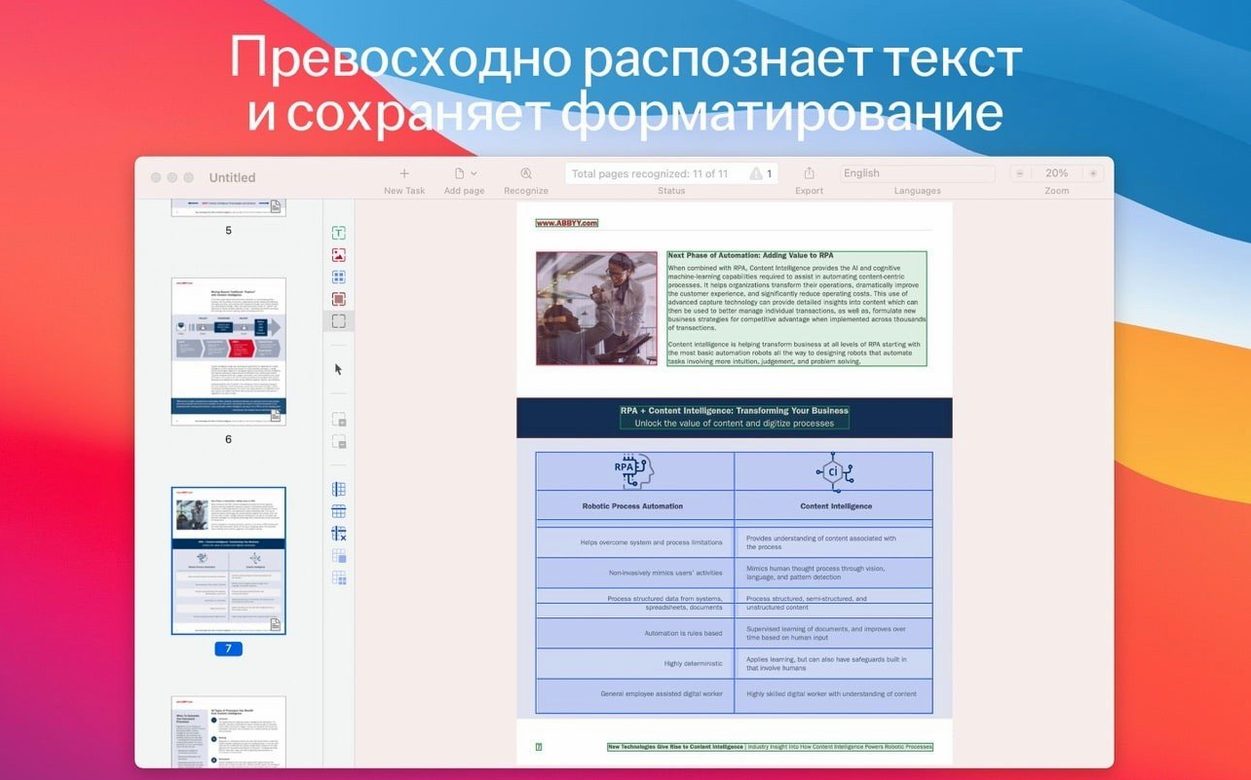
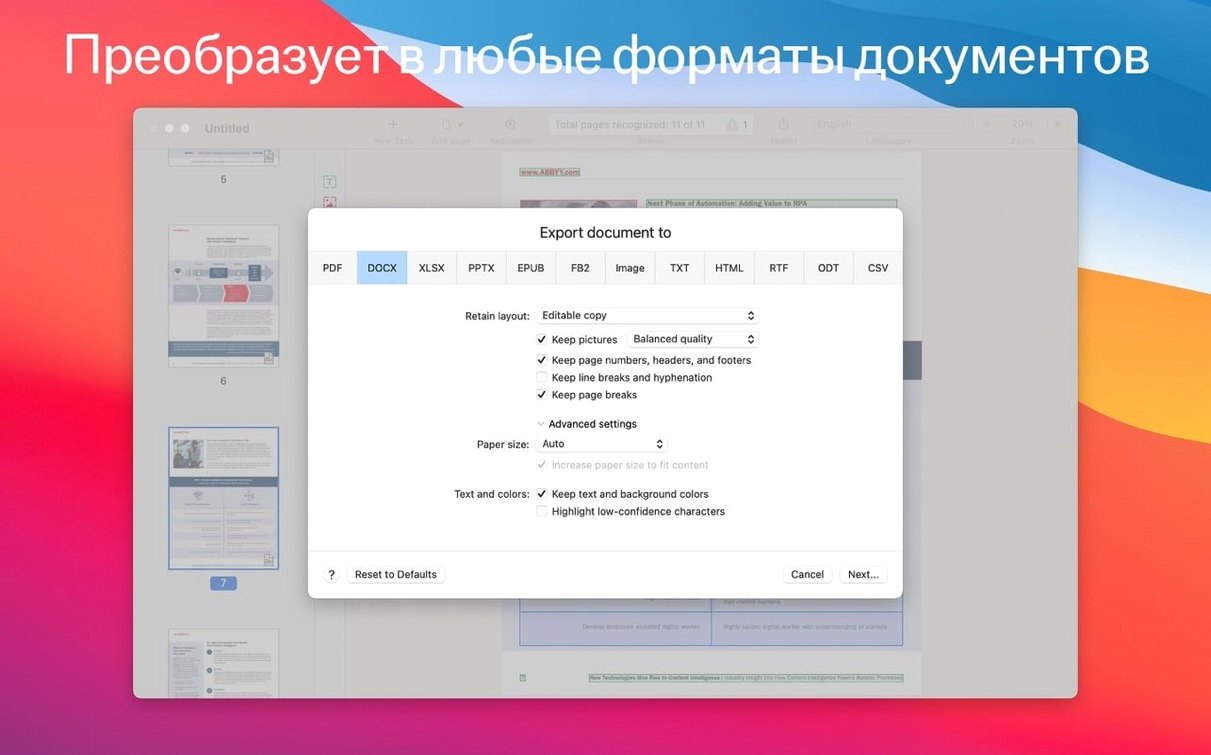
A stack of paper on a desk is just dead weight until you can get the words moving again—into a script draft, a contract revision, or the searchable archive you promised yourself you'd build. ABBYY FineReader PDF for Mac is built for that moment. It lifts text and tables out of locked PDFs, flatbed scans, and even iPhone snapshots, then hands them back as DOCX, XLSX, RTF, or ODT files you can actually use.
Importing old scans and rescuing trapped tables
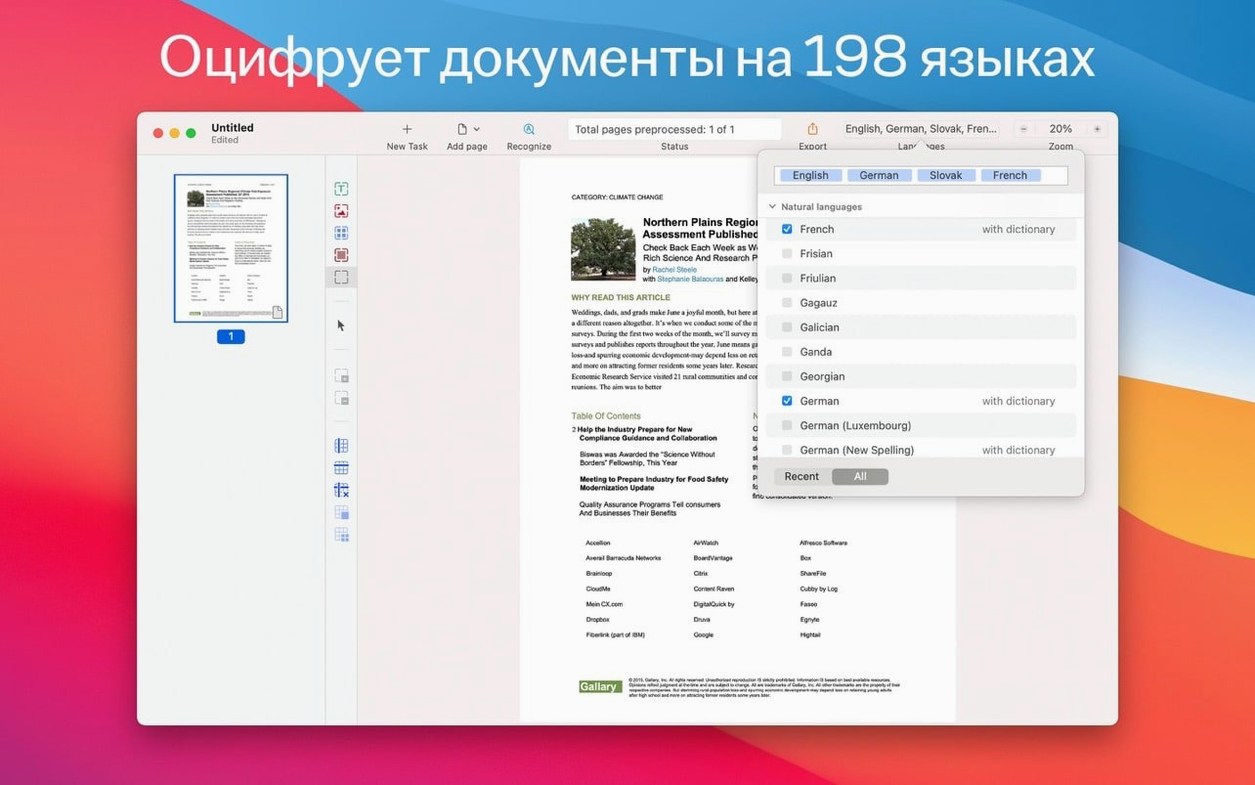
- Will it read my old scanned scripts? Yes. The app supports 198 recognition languages and can import images you've previously captured on an iPhone or iPad.
- Can I fix a table trapped inside a PDF? The OCR editor mode lets you edit text and tables directly on the page, so you're not just extracting—you're correcting.
- Does it create accessible documents? FineReader can generate PDF/UA files designed for universal access, alongside standard searchable PDFs.
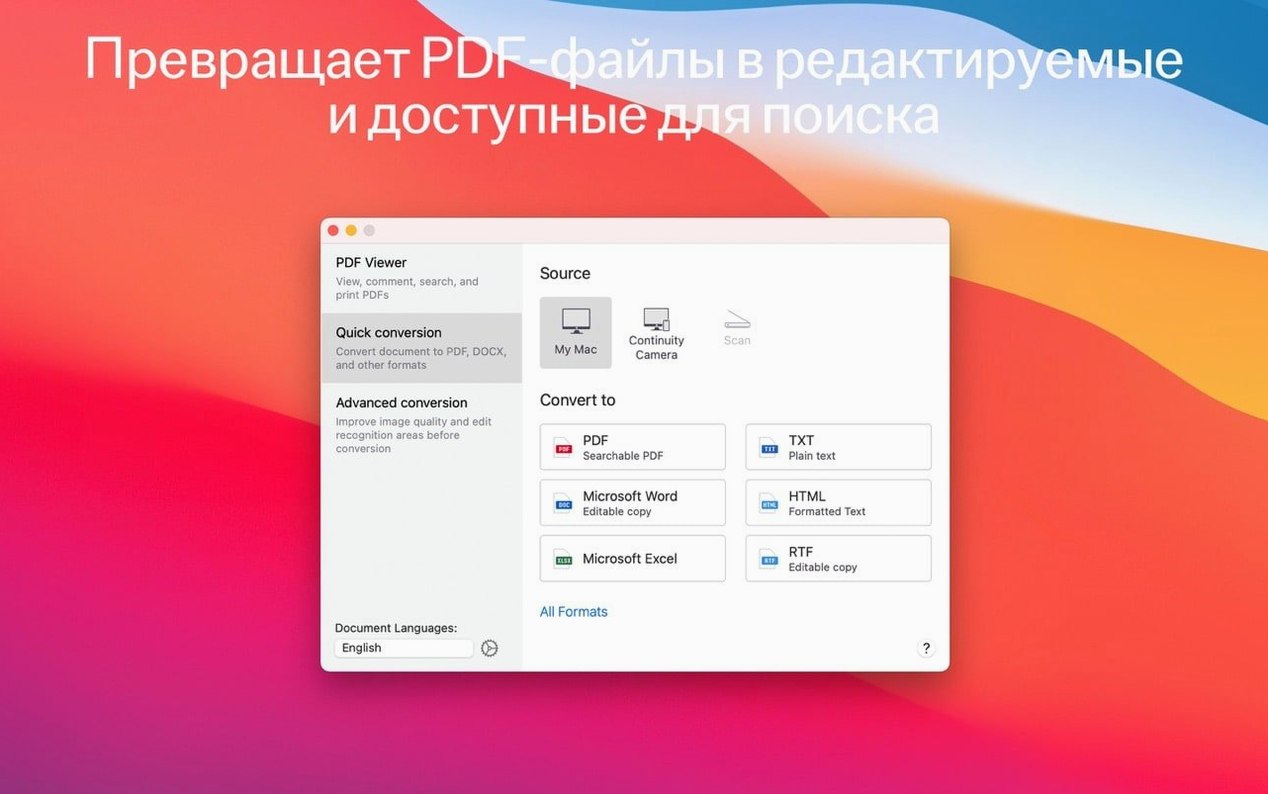
- Is it a reader, too? A built-in PDF viewer and dark mode support mean you can review, mark up, and convert without leaving the app.
Why the recognition engine matters
Accuracy at this level isn't just about fewer typos. It's about keeping the rhythm of a paragraph intact so you're not rebuilding formatting from scratch. When a tool knows 198 languages, it's also less likely to stumble over mixed-language documents—a production bible with French location notes, a bilingual contract, a research paper quoting sources in German and Simplified Chinese. The app reads them in place without breaking stride, which is the difference between a rough draft and a working file.
Mistakes that quietly wreck your first few scans
Most people open FineReader, point it at a document, and assume the software will sort out the rest. It will, mostly—but a handful of small decisions in the first minute determine whether you get a clean DOCX or a formatting headache you'll spend an afternoon untangling.
The biggest misstep is leaving the recognition language set to its default instead of matching what's actually on the page. If you're scanning a German legal brief with English citations scattered through the footnotes, the engine needs to know both languages are present. You set this in the document language panel before recognition runs—the app won't guess correctly on its own, and a monolingual setting will garble the minority-language passages into nonsense characters.
Another common one: scanning at too low a resolution for the text size. Two hundred dpi works for clean laser-printed pages with twelve-point type, but anything smaller—footnotes, margin notes, the fine print on a medical form—demands three hundred at minimum. The app can't recover detail that was never captured. If your source is a faded thermal fax or a third-generation photocopy, bump it higher still and let the despeckle filter clean up the noise afterward.
People also tend to ignore the image preprocessing controls entirely. A page photographed under warm office lighting will carry a yellow cast that tricks the binarization threshold. Dragging the brightness slider a few points to the right before recognition often doubles accuracy on phone-captured documents. The same goes for deskewing—FineReader does it automatically, but pages with curved distortion near the spine of a bound book need manual correction. The perspective tool lives under the image editor toolbar, and spending forty seconds on it saves twenty minutes of post-conversion editing.
Finally, there's the urge to export immediately to DOCX without checking the recognized text layer against the original scan. The verification mode highlights low-confidence characters in blue. Running your eye over those highlights once—just once—before exporting catches the few places where even a strong recognition engine hesitates, and you'll stop blaming the software for errors that were flagged for you all along.
Turning a faded photocopy into a searchable contract in minutes
It's late morning and you've just come back from a production meeting with fifteen pages of marked-up script revisions and a faded photocopy of a location agreement from 2006. The photocopy is the urgent one—you need to find a specific clause about noise restrictions before the location scout calls back.
You open FineReader and the app presents its PDF viewer by default. You're not reading today, so you switch to the OCR editor. The document is already on your desk, so you pick up your phone and use Continuity Camera—the app triggers the iPhone camera directly, and you snap the three pages in sequence. They appear in FineReader's workspace as a single multi-page document.
Before recognition, you pause to check the preprocessing. The third page has a heavy shadow from the fold crease. You open the image editor, apply the despeckle filter to soften the photocopy grain, and manually adjust the contrast threshold until the text lifts cleanly from the grey background. You set the recognition language to English and, because the agreement has a paragraph of French legalese near the bottom, you add French as a second language. Two clicks.
You run recognition. The pages process in under twenty seconds. Blue highlights flicker across a few ambiguous characters—mostly where the crease crossed a descender. You tap through them, correcting a g that read as an s and an accented é that the engine wasn't confident about. The table of permitted hours near the end rendered perfectly, rows and columns intact.
Now you export. You want a searchable PDF for your archive and a DOCX so you can pull the noise clause into an email. The PDF gets saved as PDF/A for long-term storage; the DOCX opens in Pages and the clause text copies out cleanly. The whole session, from first camera snap to pasting the paragraph into your reply, ran just under five minutes.
Continuity Camera quietly replaced the scanner warm-up cycle
Version 15 brought Continuity Camera support, which changed everyday use more than any feature listed in the release notes. Before this, getting a paper document into FineReader meant finding a scanner, waiting for a warm-up cycle, and dealing with whatever driver the scanner remembered to install that morning. Now the phone in your pocket is a decent document camera, and the import happens over the same handoff mechanism you'd use for a photo. The practical result is that people run OCR on things they'd never have bothered scanning before—a receipt, a handwritten note, a page of a library book.
Dark mode arrived in the same release cycle. For anyone who spends hours in the verification editor, correcting blue-highlighted characters against a scan, the darker interface reduces the low-grade eye fatigue that accumulates when you're comparing two bright white fields side by side. It's a small thing on a feature list, but it's the kind of change you notice the first time you work past ten in the evening and don't feel the usual screen hangover the next morning.
Under the hood, the recognition engine has been tuned for mixed-language documents in ways that matter for anyone working with abbyy for mac in a multilingual environment. Earlier versions could handle multiple languages if you specified them, but the engine would occasionally apply the wrong language model to a short phrase, especially at language boundaries. The current build holds context better—if a German paragraph ends with a three-word English citation, the engine is less likely to force German spelling rules onto those words. For legal and academic users who deal with documents that switch languages mid-sentence, this is the difference between a proofread and a rewrite.
Lock in your language profile before the first scan
The defaults are reasonable, but a few preferences reward early attention.
Recognition language. Set it to match your most common working language, and add any secondary languages you encounter regularly. You can save these as a profile, so switching between an English-only setup and an English-plus-French configuration is a single menu selection rather than a multi-step adjustment every session.
Output format defaults. FineReader defaults to DOCX for text exports, but if you're regularly feeding documents into a translation tool or a layout application, switching the default to RTF or ODT can save you a conversion step downstream. The setting lives under Preferences, and the app remembers it across sessions.
PDF/A and PDF/UA creation. These aren't enabled by default—they're export options you choose each time. If your workflow includes archiving or accessibility compliance, set them once in the export profile and forget about them. A searchable PDF is useful today; a PDF/A file will still open in twenty years, which matters more than most people think until they try to read a ten-year-old document in a format their current software no longer supports.
Image resolution for iPhone imports. Continuity Camera uses your phone's default capture resolution, which is usually higher than you need for text and produces unnecessarily large files. In FineReader's import settings, you can cap the capture resolution at three hundred dpi. Your recognition accuracy won't suffer, and your document sizes will drop by more than half—particularly noticeable if you're batch-processing a stack of pages.
Verification highlights. By default, low-confidence characters appear in blue. You can change this colour under Accessibility preferences if blue doesn't stand out against your usual document backgrounds, or if you're working in dark mode and want a higher-contrast highlight.
- macOS 11 or later
- Intel processor