
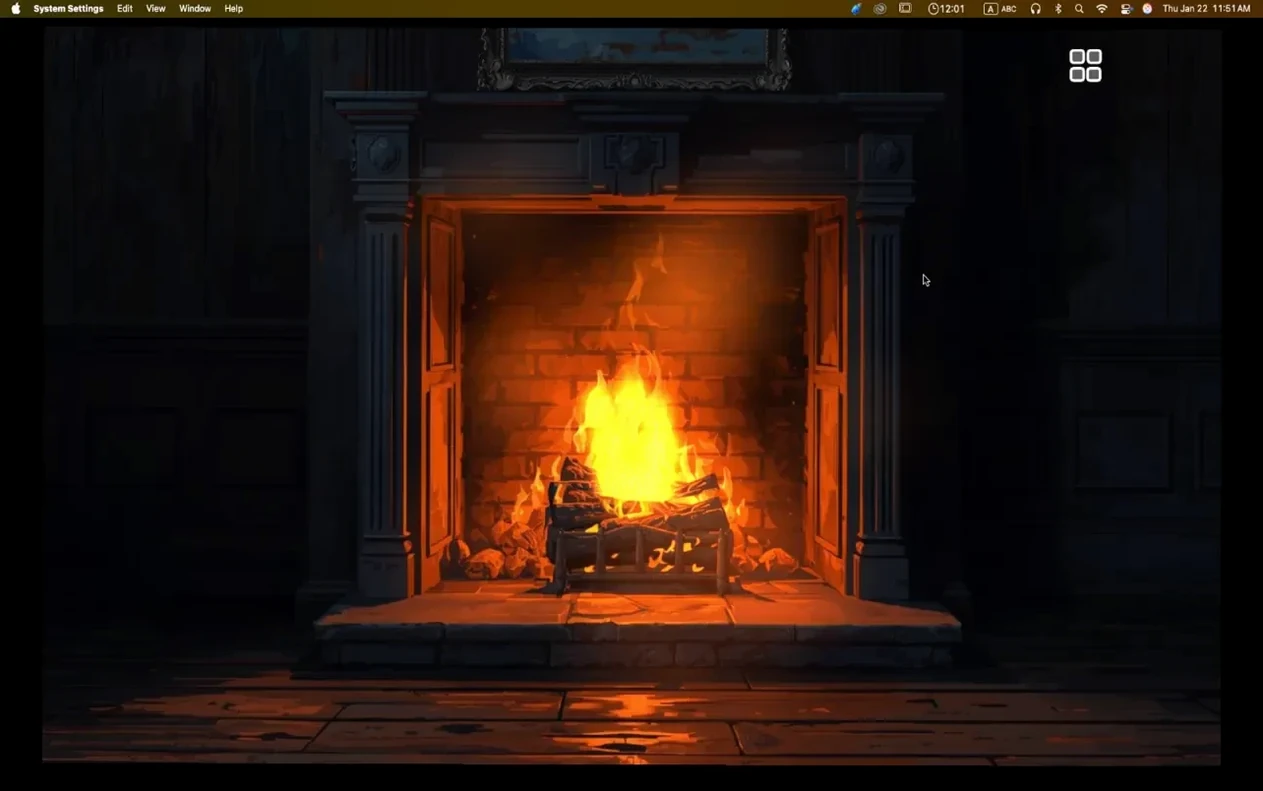
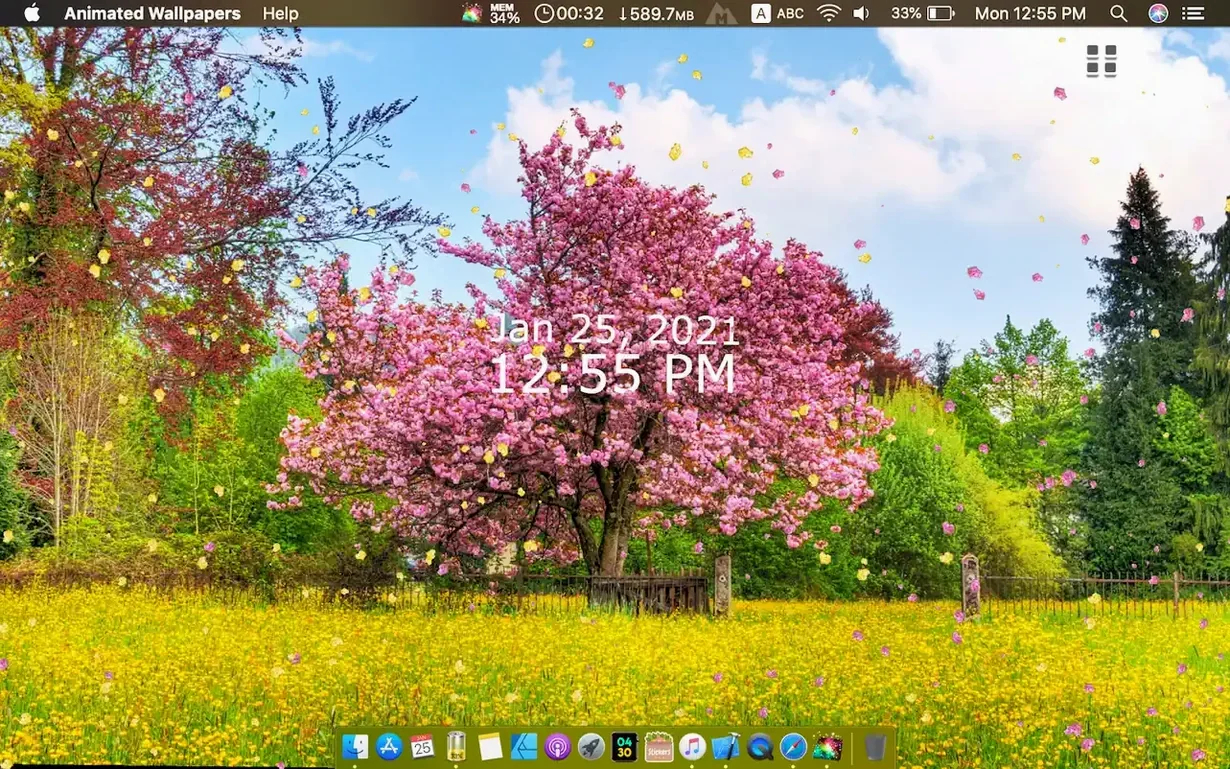
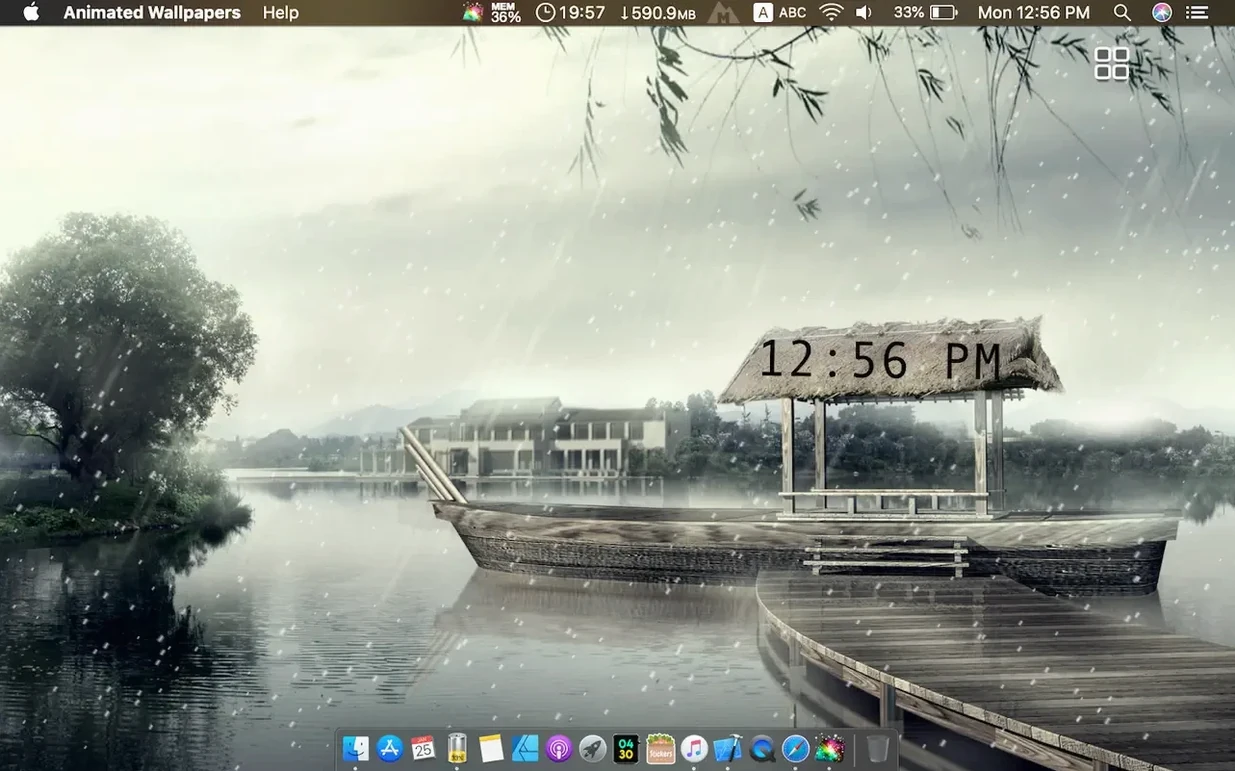
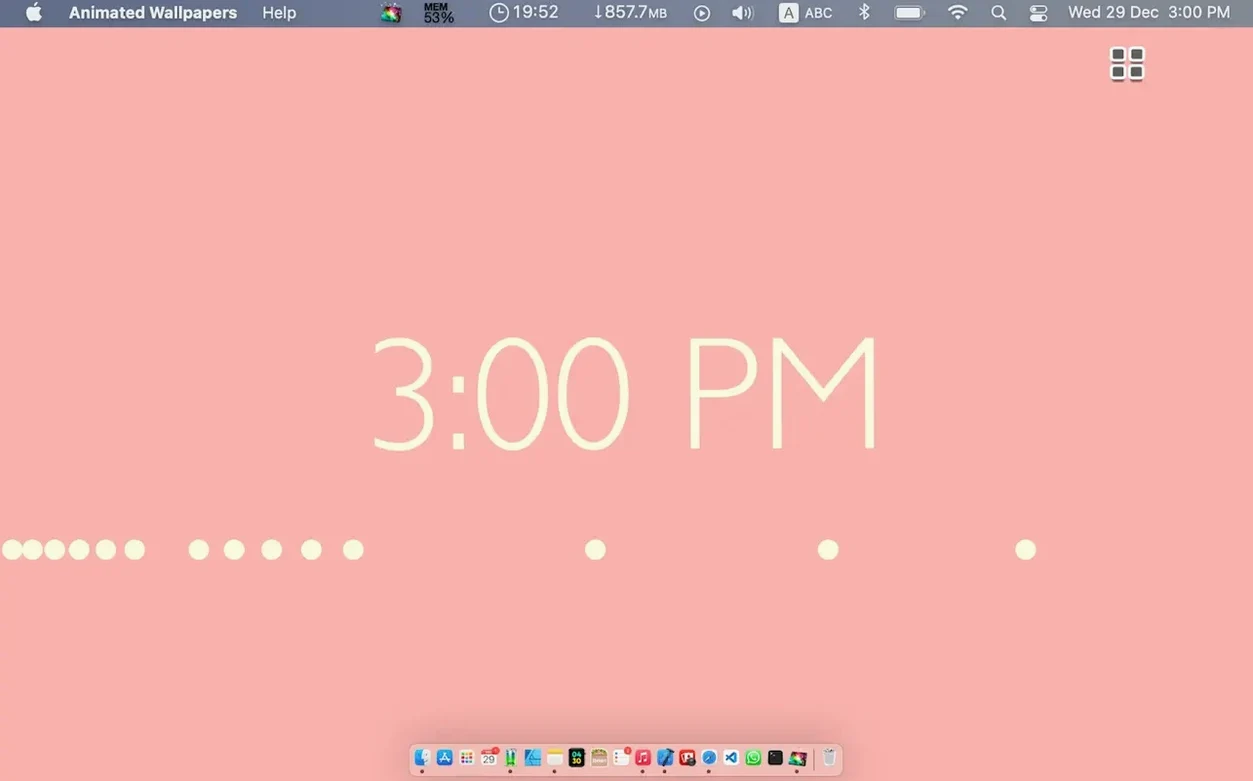
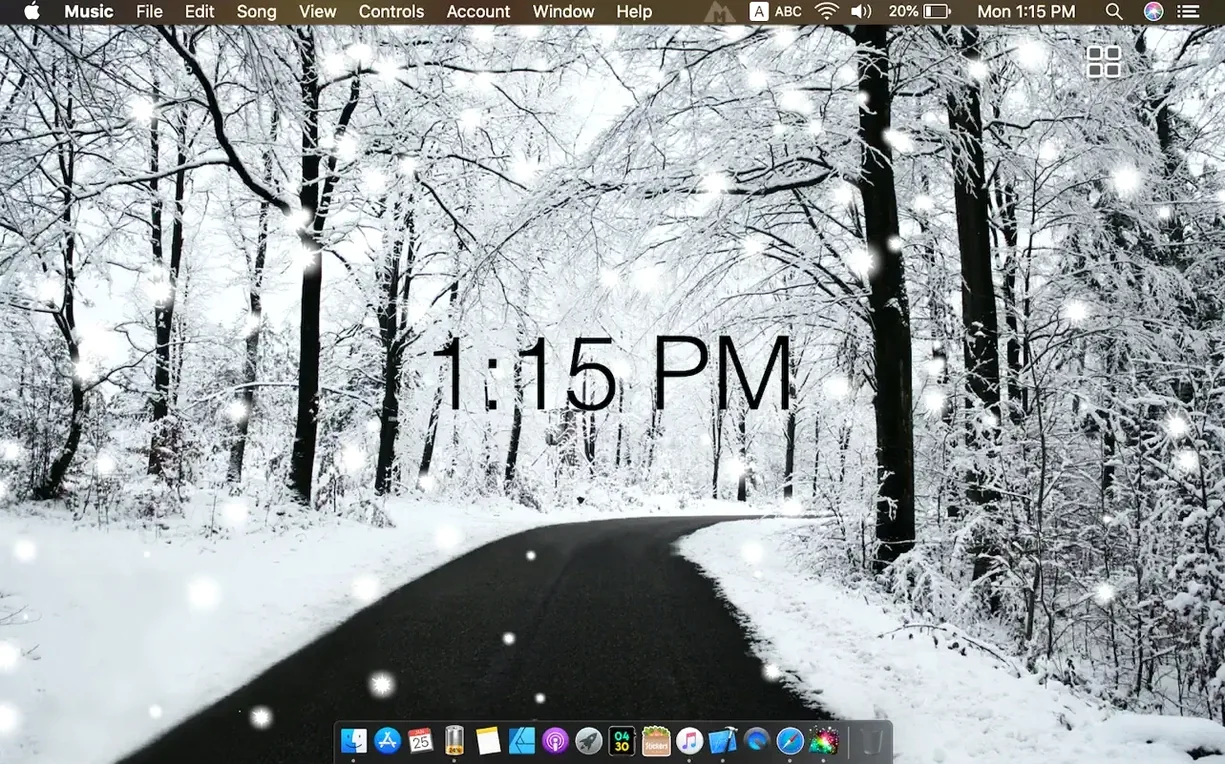
Animated Wallpapers is a Mac desktop personalization app that brings your screen to life with motion. The 20 included scenes cover nature, space, and other themes, each playing in a loop behind your icons. For a first impression, open the app and cycle through every wallpaper at least once—watch how the aurora drifts or how the forest shadows shift. Then try hiding your desktop icons, letting the animation breathe. Finally, enable the desktop clock overlay to see how the time reads against the moving backdrop.
Pick a theme and let it run
Space scenes tend to feel more meditative, nature ones busier. Find the one that matches your mood for the day. The app keeps running in the background, so you can leave it on while you work or browse.
Pair the clock with a calm wallpaper
How it sits alongside other Mac wallpaper apps
Compared to something like Plash, which lets you set a live website as your desktop background, Animated Wallpapers is more contained. Plash gives you the whole web as your canvas, but it also means you’re managing a browser instance in the background, and the result can feel more like a window than a wallpaper. Animated Wallpapers, by contrast, offers a curated set of loops that play natively, so there’s no buffering, no address bar, just the motion. It’s closer in spirit to Wallpaper Engine on Windows, though the Mac version of that tool requires you to run a separate store client. Animated Wallpapers keeps everything inside one compact app, and the included clock and icon-hiding features mean you don’t need to install extra utilities to clean up your desktop. For someone who just wants a few good loops and a tidy screen, it covers the ground without the overhead.
Remembers your last wallpaper on restart
The jump to 1.0.24 brought a few refinements that save small frustrations. The app now remembers which wallpaper you had selected when you quit, so you don’t have to scroll back through all 20 scenes on restart—a detail that matters if you’ve settled on a favourite. The clock overlay also received a subtle alignment fix; earlier versions could place the time slightly off-centre on certain ultrawide displays, and that’s been reigned in. If you update from an older build, the first thing you’ll notice is that the animations feel a bit smoother during the first few seconds of the loop, likely due to a tweak in the rendering cycle. No new wallpapers were added, but the existing ones run without the occasional micro-stutter that some users reported on machines with integrated graphics.
Hide desktop icons first to see the animation clearly
Most first-timers forget to hide their desktop icons before judging a wallpaper. The thumbnail in the app window never shows how the real desktop looks, and if your screen is crowded with files and folders, the animation gets lost behind them. Hide the icons first, then decide if the loop works for you. Another common slip is leaving the desktop clock on by default without checking its opacity. The clock is large by design, and against a bright wallpaper it can dominate the screen. It has a transparency setting—dial it down to around 30 percent and it’ll feel like a subtle overlay rather than a second layer of interface. The third mistake is assuming the app will quit cleanly if you close its window. It runs in the background after you dismiss it, so the wallpaper keeps going. To truly stop it, you need to right-click the system tray icon and choose quit. A few people have also tried to add their own video files by dragging them into the app, which isn’t supported—the 20 wallpapers are the full set, and there is no import function. Stick to cycling through what’s there, and you’ll find one that sticks.
The desktop clock works best when the wallpaper isn’t too chaotic. A slow nebula or a quiet forest loop keeps the time readable without distraction.
- macOS 10.11 or later
- Intel or Apple Silicon
Questions from the booth
The app includes 20 animated wallpapers covering nature, space, and other themes.
Yes, the app includes a feature to hide desktop icons, giving the animation a cleaner view.
The app requires macOS 10.11 or later and works on both Intel and Apple Silicon Macs.