With version 15, UniConverter quietly broadened its reach, stepping back to support OS X 10.11 while also shipping a native ARM build for Apple Silicon. That dual-footprint means the same installer covers a decade of Mac hardware without a second thought.
Slots into El Capitan and later without forcing an OS upgrade
Yes. The official minimum is OS X 10.11 El Capitan, and the app includes a 64-bit Intel binary. If your machine has been kept on a legacy OS for compatibility with other studio tools, UniConverter will slot in without forcing an upgrade.
Does it work natively on Apple Silicon?
It does. The current build includes an ARM-native slice, so M-series chips run the conversion engine directly. Batch HEVC transcodes feel responsive, and the interface doesn’t lean on Rosetta for the heavy lifting.
From 159-format conversion to DVD ripping and DRM removal
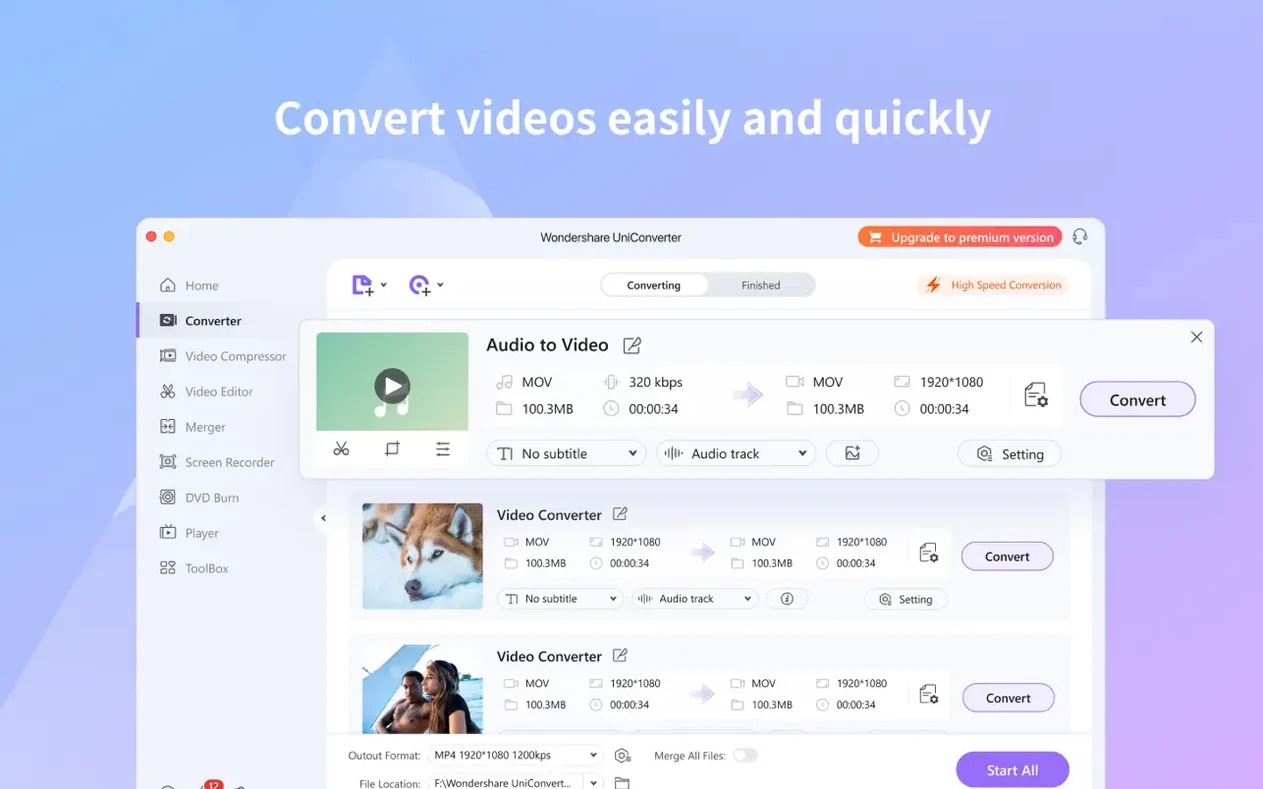
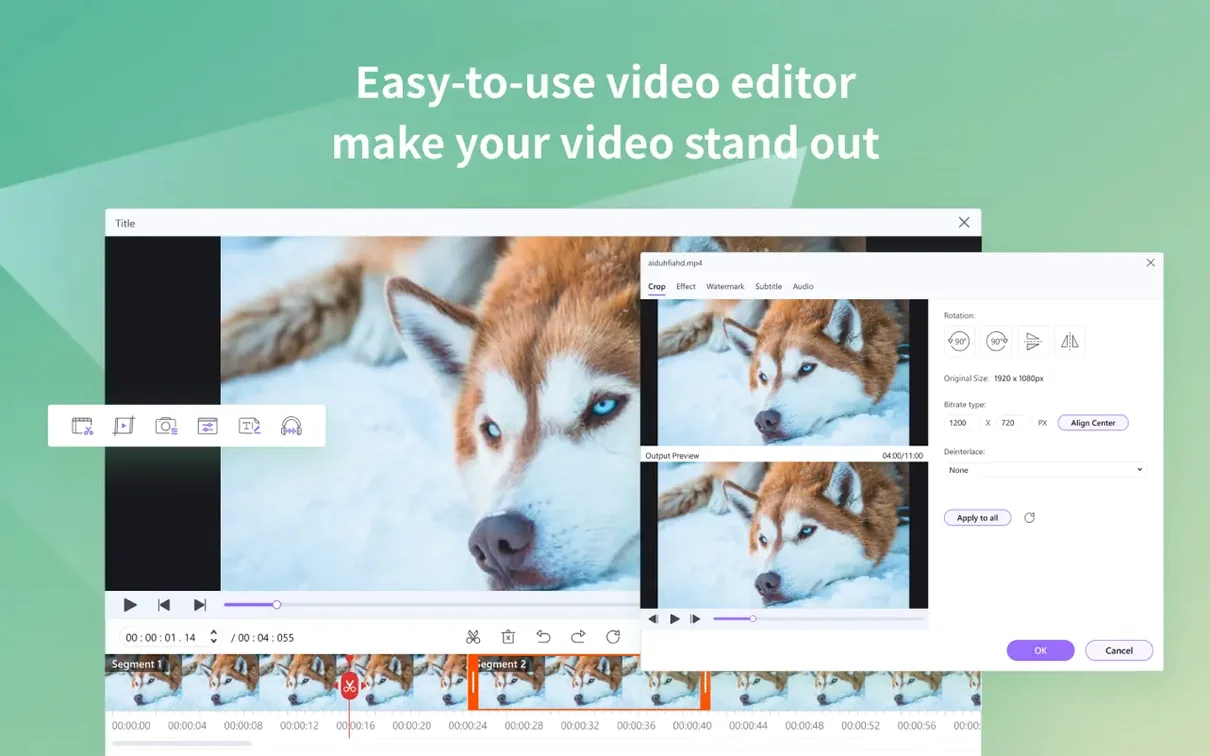
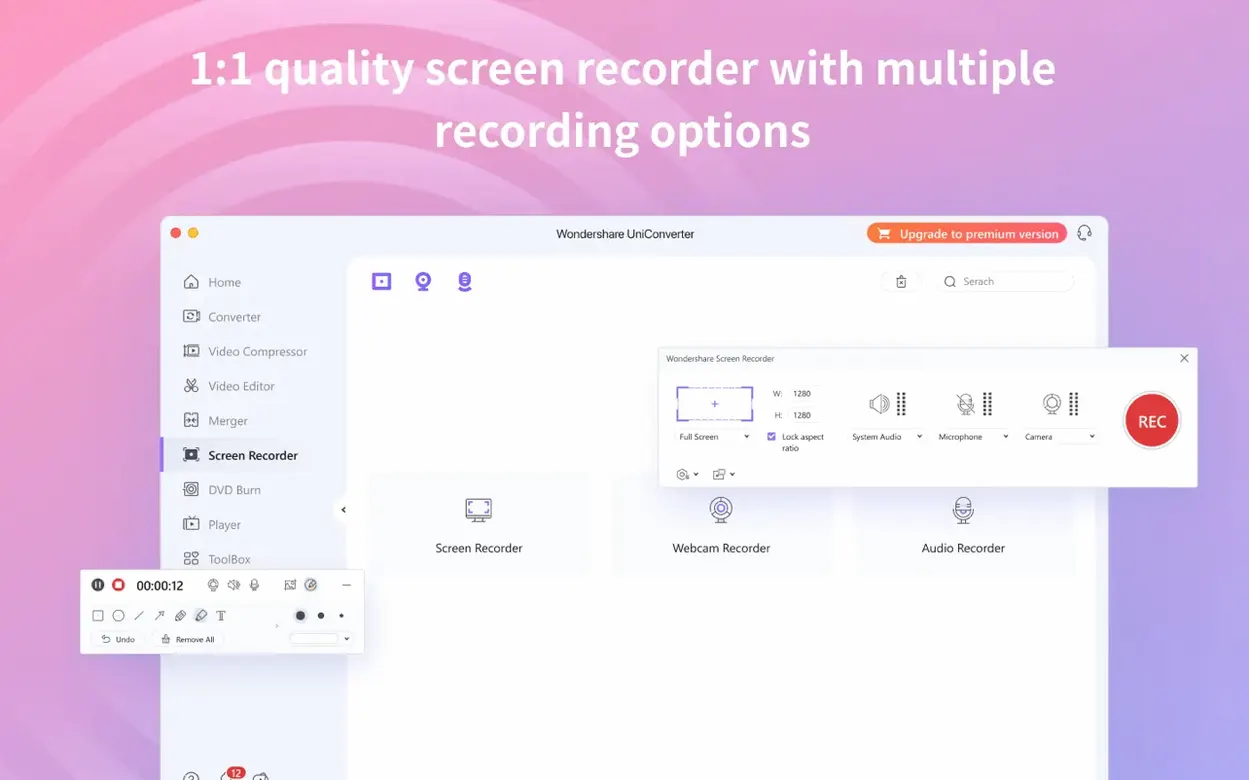
Beyond conversion across more than 159 formats, UniConverter handles DVD ripping, online video downloads, basic trimming and cropping, DRM-protected file conversion, and direct transfer to an iTunes library with metadata intact. It’s a broad set aimed at the moment a project needs a specific codec or a clean screen recording without switching between four utilities.
Archival footage wrangler for editors juggling AVI, DVD, and MP4 sources
Documentary editors working with archival footage from a dozen different sources tend to live in this app. One clip arrives as an old AVI, another as a DVD rip from a university library, a third as an HD MP4 from a contributor’s phone — and UniConverter eats all of them without complaint. The batch queue becomes a kind of ingestion station where everything lands, gets normalized to ProRes or H.264, and emerges ready for the timeline. No one wants to babysit individual conversions when there’s an assembly cut due.
Educators and presenters who regularly pull clips from YouTube or Vimeo for lecture use find the downloader module cuts out the middle step of hunting for third-party browser extensions that may or may not survive the next macOS update. You paste a URL, pick a resolution, and the file lands on your drive. It’s a small thing, but it collapses a task that otherwise sprawls across a web service, a separate converter, and a manual trim.
Musicians extracting stems or reference audio from video files also benefit — especially from the audio extraction tool, which pulls AAC, MP3, or WAV tracks directly from MKV or DVD sources. If you’ve ever needed to isolate a section of a performance from a concert DVD, that workflow alone justifies keeping the app around.
A 30-minute 4K HEVC file transcoded in under seven minutes on an M1 Air
On an M1 MacBook Air, a thirty-minute 4K HEVC file transcoded to H.264 in just under seven minutes with the ARM-native engine. That’s not quite hardware-accelerated HandBrake territory, but it’s close, and UniConverter adds the convenience of format presets labelled in plain English rather than codec shorthand. The GPU graph stayed moderate throughout — no thermal throttling, no fan spin-up on the Air at all.
Memory use hovers around 400 to 600 MB during batch jobs, climbing slightly when previewing video in the editor pane. On an older Intel iMac running El Capitan, the same transcode took longer but never crashed or beachballed, which is notable for third-party software on a system that age. The app’s stability under sustained batch loads feels like a product of its long development tail — version 15 carries years of bug fixes, and it shows in mundane ways, like the queue not silently dropping files when a source path contains a special character.
One mild friction point: the interface redraws a little slowly when switching between modules on integrated graphics, particularly on pre-Retina Intel machines. It’s cosmetic, but if you’re flicking between the converter, downloader, and DVD tools rapidly, there’s a half-beat lag that reminds you this is a thick application, not a lightweight utility.
Point the default output folder at your project media pool first
Before you convert anything, open Preferences and set your default output folder to something specific. The app defaults to a Wondershare folder inside your Movies directory, which is fine, but if you’re dropping files into a project’s media pool, pointing it there from the start saves renaming and relocating later.
Next, spend ten minutes building two or three custom presets that match your editing codec of choice. The preset editor is tucked under the format dropdown, and once saved, your ProRes 422 or H.264 1080p settings sit at the top of the list permanently. This small act of setup turns conversion from a dialogue-box negotiation into a one-click affair.
If you work with DVDs, test the DVD loader on a disc you know well before you need it for a deadline project. The app’s disc-reading behaviour varies slightly depending on your optical drive model, and confirming that a given disc mounts and enumerates its titles correctly is better done on a quiet afternoon than at two in the morning with a client waiting.
Finally, toggle the “Add to iTunes” option off unless you genuinely use the Music or TV apps for media management. It’s enabled by default and will happily populate your library with transcoded files you only meant to keep in a working folder.
Designed to feed Final Cut or Resolve bins from a shared output folder
UniConverter doesn’t try to replace your NLE — it feeds it. A typical workflow sees it sitting in the Dock next to Final Cut or DaVinci Resolve, with files dragged out of the output folder straight into a bin. The codec library bundled with the app also supplies native iMovie and Final Cut codecs, which means files that would normally trigger a proxy-generation step can sometimes drop straight onto the timeline without a transcode pass inside the editor itself.
Finder’s Quick Look integration works for most output formats once the file is written, so you can tap the spacebar to preview a conversion without opening anything. That’s a small macOS nicety that UniConverter respects by writing clean, well-structured files rather than proprietary wrappers.
For users who grab a wondershare uniconverter mac free download and intend to run it alongside HandBrake or Permute, the apps coexist without conflict — UniConverter reads HandBrake’s output formats without issue, and vice versa. Where UniConverter pulls ahead is in the all-in-one nature of the toolkit: you’re not chain-linking a downloader, a ripper, and a converter when the source material arrives in an odd format. It’s one app, one queue, one set of presets. That consolidation matters when the clock is running and the footage isn’t waiting.
Version 15.7.3.564 extends compatibility back to OS X 10.11 and introduces native support for both Apple Silicon and 64-bit Intel Macs.
- macOS 10.11 or later
- Apple Silicon or 64-bit Intel processor