
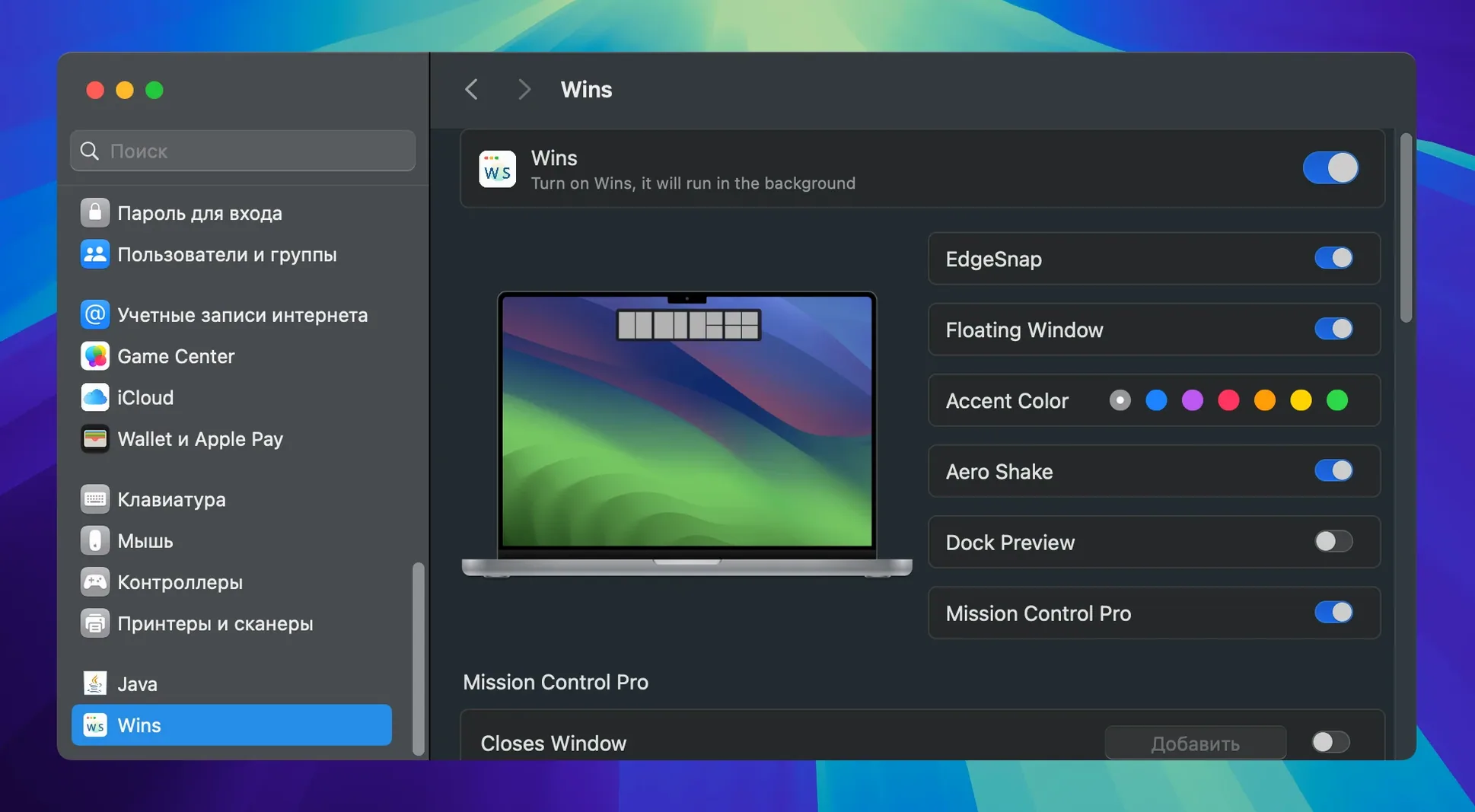
Dock Lock is one of those additions that makes you wonder why it wasn't always there — a small anchor in the fluid choreography of arranging screens. Before committing to a window manager, the first question is usually whether it will run quietly on your machine, so let's start with the numbers that matter.
- Requires macOS 12 Monterey or later; fully compatible with macOS 27 and runs on both Apple Silicon and 64‑bit Intel hardware
- CPU usage typically hovers around 0.1% during normal work, staying below 10% even under load
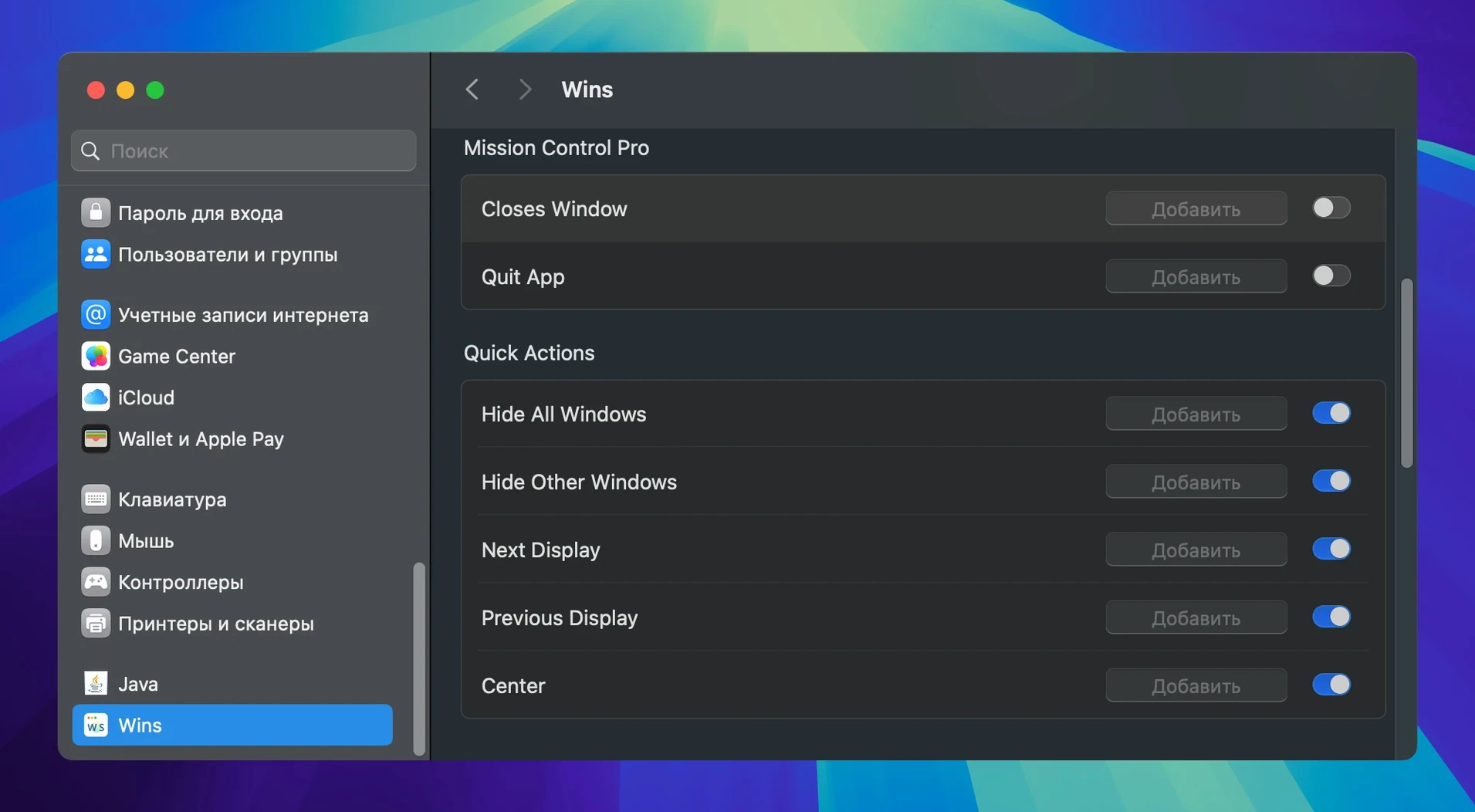
- Mission Control Pro lets you quit apps directly with ⌘+Q inside Mission Control and locates system processes more efficiently after the latest optimization pass
- Window previews appear right in the Dock, so you can identify a buried arrangement without hunting through tabs
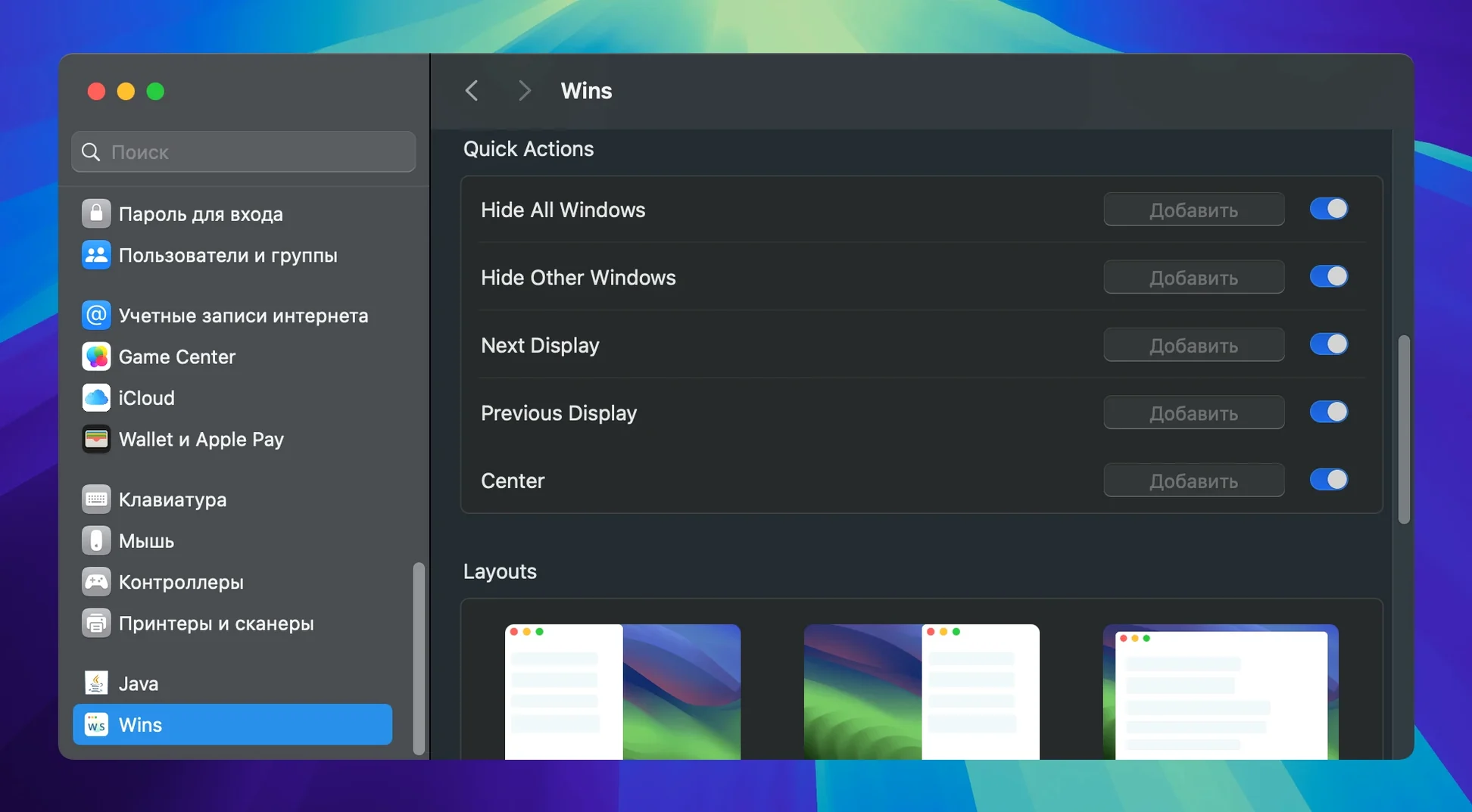
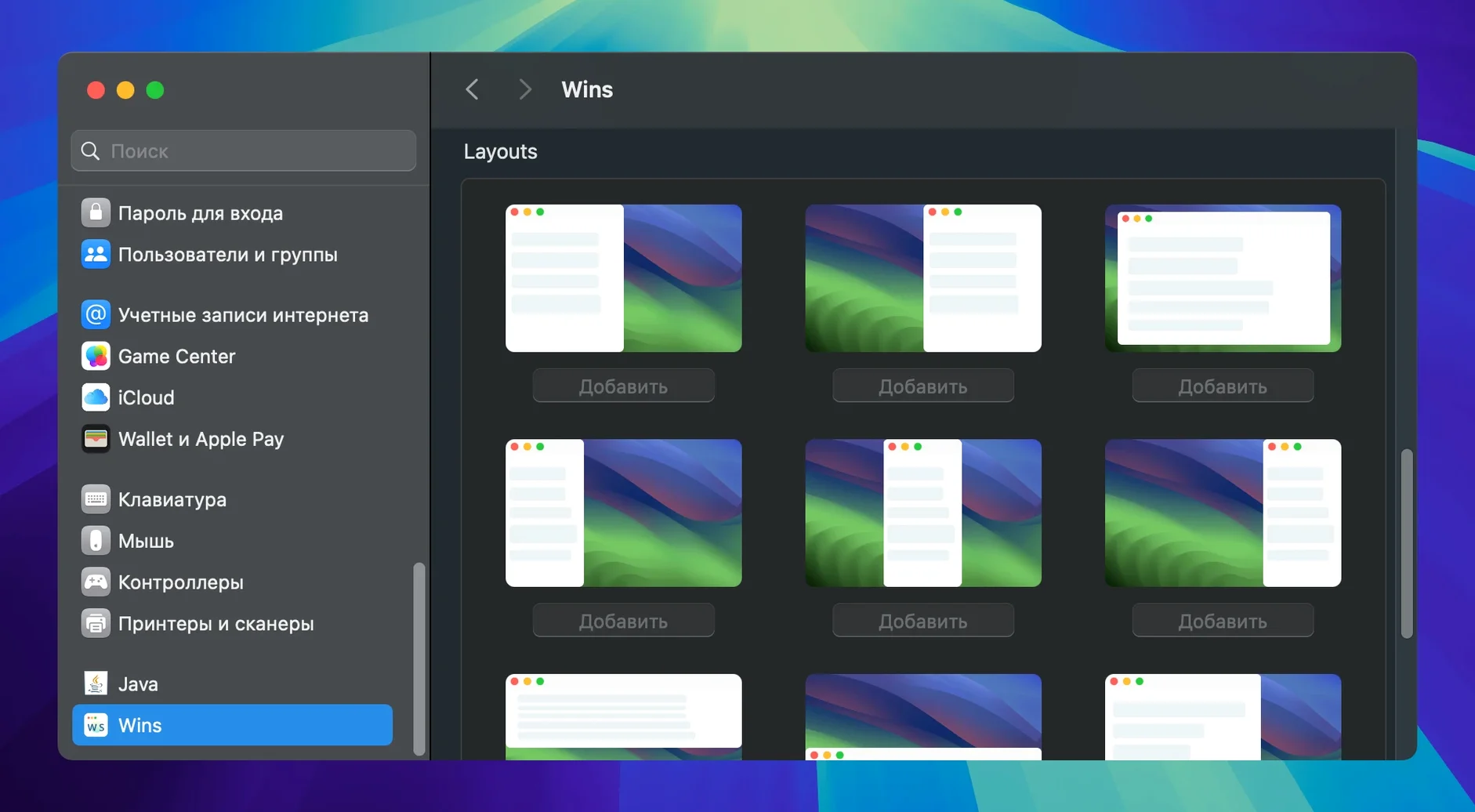
- Layouts and window groups can be saved and restored, pulling whole multi‑app setups back onto the desktop in one gesture
- Interface ships in English, German, Traditional and Simplified Chinese, and French
The current release also brings major performance improvements and lower power draw — the kind of under‑the‑hood refinement you notice after a long session with several layouts stacked and a timeline running in the background.
Turning your keyboard into a launchpad on day one
Window managers invite enthusiasm, and enthusiasm leads to over‑engineering. The most common mistake I see is binding every possible action to a hotkey on day one. You end up with a keyboard that feels like a launchpad for a spacecraft you haven't learned to fly yet. Start with three or four shortcuts — split left, split right, full screen, and maybe one custom layout — and live with them for a week before adding more. Your fingers need time to forget the old habits.
Another trap is treating saved layouts like permanent architecture. A layout you design on a 27‑inch display with a script open on the left and a browser on the right will feel cramped and wrong when you undock your MacBook and work from a café counter. Build layouts for specific contexts — one for the desk, one for the laptop screen alone — and name them clearly. The app won't guess which display you're on, so the responsibility is yours.
People also overlook the shake‑to‑hide behaviour and then complain that windows vanish mysteriously. If you grab a title bar and jostle it a little too energetically while repositioning, all other windows retreat. It's a deliberate feature, and it's on by default. If it clashes with your mousing style, turn it off in the settings pane before it drives you to distraction. The same goes for Snap Island: useful once you understand its trigger zones, maddening if you drag windows near screen edges without knowing it exists.
The 'edit bay' layout that starts the morning
I sit down at the desk with a large display on the left and the MacBook screen raised on a stand to the right. The morning starts with a saved layout I call edit bay: DaVinci Resolve fills the external monitor, while the laptop screen holds a Finder window, Notes, and a small Safari pane for reference footage. One hotkey restores the whole arrangement from wherever the windows drifted overnight.
A producer calls and needs screenshots from a project I closed last week. I hit the shortcut that hides all windows — instant clear desktop — then open the folder, grab the files, and restore the layout with another keystroke. Mission Control Pro lets me quit the three apps I launched for that two‑minute task without leaving the bird's‑eye view: ⌘+Q over each thumbnail, and they're gone.
Mid‑afternoon I undock and move to the couch with just the laptop. The edit bay layout makes no sense here, so I switch to a simpler split: Scrivener on the left two‑thirds, a narrow Safari column on the right for research. Dock Lock pins the Dock to the laptop screen now that the external display is disconnected — a small detail that stops me from flicking the cursor to a phantom screen edge.
By evening, the desktop has accumulated stray Finder windows from dragging assets around. I shake the front window and everything else hides, leaving a clean view of the project folder. It's a tiny gesture, but it resets the visual noise without closing anything I still need.
Browse System Settings before the menu bar icon
Give yourself a quiet first hour to browse the preferences pane inside System Settings, not just the app. The integration is deep enough that you'll miss half the options if you only look at the menu bar icon. Pay special attention to the Snap Island sensitivity slider — a millimeter of adjustment changes whether it appears helpfully or intrusively.
Before you build your first saved layout, arrange the windows exactly where you want them, then save the layout and test the restoration immediately. If something lands a few pixels off, adjust and re‑save. These small misalignments compound across sessions and become background friction you'll struggle to name later.
If you use multiple displays, set up Dock Lock early and test it by unplugging and replugging the external screen. Knowing the Dock will stay on the display you chose — especially when it sits at the bottom edge — removes a tiny but persistent annoyance from every disconnect. It's the kind of feature you won't think about again, which is precisely the point.
Finally, resist the urge to map every window action to a keyboard shortcut in the first sitting. A mac Wins app cracked wide open with possibility can feel like a playground, but your muscle memory learns slowly. Add one new shortcut every couple of days, and let the old ones settle into reflex before you complicate the choreography.
- macOS 12 or later
- Apple Silicon or Intel 64-bit
Questions from the booth
It runs on macOS 12 Monterey and later, including full support for macOS 27 on both Apple Silicon and Intel Macs.
No — the developer states CPU usage stays below 10%, and in most everyday scenarios it sits around 0.1%.
Yes, you can save layouts and window groups, then restore them whenever you need to pick up a project exactly where you left off.