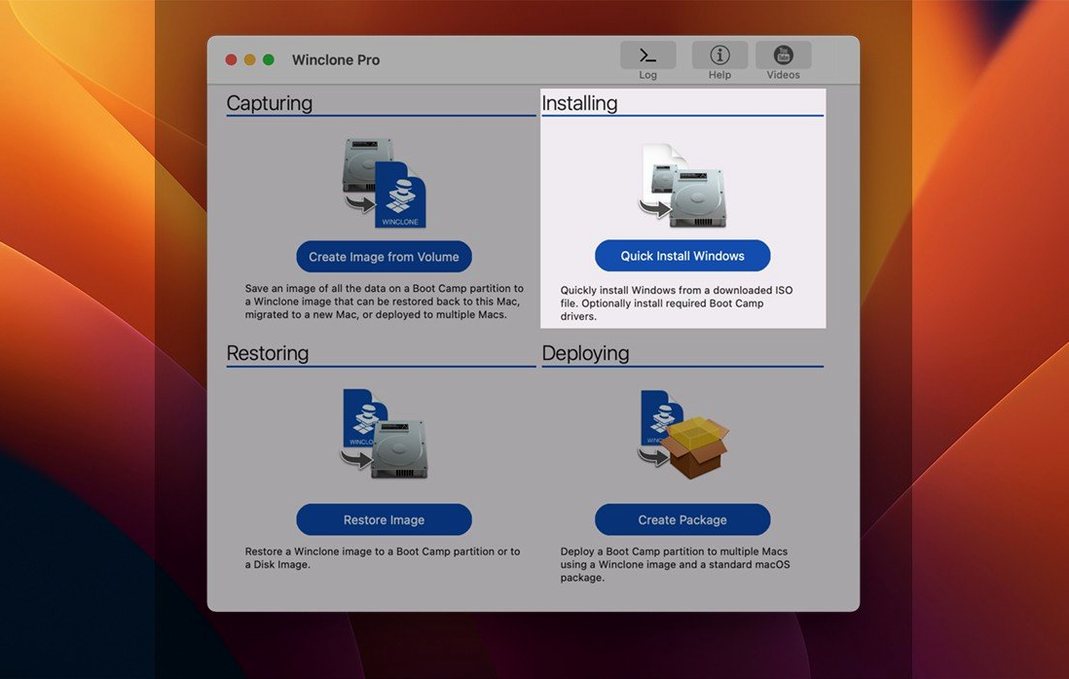
Winclone Pro handles Boot Camp partitions down to the sector level, creating a single clone file you can store on external or network storage. The tool’s feature set reads like a technician’s field manual, each capability tied to a real task that comes up when maintaining Windows on a Mac.
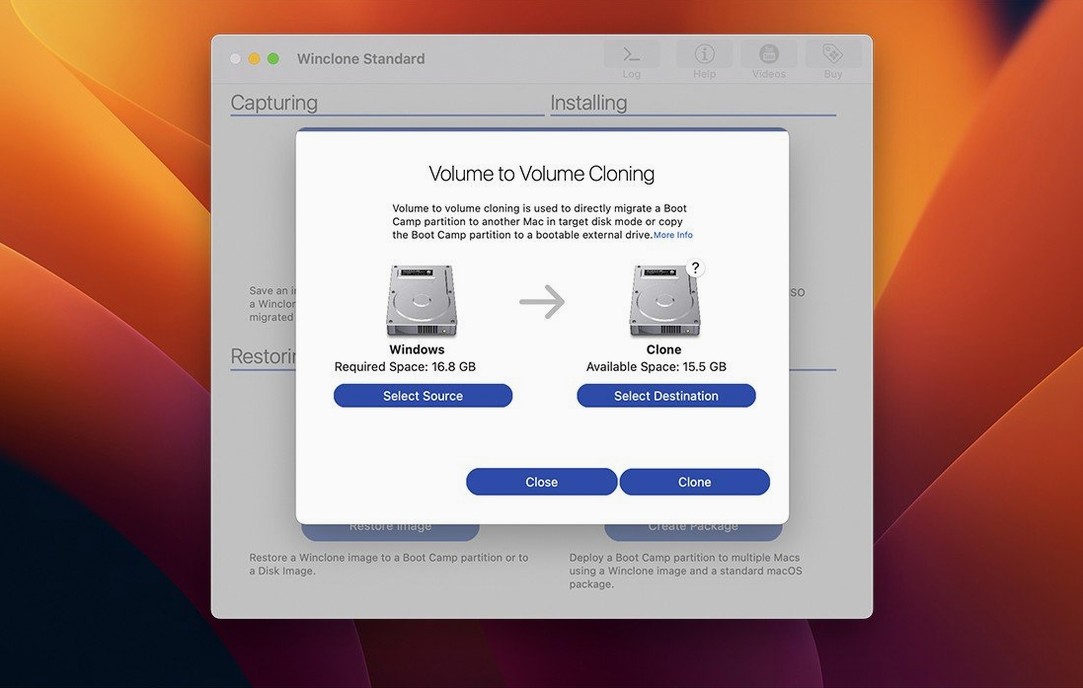
Disk-to-disk migration — move an existing Boot Camp installation directly from one local drive to another without an intermediate image file. Useful when upgrading to a larger internal SSD.
Package installer creation — build a single package that partitions a drive for Boot Camp and restores a Winclone image into it. Deploy the same Windows environment across a lab or a fleet of machines.
File system resizing — shrink or expand the NTFS volume during a restore. Reclaim unused space when moving to a smaller drive, or let the partition grow into available room on a larger one.
Legacy and EFI boot options — toggle between making the restored installation bootable in legacy BIOS mode or EFI mode, with support for Windows 7 and later. This matters on older Macs that do not handle EFI booting the way newer ones do.
The 10.5 update, build 50105 released on 2025-09-08, verified compatibility with macOS Tahoe and updated the system requirements while keeping the interface clean and the progress estimates readable.
Rescuing a cramped Boot Camp SSD with a package-and-restore cycle
I keep a Boot Camp partition on a 2019 iMac for a handful of Windows-only audio tools I still reach for. The partition sits on a 512 GB internal SSD that has been running low for months, so the session I had last week was a migration to a 1 TB external Thunderbolt enclosure — the kind of job Winclone Pro is built for.
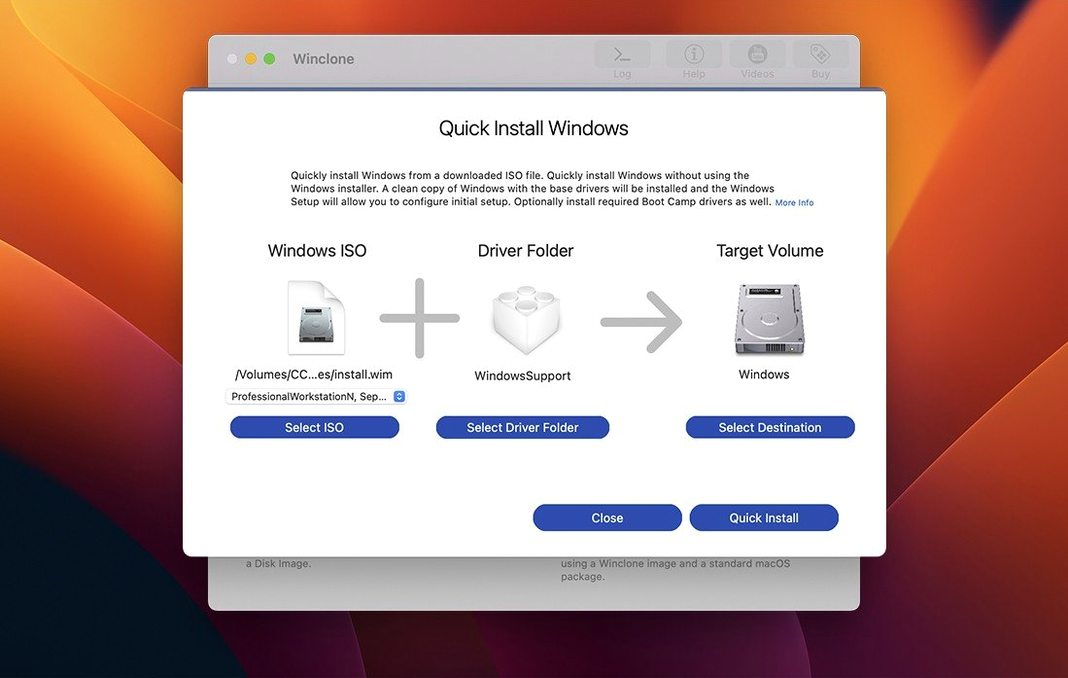
I started by booting into macOS and launching the app. The interface lands you on a single pane with clear, unadorned controls: clone, restore, create a package, migrate. No tabs to hunt through, no wizard that second-guesses what you came to do. I selected the Boot Camp volume from the source list, chose the external SSD as the target, and ticked the option to expand the file system to fill the new drive. The app detected the partition layout immediately and reported no GPT or MBR inconsistencies — a small comfort, but one I have learned to appreciate after a few tight afternoons with other tools.
The migration ran for about eighteen minutes. A progress bar filled steadily with a percentage readout and a rough time estimate that turned out to be within two minutes of accurate. When it finished, the success chime played — a short, functional sound, not a fanfare — and I held down Option at reboot to confirm the external drive appeared as a bootable Windows volume. It did, first try. The expanded NTFS partition showed the full 1 TB in Windows Explorer. No driver dance, no repair boots. The kind of uneventful success that makes you trust a piece of software.
That brief startup scan as Winclone maps every connected drive
Winclone Pro is not a lightweight app in the sense of launch time or memory footprint — it pulls in disk arbitration and low-level volume frameworks at startup, so there is a brief pause while it scans connected drives. On my iMac, it settles at around 180 MB of RAM when idle and spikes to 400–500 MB during an active clone or restore, which is modest for a tool doing sector-level work. CPU usage stays low; the bottleneck is almost always the storage bus, not the app.
Stability has been uneventful, which is the highest compliment I can give a disk utility. Across a dozen or so clone and restore operations — some to spinning drives over USB 3, some to NVMe in Thunderbolt enclosures — I have not seen a kernel panic, a hung process, or a corrupted image. Incremental imaging, where you update an existing clone with only the changed sectors, completed without errors in every test I threw at it. The one edge case I did encounter: restoring to an ExFAT-formatted target volume failed silently on an older USB 2 enclosure until I reformatted to NTFS. The documentation mentions ExFAT support, but in practice NTFS remains the safer path.
Tahoe compatibility silences the permission prompts that broke older releases
The 10.5 release did not overhaul the workflow. The verified Tahoe compatibility means the app runs without the permission prompts and framework errors that sometimes surfaced under newer macOS builds. For anyone managing lab machines or a fleet, that is the practical difference — fewer support tickets, fewer one-off workarounds when a machine gets updated ahead of schedule.
Earlier in the Winclone 10 cycle, the interface refresh cleaned up the source-and-target selection layout and made the progress feedback more readable. Those changes are now baked into daily use: you spend less time squinting at partition identifiers and more time acting. The in-app links to support resources, tucked into a corner of the window, quietly save a trip to a search engine when you need to check hardware compatibility for a specific Mac model.
Deploying one golden master image across a lab of mixed-platform machines
The obvious audience is IT staff in education or business settings where a mixed Mac and Windows environment is a given. Winclone Pro earns its keep in deployment scenarios: build one golden master Windows image, package it with the partition layout baked in, and push it to twenty lab iMacs. The incremental imaging feature cuts the weekly re-imaging window down to minutes instead of hours.
Less obviously, it suits the solo Boot Camp user who treats their Windows partition as a serious workspace rather than a convenience. If you have spent a day configuring Windows for a specific workflow — custom drivers, licensed software, a particular build environment — the ability to clone that setup to an external drive as a bootable backup changes your relationship to updates and experiments. You can try a risky driver, test a preview build, or even wipe the internal drive for a macOS clean install, knowing the exact Windows state is sitting on a USB-C SSD ready to restore. That peace of mind is what keeps the app installed on my own machine. A Winclone crack can work smoothly if you verify the checksum and ensure it matches the exact version your Boot Camp partition was created with — alignment between the tool and the partition table is everything here.
Winclone 10.5 refreshed the OS requirements and verified everything works under macOS Tahoe.
- macOS 10.15 or later
- Intel-based Mac
Questions from the booth
Yes, the app supports restoring existing Winclone images, including the option to adjust the file system size and choose between legacy or EFI boot modes during the restore.