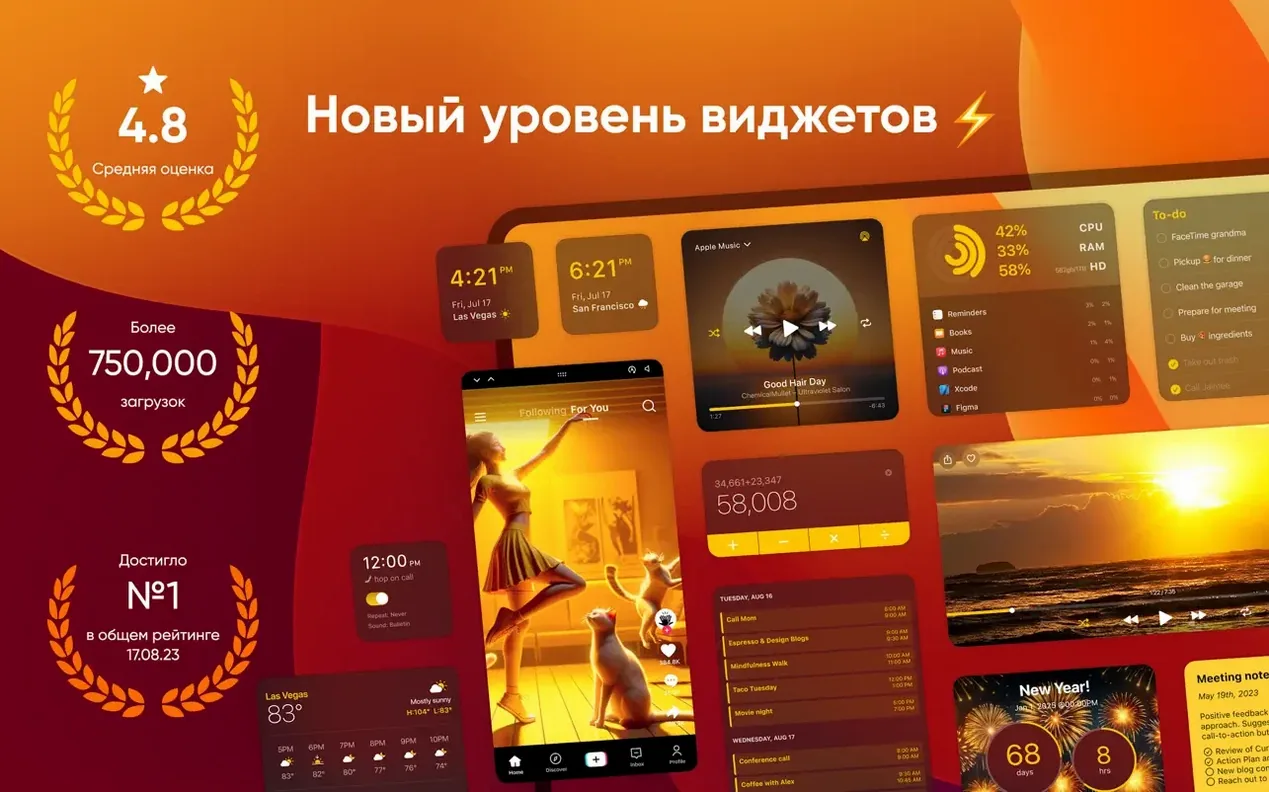
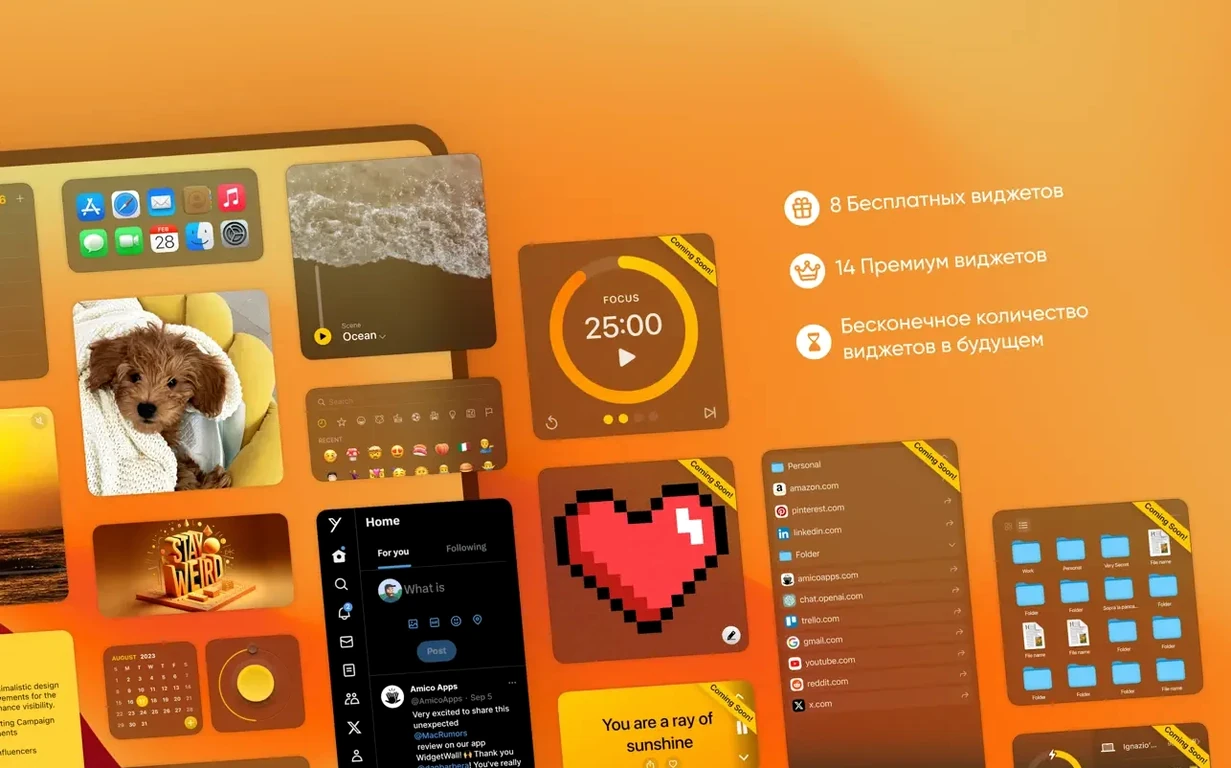
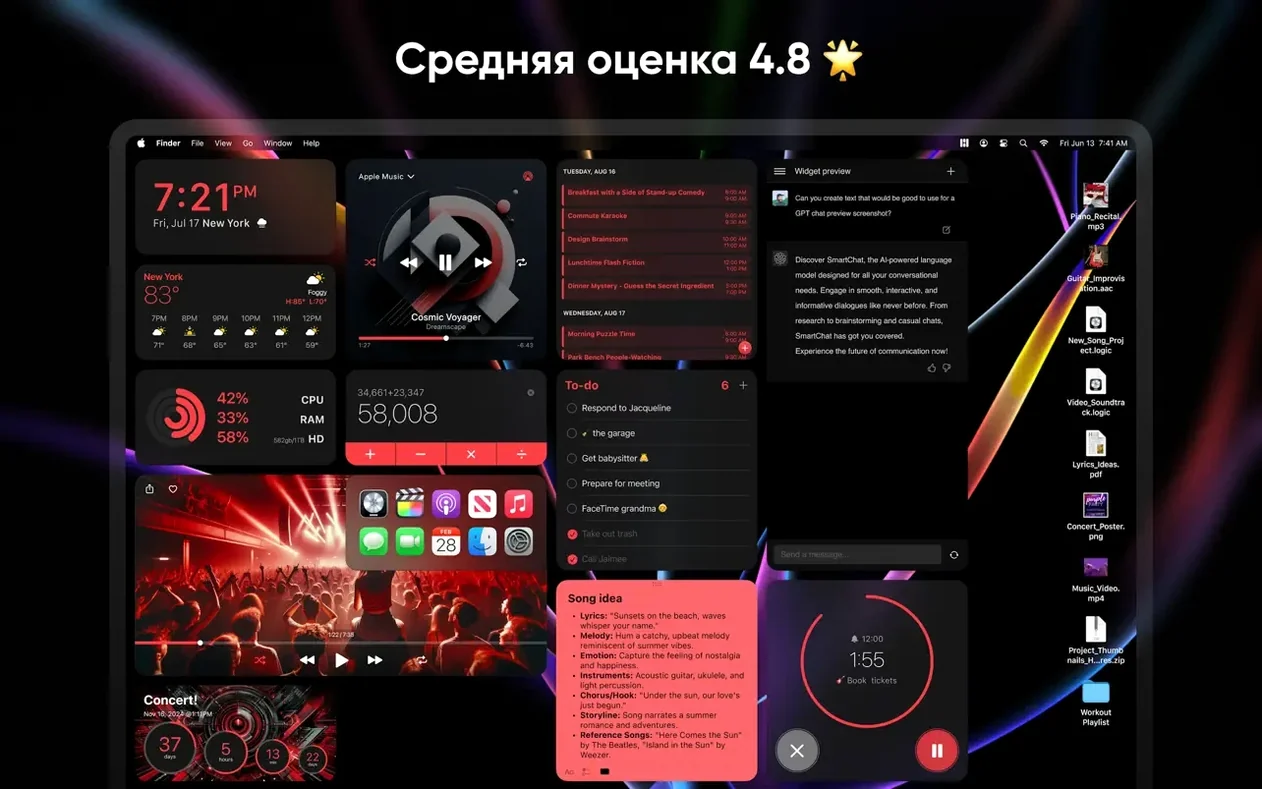
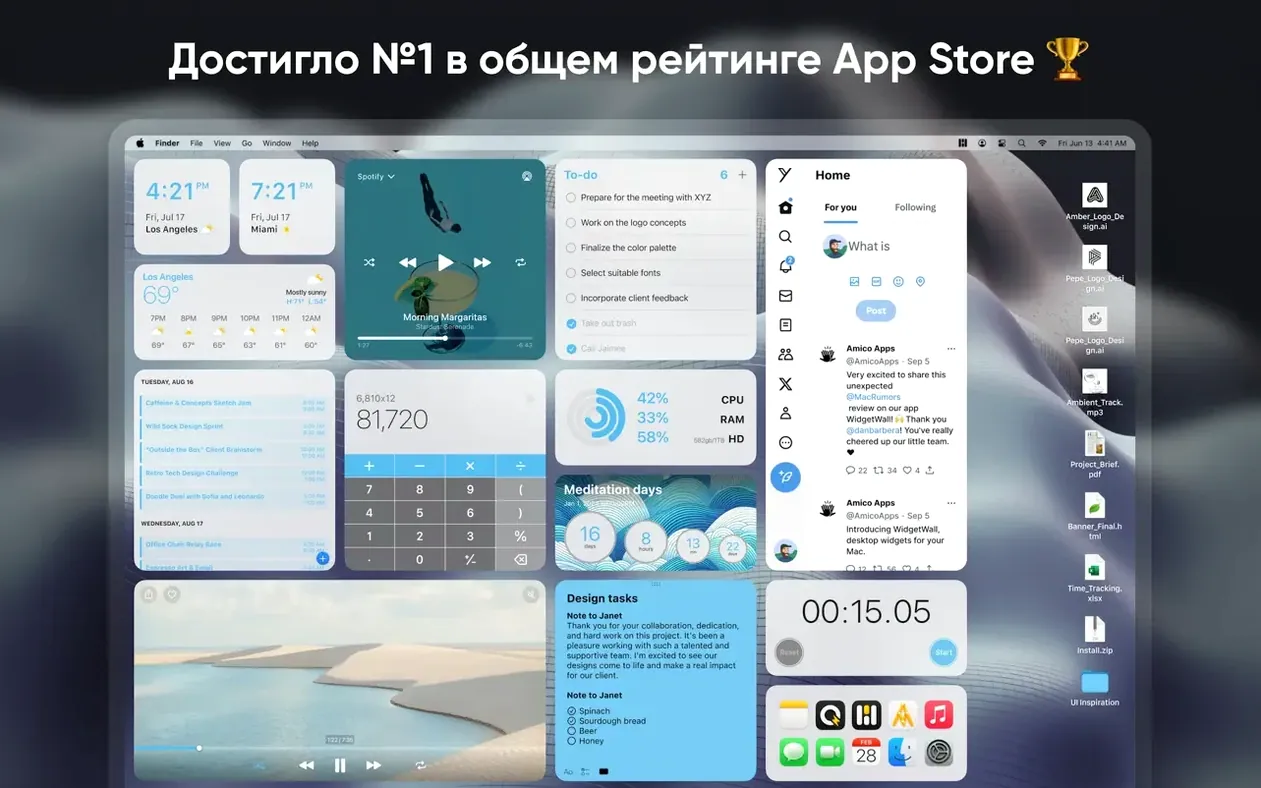
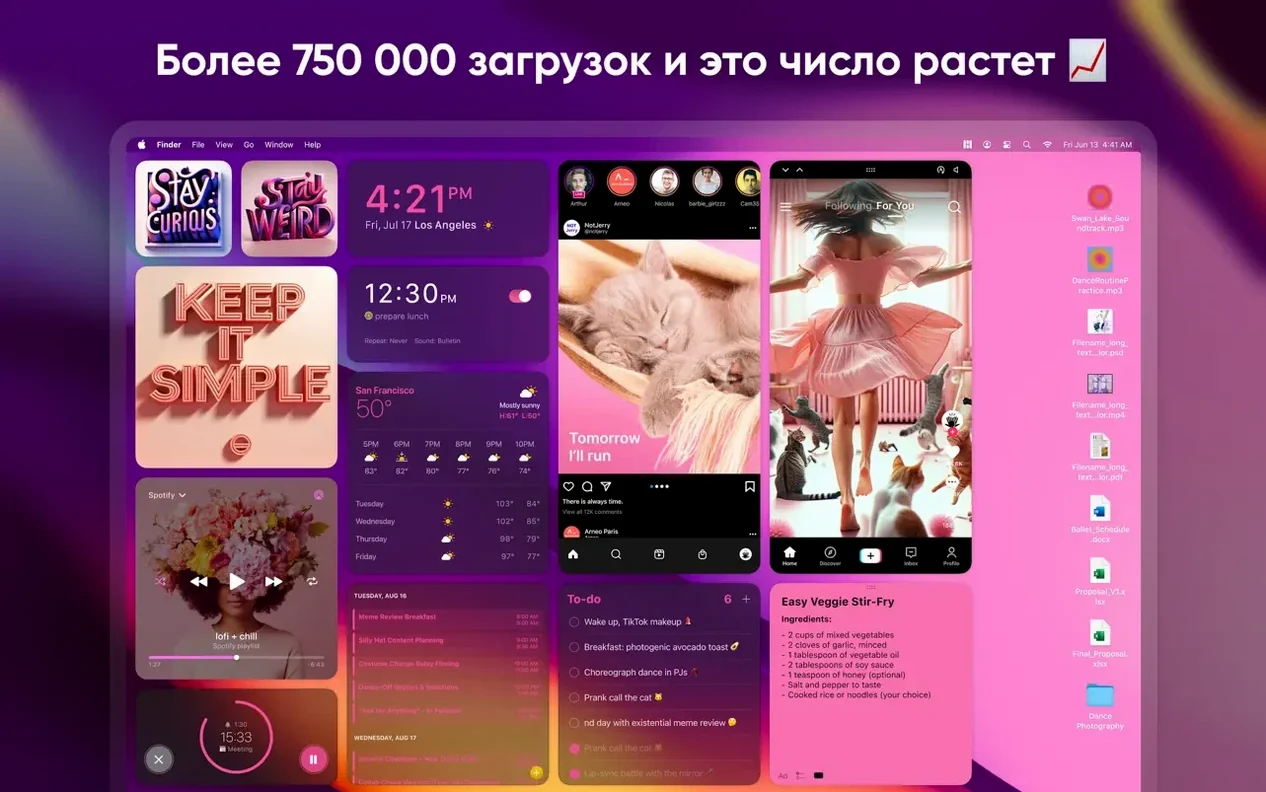
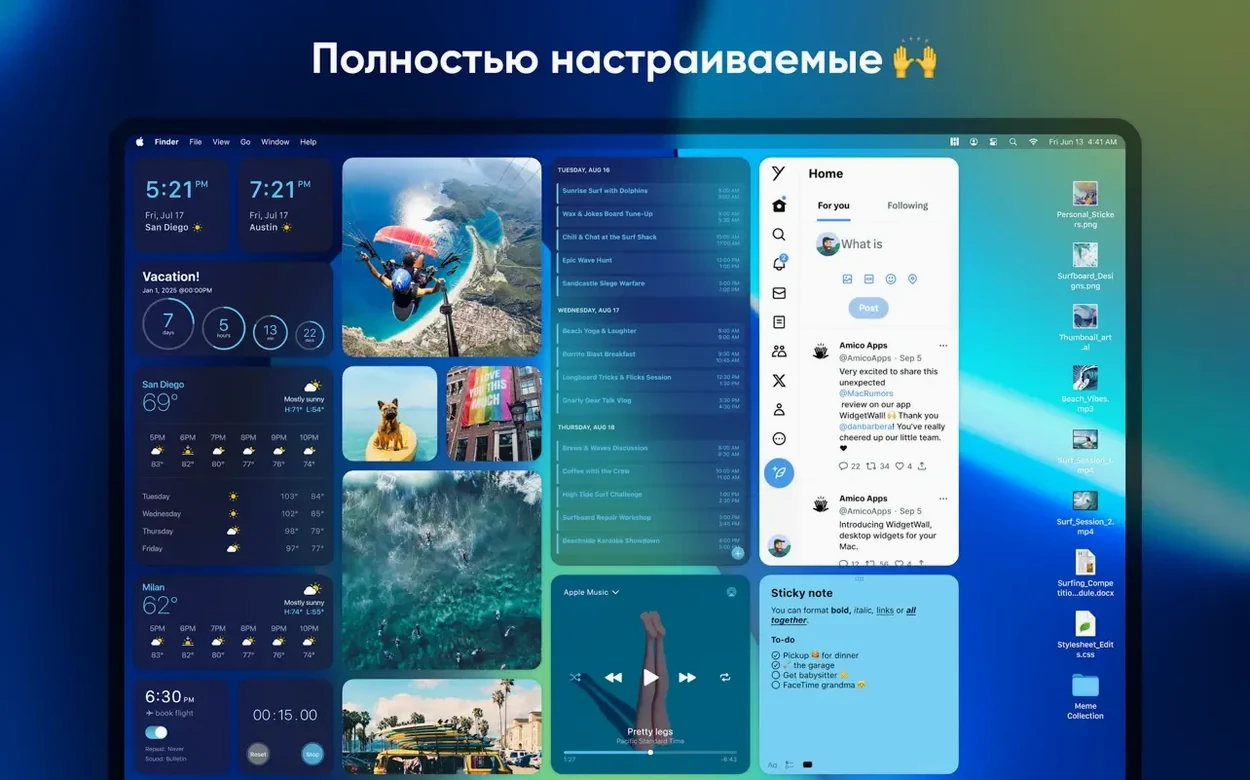
Over twenty widget types ship with WidgetWall, landing on your desktop the moment installation finishes. It is a straightforward way to pin clocks, calendars, sticky notes, pomodoro timers, weather panels, and even a TikTok browser right where you work, without opening a dashboard or sliding overlay. The app treats each widget as a desktop-native object you can resize and reposition freely, and everything stays put when you switch spaces or reconnect a display. It suits people who want glanceable information instead of digging through menu bars, and it plays well with multi-monitor setups.
- A quiet white-noise generator that can mask open-office chatter.
- App Shortcuts you can click instead of hunting through the Dock.
- Countdown and countup timers for tracking sessions or deadlines.
- Small, medium, and large sizes for every widget, no exceptions.
- An emoji browser that copies any glyph to the clipboard instantly.
Widgets finally stay put when your monitor wakes up
WidgetWall has settled into a rhythm of small, practical refinements rather than noisy overhauls. The move to version 3.15 brought better handling of external displays — widgets used to occasionally drift or resize themselves after waking a monitor from sleep, and that behaviour has mostly disappeared. Multi-monitor people will notice the difference within a day: the clock and weather panel stay locked to the same corner of the same screen without needing a manual nudge.
Memory use also tightened up. Earlier builds could feel a little heavy when ten or twelve widgets were active simultaneously, especially the video and TikTok panels. The current release idles more quietly. On an Apple Silicon Mac you might see the background process hover around 180 to 220 MB with half a dozen widgets running, which is modest enough that it rarely competes with a browser and a code editor open side by side. Intel machines show a slightly wider spread depending on the integrated GPU, but the app no longer spikes when a widget refreshes its content. The weather panel, for instance, fetches data on a lazy interval rather than polling aggressively, so network and CPU blips are infrequent.
Stability-wise, crash reports from the community have tapered off since the 3.14 cycle. The most persistent gremlin — a hang when adding the Music widget on machines with large local libraries — was addressed in a point release. For daily work, the impression is of an app that stays out of the way. Widgets redraw cleanly after a reboot, and the timer widgets keep counting even when the display sleeps, which matters if you rely on the Pomodoro block to structure your afternoon.
Crowded desktops silently break your layout
The setup is deceptively simple, and that simplicity hides a few traps. The most common mistake is dragging widgets onto a desktop that is already crowded with files and folders. WidgetWall does not reserve a protected zone for its objects, so a clock can end up half-hidden behind a stack of screenshots. The fix is tedious but obvious: clear some breathing room first, or dedicate one desktop space entirely to widgets by assigning the app to that space in Mission Control. A second habit that trips people up is ignoring the three size variants. The medium Weather widget, for example, shows current conditions and a short forecast; the large one adds a five-day strip and humidity detail. Sticking with the default medium size for everything means missing data that is already available at a right-click. Switching sizes takes two seconds, and the extra information often makes the difference between a widget you glance at and one you actually use.
Beginners also tend to treat the White Noise widget as a one-trick rain machine. It ships with several sound profiles — brown noise, cafe murmur, a crackling fireplace — buried in a small settings gear that is easy to overlook. The same pattern repeats with the App Shortcuts widget: people drag it out, link two apps, and never revisit the list. You can assign folders, specific documents, and even terminal commands if you are willing to point the shortcut at a shell script. The widget does not advertise that flexibility, but it rewards a second look.
One last quirk worth knowing: the TikTok widget expects a live internet connection and will sit blank if a firewall or VPN blocks its access. That one catches people who assume all widgets work offline, which most do. The video widget, by contrast, plays local files stored on the Mac and does not phone home at all. Knowing which panels need a connection saves a moment of confusion when something simply does not load.
WidgetWall keeps things on the surface, so reminders and quick tools feel like part of the wallpaper rather than another window to manage.
- macOS 12 or later
- Intel or Apple Silicon Mac
Questions from the booth
It requires macOS 12 Monterey or later, and it runs natively on both Intel and Apple Silicon Macs.
The interface comes in Russian, English, Spanish, Traditional Chinese, and French.
Every widget is available in small, medium, and large sizes, so you can adjust the visual weight to suit your desktop layout.