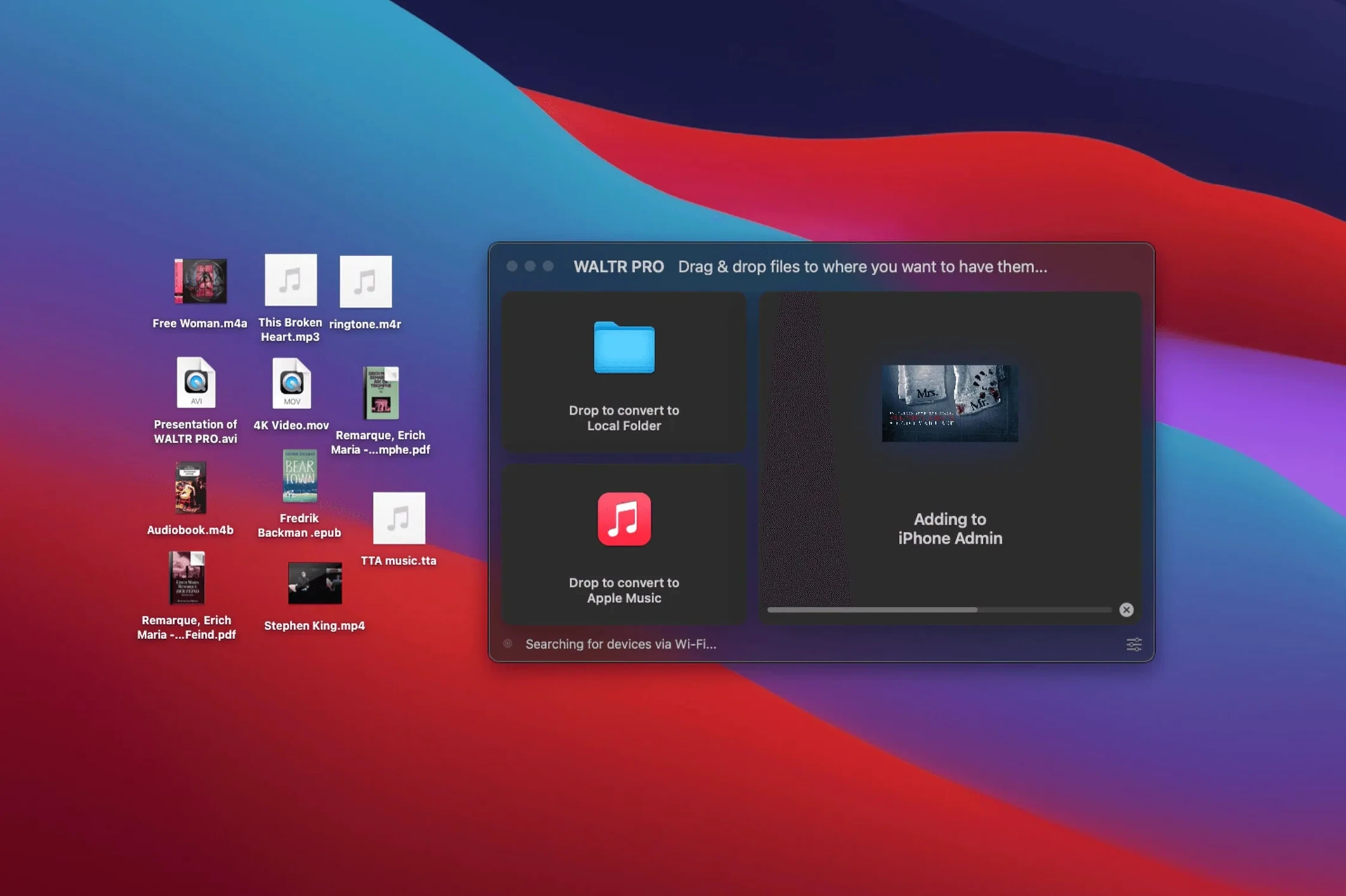
Getting a video file onto an iPhone still involves too many steps for something so simple. Codecs don't match, the Finder won't help, and an old AVI you dug out of a backup drive feels like it belongs to a different era than the device in your hand. WALTR PRO exists to make that friction vanish — drag a file, it lands on the device ready to play, no matter the format.
The first file you should throw at it
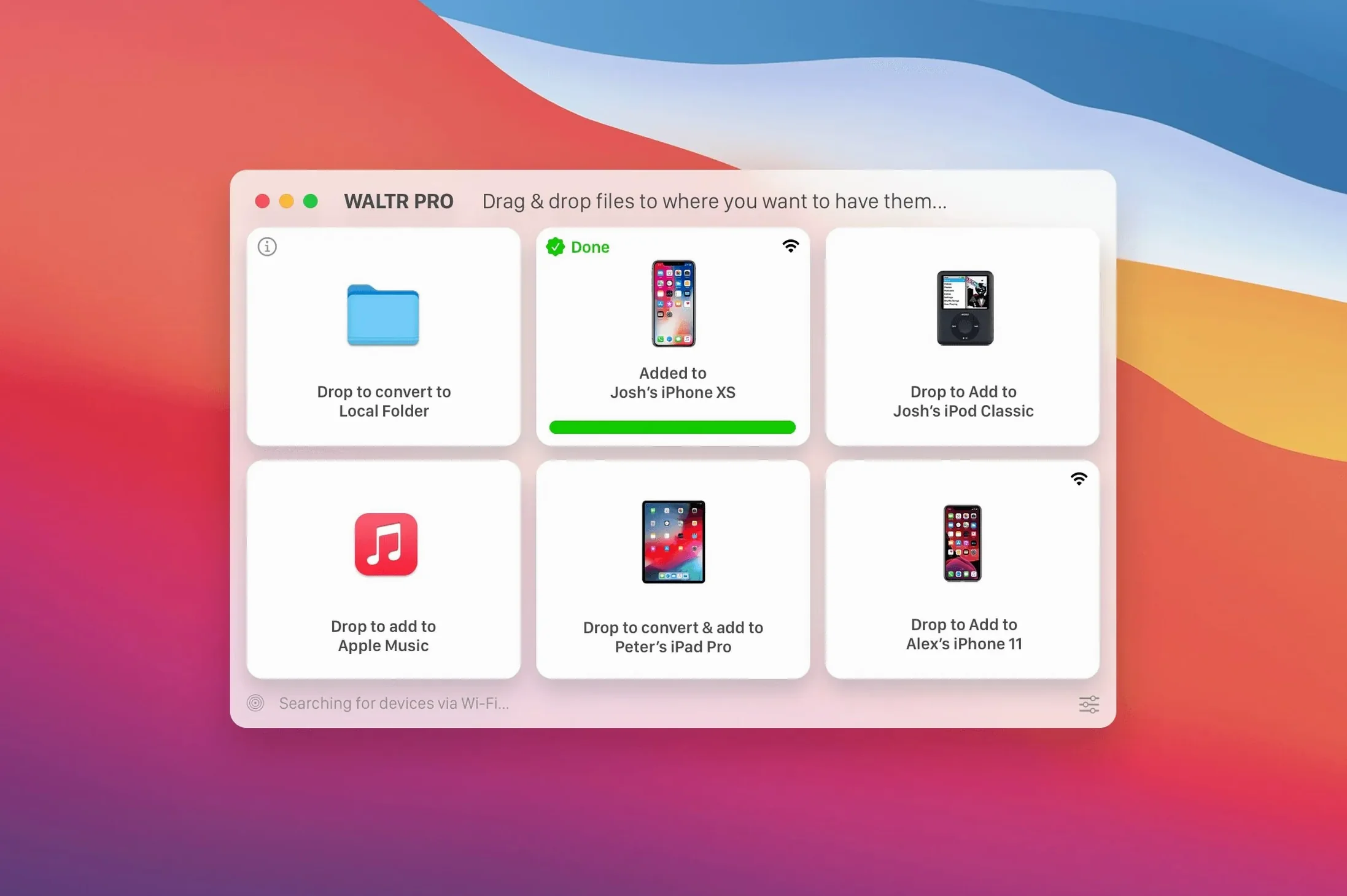
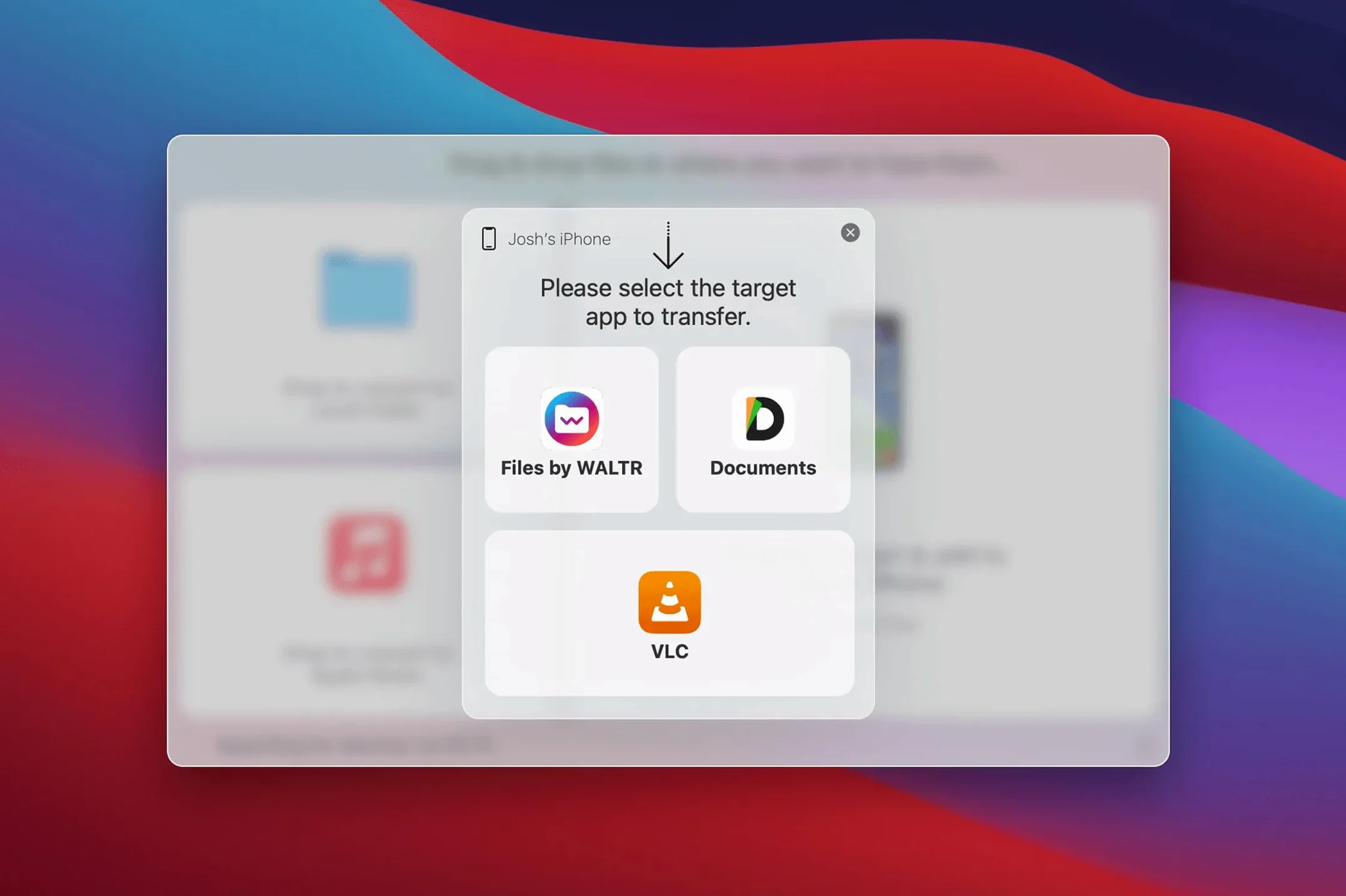
Start with the messiest thing you have. An MKV with embedded subtitles, a FLAC album you ripped years ago, or an AVI that predates the iPad itself. WALTR PRO doesn't ask you to pre-convert or think about compatibility — it recognises the file, transcodes it on the fly if needed, and places it directly into the stock TV or Music app. The wireless transfer over Wi-Fi means you don't even have to reach for a cable. If you keep an original iPod Classic in a drawer, plug it in and watch the app recognise it without a second thought.
When you need a ringtone right now
Cut a clip from a song or a voice memo and save it as an M4R. Dragging that file onto the app window pushes it straight to the iPhone's ringtone library, ready to assign to a contact. It's the kind of small, specific task that normally requires GarageBand or a trip through Finder gymnastics. Here, it's just another drag-and-drop. The app runs on Intel Macs back to macOS 10.13, which keeps older studio machines in the loop.
Pushing two-hour MKV files while Logic Pro runs without a stutter
I've pushed two-hour MKV files through it while Logic Pro hummed in the background and a Safari window sat bloated with tabs. WALTR PRO didn't stutter. Memory usage stayed modest — around 180 MB on my machine — and the transcode happened fast enough that I forgot it was transcoding at all. A FLAC album dropped in as a batch appeared on the iPhone's Music app before I finished pouring a coffee. The Wi‑Fi transfer isn't instant in the way a Thunderbolt cable is, but it's consistent. No dropouts mid‑file, no corrupted endings that force you to start again. That kind of reliability matters when you're sending a rough cut to your phone to check how the grade reads on an OLED screen before a client sees it.
One thing I noticed early: the app doesn't nag. It sits in the menu bar, and when you drag something onto its icon, it works. No pop‑ups asking you to confirm a format choice, no progress bars that lie about the remaining time. The quietness of it — the way it stays out of your head — is a stability feature in itself.
The gap between Finder and your device that Apple left open
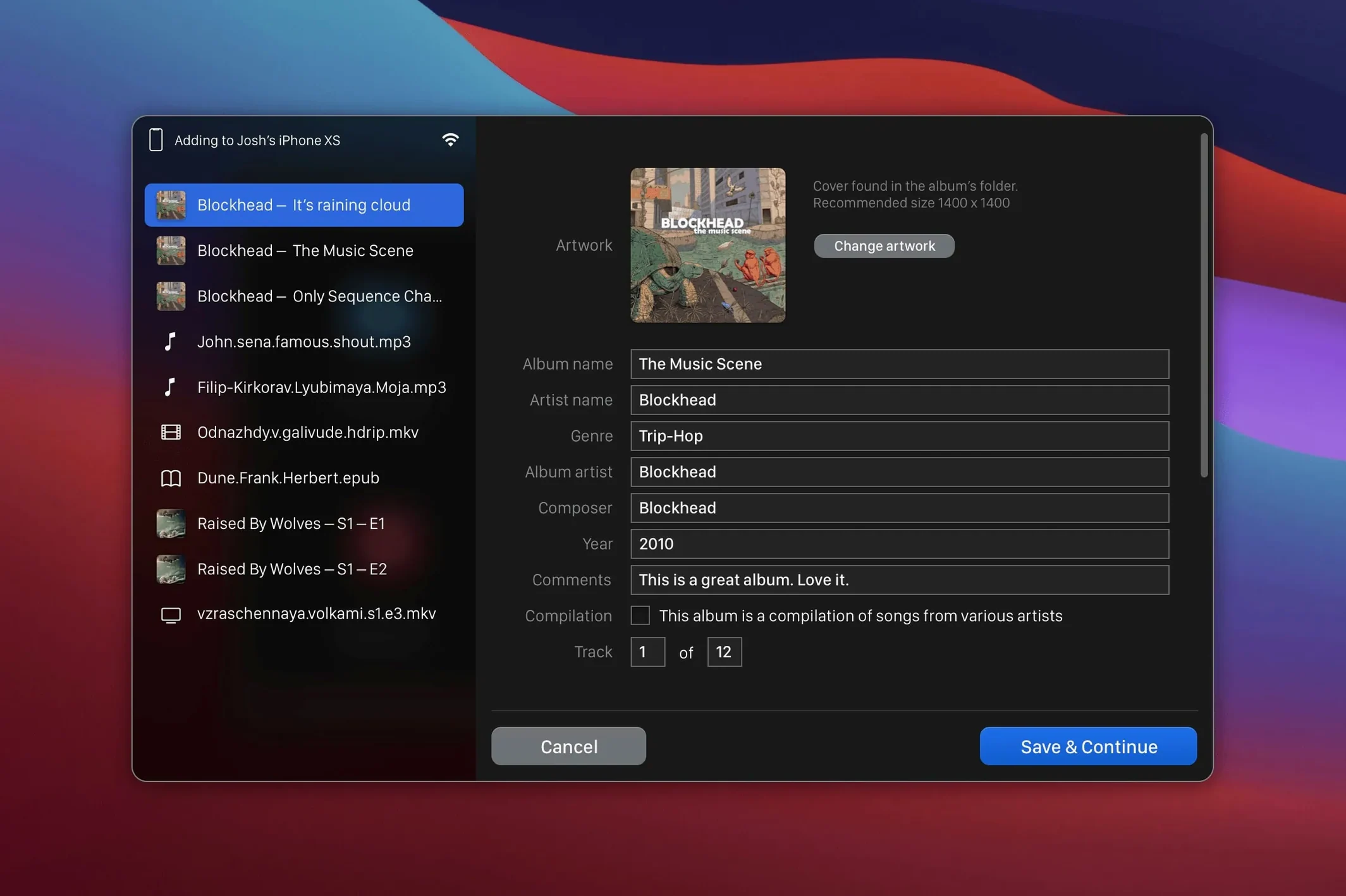
WALTR PRO doesn't try to replace anything you already use. It slots between the Finder and the device, filling a gap Apple left open. I keep it next to AirDrop for quick audio snippets, but for anything that needs to land in the TV or Music app library — with metadata intact — it's the only tool on my Mac that does it without a detour through the Finder's sync panel. The app also respects macOS conventions: it picks up the system accent colour, responds to Dark Mode, and doesn't hijack file associations. You can right‑click an MKV in Finder, choose Open With, and send it straight to WALTR PRO without ever seeing the main window.
If you're someone who uses the iOS Files app for manual media management, you'll notice the transferred files aren't loose documents — they go where they're supposed to, indexed and playable. That means Siri can find them, and CarPlay sees them too. For a filmmaker who keeps reference clips and temp scores on a phone, that integration saves a surprising amount of tap‑and‑scroll friction later.
A short film makes it to the phone
Late afternoon, the edit is picture‑locked. I export a master in MKV because the colourist sent it that way and I don't want to re‑encode before a test screening on the living‑room TV. The file sits on the Mac desktop — 4.3 GB, baked‑in subtitles, DTS audio track. I open WALTR PRO from the menu bar, the iPhone appears in its window almost before I look at it, and I drag the MKV across. A thin progress ring circles the device icon. About three minutes later the film is in the TV app, artwork auto‑generated from a frame near the midpoint of the file. I unplug nothing, I open no settings.
I grab the phone, walk to the living room, AirPlay it to the television. The subtitles render cleanly, the audio track plays without a conversion warning. Nobody watching knows the file was ever "incompatible." That's the point of a session with WALTR PRO — you forget the tool existed, and you just watch the thing you made.
- macOS 10.13 or later
- 64-bit Intel processor
- iPhone, iPad, or iPod for transfer
Questions from the booth
Yes, the app uses Wi-Fi to transfer files to iOS devices so no physical cable is required.
It handles MP3, MP4, AVI, CUE, WMA, M4R, AAC, M4V, M4A, FLAC, ALAC, and MKV files.
All iPhones, iPads, and iPods are supported, including the original iPod Classic.