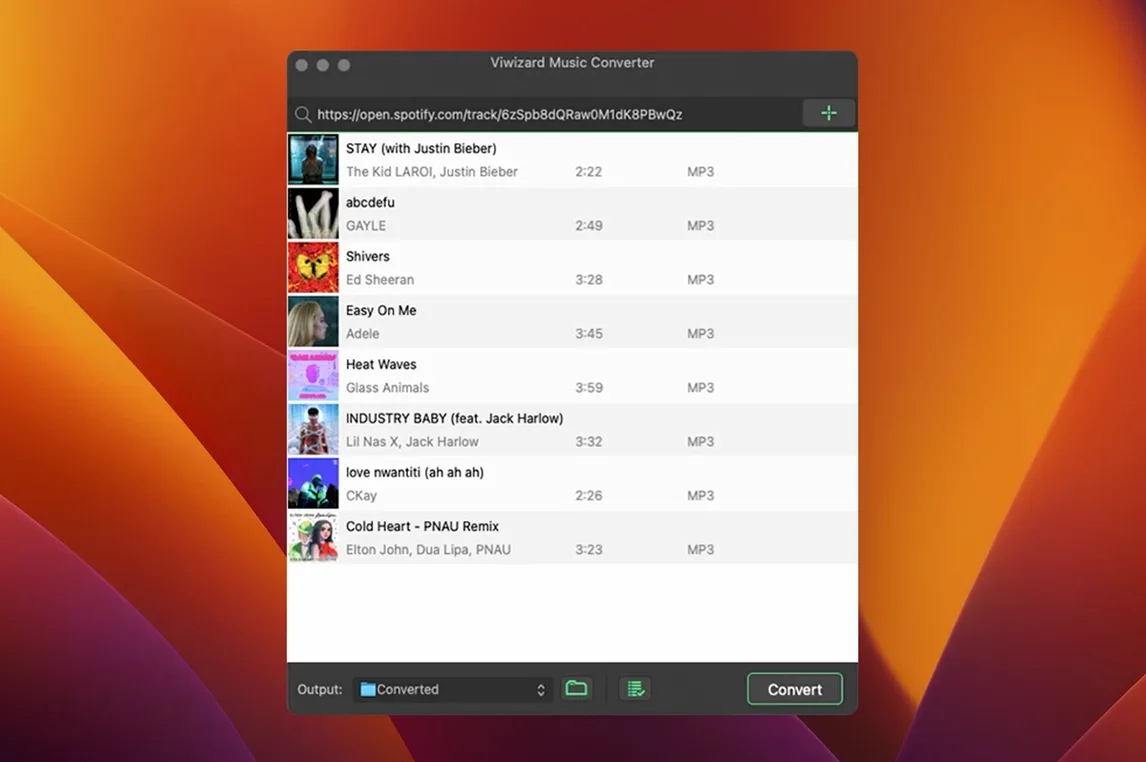
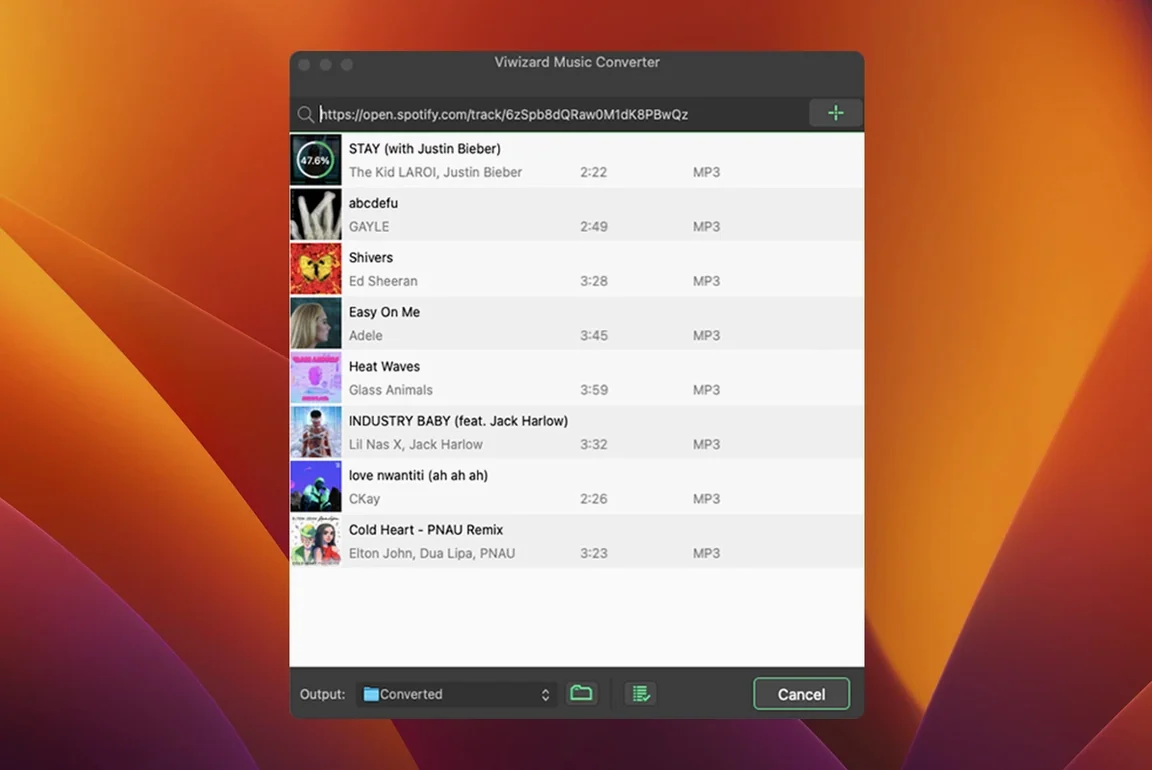
DRM removal happens in the background, but it’s the format shelf that pulls me in. ViWizard Spotify Music Converter reads a playlist directly from the Spotify web player, then hands you a grid of output options — MP3, AAC, WAV, FLAC, M4A, M4B — before it has even touched a single track. That moment of routing a piano-heavy production library playlist straight into lossless FLAC, with original metadata intact, is the reason this tool stays in my offline workflow.
- Paste a Spotify playlist link and the app loads every track through the built-in web player, no external browser needed
- Choose FLAC as the output and set the sample rate where the source allows it, then batch-convert the entire list in one pass
- Metadata — album art, artist, track title — carries over into the files, which means no re-tagging in your audio library
- Files land in a folder you’ve named, ready to drag into a timeline or a reference playlist without an internet connection
On a Mac running OS X 10.10 or later, the app runs on Intel hardware and stays out of the way. The interface is a straightforward two-panel affair: Spotify’s web player on one side, your queued tracks and output settings on the other. For a long story-driven game score reference or pulling apart a temp track for a short film edit, having the audio as a plain M4B or AIFF file on the desktop changes how you interact with the music — it becomes material, not just a stream.
A working session, track by track
I open ViWizard on a Tuesday afternoon, coffee going cold, a temp score for a short I’m cutting sitting in DaVinci Resolve and refusing to gel. The director sent a Spotify playlist as reference — six tracks, all locked inside the web player, none of them downloadable. I copy the playlist link, paste it into the app, and watch the track list populate in seconds. The built-in Spotify web player logs in once and I don’t think about it again.
I select all six tracks, switch the output format to WAV at 44.1 kHz — Resolve likes uncompressed audio, no surprises — and set the output folder to a project directory called temp_score_refs. Under the organize tab, I tick Save by artist so the files arrive already sorted. One click on Convert and the progress bar starts moving at roughly 4× playback speed on this Intel machine. While it works, I’m marking script beats on paper. When the chime sounds, I drag the first WAV straight onto a stereo track in Resolve, waveform intact, metadata already naming the artist and album. No renaming, no re-tagging, no searching for a dodgy YouTube rip. The music is just there, as material.
Set FLAC as your archival default right away
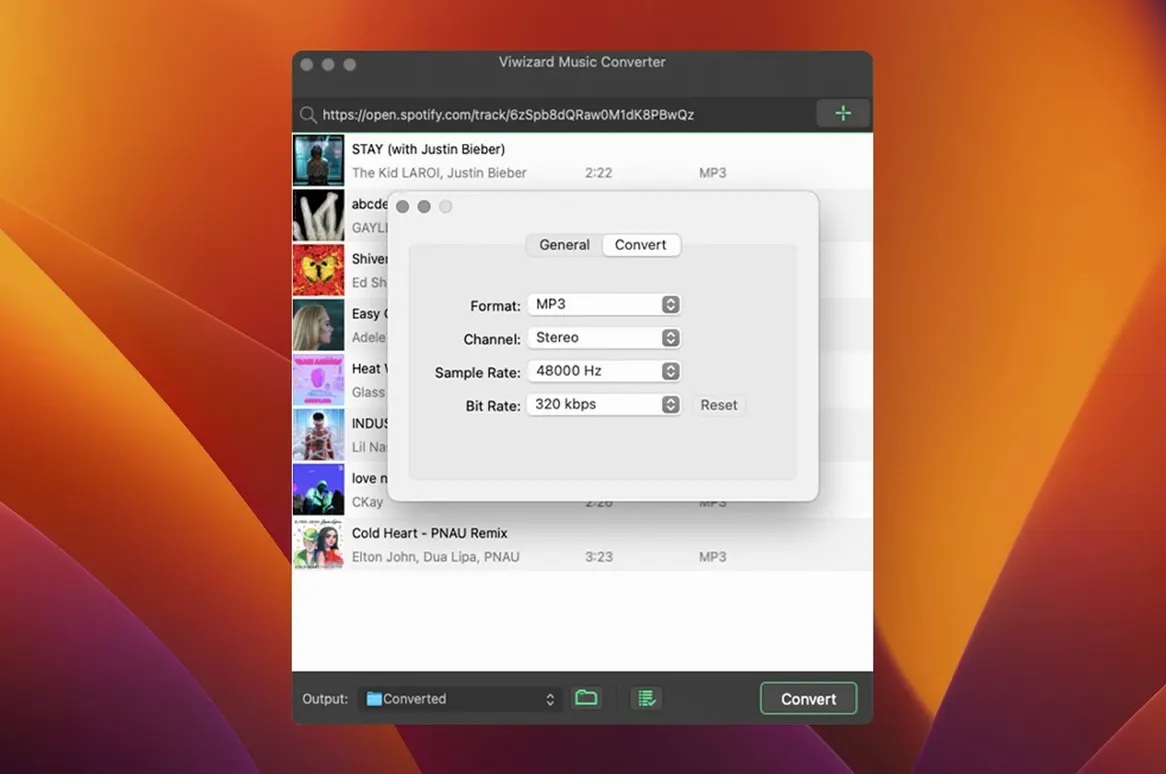
The defaults are sensible, but a few early tweaks make the tool disappear into the background where it belongs. First, open Preferences and set the output format to something you’ll actually use downstream — for me that’s FLAC for archival rips of ambient game scores and WAV for anything headed into a video editor. MP3 at 320 kbps works fine for car-testing a rough cut on a phone, and the app remembers your last choice between sessions.
Change the default output path to a folder you already keep organized. I point mine at a dedicated _converted directory inside my sound library, which avoids files scattering across the desktop. Under the Organize tab, enable Save by album or Save by artist depending on how your brain sorts audio — I switch between the two depending on whether I’m pulling a full score or a compilation. Finally, check the sample rate and bitrate options after choosing your format. Not every source track benefits from 48 kHz, but for FLAC archival work, setting it where the source allows means you aren’t leaving resolution on the table.
A podcast archivist’s evening routine
A friend who produces a narrative history podcast keeps every episode offline — her show, her guests’ shows, research material stretching back years. She uses ViWizard Spotify Music Converter on an older Intel iMac running OS X 10.10, pasting in podcast links one by one, outputting to M4B with chapter markers preserved where Spotify carries them. On a quiet evening, she’ll queue six or seven long-form interviews, set bitrate to 128 kbps for spoken word (smaller files, indistinguishable from higher rates on voice), and let the batch run while she cooks. By the time the saucepan is clean, the files sit in a folder named by podcast title, ready to drag into a backup drive and a Plex library. The metadata lands with episode titles and artwork already embedded, which means no Sunday afternoon spent retagging — just listening, annotating, and pulling quotes for the next script draft.
- OS X 10.10 or later
- Intel processor
- Internet connection for Spotify web player access