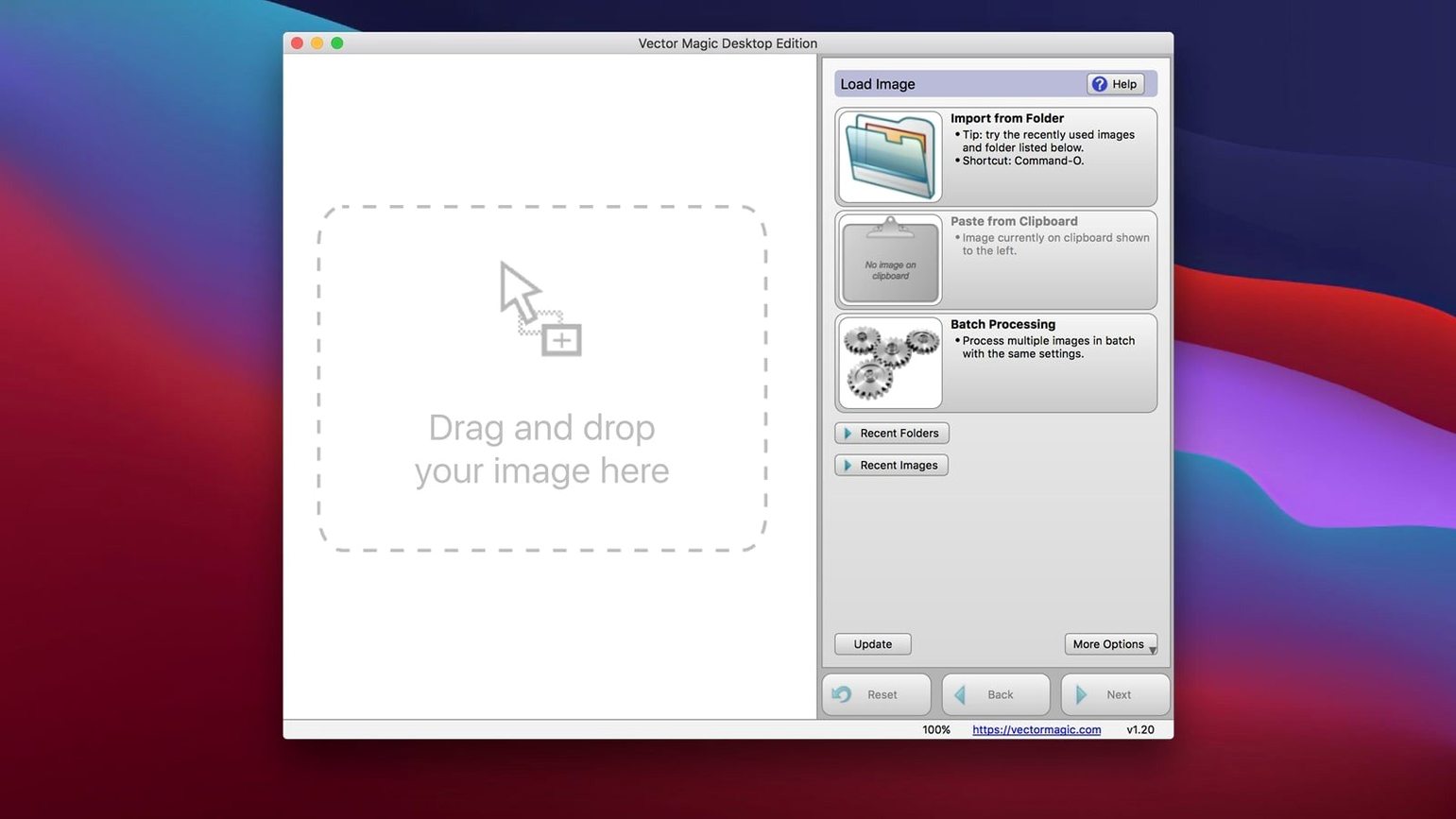
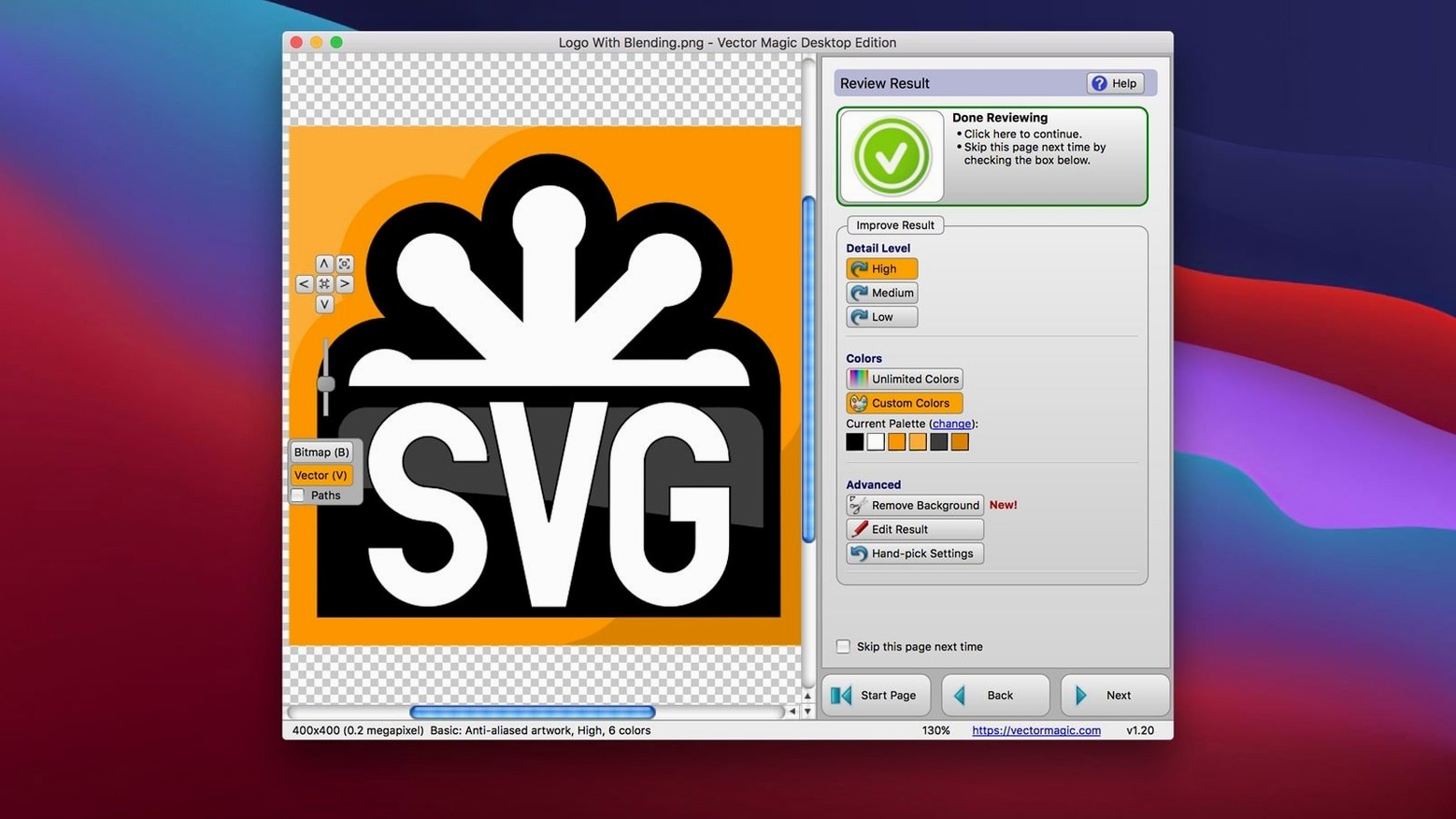
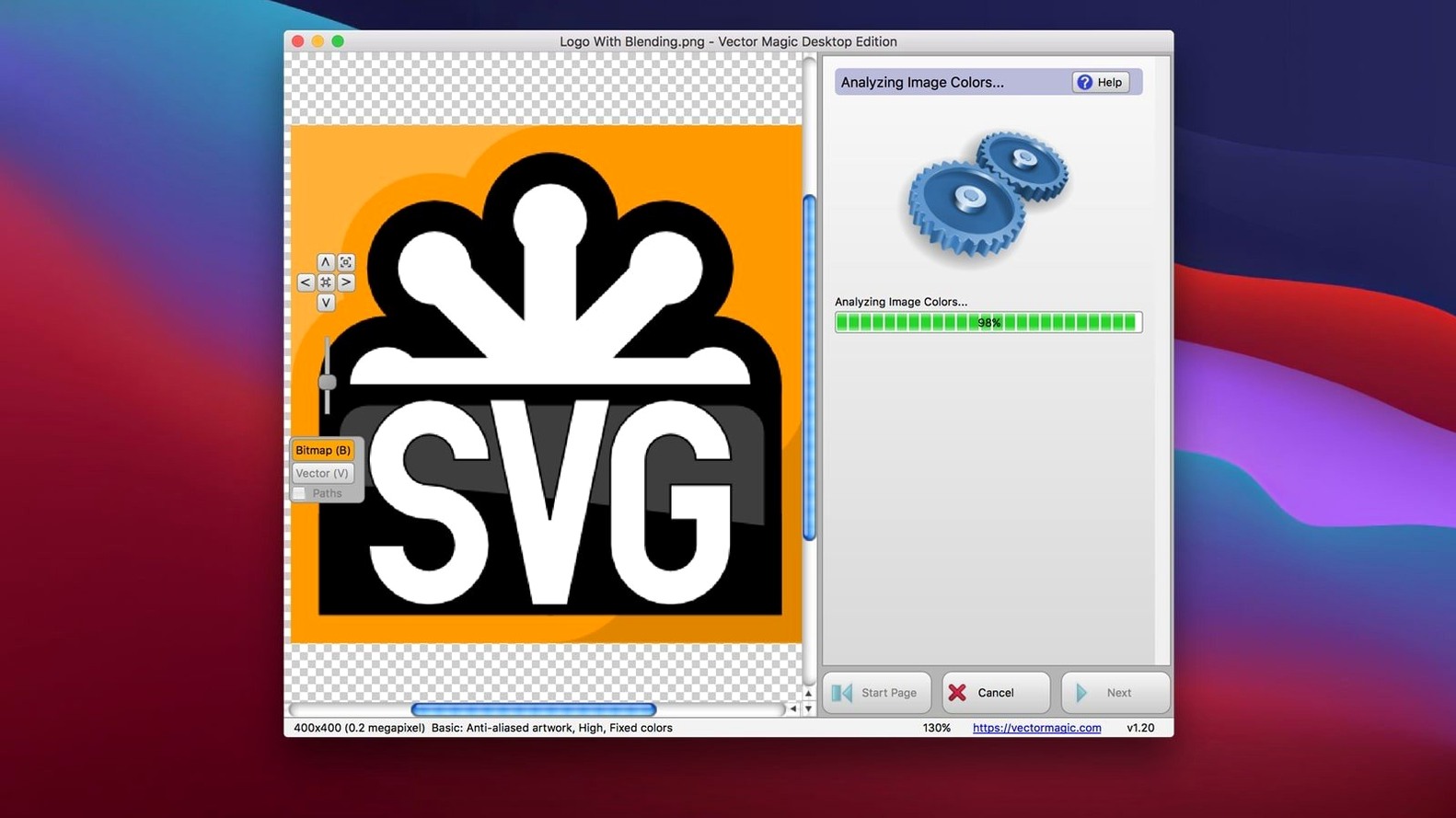
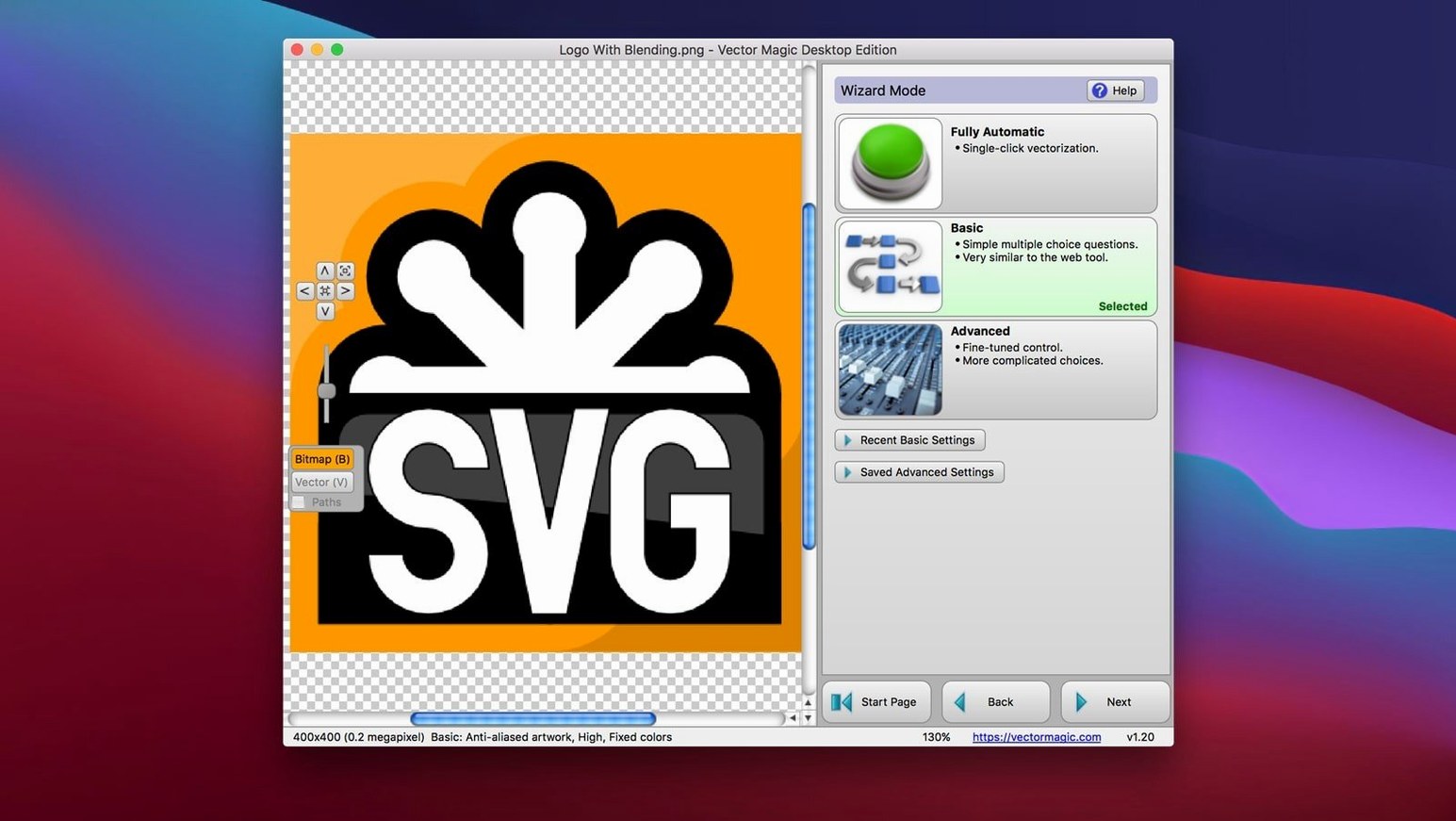
Illustrators, sign makers, embroiderers and anyone who has stared at a pixelated logo will find a use for Vector Magic. It takes a bitmap — a JPG, PNG or GIF — and traces it into a resolution-independent vector you can scale without the jagged edges creeping back in.
How does the tracing actually work?
The app offers automatic, basic and manual modes. Automatic decides everything for you; manual opens up individual parameter controls with an instant preview, so you can watch the trace adjust as you move a slider or change a palette setting.
Can it handle transparency and large images?
Yes on both counts. Transparency is preserved in the output, and the engine vectorizes very large images — up to 10.0 megabytes per file and 10.0 megapixels.
Does it fit into a design workflow?
Vector Magic runs as a standalone 64-bit Intel desktop app for macOS. You can copy-paste or drag-and-drop results into Illustrator and CorelDRAW, and segment editing lets you clean up individual paths before export.
Who should reach for this tool first
Screen printers and embroiderers face an unforgiving brief: turn a client's thumbnail-sized JPEG into something a machine can stitch or squeegee onto fabric. Vector Magic earns its keep here because the colour reduction and palette controls let you limit the output to exactly the number of threads or inks the job allows — push the slider to four spot colours and the trace snaps into separatable shapes without a trip through another application. Sign makers who need cut-ready EPS files get similar mileage, since the path simplification and corner handling produce contours that vinyl cutters read more cleanly than a live trace thrown out by a general illustration suite.
Logo designers working with inherited assets — old scans of letterhead, a faxed napkin sketch — will lean on the manual mode heavily. The instant preview means you can dial back noise suppression on a degraded scan and see in real time whether you are losing the serif on a distressed typeface or accidentally merging two characters. For anyone who receives "the only copy" of a mark as a 72 dpi GIF from a client's old website, the offline desktop app means you are not uploading sensitive branding to a free web service whose privacy policy you skimmed once.
Casual users looking for a quick SVG for a hobby CNC or laser engraver will appreciate that automatic mode often needs only a single click, but the real value leans toward people who need their vectors to hit a production constraint. If you are just converting a sketch to clean line art without tight colour budgets, the tool still works beautifully — you just may not need the batch processor or the segment editor as often.
Copy-paste vectors straight into Illustrator with no export file
Copy-paste sounds pedestrian until you realize it bypasses the Export dialog entirely. Select the traced result, press ⌘C, switch to Illustrator, paste. The vectors land as editable paths, no intermediate file cluttering your desktop. Drag-and-drop works the same way — grab the preview from the application window and drop it directly onto a CorelDRAW canvas or even onto the Finder to save an instant SVG.
Right-clicking a segment in manual mode brings up a context menu for splitting, joining or deleting individual paths before you ever export. The improvement tools include a background removal brush that is easy to miss because it lives in a small toolbar icon rather than a prominent menu — it samples the edge contrast and often removes a white or solid-colour background in a single pass, saving you from having to open the result in a separate editor.
The built-in help is actually readable. Press ⌘? and it opens a concise guide with illustrated examples of what each slider does to the trace, which matters because the manual mode's parameter names — Detail scale, Noise filter, Minimum hole size — are not always self-explanatory on first encounter.
Swap Photographic palette for a crisp, counted Colours mode
The default photo-to-vector behaviour leans toward a photographic palette, which can produce muddy blends when all you want is a crisp logo. Switching the palette mode from Photographic to Colours and then setting a specific count — say, 8 or 16 — forces a posterized, clean-edged result that is far more useful for branding work. The Blending slider under the Advanced tab controls how much anti-aliasing the tracer interprets as intentional colour blending; pulling it back toward Sharp stops the engine from inventing intermediate shapes in what should be a hard-edged graphic.
If you regularly convert scans of black-and-white line art, go to the Document presets and set the input type to Line art rather than leaving it on automatic. The tracer switches to a binary threshold approach that avoids the faint grey fringing that can appear around pen strokes when the engine assumes a photographic source. For screen-print workflows, enable the Spot colours checkbox in the export options — it flattens the palette into named swatches that separations software can read directly.
Trace runs on a single core but won’t choke a 10 MP image
On Intel Macs the application launches in a few seconds and stays responsive during tracing, even with images near the 10-megapixel ceiling. The processing itself is CPU-bound and single-threaded for the actual trace pass, so you will see one core spike while the rest of the machine remains free for other work. A 4000‑pixel-wide scan with a complex colour palette takes roughly four to six seconds to trace in automatic mode on a 2019 iMac; manual parameter changes update the preview in near real time, with perhaps a half-second delay when you change the colour count on a large file.
Memory use is modest — typically under 300 MB for a working session with several undos in the history. The app stores its undo stack in RAM rather than writing to disk, so quitting clears the history without leaving temp files scattered around. I have not seen a crash during daily use, though feeding it a corrupted PSD with mismatched layer data once caused the tracer to stall silently until I force-quit and restarted with a flattened copy. The batch processor queues files sequentially and writes each output as it finishes; if one file fails the rest continue, and a small log window reports which conversions did not complete.
Turning a 600‑pixel Facebook JPEG into cuttable sign vinyl
A sign maker receives an email with a logo attached — a 600‑pixel‑wide JPEG pulled from a Facebook page, the kind of thing a customer sends and hopes is "big enough." She drags the file into Vector Magic, switches from automatic to manual mode, and sets the palette to 6 spot colours because the job ticket specifies a six-colour vinyl application. Two of the automatically traced shapes have bled together around the lettering, so she right-clicks the offending segment and chooses Split, then nudges the noise filter down by one notch. The preview tightens up. She copies the result, pastes it into her cutting software, and sends the job to the plotter. From email to cut file, the detour took under ninety seconds.
- OS X 10.7 or later
- Intel 64-bit architecture
- Maximum file size: 10.0 MB
- Maximum image size: 10.0 megapixels
Questions from the booth
Yes. The desktop application converts images locally, so no internet connection is needed during tracing.
The maximum file size is 10.0 MB, with a maximum image size of 10.0 megapixels.