
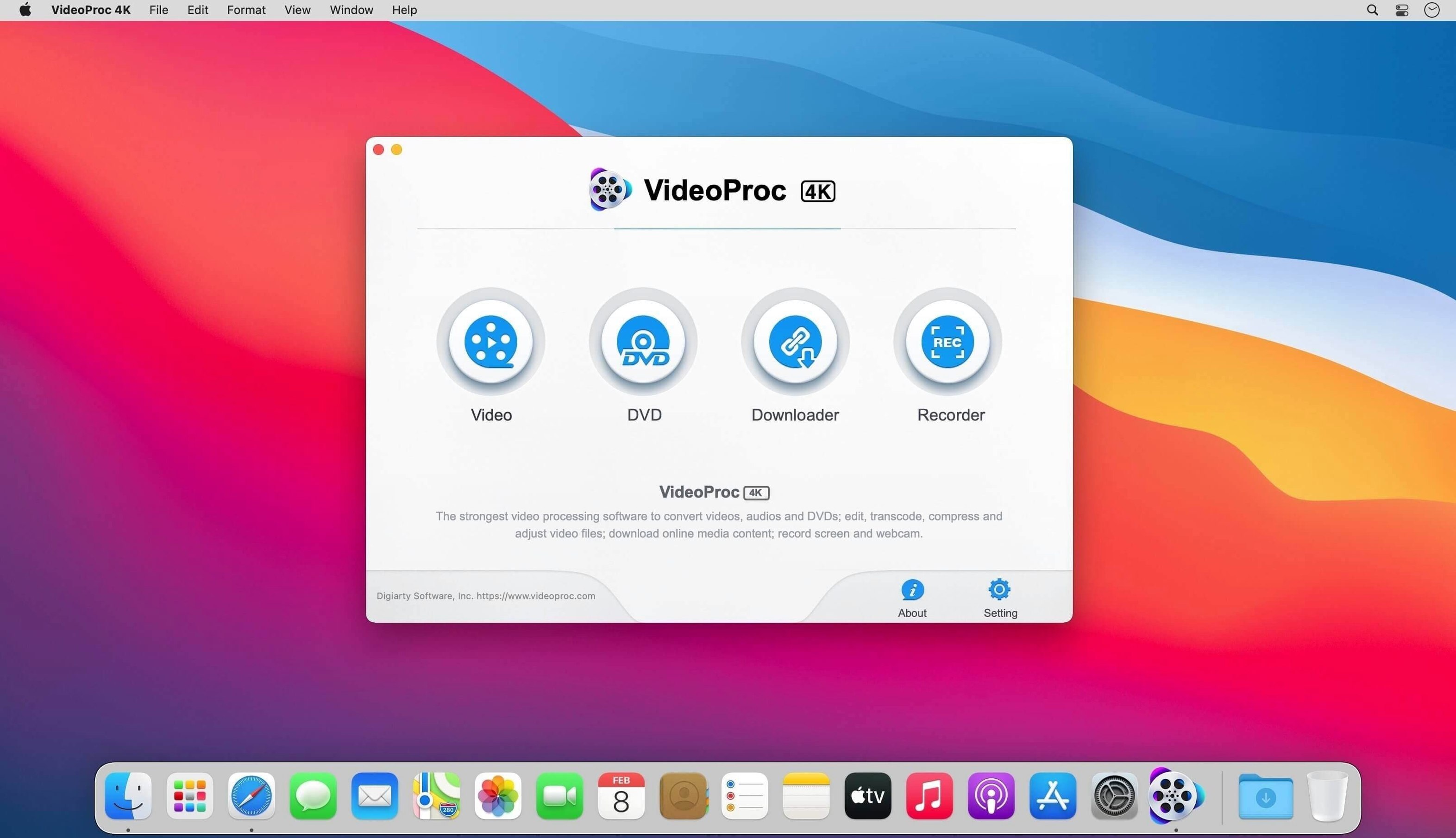
A filmmaker I know shot a minute of 4K drone footage over the Fraser River and needed it trimmed, graded lightly, and compressed small enough to send to a composer without eating her inbox. The file was an HEVC clip from a DJI Mini that her older Mac struggled to play back smoothly. Rather than roundtrip through a full NLE, she opened VideoProc Converter 6.6, an Intel Mac app that claims to speak around 370 codecs, and worked through a single session to get the clip out the door.
- Trimming without re-encoding. She set in and out points on the raw HEVC timeline and exported just the 40-second river pan, skipping a full render pass.
- Light colour and lens correction. A few sliders pulled back the overexposed sky and corrected the wide-angle barrel distortion before the file hit the encoder.
- Compression to H.264 with a size target. The app let her dial in a target bitrate that brought the trimmed clip under 150 MB for email, a size her NLE export presets couldn't hit without visible blocking.
- Hardware acceleration on Intel silicon. The encode leaned on Intel Quick Sync Video, keeping the MacBook's fans quiet while it ran the conversion in under two minutes.
The resulting file played back cleanly on the composer's iPad, and the whole task stayed inside one window. For a machine still running macOS 10.10 or later, that single-threaded focus—cut, tune, compress, deliver—felt closer to a utility than a platform.
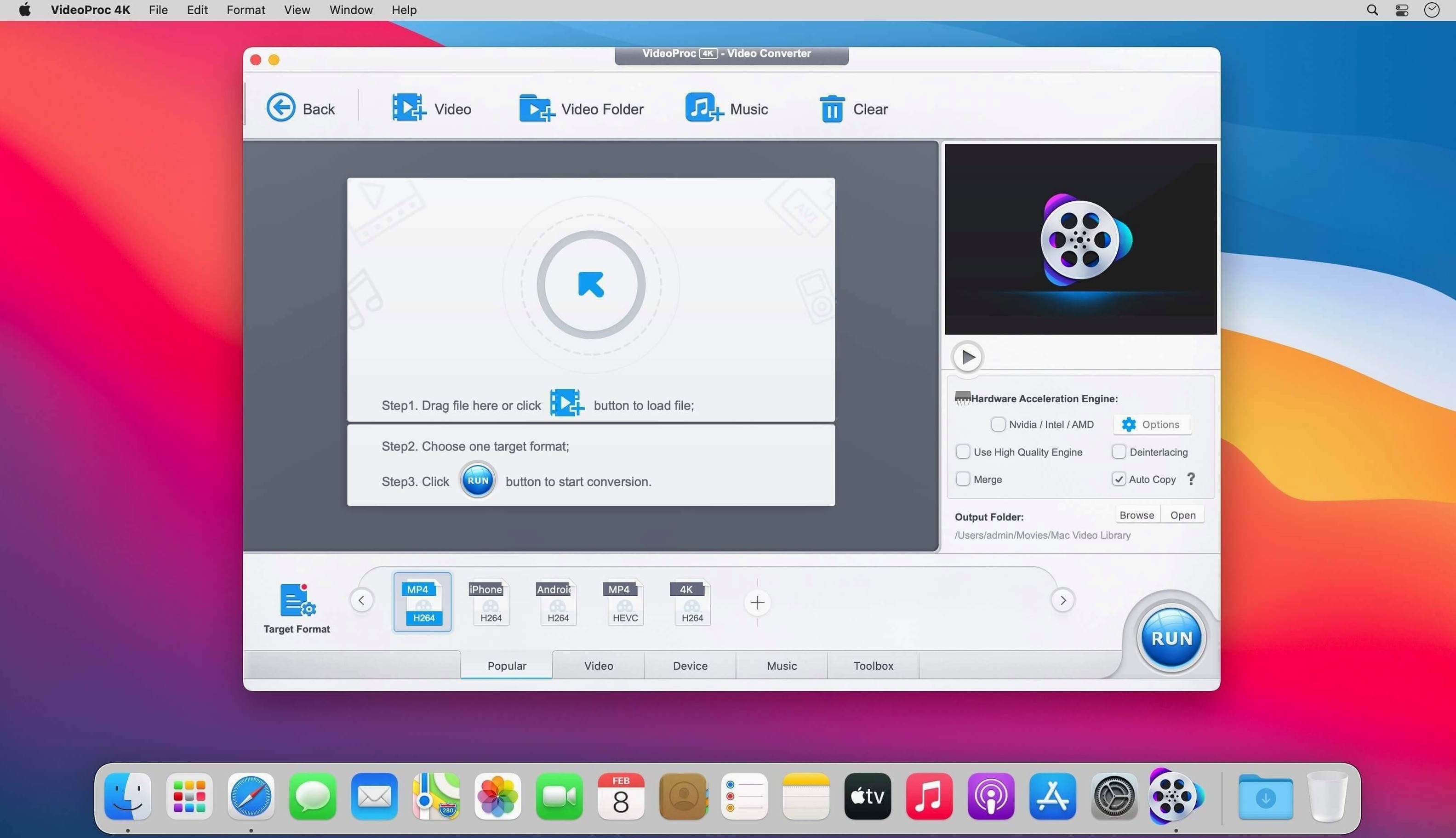
She launched it from the dock on a Wednesday afternoon, coffee going cold, with a card reader still hanging off the left-side USB port. The footage lived in a folder named Fraser_RAW_Oct — six clips, all HEVC, none of them playable in QuickTime without stuttering. She dragged the first one onto the VideoProc window by habit, not even thinking about it, and the clip popped open in a timeline view that defaulted to a trim mode. No import dialog, no library creation, just the file, ready.
She scrubbed with the left and right arrow keys — a small thing, but the kind of muscle memory that dies the moment an app forces you onto a different shortcut set. Here the arrows jumped frame by frame, and holding Shift nudged ten frames at a time, which let her bracket the stretch of river where the light hit the water cleanly. She set an in-point with I, an out-point with O, and clicked the scissor icon on the toolbar. The trim was non-destructive; the original HEVC sat untouched on the card while a new clip landed on her desktop a minute later.
What she almost missed: the small waveform icon tucked beside the timeline ruler. Toggling it drew a thin audio waveform across the clip, barely visible on the pale interface but enough to spot the moment a seagull shrieked into the drone's onboard mic. She trimmed that out too, then moved on to colour. The correction panel is sparse — temperature, exposure, contrast, saturation, and a barrel-distortion slider that she nudged to -12 for the wide-angle lens. No scopes, no curves, but for a clip destined for a composer's reference monitor, it was enough.
The encode settings lived in a panel labelled Target Format, and she switched from HEVC to H.264, then clicked a small gear icon that revealed a bitrate calculator. She typed 140 into the target file-size field and the app recalculated the bitrate automatically. That calculator is easy to overlook — it sits behind a single gear, no label, no tooltip — but it saved her from exporting three test files to land under the 150 MB cap. Two minutes later the clip was an .mp4 in her outbox folder, ready to attach.
The app also writes its own right-click service into Finder, so she could select a batch of clips on the desktop, right-click, and send them straight to the conversion queue without opening the main window. That queue, in turn, can run while the Mac is locked, and she set it to put the machine to sleep when finished — a checkbox she only noticed because she'd left a render running overnight once and woke to a warm desk. Small conveniences, the kind you learn by accident.
In her larger workflow, VideoProc sits between the camera card and whatever comes next. She uses it before Premiere when she needs proxies — the app can transcode a folder of 4K HEVC to ProRes 422 Proxy in a batch, renamed with a suffix, dropped back into the same folder structure — and after Resolve when a client needs a compressed review copy in a size that Vimeo won't recompress into mud. It also talks to macOS's built-in sharing: the Share menu extension can push a converted clip straight into a Messages thread or an AirDrop transfer without bouncing through the desktop. For someone who spends half her day moving video between people, that one step eliminated a surprising amount of drag.
- macOS 10.10 or later
- 64-bit Intel processor
- macOS 10.15 or later required for AI features
Questions from the booth
It handles video from iPhones, Android devices, cameras, drones, and GoPro cameras, covering a wide range of modern and legacy recording formats.
The Mac build includes Video Super Resolution, Frame Interpolation, and an Image AI module, though the developer notes that macOS 10.15 or later is required for those capabilities.
The app supports up to 370 codecs, giving it a broad reach for converting between camera originals, editing intermediates, and delivery formats.