
The Smart Download feature watches for connection drops so you don't have to. When a download stalls mid-stream, the app retries on its own, picking up the pieces without a prompt. It is the kind of small engineering decision that keeps a long queue moving while you step away from the screen.
Grab an entire playlist in one pass
Paste a playlist link and the app lines up every video in sequence, downloading them as a batch instead of one by one. For music-heavy lists, you can route the whole thing straight to MP3 or AAC and wake up to a tidy folder of audio files.
Convert to the format your edit needs
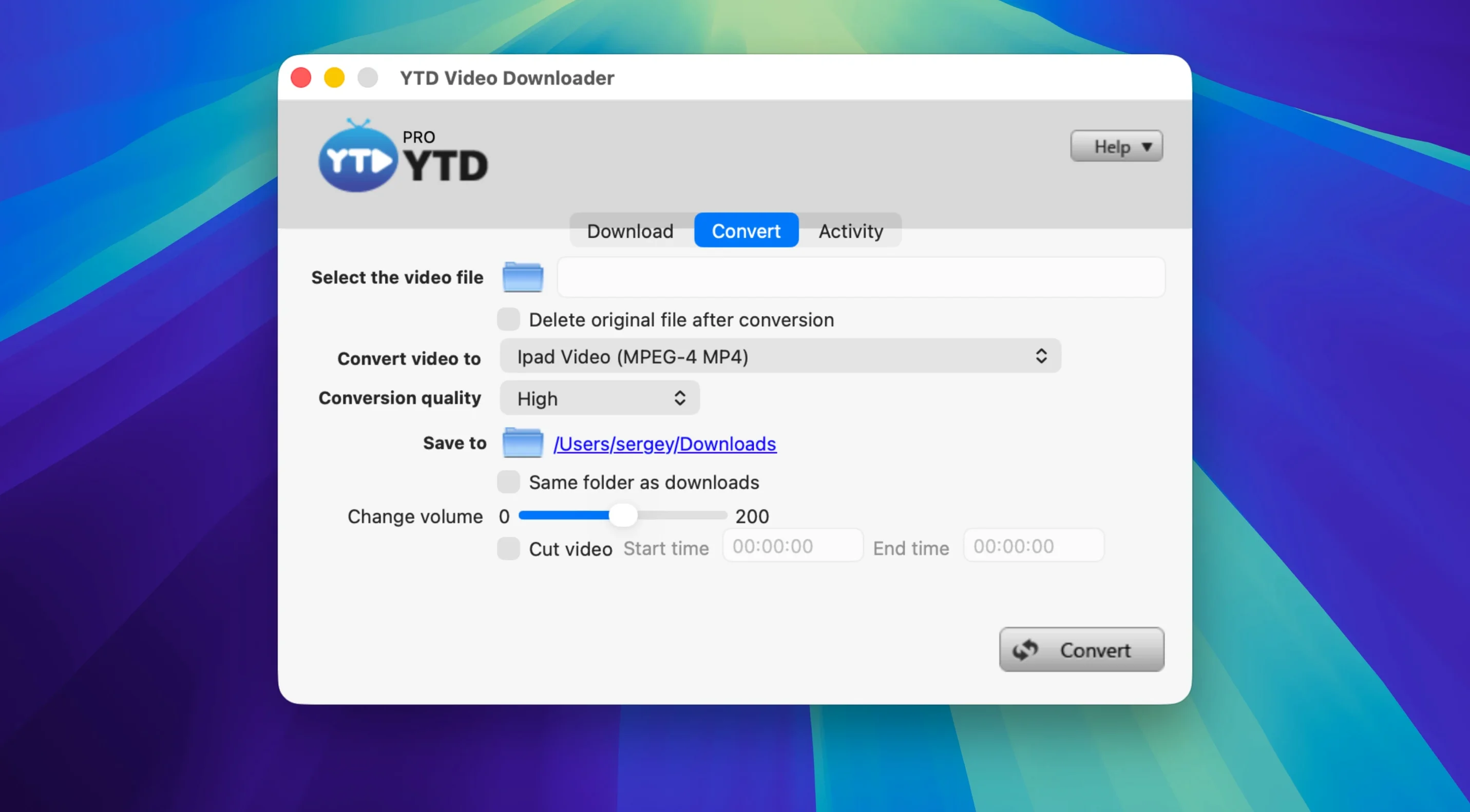
Not every clip arrives in a shape your timeline likes. The built-in converter rewraps or re-encodes downloads into the usual suspects, so you can pull a video from Dailymotion or Youku and hand it off to your NLE without a separate transcoding step.
Settings to change before you download anything
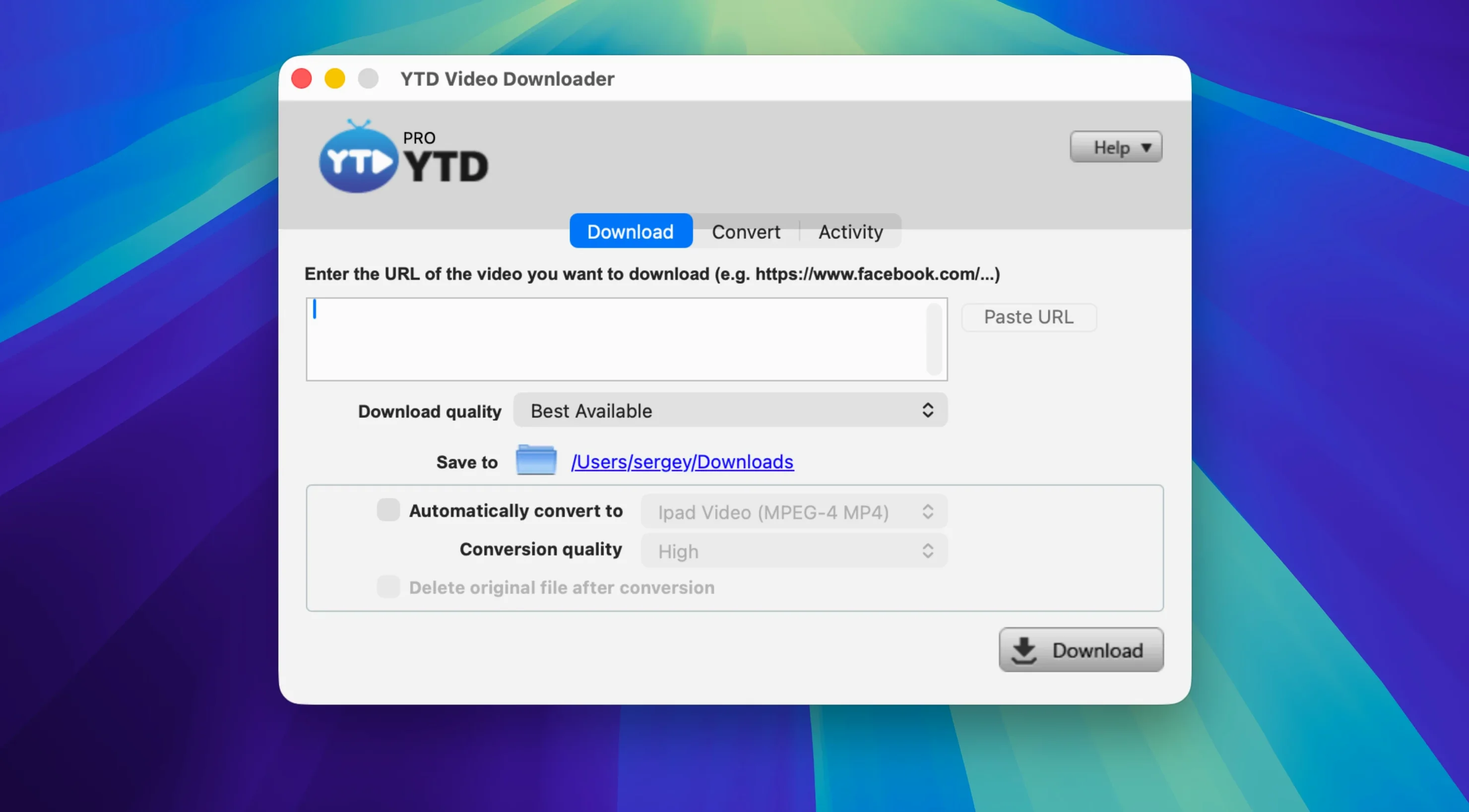
The default output folder lands in ~/Movies/YTD Video Downloader, which works but quickly becomes a black hole. Point it somewhere you already keep project media — an external drive, a dated shoot folder, anything with a naming convention you actually recognize six months later. The preference is under the Downloads tab, and moving it early saves an afternoon of spelunking through a generic directory.
While you are in preferences, switch the conversion behaviour from "Ask" to the format you use most often. If every clip ends up as H.264 in an MP4 container for Resolve or Final Cut, set that as the default and let the app get on with it. You can still override per download by right-clicking the queue item, but you will do that rarely enough that the automatic path stays cleaner.
The clipboard monitor is on by default, and it is the first thing I turn off. It means any copied link — including the one you grabbed for a browser tab you were about to share — triggers a download prompt. Disable it under General unless your entire workflow is built around copying URLs and expecting instant action. When you do want it, toggle it back from the menu bar icon in a click.
Where it stands next to similar Mac apps
Three names keep surfacing in conversations about Mac video grabbers, and they each pull in a different direction. Downie feels light and single-purpose: drop a link, get a file, move on. It handles a wide range of sites, integrates with the Safari extension cleanly, and rarely gets in your way. What it lacks is any built-in conversion beyond basic MP4 extraction — if you need an MP3 or a MOV in a specific codec, you are lining up a separate step afterward.
4K Video Downloader shares a lot of DNA with YTD — playlist support, format conversion, clipboard detection — and its parsing speed on YouTube feels snappier in side-by-side use. The interface sits closer to a modern Mac app in terms of visual polish, but it locks higher resolutions and playlist counts behind a tier that YTD does not gate. For a one-person shop pulling the odd 4K clip, the difference is academic. For someone archiving full channels, it adds up.
YTD occupies the middle ground with a slight tilt toward the converter workflow. The ability to route a playlist straight to MP3 while keeping the original video download queued — not one or the other — is something neither Downie nor 4K Video Downloader does in the same motion. The trade-off is interface age: YTD looks like a cross-platform app that arrived on macOS rather than one built for it, and the preferences window alone tells that story. It does not hurt function, but it is a texture you notice when you spend a morning inside it.
If your work is capture-and-edit, Downie plus HandBrake handles most jobs. If you archive entire channels and want a polished Mac feel, 4K Video Downloader edges ahead. If you live in the space between downloading and converting — pulling clips from Twitter, ripping audio from a Vimeo playlist, feeding an NLE with minimal friction — YTD earns its spot on the dock.
Mistakes that trip up new users
The most common one is trusting the default filename. YTD pulls the video title from the page and uses it verbatim, which means special characters, emoji, and three-hundred-character YouTube titles land in your filesystem intact. That leads to scripts that choke on non-ASCII paths and Finder windows that refuse to sort properly. Get into the habit of renaming clips in the queue before the download starts — double-click the filename in the list and type something sensible.
Another is downloading at the highest available resolution without checking the source codec. A 4K VP9 stream from YouTube re-wrapped into an MP4 container still carries VP9 video, and not every Mac app reads that happily. QuickTime will balk; Resolve might import silence. If your destination is an editor that expects H.264, set the conversion format before the download and let YTD re-encode on the fly rather than discovering the mismatch at import.
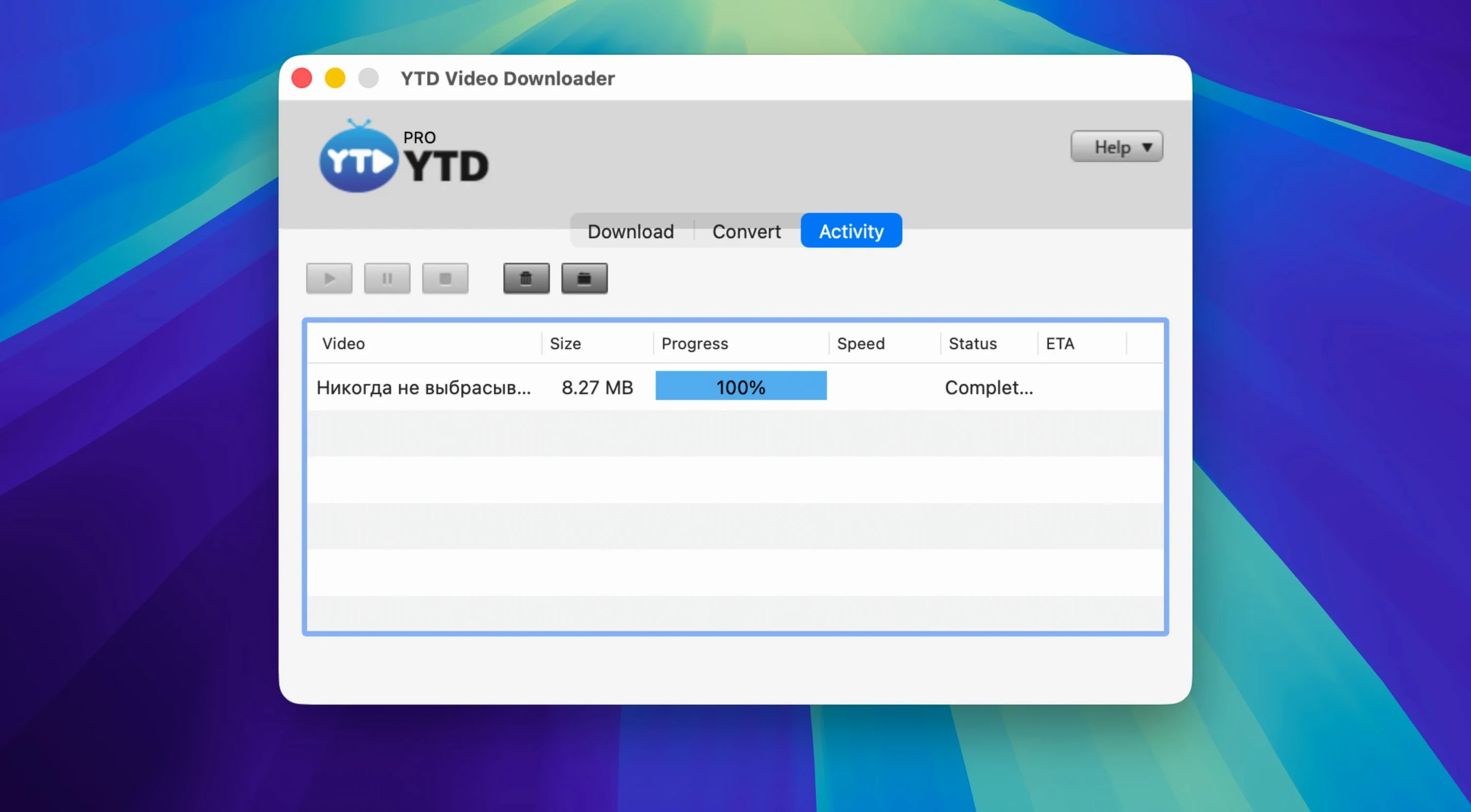
Queue overload is real. Dropping a forty-video playlist onto a slow connection without pausing a few items creates a backlog that clogs the retry logic — the app keeps cycling through stalled chunks instead of completing the ones it can reach. Either set a concurrent download limit in preferences (two or three works reliably) or manually pause the second half of the queue until the front section clears.
Small conveniences tucked in the corners
Dragging a URL from the browser address bar directly into the app window works, but dragging a link from a Messages thread or a Notes document works too, and that saves the copy-paste dance when someone sends you a video you need to pull offline quickly.
The download queue supports reordering by drag and drop. If a short clip you need right now is sitting behind a two-hour lecture, grab it and slide it to the top. The running download will finish, but the next one in line becomes the item you moved. It is such a simple thing, yet plenty of download managers ignore it.
Right-clicking any completed item reveals a "Show in Finder" command that bounces you straight to the file, which matters more than it sounds when you have just pulled a dozen clips and need to spot the one you named poorly. The same menu offers "Copy URL," handy for pasting a source reference into your edit notes or a shot log.
If you use ytd video downloader for mac alongside a media player like IINA or VLC, you can set the output folder to a watched directory and have the player auto-load new files as they land. It turns the app into a quiet ingestion pipe — drop links throughout the day, review the clips in sequence without touching the Finder.
The menu bar icon, easy to overlook, gives you a compact view of active downloads and a pause-all button that beats hunting for the main window when a video call suddenly eats your bandwidth. Clicking it also reveals the clipboard toggle, so you can switch the monitor on for a focused downloading session and off again without opening preferences.
- OS X 10.10 or later
- Intel processor
Questions from the booth
Yes, you can pause an active download and resume it later from where it stopped, which helps when bandwidth is needed elsewhere.
It can download an entire YouTube playlist in one action, and you can choose to convert the full set to MP3 or AAC audio in the same pass.
It works with several platforms including YouTube, Vimeo, Dailymotion, Youku, and Yahoo Video.