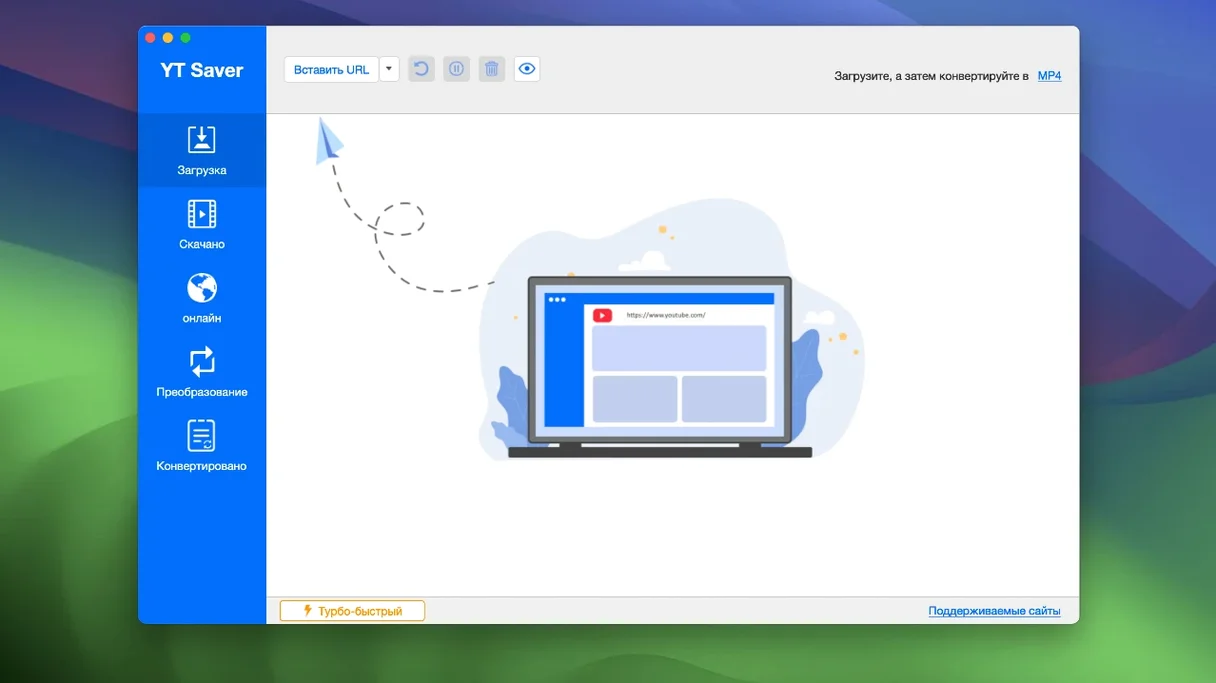
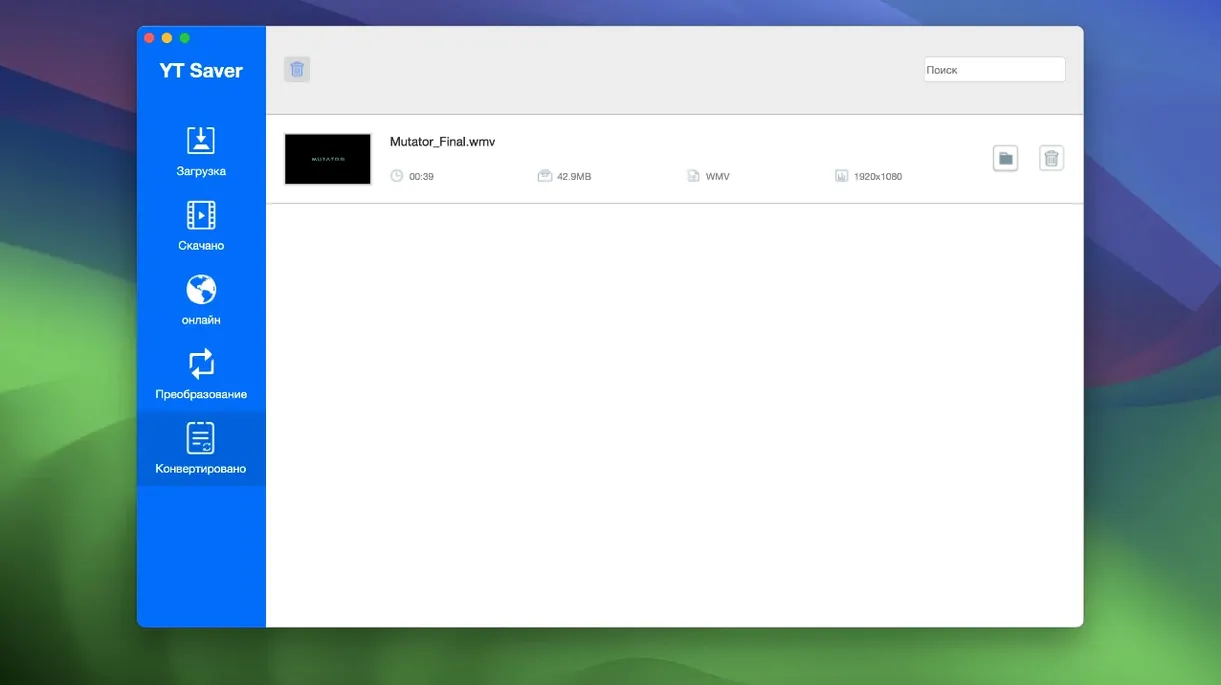
YT Saver is for the person who has outgrown simple browser extensions and needs a dedicated workstation for pulling video and audio off the web. It is not just a downloader; it is a converter and a library manager rolled into one quiet Mac app. The interface stays out of your way, but the controls underneath reward someone who knows their codecs.
What happens when multiple videos land at once?
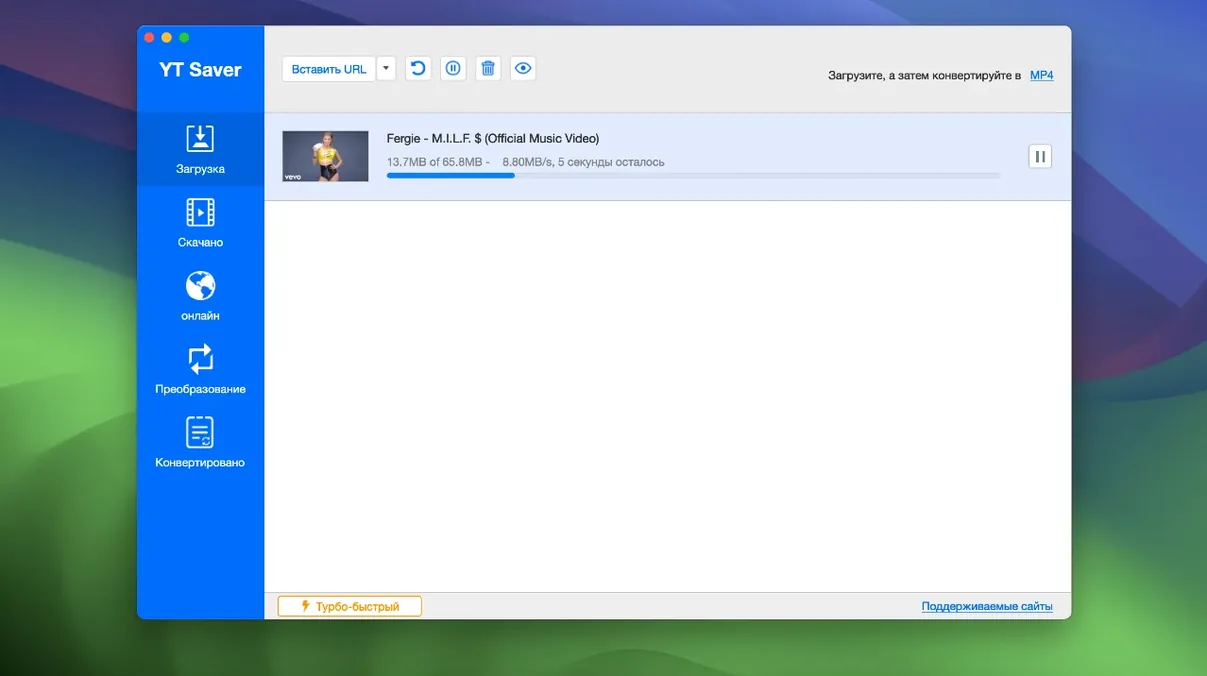
The app handles simultaneous downloads without breaking stride. You can queue a playlist, a batch of links from a clipboard, or selections from the built-in browser and let them run at a higher clip than a standard browser pull.
Exporting beyond MP3 into M4A, FLAC, WAV, and lossless formats
Beyond the expected MP3 extraction, the export panel gives you M4A, FLAC, WAV, OGG, AIFF, and MKA. On the input side, it reads a long list of source formats including AC3, OPUS, APE, and WEBM, so a stray audio file from an old project folder lands just as easily as a fresh video stream.
Password-locking a private folder for research clips
The private mode creates a password-protected folder inside the app. Research clips, reference pulls, or anything you would rather not have show up in a system-wide search stays walled off behind a single lock screen.
Clicking the top result grabs a compressed 360p instead of 4K
Grabbing the wrong stream is the classic first error. YT Saver lists every available resolution and format for a given URL, and a quick click on the top result often lands a compressed 360p file when a 1080p or 4K version sat two rows below. Slowing down just enough to scan the quality column before hitting download saves a redo. Another habit I see is ignoring the destination folder setting for weeks, then wondering why the desktop has become a landfill of MP4s and M4As. Set a dedicated output folder early, or toggle the private mode folder if the material calls for it.
A subtler mistake is treating the built-in browser like a passive viewer. When you paste a URL, the app can often grab the video directly from the link without navigating the site at all. Dropping into the browser for every single pull adds steps and occasionally triggers pop-ups that the download engine could have sidestepped entirely. Use the browser for sites that require a login or a playlist page, not for a single video link you already have in your clipboard.
Two settings to adjust before your first real session
Open the preferences pane and look at the simultaneous download cap. The default is generous, but on older Intel Macs, throttling it to three or four concurrent files keeps the conversion queue from choking the CPU during export. The downloads still come in fast; the machine just stays usable for other work.
Next, check the post-download action. You can set YT Saver to convert every file to a single format automatically: a quiet timesaver if you know everything bound for your library needs to land as HEVC MP4 or AAC. Leaving it on manual gives you per-file control, which matters when a playlist mixes music videos with spoken-word clips that want different audio codecs. I switch between the two depending on the project, but the preset is worth knowing about before a batch of forty files locks you into a format you did not intend.
Pasting eight Vimeo and unlisted YouTube links from an email
A director I often cut for sends a list of reference clips as a plain text email. I copy the whole block — eight links, a mix of Vimeo uploads and unlisted YouTube studies — and open YT Saver. The app reads the clipboard and populates the queue with all eight URLs in one motion, pulling thumbnails and available resolutions from each.
I scan the quality column for the first three links. One source only offers 720p, so I leave it. The second has a 4K HEVC option that I select from the dropdown; the third is an interview where the video matters less than the voice, so I right-click and choose audio-only extraction as AAC. The remaining links I leave at their default high-quality MP4. I set the destination to a client folder on an external drive and drop the simultaneous download count to three — the drive is a spinning disk on a USB-A hub, and writing four streams at once tends to stutter the write cache.
I hit start. The first three files begin downloading inside the app, progress bars advancing in the queue panel. While they run, I open the built-in browser, log into a password-protected Vimeo showcase the director forgot to include in the email, and queue two more clips directly from the page. The app recognizes the logged-in session and presents the same resolution options. I add them to the bottom of the active queue without pausing the current downloads.
Ten minutes later, all ten files sit in the client folder. The interview clip landed as a clean AAC file, the 4K study is an HEVC MKV ready for frame-by-frame review, and the rest are standard MP4s named by their source titles. I close YT Saver, eject the drive, and the whole reference set is ready for the editing suite.
- OS X 10.10 or later
- Intel processor